You know that moment when you sit down after a long day and just want to watch your favorite channels without dealing with complicated devices or expensive subscriptions. The good news is that modern streaming technology makes that easier than ever. With a simple media player and the right playlist, you can transform your computer into a powerful television hub.
Many viewers are now discovering how simple it is to watch television through the internet. By combining a reliable IPTV service such as top rated iptv with the flexibility of VLC, you can access hundreds or even thousands of channels from around the world. The best part is that the setup takes only a few minutes.
This complete guide will show you exactly how to use iptv on vlc player, how to load playlists, how to improve streaming quality, and how to troubleshoot common issues. Whether you are new to IPTV or simply looking for a lightweight solution, VLC can deliver a smooth and reliable viewing experience.
Table of Contents
What Is IPTV and How Does It Work With VLC
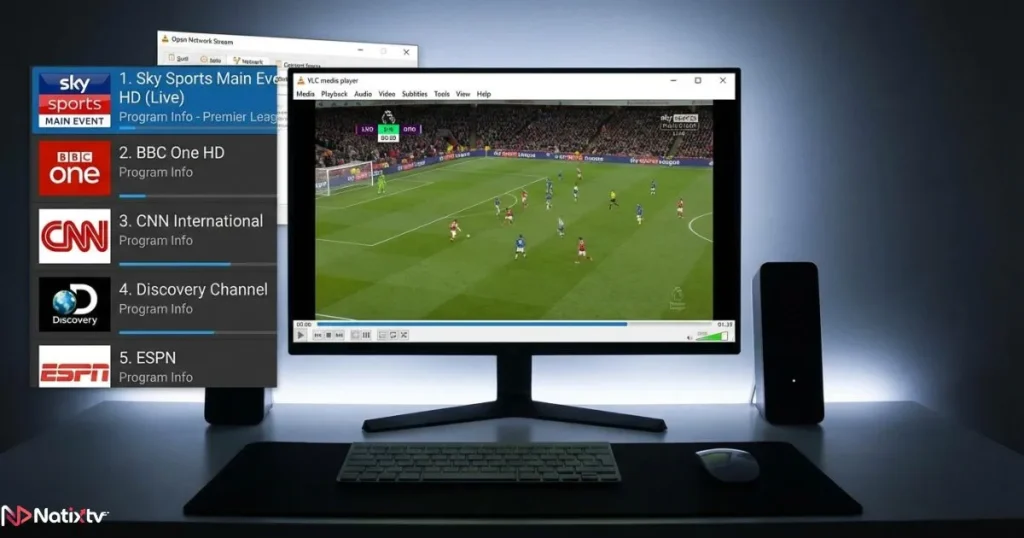
IPTV stands for Internet Protocol Television. Instead of receiving television signals through satellite or cable networks, IPTV delivers content through your internet connection. This technology allows you to stream live channels, on demand videos, and even replay programs.
Using iptv on vlc player is one of the easiest ways to access this type of content because VLC already includes powerful streaming capabilities.
Understanding IPTV Technology
IPTV works by sending television streams as digital data packets over the internet. When your media player receives those packets, it decodes them and plays the video in real time.
Most IPTV services offer three main types of content:
- Live TV channels
- Video on demand libraries
- Catch up television programs
When you configure iptv on vlc player, you are simply giving the player a playlist that contains links to those streaming channels.
Why VLC Supports IPTV
VLC is an open source media player developed by the VideoLAN organization. It is known worldwide for its ability to play almost any media format.
Its popularity for IPTV comes from several features:
- Native support for network streams
- Compatibility with M3U playlist files
- Availability on Windows, macOS, and Linux
- Lightweight performance even on older computers
Because of these advantages, many users prefer watching iptv on vlc player instead of installing complex IPTV applications.
Why Use IPTV on VLC Player
Many IPTV applications exist today, but VLC remains one of the simplest solutions. It combines performance, reliability, and flexibility in a single program.
Using iptv on vlc player means you can watch channels instantly without complicated installations.
Main Advantages of VLC for IPTV
- Completely free software
- No advertising inside the player
- Compatible with most IPTV playlists
- Works on multiple operating systems
- Stable streaming performance
These benefits make iptv on vlc player a great option for beginners and experienced users alike.
Comparison With Other IPTV Players
| Feature | VLC Player | IPTV Apps | Media Centers |
|---|---|---|---|
| Price | Free | Often paid | Free |
| Setup difficulty | Very easy | Medium | Advanced |
| Playlist support | M3U playlists | M3U or API | Plugins required |
| System usage | Very light | Moderate | Heavy |
For many viewers, simplicity is the main reason they choose iptv on vlc player.
What You Need Before Watching IPTV With VLC
Before starting, you only need a few basic elements. Setting up iptv on vlc player requires minimal preparation.
Essential Requirements
- A stable internet connection
- VLC media player installed
- An IPTV subscription or playlist
- A computer or compatible device
With these elements ready, you can start using iptv on vlc player in just a few minutes.
Where to Get IPTV Playlists
An IPTV playlist usually comes in the M3U format. This file contains links to different channels.
Reliable IPTV services provide ready to use playlists that work perfectly with VLC. If you want to explore high quality streaming options, services like top rated iptv offer IPTV subscriptions compatible with many devices and include a free trial period between 24 and 48 hours.
Once you receive your playlist, you are ready to launch iptv on vlc player.
How to Watch IPTV Channels Using VLC
The process of setting up iptv on vlc player is extremely straightforward. Even if you have never used IPTV before, you can follow these simple steps.
Step 1: Install VLC Media Player
- Visit the official VLC website
- Download the version for your operating system
- Install the software
- Open the VLC player
Once installed, you can immediately start configuring iptv on vlc player.
Step 2: Open the IPTV Playlist
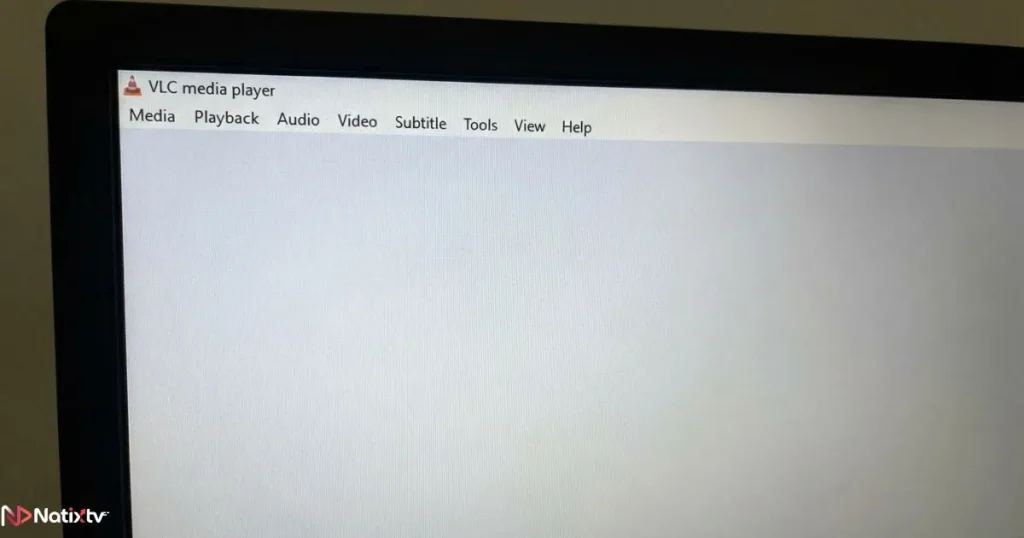
- Open VLC
- Select the Media menu
- Choose Open Network Stream
- Paste your playlist URL
- Click Play
This step activates the IPTV stream. Your channels will load automatically inside the VLC playlist interface.
From this moment, you are successfully using iptv on vlc player.
Step 3: Access the Channel List
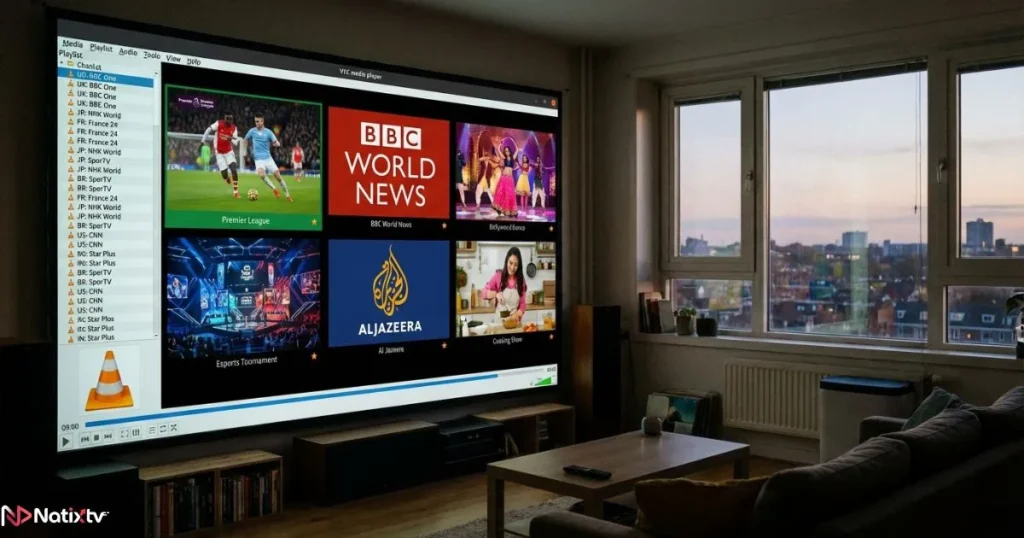
After loading the playlist, press Ctrl + L to display the playlist window. This panel allows you to:
- Browse all available channels
- Select a program instantly
- Search for specific channels
This interface makes navigating iptv on vlc player fast and convenient.
How to Load an M3U Playlist File
Sometimes your IPTV provider sends you a local playlist file instead of a link. VLC can open these files easily.
This method also works perfectly for iptv on vlc player.
Steps to Load an M3U File
- Download the playlist file
- Open VLC
- Select Media
- Choose Open File
- Select the M3U playlist
Once the file loads, VLC displays all channels and allows you to start watching instantly.
Best VLC Settings for Smooth IPTV Streaming
To get the best viewing experience with iptv on vlc player, adjusting a few settings can significantly improve streaming quality.
Increase Network Cache
Buffering issues often happen because the cache value is too low. Increasing it allows VLC to preload more data before playback.
- Open Preferences
- Select Input or Codecs
- Increase network caching
This optimization helps stabilize streams when watching iptv on vlc player.
Enable Hardware Acceleration
Hardware decoding allows your computer’s graphics processor to handle video playback. This improves performance and reduces CPU load.
Activating this feature can make iptv on vlc player smoother, especially for HD channels.
Common IPTV Problems and How to Fix Them
Even though VLC is reliable, occasional streaming issues may appear.
Most of the time, fixing iptv on vlc player problems requires only simple adjustments.
Playlist Not Loading
If the playlist fails to load:
- Check that the URL is correct
- Confirm your subscription is active
- Restart VLC
Channels Buffering
Buffering can happen for several reasons:
- Slow internet speed
- Network congestion
- Low VLC cache settings
Increasing cache values often improves the performance of iptv on vlc player.
No Audio or Video
If a channel opens but displays a black screen:
- Switch VLC video output mode
- Update the player
- Try another channel
Tips for the Best VLC Live TV Experience
Once everything works properly, a few extra tips can enhance your viewing experience.
Organize Channels Efficiently
Managing playlists helps you navigate large channel libraries.
- Create favorite channel groups
- Save playlists for quick access
- Remove unused streams
These small improvements make using iptv on vlc player much more convenient.
Explore Other IPTV Players
If you are comparing IPTV software, you might also want to read a detailed guide explaining which IPTV player works best for smooth streaming on Windows computers.
Another useful resource explains how to choose the most reliable IPTV player for PC streaming.
Why Many Users Choose IPTV Services Compatible With VLC
One of the biggest advantages of IPTV is device flexibility. A good IPTV provider ensures compatibility with many platforms.
This flexibility makes iptv on vlc player especially attractive because you can watch TV directly from your computer without additional apps.
Multi Device Compatibility
Most IPTV subscriptions support:
- VLC on computers
- Smart TV IPTV applications
- Android streaming boxes
- Mobile IPTV players
Because of this versatility, many viewers prefer IPTV services such as top rated iptv, which provide easy playlist integration and allow users to test the service through a free trial before subscribing.
FAQ About IPTV Streaming With VLC
How do I watch iptv on vlc player?
Open VLC, choose Media, select Open Network Stream, paste your IPTV playlist URL, and click play. Within seconds you will start watching channels through iptv on vlc player.
Is IPTV on VLC free?
VLC itself is completely free. However, IPTV content usually requires a subscription from a streaming provider.
Can VLC play M3U IPTV playlists?
Yes. VLC fully supports M3U playlists and network streams, which is why it is widely used for IPTV streaming.
Why does IPTV buffer in VLC?
Buffering can occur due to slow internet speeds, overloaded IPTV servers, or low caching settings inside VLC.
Can I watch IPTV on multiple devices?
Many IPTV providers allow multiple connections depending on the subscription plan.
Conclusion
Streaming television through the internet has completely changed the way people watch live content. Instead of relying on cable or satellite services, you can now access thousands of channels directly from your computer.
Using iptv on vlc player is one of the simplest and most reliable ways to enjoy this technology. With a lightweight media player, a compatible playlist, and a stable connection, your computer instantly becomes a powerful entertainment center.
If you want a seamless experience with high quality channels and easy playlist compatibility, exploring a trusted provider such as top rated iptv can help you get started quickly with a free trial and support for many devices.