When you iptv usa, the exciting part is knowing that your favorite live channels, movies, series, and sports can soon be ready on the screen you use every day. But right after checkout, it is normal to have a few questions: Where are your details? Which app should you use? And how do you get from an email to your first stream?
The good news is that your first experience does not need to feel technical or confusing. Once you understand the simple journey that follows when you iptv subscribe, you can activate your service with confidence, protect your account details, and start watching on a compatible device.
This guide walks you through every stage of IPTV subscription activation with Natixtv, from receiving your welcome email to entering your login details and testing your first channel.
Table of Contents
What Happens After You IPTV Subscribe?
After you iptv subscribe, your journey usually follows a clear path. You complete your order or request a trial, receive your account information, install a compatible IPTV player, add your login details, and allow the app to load your available content.
With Natixtv, you can use your subscription on many compatible devices, including Smart TVs, Android TV devices, Fire TV devices, phones, tablets, and computers. Your exact setup will depend on the app and device you choose, but the account details provided to you remain the key to getting connected.
Your Post-Purchase Journey at a Glance
- Complete your subscription order or request a 24 to 48 hour free trial.
- Receive your IPTV welcome email with your account information.
- Choose and install a compatible IPTV player on your preferred device.
- Enter your server address, username, and password, or add your playlist link.
- Wait for channels, categories, movies, series, and TV guide information to load.
- Test a live channel and adjust your settings for the best viewing experience.
When you iptv subscribe, it helps to think of the service and the player as two separate parts of one viewing experience. Natixtv provides your access details, while the IPTV player is the application that displays your live and on-demand content.
Find and Understand Your IPTV Welcome Email
Your IPTV welcome email is the most important message you receive after your order is processed. It acts as your personal setup reference, so save it in a secure place where you can easily find it again when you change devices or reinstall an app.
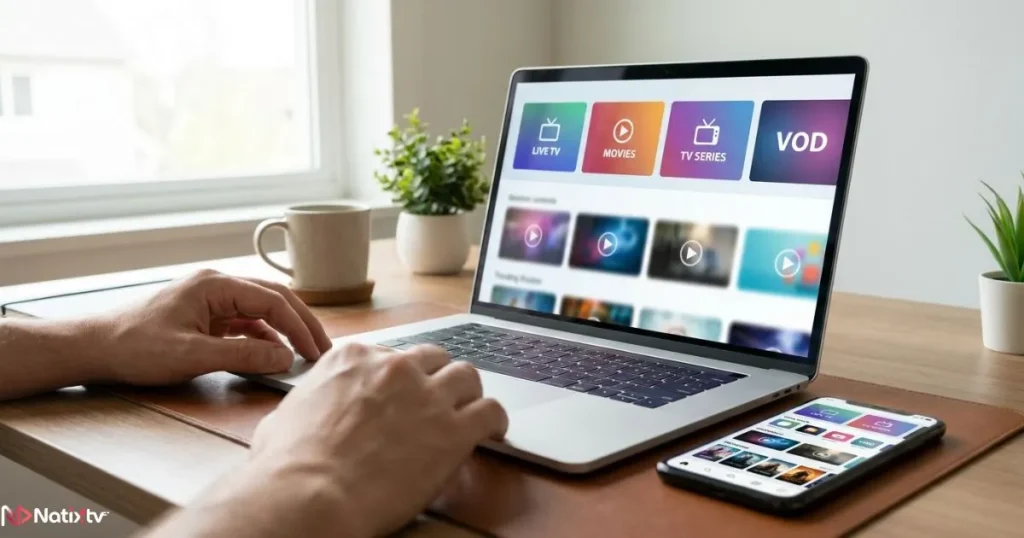
Depending on the player you plan to use, the email may contain an Xtream Codes login, an M3U playlist URL, a server or portal address, and device-specific instructions. Read it carefully before entering anything into an IPTV app.
What Your IPTV Credentials Mean
Your IPTV credentials are the private details that connect your player to your subscription. They should never be shared in public messages, screenshots, social media posts, or support comments.
| Detail | What It Does | Where You Use It |
|---|---|---|
| Username | Identifies your subscription account | Xtream Codes or player login screen |
| Password | Secures access to your account | Xtream Codes or player login screen |
| Server URL | Connects your player to the service portal | Server, host, or portal field |
| M3U URL | Loads a playlist into compatible players | Playlist URL or M3U link field |
| MAC address or activation code | May be required by selected TV apps | Device-specific activation process |
Many modern players support an Xtream Codes-style login, where you enter a server URL, username, and password. Others use a complete M3U playlist link instead. The correct method is the one shown in your Natixtv welcome instructions.
If You Cannot Find Your Welcome Email
If you have completed your order but do not immediately see your account details, do not panic. Before contacting support, take a few quick steps that often solve the problem.
- Search your inbox for “Natixtv,” “IPTV,” “activation,” or “order.”
- Check Spam, Junk, Promotions, and Updates folders.
- Confirm that the email address entered during checkout was correct.
- Allow time for order verification or processing where applicable.
- Contact support using your order email and reference number if you still need help.
When you iptv subscribe, keeping your order confirmation and welcome email together makes future account access much easier. It also gives support the basic information needed to help you quickly without asking you to expose sensitive login data.
Complete Your IPTV Account Setup
Your IPTV account setup should feel straightforward once you have the right app and your subscription details ready. Start by choosing a player that works with your device and supports the login format supplied in your welcome email.
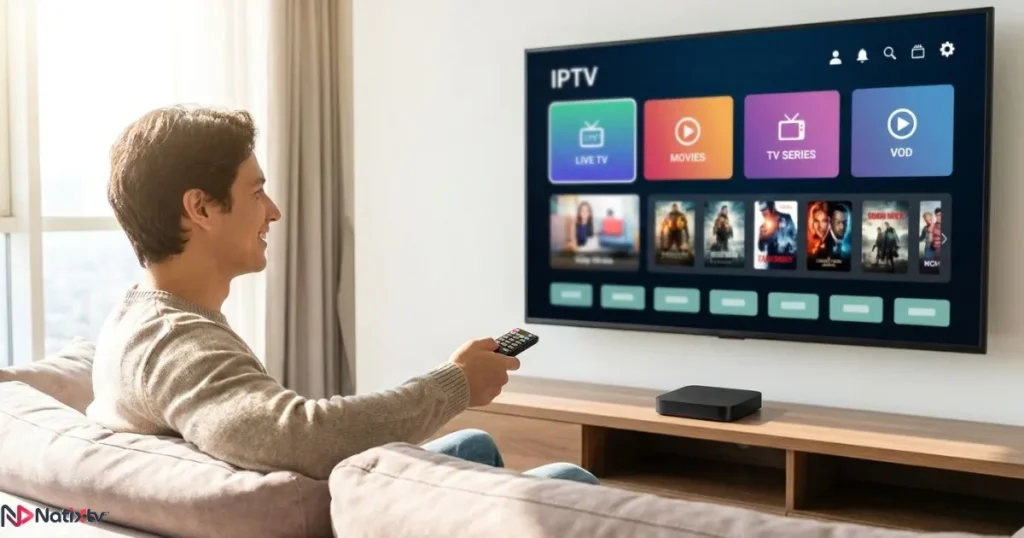
If you are not sure which application suits your device, explore our guide to choosing a compatible IPTV player for your streaming device. The best choice is not always the app with the most features. It is the one you can navigate comfortably and configure correctly.
Log In With Xtream Codes
For many users, the fastest option is an Xtream Codes login. After opening your IPTV player, look for a button such as “Add User,” “Login with Xtream Codes,” “Xtream API,” or “Add New Account.” App wording can differ, but the information requested is usually similar.
- Open the player and choose the Xtream Codes login option.
- Create an account name, such as “Natixtv.”
- Paste the server or portal URL from your email.
- Paste your username and password exactly as received.
- Select Add, Login, or Continue.
- Give the app time to import content and programme guide data.
When you iptv subscribe, copy and paste whenever possible instead of entering long credentials manually. One missing letter, added space, or incorrect symbol can prevent the app from connecting.
Set Up an M3U Playlist
If your email contains an M3U link, choose an option such as “Add Playlist,” “Load Playlist From URL,” or “M3U URL.” Paste the entire link into the relevant field and give the playlist a name you will recognize later.
Some players ask for a separate EPG URL. The EPG is your electronic programme guide, which can show channel schedules, programme names, and broadcast times. If your setup instructions include an EPG link, add it in the app’s guide or EPG section.
Set Up Natixtv on Your Favorite Device
One of the biggest advantages of Natixtv is flexibility. Whether you prefer a large living-room TV, a portable tablet, or a streaming device connected to your television, you can choose the screen that fits your routine.
Smart TV Setup
On a Smart TV, begin by opening your official app store and searching for a compatible IPTV player. Install the app, launch it, then select either the Xtream Codes or M3U option based on the details you received.
Use your TV remote to enter the information carefully. If typing with a remote feels slow, use copy-and-paste features when your player allows them, or choose an app with a companion phone option if available.
Fire TV and Android TV Setup
On Fire TV and Android TV devices, the process is similar. Install a compatible player, open it, add your Natixtv account, and allow the categories to finish loading before judging performance.
In the middle of your setup journey, return to the iptv usa homepage if you need to compare plans, review device compatibility, or request assistance. It is always better to use a trusted setup path than to enter your account details into an unfamiliar app or website.
Phone, Tablet, PC, and Mac Setup
Mobile and desktop setup can be especially convenient because you can copy your IPTV credentials directly from your welcome email. Install a compatible player, add your account through the correct method, then test a live channel on your usual Wi-Fi or mobile connection.
When you iptv subscribe, testing on the device you genuinely plan to use matters more than testing on a device you rarely use. Your normal connection, screen size, remote controls, and viewing habits will tell you far more about whether the setup feels right for you.
Use the Natixtv Free Trial Wisely
Natixtv offers a free trial period of 24 to 48 hours, giving you time to test your IPTV access before selecting a longer subscription. This is your chance to confirm that your chosen app works well, the interface feels comfortable, and your primary device meets your expectations.
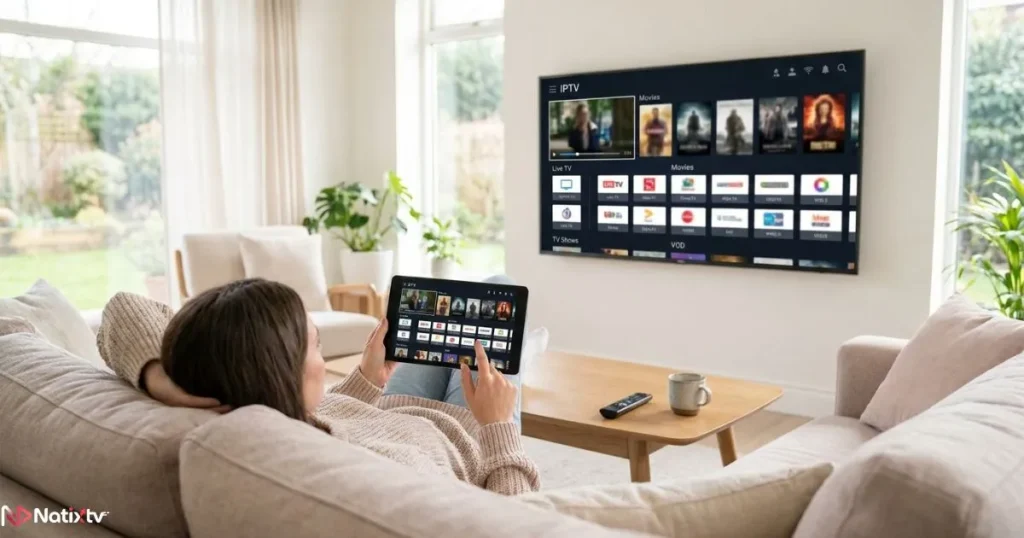
What to Test During Your Trial
- Login success with the credentials supplied in your welcome email.
- Loading speed for live channels, movies, series, and categories.
- Navigation using your preferred remote, phone, or keyboard.
- Picture quality and playback stability on your usual internet connection.
- Programme guide visibility and category organization.
- Compatibility across the devices you expect to use.
Before you iptv subscribe for a longer term, test the service during the times you normally watch. If you enjoy live sports in the evening or family entertainment at weekends, use the trial in those real-world conditions.
You should also make informed choices about the service you use. Our guide to what to check when evaluating an IPTV provider can help you understand the value of clear communication, dependable support, transparent setup information, and responsible service practices.
Fix Common IPTV Activation Issues
Even a simple IPTV first setup can occasionally need a small adjustment. Most login and loading problems have a practical cause, and you can often resolve them in a few minutes.
Your Login Is Not Working
If your IPTV login after subscription fails, first confirm that you selected the correct login method. Do not enter an M3U link into an Xtream Codes field, and do not enter a server URL where the app requests a full playlist link.
- Paste your username, password, and server URL again.
- Remove accidental spaces before or after each field.
- Check uppercase and lowercase letters carefully.
- Restart the IPTV app and your device.
- Confirm that your internet connection is active.
- Contact Natixtv support with your device and app name if the issue continues.
When you iptv subscribe, treat your login information like any other private online account. Use a strong, unique password where you create one yourself, avoid sharing account access publicly, and keep your login email secure. For additional guidance, read the NIST recommendations for creating a strong password.
Channels Are Not Loading
First-time loading can take a little time because your player may need to import channels, categories, artwork, and programme-guide information. Wait briefly, restart the app, and use its refresh or reload option if one is available.
If the issue continues, test your connection with another internet service, restart your router, and try a different channel or category. This helps you identify whether the issue is related to the player, the device, your connection, or a specific stream.
You Experience Buffering
Buffering can be influenced by Wi-Fi strength, device performance, local network activity, or the way a player handles playback. Start by restarting your router and streaming device, closing bandwidth-heavy downloads, and testing closer to your Wi-Fi router if possible.
For a more consistent experience, use a stable internet connection and keep your device software and IPTV player updated. If you still have difficulty after these steps, share your device model, app name, and a clear description of the issue with support.
Frequently Asked Questions
What happens after I iptv subscribe with Natixtv?
After you iptv subscribe, you receive your account setup information, install a compatible player, and log in using the credentials or playlist link provided in your welcome email. Once the app has loaded its content, you can begin exploring channels, movies, series, and guide features.
How long does IPTV subscription activation take?
Activation timing can depend on order processing and verification. Check your inbox, Spam folder, and order information first. If you have waited beyond the stated timeframe, contact Natixtv support with your order reference.
Where do I find my IPTV credentials?
You can usually find your username, password, server URL, M3U playlist link, or activation instructions in your IPTV welcome email. Keep these details private and store the email securely for future setup needs.
Do I need a separate app to watch IPTV?
In most cases, yes. You need a compatible IPTV player to enter your account details and display the content available through your subscription. The right player depends on the device you use and the login method supplied to you.
Can I use my Natixtv subscription on a Smart TV?
Yes, provided your Smart TV supports a compatible IPTV player. You can also use Natixtv on many other compatible devices, including Android TV, Fire TV, mobile devices, tablets, and computers.
Start Your First Stream With Confidence
Your first IPTV experience should feel exciting, not overwhelming. Once you have your welcome email, choose a compatible player, enter your details accurately, and give the app a moment to load, you are only a few steps away from enjoying your content.
When you iptv subscribe, Natixtv gives you the flexibility to test compatibility through a 24 to 48 hour free trial before you make a longer commitment. Start with the device you use most, follow the setup instructions closely, and keep your account details secure.
Ready to make your first setup simple? Visit iptv usa to explore Natixtv subscriptions, begin your free trial, and take the next step toward a smooth streaming experience.