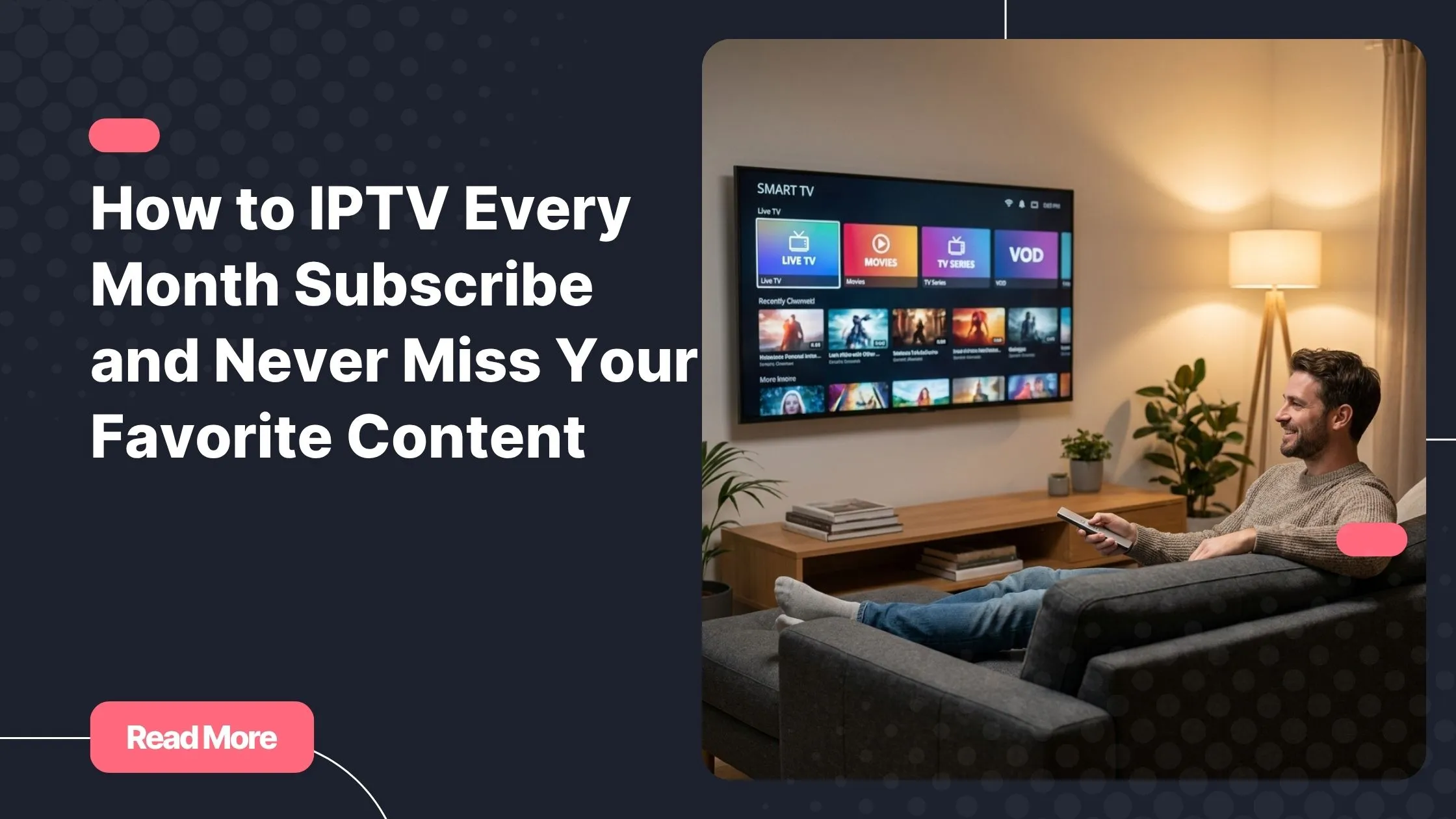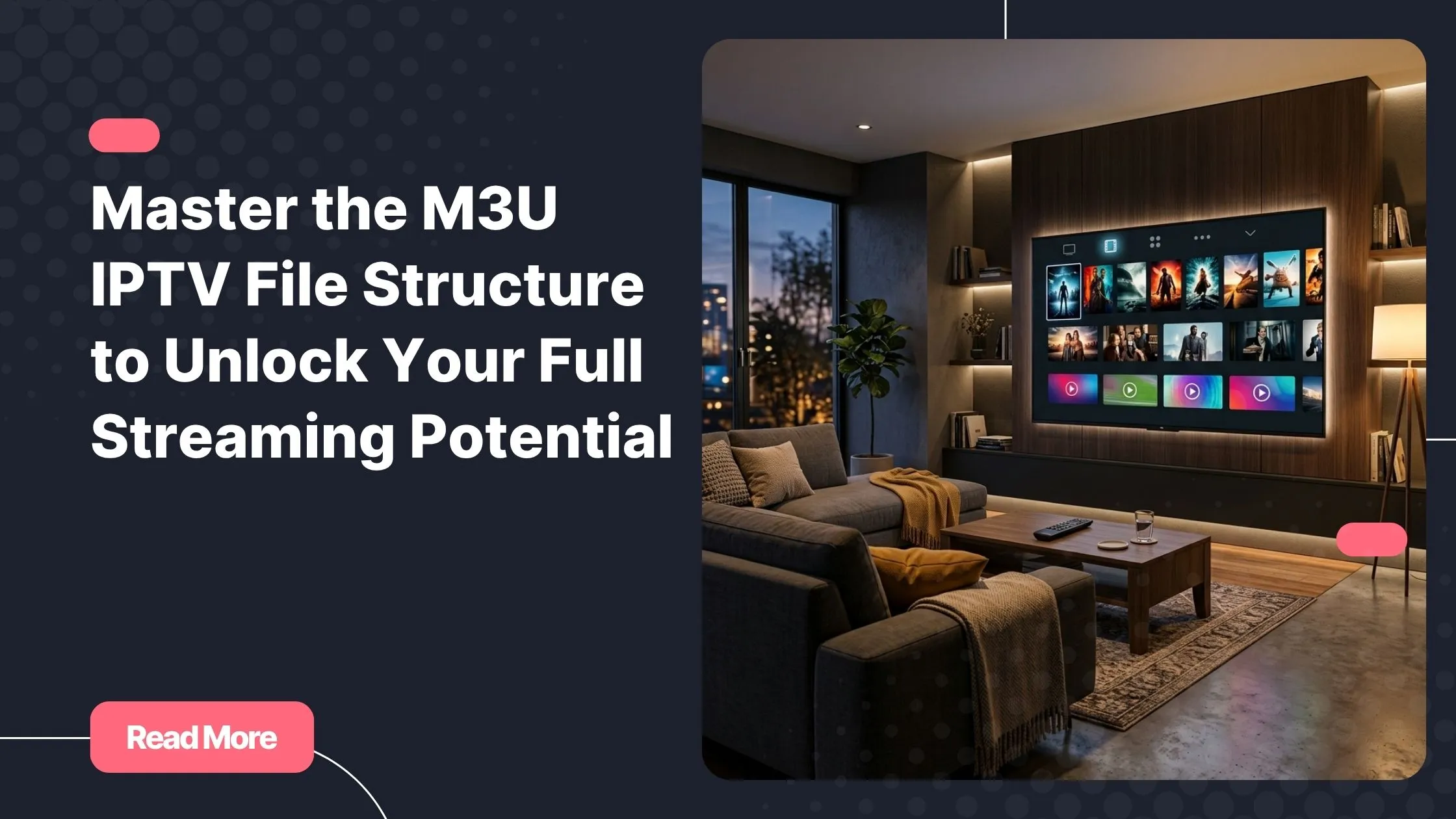
It’s a Saturday night. You’ve scrolled through every cable menu, clicked past hundreds of channels you never asked for, and somehow landed on a rerun for the third time this week. Sound painfully familiar? You’re not alone. Millions of viewers across the country are quietly ditching traditional cable for something smarter, more flexible, and frankly more exciting. And the best part is that your Samsung TV is already built for it.
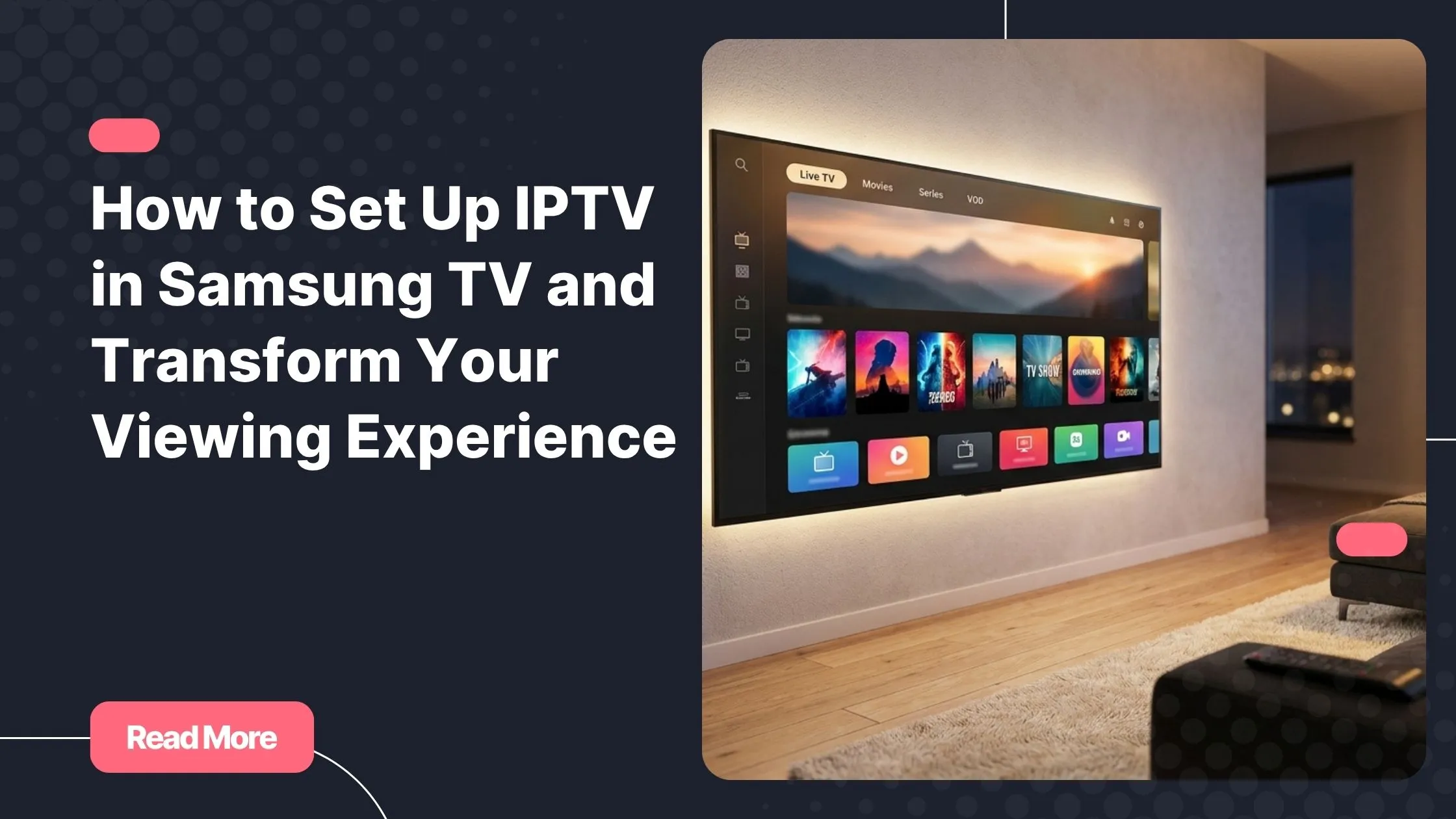
Setting up IPTV in Samsung TV isn’t just a tech upgrade. It’s a shift in how you experience entertainment at home. Imagine thousands of live channels, movies, and series on demand, all available the moment you turn on your screen, no satellite dish or chunky cable box required. Whether you’re new to the world of IPTV in USA or just trying to find the best way to enjoy it on your specific Samsung model, this guide covers everything you need, step by step.
By the time you finish reading, you’ll know exactly which apps to use, how to add your playlist, how to fix common issues, and which subscription gives you the best experience. Let’s get started.
Table of Contents
What Is IPTV and Why Your Samsung TV Is the Perfect Screen for It
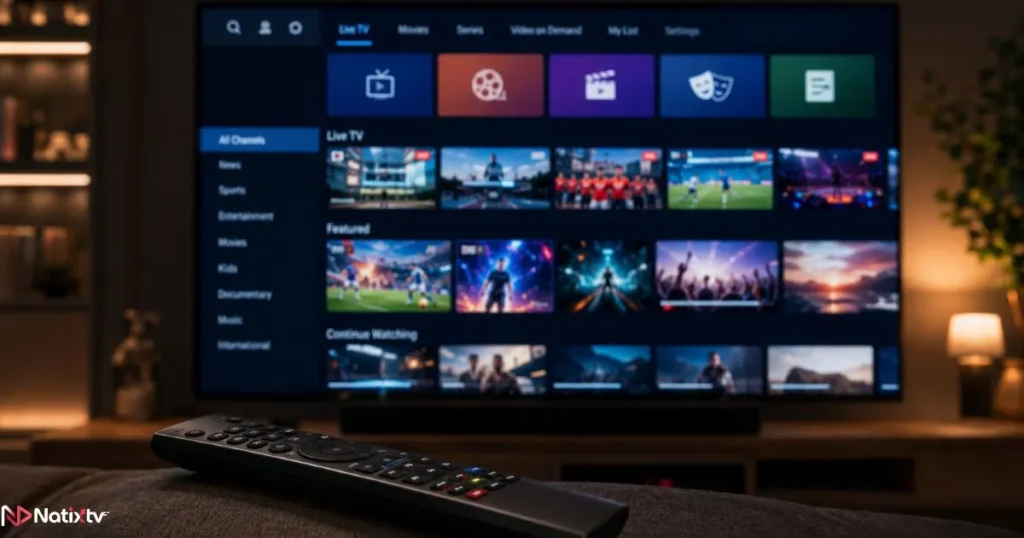
IPTV stands for Internet Protocol Television. Instead of receiving content through a cable wire or satellite signal, your TV pulls it directly from the internet. The result is a far more flexible viewing experience: you pick what you watch, when you watch it, and at what quality level.
What makes Samsung Smart TVs particularly well-suited for this is Tizen OS, Samsung’s in-house operating system. Tizen is lightweight, fast, and supports a growing ecosystem of third-party apps, including dedicated IPTV applications. Unlike budget smart TVs that struggle with app performance, a Samsung running Tizen handles live streams smoothly, even at Full HD and 4K.
The global IPTV market is accelerating fast, projected to surpass $100 billion by 2027 according to industry analysts at Grand View Research. If you haven’t explored this yet, you’re arriving at exactly the right moment.
- No cable box or satellite dish required
- Access to thousands of live channels plus video on demand
- Compatible with M3U playlists and Xtream Codes credentials
- Runs natively on recent Samsung Smart TV models
- Supports EPG (Electronic Program Guide) for a traditional TV guide feel
Which Samsung TV Models Support IPTV
Before you download any app or enter a playlist URL, it’s worth checking what your Samsung TV is actually running under the hood. Compatibility matters here.
Samsung TVs with Tizen OS – Best Compatibility
Any Samsung Smart TV released from 2015 onward runs Tizen OS and can support a Samsung IPTV setup without additional hardware. The table below shows the most common models and their compatibility level.
| TV Series | Release Years | Tizen Version | IPTV App Support |
|---|---|---|---|
| QLED Q-series | 2017 – 2024 | 3.0 – 7.0 | Full |
| Neo QLED | 2021 – 2024 | 5.5 – 7.0 | Full |
| The Frame | 2017 – 2024 | 3.0 – 7.0 | Full |
| Crystal UHD | 2019 – 2024 | 4.0 – 7.0 | Full |
| 4K Smart TV (early) | 2015 – 2016 | 2.4 – 3.0 | Partial |
| Pre-2015 Smart Hub TVs | Before 2015 | None (Legacy) | Workaround needed |
Older Samsung TVs – Pre-2015 Models
If your TV predates 2015, it runs Samsung’s legacy Smart Hub platform, not Tizen. In that case, you won’t be able to install IPTV apps directly. Your best workaround is an external streaming device plugged into the HDMI port: an Amazon Fire TV Stick, a Chromecast with Google TV, or an Android TV box will each give you access to a wider app ecosystem including TiviMate and IPTV Smarters Pro.
How to Check Your Samsung TV’s OS
Open Settings, navigate to Support, then select About This TV. If you see a Tizen version number listed, you’re ready to go. If the interface looks dated and no Tizen version appears, you’re likely on the legacy platform.
The Best IPTV Apps for Samsung Smart TV
One of the first things you’ll notice when exploring IPTV in Samsung TV is that the Samsung App Store doesn’t offer as many IPTV apps as Google Play or the Amazon Appstore. But the options available are solid, and they cover everything most users need.
Smart IPTV (SIPTV) – The Most Popular Choice
Smart IPTV Samsung, often called SIPTV, is one of the few dedicated IPTV players available directly in the Samsung App Store. It supports M3U playlists and EPG feeds, making it a clean, reliable option for most users. There’s a one-time activation fee of around $5.49, which is a modest cost considering the long-term value.
The setup works slightly differently from other apps: rather than entering your M3U link directly on the TV, you visit the SIPTV website on your phone or computer, enter your TV’s MAC address (displayed when you first open the app), and paste your playlist URL there.
SS IPTV – Free and Versatile
SS IPTV is also available directly in the Samsung App Store and is completely free. It supports both M3U playlist Samsung inputs and Xtream Codes API, which makes it the preferred option for users whose IPTV provider gives them server credentials. You can add playlists directly within the app itself, no external website needed.
IPTV Smarters Pro on Samsung TV
IPTV Smarters Pro Samsung is one of the most popular IPTV players globally, largely because of its clean interface and robust Xtream Codes support. However, it isn’t natively available on Tizen. If you specifically want to use it, your best options are to cast content from your smartphone or to connect an Android TV device to your Samsung TV’s HDMI port.
| App | On Tizen? | M3U Support | Xtream Codes | Price |
|---|---|---|---|---|
| Smart IPTV (SIPTV) | Yes | Yes | No | ~$5.49 one-time |
| SS IPTV | Yes | Yes | Yes | Free |
| IPTV Smarters Pro | Workaround | Yes | Yes | Free |
| TiviMate | Android only | Yes | Yes | Free / Premium |
| GSE Smart IPTV | Workaround | Yes | Yes | Free |
How to Set Up IPTV in Samsung TV – Step by Step
Ready to get streaming? Here’s what you need before you begin your Samsung IPTV setup.
- ✓An active IPTV subscription with either an M3U URL or Xtream Codes credentials
- ✓A stable internet connection (10 Mbps minimum for HD content)
- ✓A Samsung Smart TV running Tizen OS (2015 or newer)
- ✓The Smart IPTV or SS IPTV app installed from the Samsung App Store
Setup via Smart IPTV – Recommended for Most Users
- Open the Samsung App Store on your TV and search for Smart IPTV. Install it.
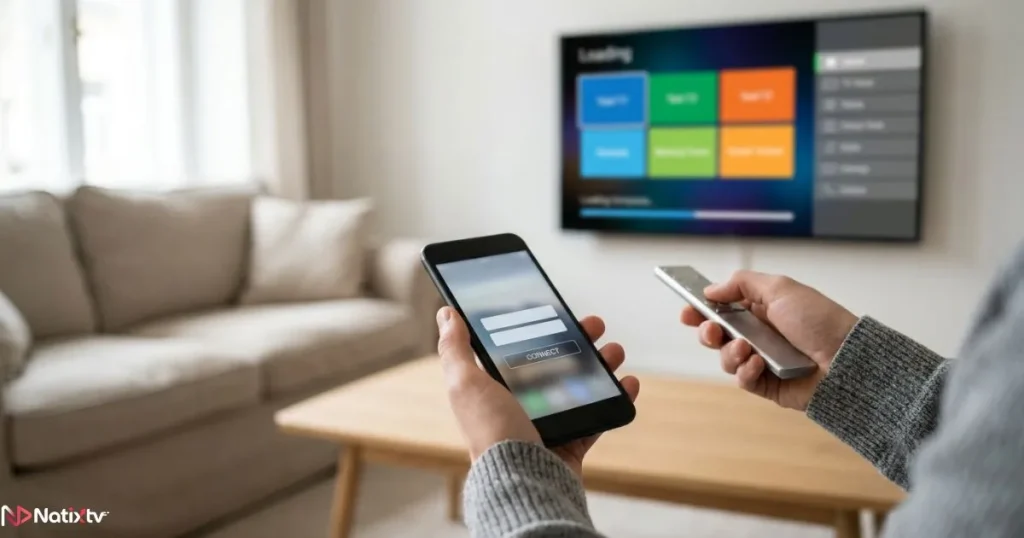
- Launch the app. You’ll see your TV’s MAC address displayed on screen. Note it down.
- On your phone or computer, visit siptv.eu.
- Enter your MAC address and paste your M3U playlist URL from your IPTV provider.
- Save your settings on the website, then relaunch the app on your TV.
- Your channels will begin loading. Activate your license when prompted if this is your first time.
Setup via SS IPTV – Free and Direct
- Search for SS IPTV in the Samsung App Store and install it.
- Open the app, go to Settings, and select Playlist.
- Choose Add URL and paste your M3U link or enter your Xtream Codes API details.
- Confirm and wait a moment while your channel list loads.
- Browse your channels, set up favorites, and add an EPG source if desired.
Understanding Your M3U Playlist
Your M3U playlist Samsung URL is simply the link your IPTV provider sends you when you subscribe. It’s a text-based file that tells your app which channels exist, where to find each stream, and what each one is called. You’ll find it in your provider’s customer dashboard or welcome email. If the link ever stops working, don’t panic: contact your provider for a refreshed URL, which usually takes just minutes to receive.
Connecting via Xtream Codes API
If your provider offers Xtream Codes login credentials (a server URL, a username, and a password), you can use SS IPTV’s Xtream Codes option instead of an M3U URL. This method is preferred by advanced users because it loads faster and gives you separate tabs for live TV, series, and VOD content, all fully organized.
If you’re looking for a versatile player that works just as smoothly on your Mac as it does on your Samsung TV, there are dedicated options worth exploring alongside your TV setup.
Troubleshooting Common IPTV Issues on Samsung TV
Even on a well-configured setup, you might run into occasional hiccups. Here are the most common ones and how to fix them quickly.
Channels Buffering or Not Loading
- Run a speed test in your Samsung TV browser at fast.com. You need at least 10 Mbps for HD and 25 Mbps for 4K.
- Switch your DNS settings to 8.8.8.8 (Google) or 1.1.1.1 (Cloudflare) via Settings – Network – Network Status – IP Settings.
- Use an Ethernet cable instead of Wi-Fi if possible. Wired connections cut buffering dramatically.
- Lower the video quality setting inside your IPTV app temporarily to confirm the stream itself is working.
IPTV App Not Found in the Samsung Store
The Samsung App Store shows different content depending on your TV’s region setting. If Smart IPTV or SS IPTV doesn’t appear in your search results, navigate to Settings – General – System Manager – Language and change your region to a market where the app is available, such as the United States or United Kingdom.
M3U Playlist Not Loading
- Test the M3U URL in VLC on your computer first. If it doesn’t work there either, the link has expired.
- Contact your IPTV provider’s support team. Refreshed links are typically sent within minutes.
- Double-check that you copied the entire URL without any trailing spaces.
EPG Not Showing Channel Guide
Your Electronic Program Guide requires a separate EPG URL, which your provider usually includes in your welcome details. Inside Smart IPTV or SS IPTV, look for an EPG source field in the app settings and paste the URL there. Refresh your playlist after adding it, and the guide should populate within a few minutes.
Optimizing Your IPTV Experience on Samsung Smart TV
Once your streams are running, a few small tweaks will make the experience noticeably better. The difference between a good IPTV setup and a great one often comes down to these details.
Internet Speed Requirements by Quality
Minimum recommended connection speeds
| Stream Quality | Minimum Speed | Recommended Speed |
|---|---|---|
| SD (480p) | 3 Mbps | 5 Mbps |
| HD (720p) | 7 Mbps | 10 Mbps |
| Full HD (1080p) | 15 Mbps | 20 Mbps |
| 4K Ultra HD | 25 Mbps | 50 Mbps |
Picture and Sound Settings
Samsung TVs apply Motion Smoothing by default, which creates the so-called “soap opera effect” on live sports and movies. To disable it, go to Settings – Picture – Expert Settings – Auto Motion Plus and turn it off. Your streams will look far more cinematic immediately.
If your IPTV subscription includes HDR streams and your Samsung model supports HDR10, make sure HDR is enabled in the picture settings to get the full benefit of the enhanced color range.
Sports and Live TV Tips
If live sports is a big part of why you’re setting up IPTV, you’ll want to make sure your provider has dedicated sports channels with reliable uptime. Knowing how to evaluate an IPTV service specifically for sports streaming can save you from choosing one that buffers right at kickoff.
Why Natixtv Is the Right IPTV Subscription for Your Samsung TV
This section is written for the Natixtv website, which offers premium IPTV subscriptions fully compatible with Samsung Smart TVs and most major devices, including a risk-free free trial of 24 to 48 hours.
Running IPTV in Samsung TV is only as good as the service behind it. You can have the best app installed and the fastest internet connection, but if your provider’s servers are unreliable, you’ll end up with broken streams and frustration. That’s where Natixtv makes a real difference.
Natixtv is built specifically for modern streaming devices, including Samsung TVs running Tizen IPTV setups.
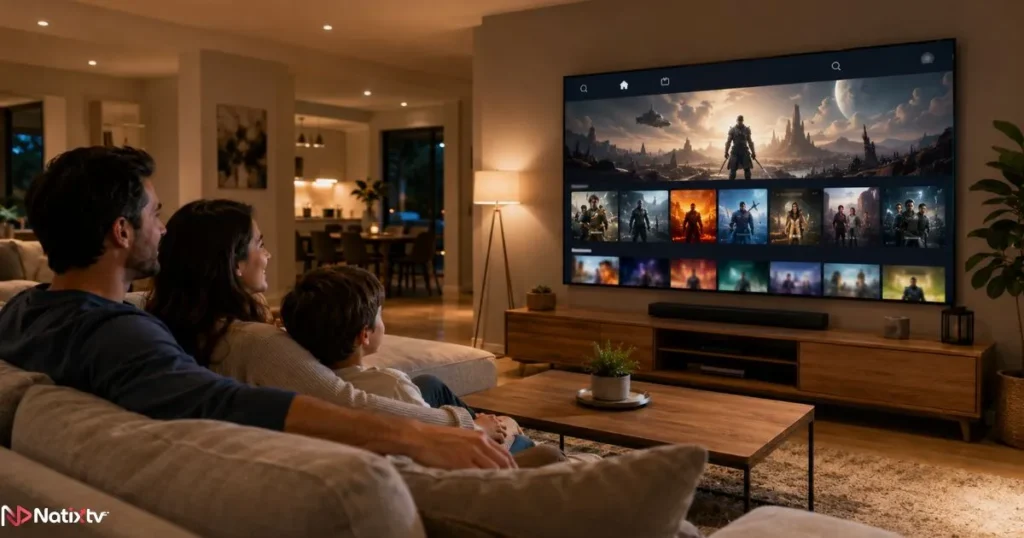
It works seamlessly with Smart IPTV (SIPTV) and SS IPTV, supports both M3U playlist and Xtream Codes connection methods, and delivers thousands of live channels alongside a deep library of on-demand content, from movies to full TV series.
- Thousands of live channels, including international and premium content
- VOD library updated regularly with movies and complete series seasons
- HD and 4K stream quality with strong server uptime
- Multi-device support: Samsung TV, iPhone, Android, PC, MAG box, and more
- Flexible plans: monthly and annual subscriptions available
- Responsive customer support with guided setup assistance
- Free trial period of 24 to 48 hours, no credit card required
The free trial alone is worth taking advantage of. It gives you enough time to test live channels, on-demand content, stream stability during peak hours, and full compatibility with your specific Samsung model, all before spending a single dollar.
Conclusion
Setting up IPTV in Samsung TV is one of the simplest and most rewarding upgrades you can make to your home entertainment setup. Whether you use Smart IPTV, SS IPTV, or a workaround for older models, your Samsung is fully capable of delivering a streaming experience that replaces cable entirely.
The key steps are straightforward: confirm your TV runs Tizen, pick the right app from the Samsung App Store, connect your M3U playlist or Xtream Codes credentials, and fine-tune your network settings for the best stream quality. Everything covered in this guide works on every supported Samsung model, from the Crystal UHD entry-level range to the top-tier Neo QLED.
Your Samsung Smart TV was designed for exactly this kind of experience. All it needs is the right service behind it. Ready to find out what your TV has been missing? Visit IPTV in USA at Natixtv today, claim your free 24 to 48-hour trial, and experience what a premium IPTV subscription actually feels like on your Samsung screen.
Frequently Asked Questions
Q Can I use IPTV in Samsung TV without buying any extra hardware?
Yes, absolutely. Any Samsung Smart TV released in 2015 or later runs Tizen OS, which supports IPTV apps like Smart IPTV and SS IPTV directly from the Samsung App Store. No external box or stick required. For models predating 2015, a simple Fire TV Stick or Android TV box plugged into the HDMI port is an affordable workaround.
Q What is the best IPTV app for Samsung Smart TV right now?
For most users, SS IPTV is the top choice because it’s free, available natively on Tizen, and supports both M3U playlists and Xtream Codes credentials. Smart IPTV (SIPTV) is also excellent, particularly if you prefer a cleaner interface and don’t mind the small one-time activation fee.
Q How do I add an M3U playlist to my Samsung TV?
If you’re using Smart IPTV, you add your M3U playlist through the SIPTV website on your computer by entering your TV’s MAC address. If you’re using SS IPTV, you can paste the M3U URL directly inside the app’s playlist settings, which is faster and more straightforward.
Q Why is IPTV in Samsung TV buffering even though my internet is fast?
Speed isn’t always the only factor. Wi-Fi interference, DNS configuration, and server-side limitations from your provider can all cause buffering even on a fast connection. The most effective fixes are switching to a wired Ethernet connection, changing your DNS to 8.8.8.8, and confirming your provider’s servers have strong uptime. If the issue persists, it may be time to switch to a more reliable IPTV service.
Q Does IPTV Smarters Pro work on Samsung Smart TV natively?
IPTV Smarters Pro is not available directly in the Samsung App Store and isn’t natively supported on Tizen OS. You can access it by casting from a smartphone or by connecting an Android TV device to your Samsung TV’s HDMI port. For a fully native Tizen experience, SS IPTV provides comparable functionality and is available directly on your TV.
Q Is Natixtv compatible with IPTV in Samsung TV setups?
Yes, Natixtv subscriptions are fully compatible with Samsung Smart TVs via both Smart IPTV and SS IPTV. You receive M3U playlist and Xtream Codes credentials upon subscribing, so setup is quick and straightforward. Natixtv also offers a 24 to 48-hour free trial so you can test stream quality and channel availability on your specific Samsung model before committing.
Ready to experience it for yourself?
Natixtv gives you access to thousands of live channels, HD and 4K streams, and a full VOD library, all compatible with your Samsung Smart TV. No risk, no commitment upfront.Start Your Free 24-48h Trial at Natixtv