When you come home after a long day, you do not want to spend twenty minutes scrolling through an unorganized screen just to find the game, news channel, or movie you planned to watch. With iptv in usa, a well-built iptv playlist can make your viewing experience feel familiar, fast, and personal from the moment you open your app.
Behind every clean channel menu is a structure working quietly in the background. Categories, channel names, logos, guide details, and streaming links all need to work together, so you can focus on watching instead of troubleshooting.
Once you understand how an iptv playlist is organized, you can choose a service more confidently, set up your preferred player more easily, and make better use of the channels available on your device.
Table of Contents
What Is an IPTV Playlist?
An iptv playlist is a file or secure URL that tells your IPTV application which channels or on-demand items are available and where to find their streams. Think of it as the directory behind your TV interface: it gives your player the information needed to display content in an organized, watchable format.
Your playlist can include live television, films, series, radio stations, and catch-up content, depending on your subscription and the player you use. It does not usually contain the video itself. Instead, it gives the app a structured path to the stream and the information that helps you recognize it.
Why Organization Changes Your Viewing Experience
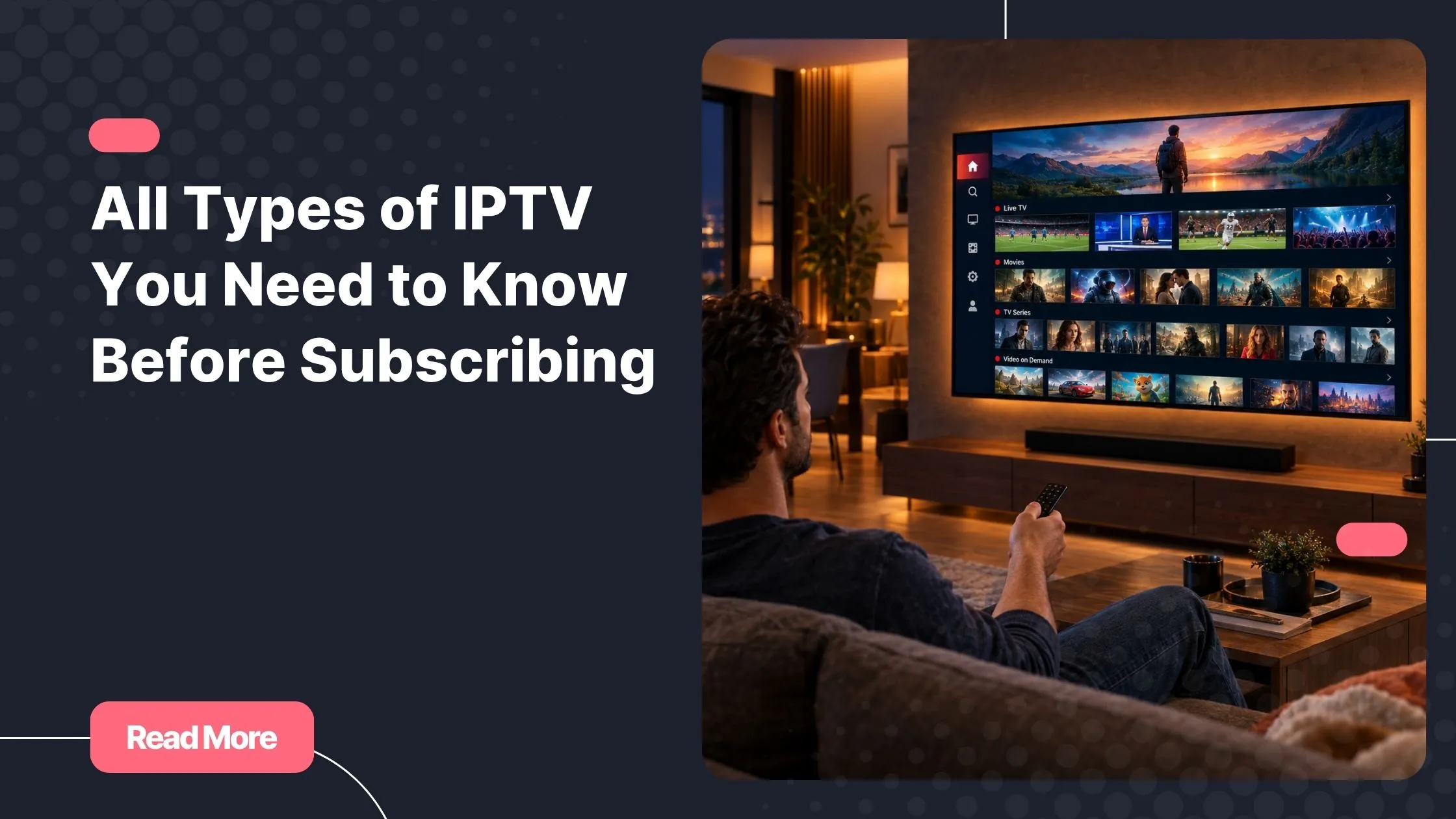
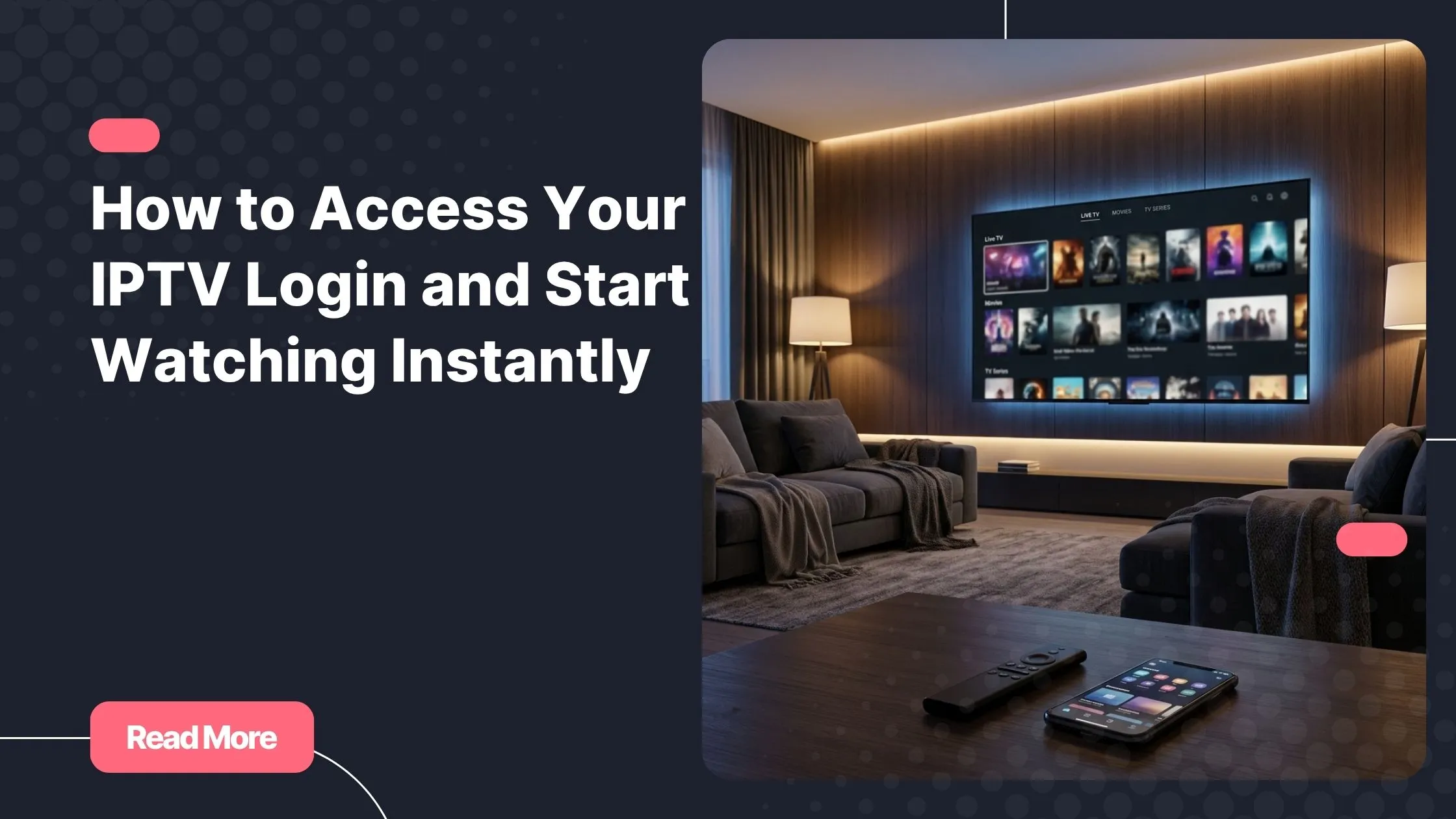
A large IPTV channel list becomes much easier to use when it is structured correctly. Rather than facing hundreds or thousands of unexplained entries, you can browse sports, local news, entertainment, kids’ content, French channels, Arabic channels, or international options in a few simple steps.
- You spend less time searching for familiar channels.
- You can move quickly between live TV, movies, and series.
- You get a cleaner interface on Smart TVs, Firestick, Android TV, phones, and tablets.
- You can save the channels you watch most in your favorites list.

Understanding the IPTV Playlist Format
The most common IPTV playlist format is M3U or Extended M3U. It is a text-based format that your player can read line by line. Each entry usually combines descriptive information with a streaming address, allowing the app to turn technical data into a simple channel menu.
In many cases, an iptv playlist begins with an #EXTM3U header. Individual items then use an #EXTINF line to describe a channel, followed by the URL where the player can request the stream. The IETF’s HTTP Live Streaming specification explains that HLS playlist files are derived from M3U and use tags including EXTM3U and EXTINF. Read the RFC 8216 HLS specification for a deeper technical reference.
A Simple M3U Playlist Structure Example
#EXTM3U
#EXTINF:-1 tvg-id="example.news" tvg-logo="https://example.com/logo.png" group-title="News",Example News HD
https://stream.example.com/live/example-news.m3u8
This example is only illustrative, but it shows the essential logic. The first line identifies the extended playlist. The second line carries channel details. The third line is the stream location that the IPTV app opens when you select the channel.
| Playlist element | What it does | What you see |
|---|---|---|
#EXTM3U | Identifies the playlist format | Usually nothing directly |
#EXTINF | Describes one channel entry | Channel name and details |
| Metadata attributes | Add group, logo, and guide details | Categories, icons, and TV guide data |
| Stream URL | Points the player to video delivery | The channel begins playing |
How IPTV Groups Keep Channels Easy to Find
IPTV groups are the categories that turn a long list into an experience you can actually enjoy. They may sort content by genre, language, country, quality, or content type. When your iptv playlist uses clear groups, you can open the section you want instead of endlessly moving through unrelated channels.

Common Group Categories
- Live TV, movies, series, and radio
- Sports, news, entertainment, documentaries, and kids’ content
- USA, France, Arabic, UK, Canada, and other regional collections
- HD, Full HD, or 4K options when available
For example, if you mainly watch football, you may open the Sports category first, then save your most-watched channels as favorites inside your player. This keeps your personal setup clean even when the full service offers a broad range of IPTV channels.
Provider Groups and Your Personal Favorites
Your provider usually determines the core categories, while your app lets you shape the experience around your habits. You may be able to hide groups you never use, reorder favorites, or filter content by language. These small changes create better IPTV organization without requiring you to edit any technical file.
Before choosing a subscription, it also helps to understand the service standards that matter beyond channel quantity, such as support, transparency, and device setup. Our guide to choosing a provider you can depend on can help you evaluate those details.
Playlist Metadata: The Details Behind a Polished Menu
Playlist metadata is the information that makes a channel entry recognizable. Without it, you might see raw links, inconsistent names, blank logos, or categories that do not make sense. With accurate metadata, your iptv playlist feels closer to a polished television guide.
Metadata Fields That Matter
- Channel name: The title displayed in your IPTV app.
- tvg-id: An identifier that can connect a channel to EPG data.
- tvg-logo: A link to the channel’s logo image.
- group-title: The category where the channel appears.
- Language or region labels: Helpful markers for international viewers.
Why EPG Matching Is Important
An Electronic Program Guide, often called an EPG, gives you programme schedules for live channels. Your iptv playlist may identify a channel through a guide ID, while a separate guide source supplies the current and upcoming programming. If the IDs do not match, you may still be able to watch the channel, but the schedule can appear missing or incorrect.
For a smoother experience, use a compatible player, keep it updated, and ensure that your subscription details are entered exactly as provided. You can also explore iptv in usa through Natixtv with a free trial period of 24 to 48 hours to check navigation, device compatibility, and available categories before committing.
From Channel Selection to Streaming
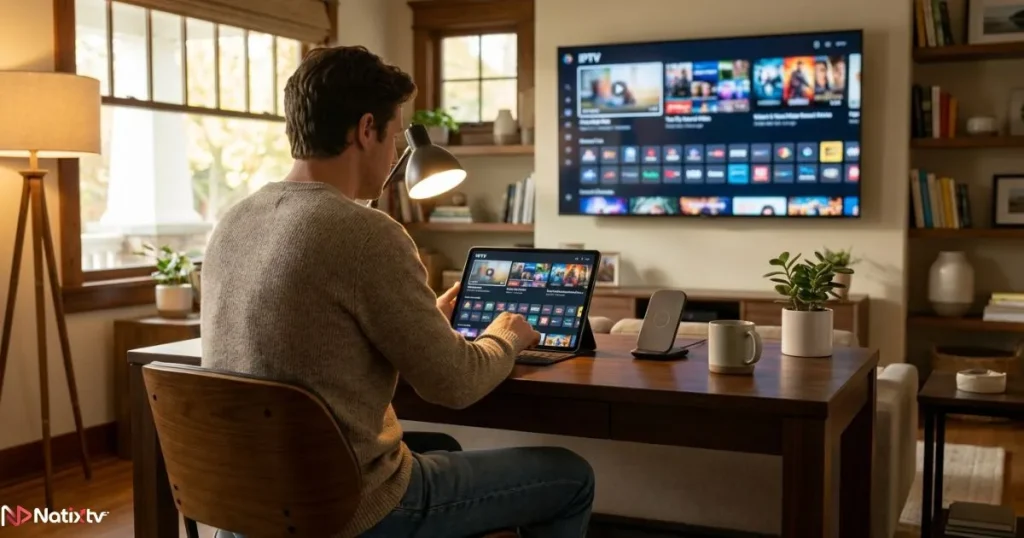
When you select a channel, your iptv playlist starts a simple but important process. Your app reads the selected entry, recognizes its metadata, and requests the linked stream from the relevant server. The video is then delivered to your device, where the player buffers and displays it.
- Your player loads the playlist information.
- You browse a group or search for a channel.
- The app reads the channel’s stream address.
- Your device connects to the streaming source.
- The player buffers the video and begins playback.
Some streams use HLS-style delivery, often associated with .m3u8 files. In this approach, the player reads a playlist that references media segments and downloads them over HTTP as needed. Your actual experience can still depend on your internet connection, device performance, app settings, and the stream source.
Why Channels Sometimes Fail to Load
If a channel does not play, the issue is not always the playlist itself. A temporary stream interruption, an outdated app, an expired subscription, a weak Wi-Fi connection, or an incorrectly entered URL can all affect playback. When contacting support, share your device type, IPTV app name, and the specific channel or group that is not working.
How to Get More From Your IPTV Setup
A reliable iptv playlist works best when you pair it with good habits. Use a current IPTV player, organize favorites, avoid sharing subscription credentials, and check your connection if playback becomes unstable. If you use a Smart TV or streaming device, restarting the app and refreshing the playlist can also resolve simple loading issues.
A Quick Setup Checklist
- Use a supported device and compatible IPTV application.
- Enter your playlist URL or login details carefully.
- Allow the app time to load categories and guide data.
- Create favorites for channels you watch every week.
- Use a stable internet connection for live streaming.
- Watch only content you are authorized to access.
Streaming quality also matters as much as menu organization. If you want to understand the factors that affect picture stability and playback performance, read our explanation of what determines a better streaming experience in the USA.
FAQ About IPTV Playlists
What is an iptv playlist?
An iptv playlist is a structured file or URL that helps your IPTV app display and open available live channels, movies, series, and other supported content.
What Is the Difference Between M3U and M3U8?
M3U is a common playlist format, while M3U8 typically refers to an M3U playlist encoded in UTF-8. M3U8 is often used in HTTP Live Streaming workflows.
How Are IPTV Channels Organized?
Channels can be organized by content type, region, language, genre, quality, and custom group labels. Your player may also allow you to create your own favorites list.
Why Is My TV Guide Missing?
Your guide may be missing because the EPG source is unavailable, the channel ID does not match the guide data, or your player has not finished updating its programme information.
Can I Test Natixtv Before Subscribing?
Yes. Natixtv offers a free trial period of 24 to 48 hours so you can check compatible devices, channel navigation, and your viewing experience.
Make Your Streaming Feel Simple Again
A good iptv playlist is not just a collection of links. It is the foundation of a better television experience, connecting channels, groups, logos, programme information, and streaming sources in one clear interface. When the structure is clean, you can find what you want faster and enjoy your time on screen with fewer interruptions.
Ready to see what an organized viewing experience feels like? Explore iptv in usa with Natixtv, test the service free for 24 to 48 hours, and discover a channel experience built for the devices you already use.