
...
Easy & Fast IPTV Installation Guide

IPTV Setup Made Simple on Any Device

Setting up IPTV doesn’t have to be complicated. With our step-by-step IPTV setup guide, you can install IPTV on your favorite device in just a few minutes. Whether you’re using a Smart TV, Firestick, Android, or a computer, our IPTV installation process is designed to be quick, clear, and beginner-friendly.

Compatible Devices for IPTV Installation

Our IPTV service is compatible with a wide range of devices, making the IPTV setup simple and accessible anywhere. No matter which device you use, setting up IPTV is straightforward and optimized for smooth performance.
IPTV setup on Smart TV using compatible IPTV players

Smart TV

Install IPTV directly on modern Smart TVs using supported IPTV players.
Install IPTV on Firestick and Android TV streaming devices

Streaming Devices

Easily install IPTV on Firestick and Android TV boxes for a powerful streaming experience.
IPTV installation on smartphone and tablet using IPTV apps

Mobile Devices

Access IPTV on smartphones and tablets using reliable IPTV apps.
Watch IPTV on Windows or macOS computer with IPTV player

Computers

Watch IPTV on Windows or macOS using dedicated IPTV players or media software.
IPTV setup on Android devices using IPTV apps
Install IPTV on iPhone and iPad with compatible IPTV apps
IPTV setup on Smart TV operating systems webOS and Tizen
IPTV installation on Windows using IPTV player software
Set up IPTV on macOS with desktop IPTV players

Supported Operating Systems

Our IPTV setup works across the most popular operating systems, ensuring maximum flexibility and device compatibility.

General IPTV Installation Guide

This general tutorial explains the basic steps for setting up IPTV on any device. The process is similar across platforms and helps you understand how IPTV players work before moving to device-specific instructions.
  1. Step 1

    Download the IPTV Application

    Choose the recommended app (Hot IPTV Player, IPTV Smarters Pro) and install it on your device.

  2. Step 2

    Enter Your IPTV Code

    Enter the activation code we send you via WhatsApp or email after your free trial request or subscription purchase.

  3. Step 3

    Add the Server URL

    Paste the provided URL or Xtream Codes in the player settings.

  4. Step 4

    Restart the Application

    Restart the application to load the channel list.

  5. Step 5

    Start Watching

    Select a channel and enjoy TV in HD & 4K.
Device-Specific IPTV Setup Tutorials

Follow the device-specific guides below to install IPTV correctly. Each tutorial is tailored to help you complete the IPTV setup quickly and avoid common issues.

Smart TV

Download a compatible IPTV app from your Smart TV app store, open it, and enter your IPTV login details. Once the app syncs channels, you can start watching live TV and on-demand content on your Smart TV.

Setup time: 3–5 minutes

Smart TV app

Easy setup

Amazon Firestick

Install an IPTV app on your Firestick, launch it, and log in using your IPTV credentials to complete the IPTV setup. After the playlist loads, you can browse channels, select categories, and stream IPTV content smoothly on your TV.

Setup time: 2–4 minutes

Firestick app

Beginner friendly

Android TV

Open the Google Play Store, install a reliable IPTV app, and sign in with your IPTV details to complete the IPTV setup. The app will load your channels automatically, allowing you to watch live TV and manage settings easily.

etup time: 2–5 minutes

Android app

Easy setup

Apple TV

Install a supported IPTV player from the App Store on Apple TV. Open the app, add your IPTV login information, and wait for the channels to load. Once synced, you can start watching IPTV content on your Apple TV.

Setup time: 3–5 minutes

Apple TV app

Simple configuration

Smartphone & Tablet

Download an IPTV app from the Play Store or App Store, open it, and enter your IPTV credentials. After setup, you can stream IPTV on your smartphone or tablet anytime with an internet connection.

Setup time: 1–3 minutes

Mobile app

Very easy

Windows & macOS

Install an IPTV player or media software on your computer, launch it, and add your IPTV login details. Once the playlist loads, you can watch IPTV channels and on-demand content directly on your desktop or laptop.

Setup time: 3–6 minutes

IPTV player

Easy setup

Tips for a Smooth IPTV Installation

To get the best experience from your IPTV setup, follow these simple recommendations.
Stable internet connection required for smooth IPTV streaming

Stable Internet Connection

A reliable connection ensures smooth playback and fewer interruptions.
Use compatible IPTV apps for proper IPTV setup

Use Recommended IPTV Apps

Choosing a trusted IPTV player improves performance and stability.
Keep IPTV apps updated for better compatibility and performance

Keep Apps Updated

Updated IPTV apps provide better compatibility and security.
Follow device-specific guides for correct IPTV installation

Follow Device-Specific Guides

Each device has its own IPTV setup method—use the correct tutorial for best results.
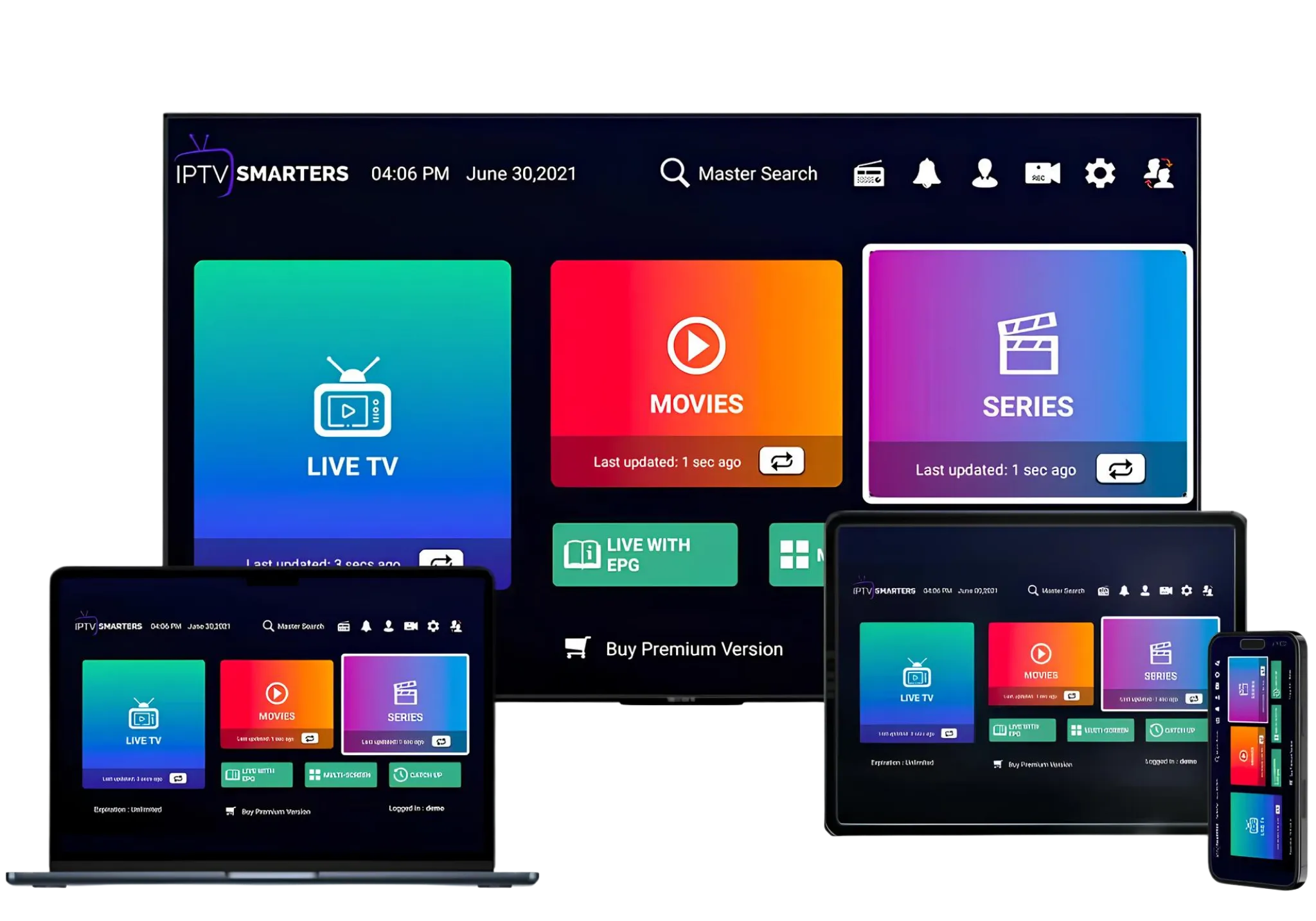
IPTV setup across Smart TV, smartphone, tablet, and streaming devices

Access IPTV Anywhere, Anytime

Once your IPTV setup is complete, you can access your channels across multiple devices. Enjoy flexible viewing at home or while traveling, with consistent quality and easy switching between devices.

Ready to Start Your IPTV Subscription?

Frequently Asked Questions

The easiest IPTV setup is to use a compatible IPTV app on your device and follow the provided setup guide. Most users can finish the setup in just a few minutes without technical knowledge.

In most cases, IPTV installation takes between 2 and 5 minutes. The time depends on your device and internet speed, but the IPTV setup process is designed to be quick and simple.

Yes, you can use your IPTV setup on different devices such as Smart TVs, Firestick, smartphones, and computers. You just need to install an IPTV app on each device and log in with your details.

No technical skills are required. The IPTV setup process follows simple steps, and device-specific guides are available to help you complete everything easily.

IPTV setup is supported on Smart TVs, Amazon Firestick, Android TV, Android phones, iOS devices, Windows computers, and macOS systems.

If IPTV is not working after setup, check your internet connection, confirm your login details, and make sure you are using a supported IPTV app. Restarting the app or device can also help.

Seraphinite AcceleratorOptimized by Seraphinite Accelerator
Turns on site high speed to be attractive for people and search engines.