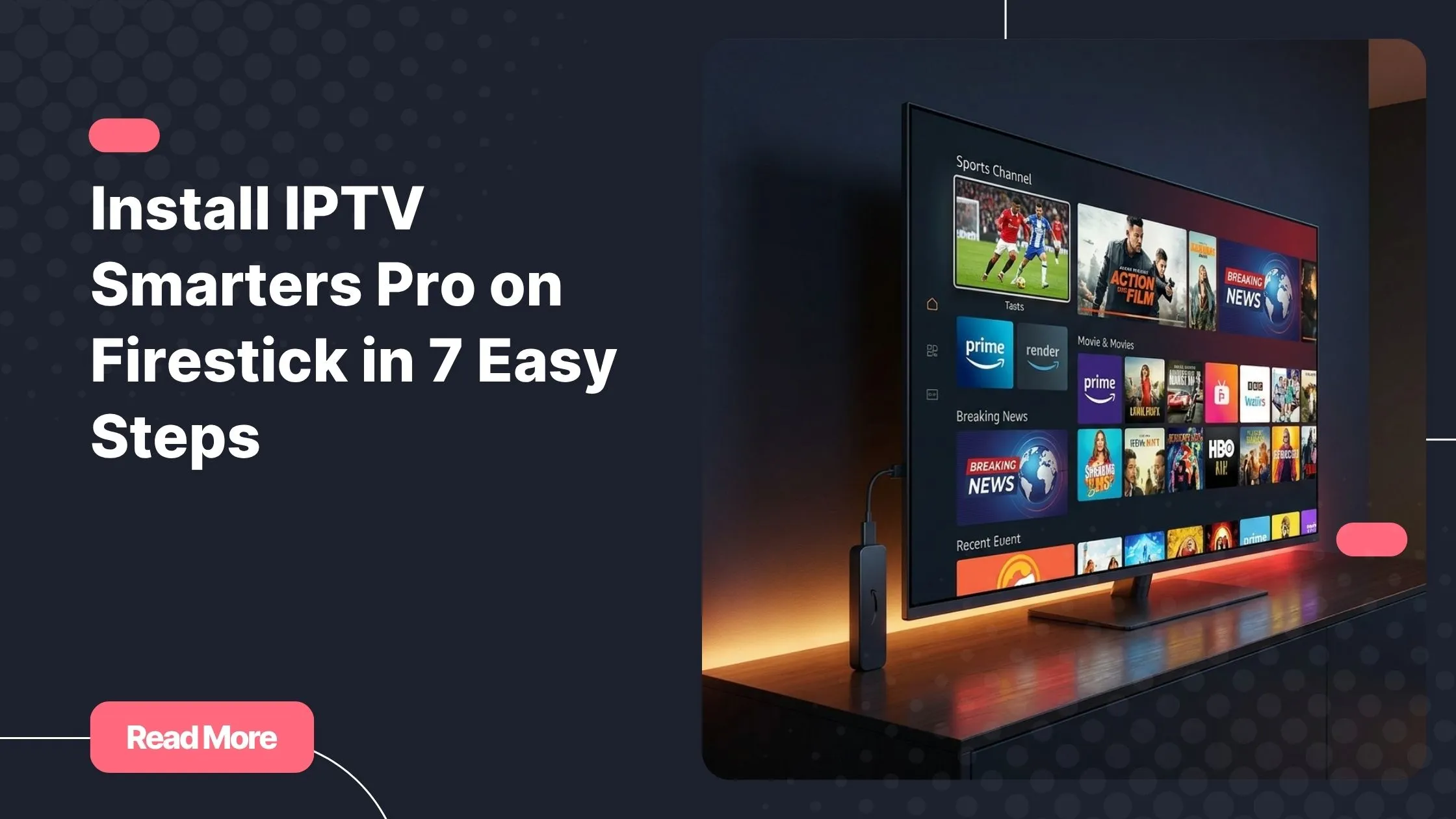
It starts with a cable bill. You open it, stare at the number, and ask yourself: is this really worth it? Hundreds of channels you never watch, a contract that renews itself every year, and a remote control so complicated your kids have to help you use it. Sound familiar? You are not alone. Millions of people have already made the switch to IPTV, and the most popular starting point is right in your living room: your Amazon Firestick.
IPTV Smarters Pro for Firestick has become the go-to solution for cord-cutters who want flexibility, choice, and quality without the hassle. It turns your affordable Fire TV device into a full-featured streaming hub, supporting live channels, video on demand, and even a TV guide. And yes, it works beautifully. If you have been wondering how to get started, you are in exactly the right place. You can buy iptv subscription and be watching your favourite channels within minutes.
This guide walks you through every single step, clearly and without jargon. Whether you are brand new to IPTV or simply switching apps, this is the most complete walkthrough available for 2026. Let’s get into it.
What Is IPTV Smarters Pro and Why Use It on Firestick?
IPTV Smarters Pro for Firestick is a powerful media player application designed specifically for Internet Protocol Television. Rather than relying on traditional cable infrastructure, it streams live TV channels, movies, and series directly over your internet connection. You connect it to an IPTV subscription, and within seconds you have access to thousands of channels from around the world.
What makes it stand out compared to other Firestick IPTV apps is its clean interface, multi-screen support, Electronic Program Guide (EPG) integration, and rock-solid compatibility with both M3U playlists and Xtream Codes API. It supports virtually every IPTV provider on the market.
The Amazon Firestick is the ideal hardware for IPTV streaming because it is affordable, widely available, and extremely easy to configure. The lightweight device plugs directly into your TV’s HDMI port and runs a full Android-based operating system, making it perfect for sideloading apps like IPTV Smarters Pro.
| Feature | IPTV Smarters Pro | TiviMate | GSE Smart IPTV |
|---|---|---|---|
| Free to use | Yes | Limited | Yes |
| Xtream Codes support | Yes | Yes | Yes |
| M3U playlist support | Yes | Yes | Yes |
| EPG | TV Guide | Yes | Yes | Yes |
| Multi-screen support | Yes | No | No |
| Available on Firestick | Yes | Yes | Yes |
| Interface quality | Excellent | Very Good | Good |
What You Need Before You Start
Hardware and Software Requirements
Before diving into the installation, make sure you have everything in place. A few minutes of preparation will save you from unnecessary interruptions mid-setup.
- An Amazon Firestick (2nd generation or newer), Fire TV Stick 4K, or Fire TV Cube
- A stable internet connection – at least 10 Mbps for HD content, 25 Mbps or more for 4K
- An active IPTV subscription that provides either an M3U URL or Xtream Codes login credentials
- A few minutes and a clear TV screen
Not sure which IPTV provider to choose? Natixtv is fully compatible with IPTV Smarters Pro for Firestick and offers a risk-free trial period of 24 to 48 hours. That means you can test every channel and feature before spending a single cent on a full subscription.
Enabling Developer Options on Your Firestick
Because IPTV Smarters Pro is not always listed directly in the Amazon App Store, you will need to allow your device to install applications from external sources. This is a standard, safe procedure that takes under two minutes.
- Go to Settings on your Firestick home screen
- Select My Fire TV, then Developer Options
- Toggle “Apps from Unknown Sources” to ON
- Confirm the prompt if one appears
That single change unlocks everything you need. Your device remains fully functional and secure. You are just giving it permission to install apps from sources other than the Amazon store.
7 Easy Steps to Install IPTV Smarters Pro on Firestick
This is the core of the guide. Each step is written to be followed in order, without skipping. If you hit a snag, check the troubleshooting section further below – or read through this detailed fix guide for common IPTV Smarters issues before restarting.
- 1 Enable Apps from Unknown SourcesHead to Settings, then My Fire TV, then Developer Options. Switch “Apps from Unknown Sources” to the ON position. This is the foundation for everything that follows. Without this step, your Firestick will block the installation.
- 2 Download the Downloader AppUsing the search function on your Firestick, look for “Downloader” in the Amazon App Store. It is a free app developed by AFTVnews and widely trusted by the Firestick community. Install it, then go into Settings and enable Downloader to install unknown apps when prompted.
- 3 Enter the APK Download URL in DownloaderLaunch the Downloader app and navigate to the URL entry field. Type in the official IPTV Smarters Pro APK download address. Always verify the URL from the official Smarters website or a trusted source, as download links can be updated between versions.
- 4 Download the IPTV Smarters Pro APK Confirm the download when prompted. On a typical home internet connection, the file downloads in well under a minute. Once complete, the installer will launch automatically. If it does not, you can locate the file in Downloader’s built-in file manager.
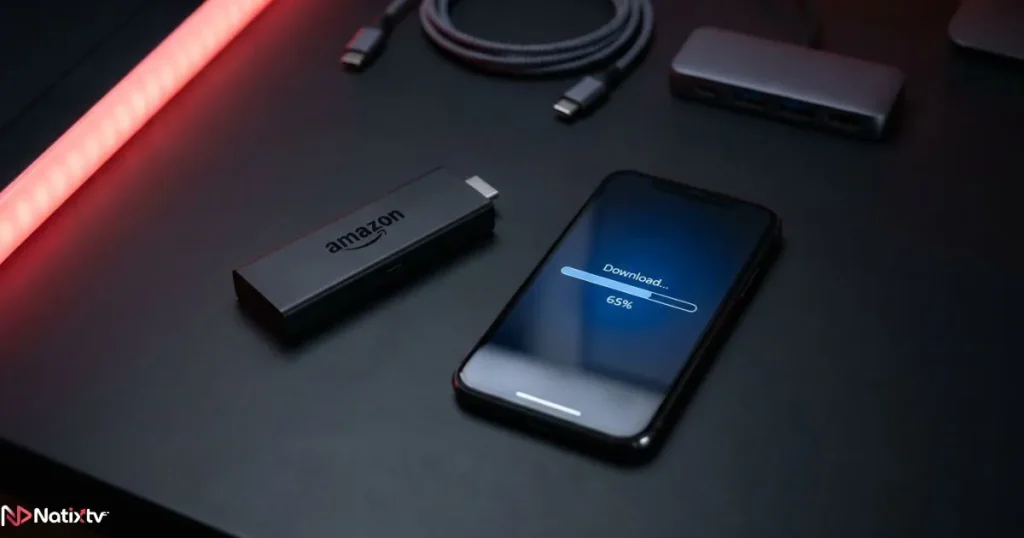
- 5 Install the APK on Your FirestickOn the installation screen, press “Install.” Wait for the system to complete the process – this usually takes around 30 seconds. When you see “App Installed,” press “Done.” You will configure the app in the next step, so do not open it just yet.
- 6 Launch the App and Enter Your IPTV CredentialsOpen IPTV Smarters Pro from your Firestick home screen or the Apps section. You will be presented with two login options: Xtream Codes API (using a username, password, and server URL) or a direct M3U URL. Your IPTV provider, such as Natixtv, will supply all required credentials instantly after you activate your subscription or free trial.
- 7 Explore Channels and Customize Your SetupYour channel list will populate automatically. Browse Live TV, Movies, Series, and Catch-Up sections from the app’s main menu. Set up your EPG for a full TV guide experience, create favourite playlists, and adjust the playback settings to match your internet speed for the smoothest possible stream.
Choosing the Right IPTV Subscription for Your Firestick
Installing IPTV Smarters Pro for Firestick is only half of the equation. The quality of your experience depends almost entirely on the IPTV provider you choose. A slow or unreliable provider will make even the best app feel broken. A premium one will make you wonder why you ever paid for cable.
What to Look for in an IPTV Provider in 2026
- HD and 4K channel quality with stable, low-buffering streams
- High server uptime – 99.9% availability should be the standard
- Full compatibility with IPTV Smarters Pro, including M3U and Xtream Codes formats
- Multi-device support: Firestick, Android, iOS, Smart TV, and more
- Responsive customer support available around the clock
- A genuine free trial period with no credit card required upfront
Try Natixtv – Free for 24 to 48 Hours
Natixtv is the IPTV service behind this guide. Their subscriptions are built for devices like the Amazon Firestick and work natively with IPTV Smarters Pro right out of the box. You get your credentials immediately after sign-up, in both M3U and Xtream Codes format.
The best part: you do not have to commit immediately. Their free trial lasts between 24 and 48 hours, giving you real time to test channel quality, stream stability, and the full range of content before you buy iptv subscription. Start Your Free Trial
Already set up on another device and looking to expand? You can also follow this complete guide to setting up IPTV on your Firestick from scratch for additional configuration tips specific to Fire TV devices.
Troubleshooting Common Issues with IPTV Smarters Pro on Firestick
Even the smoothest installs can hit a speed bump. Here are the most frequent problems users encounter with IPTV Smarters Pro for Firestick and exactly how to fix them.
App Will Not Install
This almost always means “Unknown Sources” was not properly enabled. Go back to Developer Options and confirm the toggle is set to ON. Also check your available Firestick storage. If it is nearly full, clear the cache of a few unused apps first.
Channels Buffering or Not Loading
Buffering is the most common complaint with any IPTV streaming setup. Start by running a speed test directly on your Firestick using a free app. If speeds are below 15 Mbps, consider upgrading your plan or using a wired Ethernet adapter for your Firestick. Inside IPTV Smarters Pro, switching between the Software Player and Hardware Player in settings can also make a dramatic difference.
EPG Not Displaying Correctly
If your TV guide is empty or showing incorrect information, first verify that your EPG URL was entered correctly during setup. Then, inside the app settings, force a manual refresh. The EPG can take several minutes to populate fully on the first load – give it time before assuming something is broken.
App Freezing or Crashing
A crashing app is usually a memory issue on the Firestick side, not the app itself. Go to Settings, then Applications, then Manage Installed Apps. Find IPTV Smarters Pro and tap “Clear Cache.” Restart your Firestick after. If the problem persists, reinstall using the latest APK version via Downloader.
Tips to Get the Most Out of IPTV Streaming on Firestick
Once IPTV Smarters Pro for Firestick is running smoothly, a few extra tweaks can elevate your experience significantly. These are the habits of seasoned IPTV users.
Use a VPN
Protect your privacy and prevent ISP throttling on video streams. ExpressVPN and NordVPN are both well-regarded choices for Firestick users in 2026.
Ethernet Over Wi-Fi
A wired connection via a Firestick-compatible Ethernet adapter delivers noticeably more stable streams, especially for 4K content.
Keep the App Updated
Sideloaded apps do not auto-update. Check periodically for new APK releases and reinstall via Downloader to benefit from bug fixes.
Enable Hardware Decoder
In the player settings inside IPTV Smarters Pro, switch to Hardware Decoder for smoother 4K and high-bitrate channel playback.
Build Your Favourites List
With hundreds of channels available, organising favourites by genre or language makes daily navigation far faster and more enjoyable.
Restart Your Firestick Weekly
A regular restart clears accumulated memory and keeps the device running at peak performance for uninterrupted streaming sessions.
Frequently Asked Questions
What is IPTV Smarters Pro for Firestick and how does it work?
IPTV Smarters Pro for Firestick is a media player application that connects to an IPTV subscription and streams live television channels, movies, and series over your internet connection. It works by reading either an M3U playlist URL or Xtream Codes API credentials provided by your IPTV service provider, then organizing all available content into a user-friendly interface with full EPG support.
Is IPTV Smarters Pro free to install on Firestick?
Yes, the IPTV Smarters Pro app itself is completely free to download and install. You do not pay for the player. What requires a subscription is the IPTV content – the channels and video-on-demand library. Natixtv offers a 24 to 48-hour free trial that lets you test everything before committing to a paid plan.
Can I install IPTV Smarters Pro directly from the Amazon App Store?
Availability in the Amazon App Store varies by region and can change at any time. The most reliable method in 2026 is to sideload the APK using the Downloader app, exactly as described in this guide. This method works in every country and gives you access to the latest version of the app directly from the official source.
What internet speed do I need for IPTV on Amazon Fire TV?
For standard HD channels, a minimum of 10 Mbps is recommended. For 4K streams, aim for at least 25 Mbps of stable download speed. If you share your connection with multiple devices, factor that in and consider upgrading your plan or using a wired Ethernet adapter for the best results.
Why is my IPTV Smarters Pro for Firestick buffering during playback?
Buffering on IPTV Smarters Pro for Firestick is most often caused by one of three things: insufficient internet speed, a congested Wi-Fi connection, or a temporary issue on the IPTV provider’s servers. Start by running a speed test, then try switching the player mode inside the app settings. For persistent issues, a detailed breakdown is available in our step-by-step troubleshooting resource for IPTV Smarters playback problems.
Is using IPTV Smarters Pro on Firestick legal?
The IPTV Smarters Pro application itself is entirely legal. It is simply a media player. The legality of the content you access depends on your IPTV provider and the licensing they hold in your country. Always use a licensed and legitimate service like Natixtv to stay on the right side of local laws. For authoritative guidance, the Electronic Frontier Foundation offers useful context on digital media rights.
You Are Ready to Stream – Start Tonight
Setting up IPTV Smarters Pro for Firestick is genuinely one of the most rewarding tech projects you can do in an afternoon. Enable unknown sources, install Downloader, grab the APK, enter your credentials, and you are streaming. Seven steps is all it takes to turn your Fire TV into a world-class entertainment device.
Thousands of users around the world rely on IPTV Smarters Pro for Firestick every single day. The setup is beginner-friendly, the interface is polished, and the content possibilities are virtually limitless. You do not need any technical background to make it work.
If you still need a reliable IPTV subscription to pair with your new setup, Natixtv is the natural next step. Their service is built for devices like yours, fully compatible with IPTV Smarters Pro, and backed by a free 24 to 48-hour trial with zero commitment. Go ahead and buy iptv subscription from Natixtv today and see the difference a premium IPTV service makes from the very first stream.