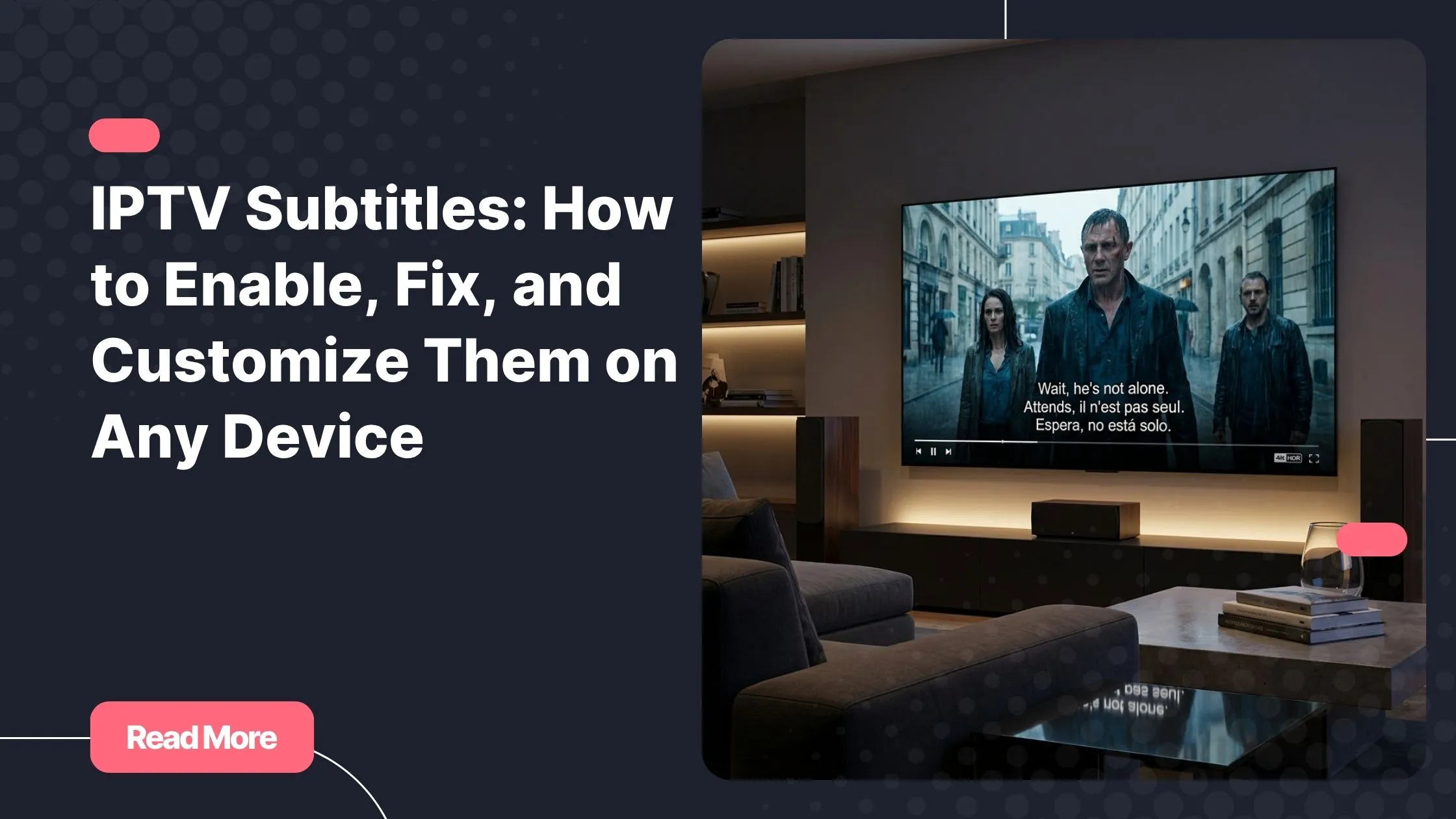
There is a specific kind of frustration that every streaming lover knows too well. You have finally settled in for a movie night, the opening scene begins, and the dialogue is in a foreign language with absolutely no subtitles in sight. Or worse, the subtitles are there, but they are running a full three seconds behind the actors’ lips, turning a gripping thriller into an unintentional comedy. It feels personal, almost like the technology is working against you instead of for you. If you rely on a quality iptv service, you deserve a viewing experience that works smoothly from the very first second.
Whether you are watching international content, supporting a family member who is hard of hearing, or simply prefer reading along for better comprehension, getting your IPTV subtitles right can completely transform how you enjoy streaming. The difference between broken captions and perfectly synced text on screen is the difference between a frustrating evening and a genuinely immersive one.
The good news is that fixing, enabling, and customizing your IPTV subtitles is entirely within your reach — no technical degree required. This guide walks you through everything you need to know, step by step, across every major device and app available today.
Table of Contents
What Are IPTV Subtitles and Why Do They Actually Matter?
Before diving into settings and solutions, it helps to understand what IPTV subtitles really are. In simple terms, they are text overlays displayed on your screen that represent spoken dialogue, sound effects, or translated content from the video you are watching. They are delivered either directly within the stream itself or through external files that your player loads separately.
You might also come across the term IPTV closed captions. While the two are often used interchangeably, there is a meaningful difference. Subtitles typically focus on translating or transcribing dialogue, while closed captions go further by including audio cues like [dramatic music] or [phone ringing], making them specifically designed for deaf and hard-of-hearing viewers.
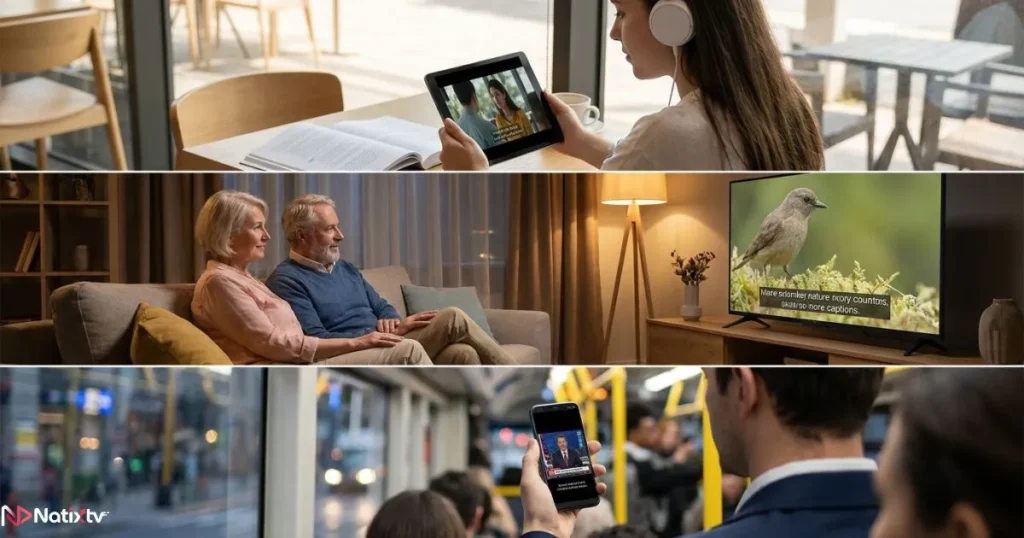
Who benefits most from having reliable subtitles on their IPTV streaming setup?
- Non-native language speakers watching content in their second language
- Hearing-impaired viewers who depend on captions for full comprehension
- Language learners using television as a study and immersion tool
- Parents watching late at night with the volume low while others sleep
- Mobile users in noisy environments like commutes or gyms
- Children who are learning to read and benefit from text reinforcement
In every one of these situations, having well-functioning IPTV subtitles is not a luxury. It is a genuine necessity.
How IPTV Subtitles Work: A Simple Technical Overview
Understanding the basics of how subtitles are delivered through IPTV will help you troubleshoot problems much faster when they arise. There are two primary delivery methods:
- Embedded subtitles: These are baked directly into the video stream. DVB subtitles used in digital broadcast TV are a classic example. Your player renders them automatically without needing any external file.
- External subtitle files: These are separate files (SRT, VTT, ASS formats) that your IPTV app loads alongside the video. They offer more flexibility but require app support to function properly.
Whether subtitles are available at all depends on three key factors: the channel or content source, the IPTV provider’s stream quality, and the app you are using to watch. This is why two users watching the same content on different apps can have completely different subtitle experiences.
Common Subtitle Formats Supported by IPTV Apps
The following table outlines the most common subtitle formats supported across IPTV applications and devices.
| Format | Full Name | Common Use | App Support |
|---|---|---|---|
| SRT | SubRip Text | Most common external format | Very wide |
| VTT | WebVTT | Web-based IPTV streaming | Growing |
| ASS/SSA | Advanced SubStation Alpha | Styled subtitles (anime, etc.) | Moderate |
| DVB | Digital Video Broadcast | Embedded in live TV streams | App-dependent |
| EIA-608 | Closed Caption Standard | North American broadcast TV | Limited |
How to Enable IPTV Subtitles on Any Device
Enabling subtitles varies depending on what you are watching on and which app you are using. Below is a clear, device-by-device breakdown of how to get your IPTV subtitles working in just a few steps.
On Smart TV (Samsung, LG, Android TV)
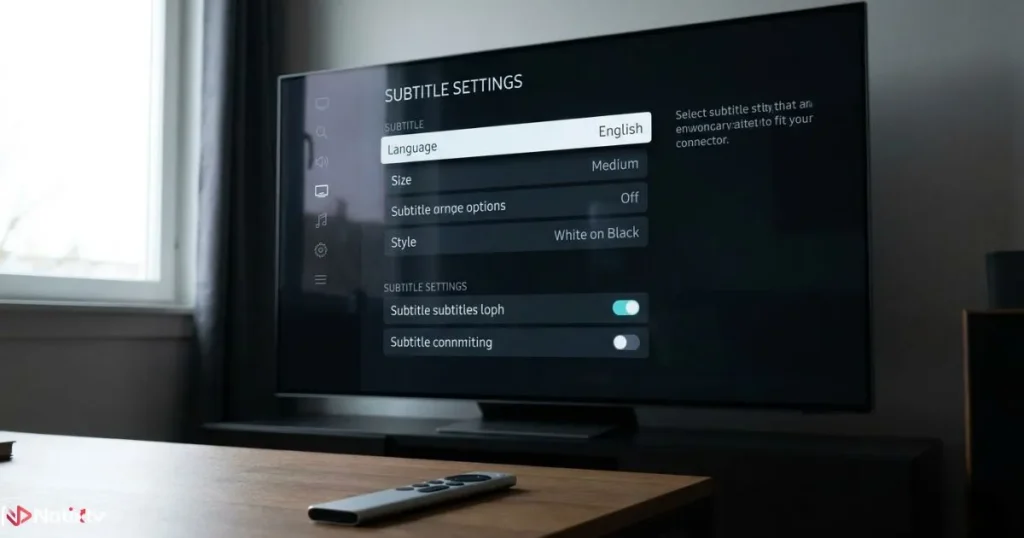
Smart TVs typically run IPTV through dedicated apps like TiviMate, IPTV Smarters, or Smart IPTV. The subtitle settings live inside the player, not the TV’s system menu — a distinction that trips up a lot of users.
- Open your IPTV app and start playback on any channel or VOD title
- Tap the remote or screen to reveal the player overlay
- Look for the gear icon or a settings button within the player
- Navigate to the Audio and Subtitles section
- Select your preferred IPTV subtitle language from the available tracks
- Adjust font size or color if the app supports it
Keep in mind that the TV’s system-level accessibility settings are separate. Enabling closed captions at the TV system level does not automatically activate them inside your IPTV app.
On Amazon Firestick and Fire TV
Firestick is one of the most popular devices for IPTV, and popular apps like TiviMate, IPTV Smarters Pro, and GSE Smart IPTV all offer subtitle options. TiviMate in particular provides the most complete subtitle experience on Fire TV, including sync adjustment and language selection.
To enable subtitles, start playback, press the menu button on your remote to open the player overlay, then look for the subtitle or CC toggle. Amazon’s native Fire TV accessibility settings rarely interact with third-party IPTV apps, so always work within the app itself.
On Android and iOS Smartphones
Mobile IPTV apps subtitles support varies quite a bit. On Android, MX Player and GSE Smart IPTV both handle external subtitle files well. On iOS, your options are more limited, but apps like IPTV Smarters still offer basic language selection when the stream includes subtitle tracks.
One useful tip: if you are on a limited data plan and using a data-saving mode, this can sometimes interfere with subtitle track loading. Disabling data-saving mode temporarily can resolve the issue.
On Windows and Mac (VLC and Kodi)
For desktop users, VLC Media Player is the gold standard for subtitle control. You can load an external SRT file by going to Subtitles > Add Subtitle File, and you can toggle subtitles on and off using the V key on your keyboard.
Kodi users have access to a rich ecosystem of subtitle add-ons. Installing an add-on like Kodi Subtitles lets you search and download subtitles automatically for most content. Both apps give you far more customization than any mobile or TV app on the market.
If you want to find a reliable IPTV provider for consistent subtitle performance, the platform matters just as much as the player.
On MAG Box and Other Set-Top Boxes
MAG boxes use a built-in portal interface where subtitle settings are found within the player controls. Support varies depending on your firmware version. If your MAG box does not display subtitles correctly, using an alternative app installed through the box’s browser can be a practical workaround.
Customizing Your IPTV Subtitles: Language, Size, Color, and Sync
Once your subtitles are showing, you may want to fine-tune the experience. Not every app offers deep customization, but the best ones give you real control.
Here is a quick comparison of what the most popular IPTV apps subtitles tools offer:
| IPTV App | Language | Font Size | Color | Sync Adjust | External File |
|---|---|---|---|---|---|
| TiviMate | Yes | Yes | Yes | Yes | No |
| VLC | Yes | Yes | Yes | Yes | Yes |
| Kodi | Yes | Yes | Yes | Yes | Yes |
| GSE Smart IPTV | Yes | Yes | No | No | Yes |
| IPTV Smarters Pro | Yes | No | No | No | No |
| MX Player | Yes | Yes | Yes | Yes | Yes |
For most users, adjusting the IPTV subtitle language is the first priority, followed by font size for readability and IPTV subtitle sync for timing corrections.
If you want the maximum level of control, VLC and Kodi remain the top choices, especially when working with VOD content and external files.
If you are using a trusted iptv service with high-quality stream encoding, you will find that sync issues are far less frequent, which means you spend less time adjusting and more time actually watching.
Fixing the Most Common IPTV Subtitle Problems
Even with the right setup, things can go wrong. Here are the most frequent IPTV subtitle problems users encounter, along with practical fixes for each one.
Subtitles Not Showing at All
This is the most common complaint. Before assuming the worst, check these possibilities in order:
- Subtitles may simply be disabled inside the app player settings – go back in and re-enable them
- The stream may not include any embedded subtitle tracks – try a different channel or content title
- Your app may not support the subtitle format used – switch to VLC or Kodi for better format compatibility
- A minor app bug may be causing the issue – clear the app cache and restart it
IPTV Subtitle Sync Is Off
Out-of-sync subtitles are almost always caused by buffering delays, network latency, or stream encoding issues. Fortunately, IPTV subtitle sync can usually be corrected manually:
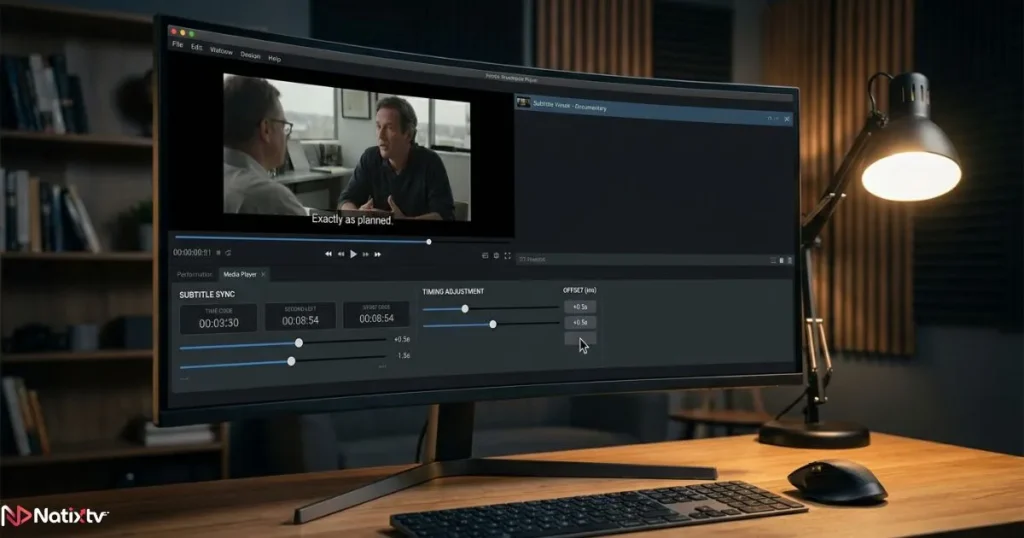
- In TiviMate: use the subtitle delay slider in the player settings
- In VLC: press G to delay subtitles or H to advance them (in 50ms increments)
- Improving your internet connection stability can reduce the root cause of buffering-related sync drift
If the sync problem is consistent across all content, the issue may originate from your provider’s stream encoding.
Choosing a provider with better infrastructure makes a real difference here. You can learn more about what separates good providers from unreliable ones by reading this guide on choosing the right IPTV setup for your devices.
Wrong Subtitle Language Is Displaying
If your IPTV subtitle language is not what you selected, the stream may be defaulting to the first available track rather than your preference.
Go into your app’s general settings and set a default subtitle language. When watching live channels, check whether multiple tracks exist and manually switch between them in the player overlay.
Subtitles Are Unreadable
Small white text on a bright scene is nearly impossible to read.
Most apps let you add a semi-transparent background behind the text, increase the font size, or bold the characters. In VLC, go to Preferences > Subtitles/OSD to access these options in full detail.
Subtitles Disappear Mid-Playback
If your IPTV subtitles suddenly vanish while watching, the cause is usually one of three things: a drop in stream quality that causes the subtitle track to be lost, an app memory issue that is resolved by restarting, or a brief internet outage.
Running a speed test during playback can confirm whether your connection is the root cause.
Which IPTV Apps Offer the Best Subtitle Experience?
If subtitle quality is a priority for you, your choice of player matters just as much as your provider.
Here is a quick ranked overview:
- TiviMate: Best all-around for Android TV and Firestick, with full subtitle controls including sync adjustment
- VLC Media Player: Best for desktop users and anyone who needs deep customization or external file support
- Kodi: Best for advanced users who want add-ons, automation, and the richest subtitle ecosystem
- MX Player: Excellent choice for Android mobile with strong external file support
- GSE Smart IPTV: Solid cross-platform option with decent subtitle support
- IPTV Smarters Pro: The most popular app overall, though subtitle customization remains basic
It is worth noting that even the best app cannot compensate for a low-quality stream.
According to streaming quality research from Mozilla, network stability and stream encoding quality are the primary drivers of playback consistency, including subtitle synchronization. Starting with a provider that prioritizes stream quality removes many subtitle problems before they even begin.
Choosing the Right IPTV Provider for Better Subtitle Performance
Your IPTV provider is the foundation of your subtitle experience. Even the most advanced player settings cannot fix a stream that simply does not include subtitle tracks or that buffers constantly.
When evaluating a provider, look for these qualities:
- Multi-language subtitle track availability across live and VOD content
- High-quality stream encoding that minimizes buffering and sync drift
- Broad device compatibility so you can switch players without changing providers
- A trial period that lets you test subtitle performance before paying
Natixtv checks every one of these boxes. As a reliable iptv service compatible with Smart TVs, Firestick, Android, iOS, MAG boxes, and desktop players, Natixtv gives you the flexibility to watch on any device while benefiting from streams engineered for consistent quality.
Their free trial period of 24 to 48 hours lets you test the full experience, including how well IPTV subtitles perform on your preferred device, before making any commitment.
Frequently Asked Questions About IPTV Subtitles
Why are my IPTV subtitles not working at all?
The most common reasons are that subtitles are disabled in your app’s player settings, the stream does not include embedded subtitle tracks, or your app does not support the subtitle format in use. Start by checking your in-app settings, then try switching to a more capable player like VLC or Kodi if the issue persists.
How do I fix IPTV subtitle sync when captions are delayed?
IPTV subtitle sync issues are usually caused by buffering or network instability. Use your app’s built-in delay offset feature to manually correct the timing. In VLC, the G and H keys allow you to shift subtitles backward or forward in 50-millisecond steps. Improving your internet connection stability will reduce how often this occurs.
Can I change the IPTV subtitle language mid-playback?
Yes, as long as the stream includes multiple subtitle tracks. Open the player overlay during playback, go to the audio and subtitle settings, and switch to your preferred language. You can also set a default IPTV subtitle language in your app’s general preferences to avoid having to change it each time.
What is the difference between IPTV subtitles and closed captions?
IPTV subtitles typically display translated or transcribed dialogue only. IPTV closed captions go further by including all audio information, such as sound effect descriptions and speaker identification, making them designed specifically for hearing-impaired viewers. Both are useful, but closed captions offer a more complete audio-to-text experience.
Which IPTV app gives me the most control over subtitle settings?
VLC and Kodi offer the deepest subtitle customization available, including font size, color, background opacity, screen position, and sync adjustment. TiviMate is the best option for Android TV and Firestick users who want a balance of simplicity and control. MX Player is a strong pick for Android mobile users.
Does my IPTV provider affect subtitle quality?
Absolutely. If your provider’s streams are low quality or prone to buffering, subtitle sync issues and missing tracks become far more frequent. Choosing a provider with well-encoded, stable streams — and testing them during a trial period — is the single most effective way to avoid recurring subtitle problems.
The Bottom Line on Getting IPTV Subtitles Right
Great IPTV subtitles are not a complicated luxury. They are a straightforward combination of the right app, the right settings, and a provider whose streams are reliable enough to carry subtitle tracks without interruption.
Once you have those three elements aligned, the experience becomes invisible in the best possible way: you stop thinking about the technology and start actually enjoying what you are watching.
Whether you are enabling them for the first time, troubleshooting a sync issue, or exploring customization options you never knew existed, the steps in this guide give you everything you need to make your IPTV subtitles work exactly the way you want them to.
And if you are still searching for a provider that delivers the stream quality to support all of it, visit Natixtv and start your free 24 to 48-hour trial today. Your perfect viewing experience is one click away.