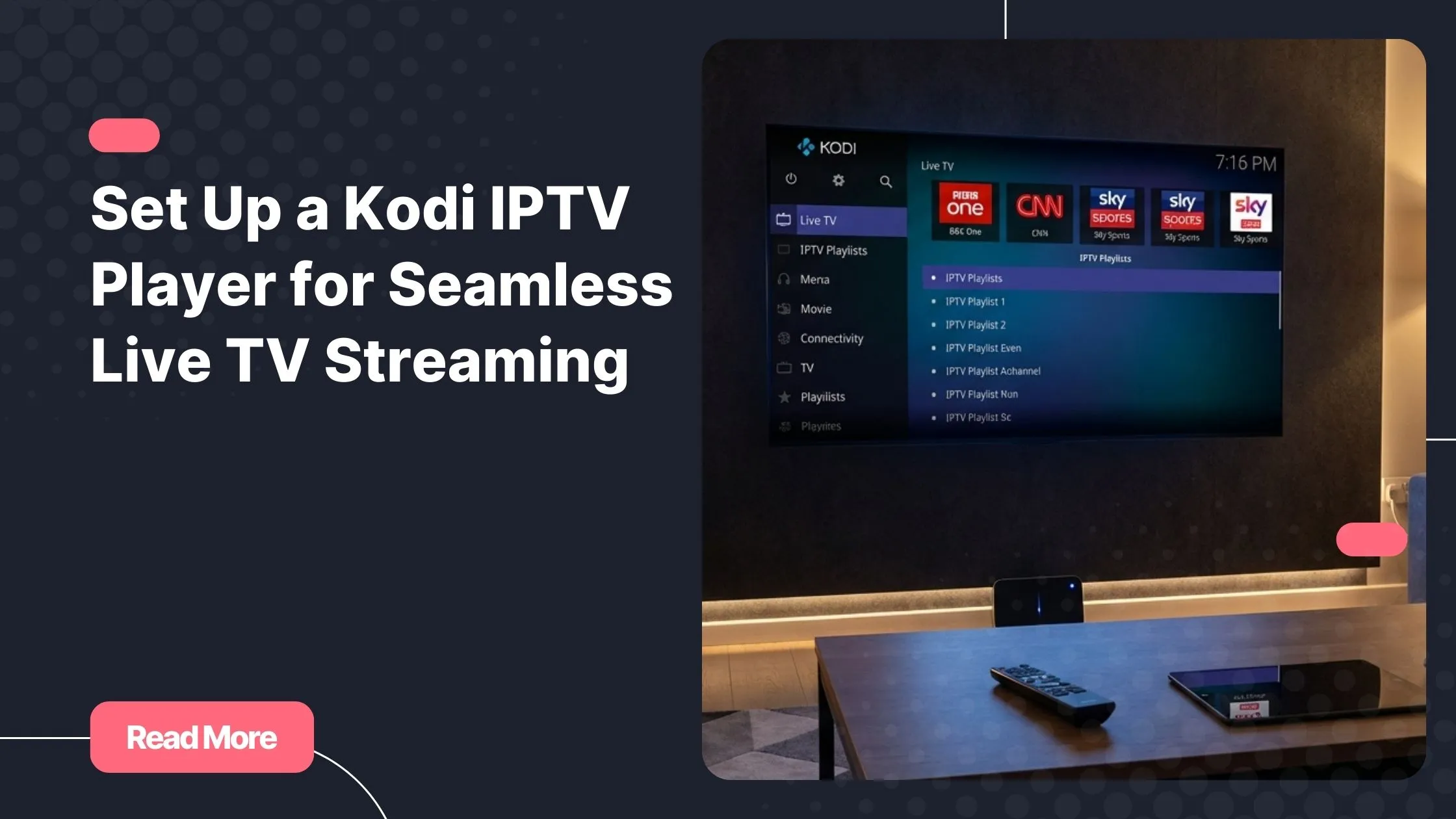
You probably remember the frustration of switching between multiple apps just to find the channel you want. Movies in one app, sports in another, and international channels somewhere else entirely. That scattered experience is exactly why many viewers turn to Kodi. With the right setup, a kodi iptv player transforms your device into a powerful live TV hub.
When combined with a reliable iptv provider, Kodi becomes far more than a simple media player. It becomes a customizable streaming center where you control how your channels appear, how your playlists load, and how smoothly everything runs. Instead of being locked into one platform, you create a setup tailored to your preferences.
In this guide, you will learn how to configure IPTV with Kodi step by step. From installing the right addons to optimizing streaming performance, you will discover how to build a complete and efficient streaming system using a kodi iptv player.
Table of Contents
What Is a Kodi IPTV Player
A kodi iptv player is a configuration within the Kodi media center that allows you to watch live television through IPTV playlists. Instead of relying on traditional cable or satellite signals, IPTV streams channels through your internet connection.
Kodi itself is an open source media center designed to manage and play digital media. When IPTV playlists and PVR addons are integrated into the platform, Kodi can display live channels just like a traditional TV interface.
Understanding IPTV Technology
IPTV stands for Internet Protocol Television. Instead of receiving channels via satellite or antenna, you receive them through data packets delivered across the internet.
Most IPTV services provide access through M3U playlists. These files contain a list of channels and the streaming URLs required to load them.
- Live TV channels
- Sports broadcasts
- International programming
- Video on demand libraries
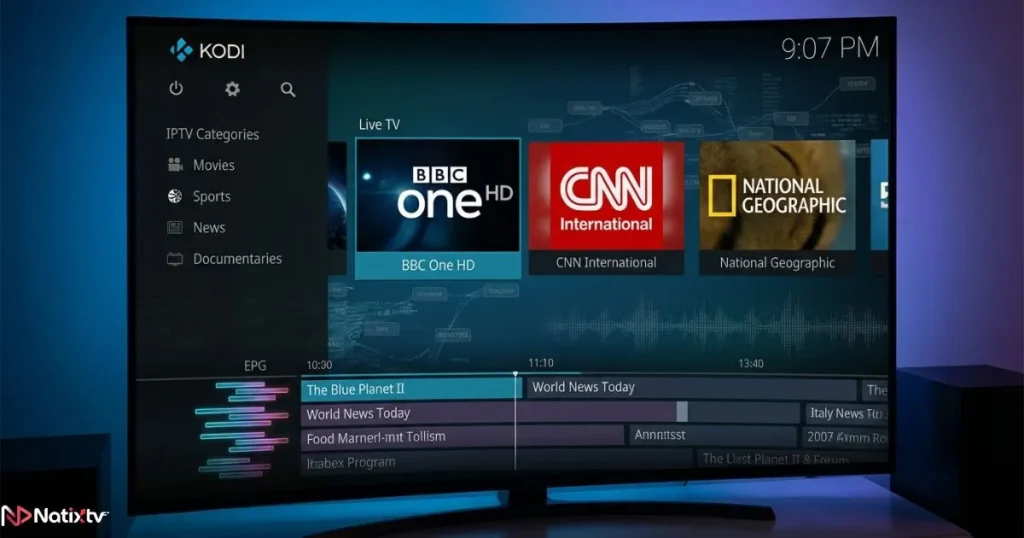
When you integrate these playlists into Kodi, your kodi iptv player organizes the streams and displays them in a television style interface.
Why Kodi Is Ideal for IPTV
Kodi has become a favorite platform for IPTV users because of its flexibility and compatibility. You can install it on many devices and customize almost every aspect of the interface.
Popular platforms supporting Kodi include:
- Windows computers
- Android TV devices
- Amazon Firestick
- Linux systems
- macOS
- Raspberry Pi media centers
This flexibility allows your kodi iptv player to work almost anywhere.
Why Use Kodi for IPTV Streaming
There are many IPTV apps available today, but Kodi remains one of the most powerful solutions. Its modular system allows you to build a streaming environment exactly the way you want.
When configured correctly, your kodi iptv player can deliver a professional live TV experience with advanced customization.
Main Advantages
- Unified streaming interface
- Support for multiple IPTV playlists
- Channel grouping and categories
- Electronic program guide integration
- Recording and playback options
Key Features of a Kodi Live TV Setup
A fully optimized Kodi IPTV configuration can include features similar to traditional television services.
- Live TV channel browsing
- Program schedules via EPG
- Favorites list
- Custom channel categories
- Recording support through PVR features
These capabilities make the kodi iptv player a serious alternative to cable television.
Requirements Before Setting Up IPTV on Kodi
Before configuring IPTV inside Kodi, you should make sure you have the essential components ready. A well prepared setup ensures your kodi iptv player runs smoothly from the beginning.
Basic Requirements
- Kodi installed on your device
- A stable internet connection
- An IPTV subscription with an M3U playlist
- An optional EPG link for TV schedules
These elements allow your kodi iptv player to load channels and organize them in the TV section of the interface.
Recommended Internet Speeds
| Streaming Quality | Recommended Speed |
|---|---|
| Standard Definition | 5 Mbps |
| HD Channels | 10 Mbps |
| Full HD | 15 Mbps |
| 4K IPTV | 25 Mbps or higher |
If your internet connection is unstable, buffering may occur regardless of how well your kodi iptv player is configured.
How to Install a Kodi IPTV Addon
To watch IPTV inside Kodi, you must install a PVR addon capable of reading IPTV playlists. The most widely used option is the PVR IPTV Simple Client.
Popular IPTV Addons for Kodi
- PVR IPTV Simple Client
- Playlist Loader
- IPTV Merge
Why PVR IPTV Simple Client Is the Most Used
This addon is included in the official Kodi repository and provides reliable compatibility with most IPTV services.
- Official Kodi addon
- Lightweight performance
- Full M3U playlist support
- EPG integration
Because of its stability, it is usually the best choice when configuring your kodi iptv player.
Step by Step Kodi Live TV Setup
Step 1: Install Kodi
Download Kodi directly from the official website:
The software is free and maintained by the Kodi Foundation.
Step 2: Enable the IPTV Addon
- Open Kodi settings
- Select Add-ons
- Choose Install from repository
- Open PVR clients
- Select PVR IPTV Simple Client
- Click Install
Once installed, your kodi iptv player becomes ready to accept IPTV playlists.
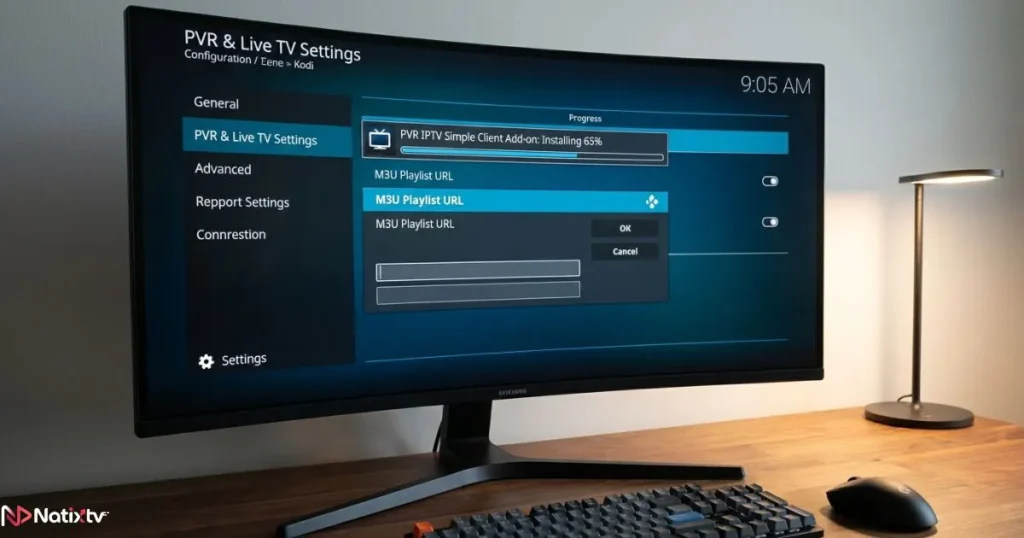
Step 3: Add Your M3U Playlist
- Open the addon settings
- Select M3U playlist URL
- Paste your IPTV playlist
- Confirm and restart Kodi
After restarting, the channels will appear automatically in the TV section of your kodi iptv player.
Step 4: Add the Electronic Program Guide
An EPG link allows Kodi to display program schedules and show descriptions.
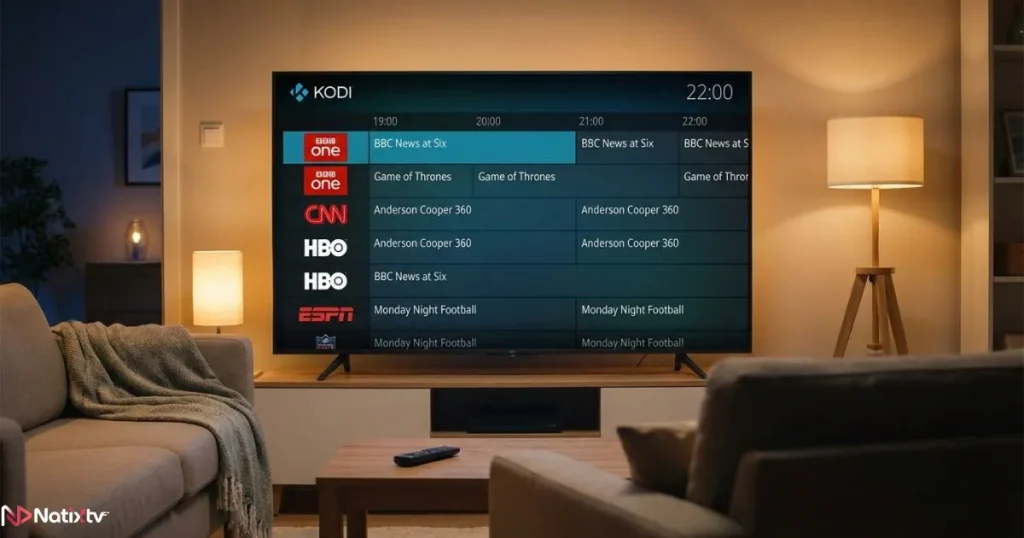
Once the EPG file is loaded, your kodi iptv player will present channels with structured TV listings similar to cable services.
Best Settings for Smooth IPTV Streaming
Optimizing Kodi settings can dramatically improve streaming quality.
Improve Performance
- Increase Kodi cache size
- Use Ethernet instead of WiFi when possible
- Update addons regularly
- Keep your device firmware updated
These adjustments help your kodi iptv player maintain stable streaming.
Reduce Buffering Problems
Buffering can occur due to several factors.
- Weak internet connection
- Server overload
- Low performance device
Optimizing these elements ensures your kodi iptv player performs at its best.
Advantages of Using IPTV With Kodi
Kodi stands out because it combines IPTV with a complete media center environment.
Device Flexibility
Your kodi iptv player can run on many devices including:
- Smart TVs
- Android boxes
- Streaming sticks
- Desktop computers
- Tablets
Customizable Viewing Experience
- Create channel categories
- Add favorites
- Install interface skins
- Integrate movie and series addons
This level of personalization is why advanced users continue to rely on the kodi iptv player.
Choosing a Reliable IPTV Service for Kodi
Even the best player depends on a quality IPTV service. A reliable provider ensures stable streams and organized channel lists.
If you are exploring streaming platforms, choosing a trusted iptv provider ensures compatibility with Kodi and other popular devices.
For example, Natixtv provides IPTV subscriptions compatible with Kodi, smart TVs, and streaming devices. The service also offers a free trial lasting between 24 and 48 hours so you can test the channels before committing.
If you use other streaming hardware, you may also want to explore guides explaining how IPTV players work on Roku devices through this helpful guide about streaming IPTV easily on Roku players.
Another useful resource explains how to select the best IPTV player for smooth streaming depending on your device.
Kodi IPTV Player Compared to Other IPTV Apps
| Feature | Kodi | Typical IPTV Apps |
|---|---|---|
| Customization | Very high | Limited |
| Addon ecosystem | Large | Small |
| Device compatibility | Extensive | Depends on app |
| Setup difficulty | Medium | Easy |
| Media center features | Yes | Rare |
Security and Legal Considerations
Using IPTV responsibly is important. Kodi itself is legal software, but the legality of streams depends on the IPTV service being used.
Always choose reputable providers and avoid unknown free streams. You can also learn more about the official Kodi media center project on the Kodi Foundation website, which explains how the open source platform works and how it is maintained.
Tips to Get the Most From Your Kodi Setup
- Organize channels into categories
- Create a favorites list for quick access
- Install lightweight Kodi skins
- Update addons regularly
- Backup your configuration
With these optimizations, your kodi iptv player becomes a reliable entertainment hub.
FAQ
What is a kodi iptv player
A kodi iptv player is a Kodi configuration that allows you to watch IPTV channels through M3U playlists and PVR addons inside the Kodi media center.
Which addon is best for IPTV on Kodi
The PVR IPTV Simple Client addon is widely considered the most stable and compatible solution for IPTV streaming on Kodi.
Can Kodi stream live TV
Yes. Once an IPTV playlist is added and configured, Kodi can display live channels with a full TV guide interface.
Why do IPTV channels buffer in Kodi
Buffering usually occurs due to slow internet speeds, overloaded IPTV servers, or insufficient device performance.
Can Kodi run on Firestick or Android TV
Yes. Kodi is compatible with many platforms including Firestick, Android TV devices, computers, and Linux systems.
Conclusion
Kodi remains one of the most versatile streaming platforms available today. When properly configured, it allows you to watch live television, manage playlists, and customize your entertainment experience. A well optimized kodi iptv player can replace traditional cable setups while offering far more flexibility.
The key to success is combining Kodi with a reliable IPTV service. If you want stable channels, broad international coverage, and a free trial period, consider testing a trusted iptv provider. With the right configuration, your Kodi setup can become the ultimate live TV streaming solution.