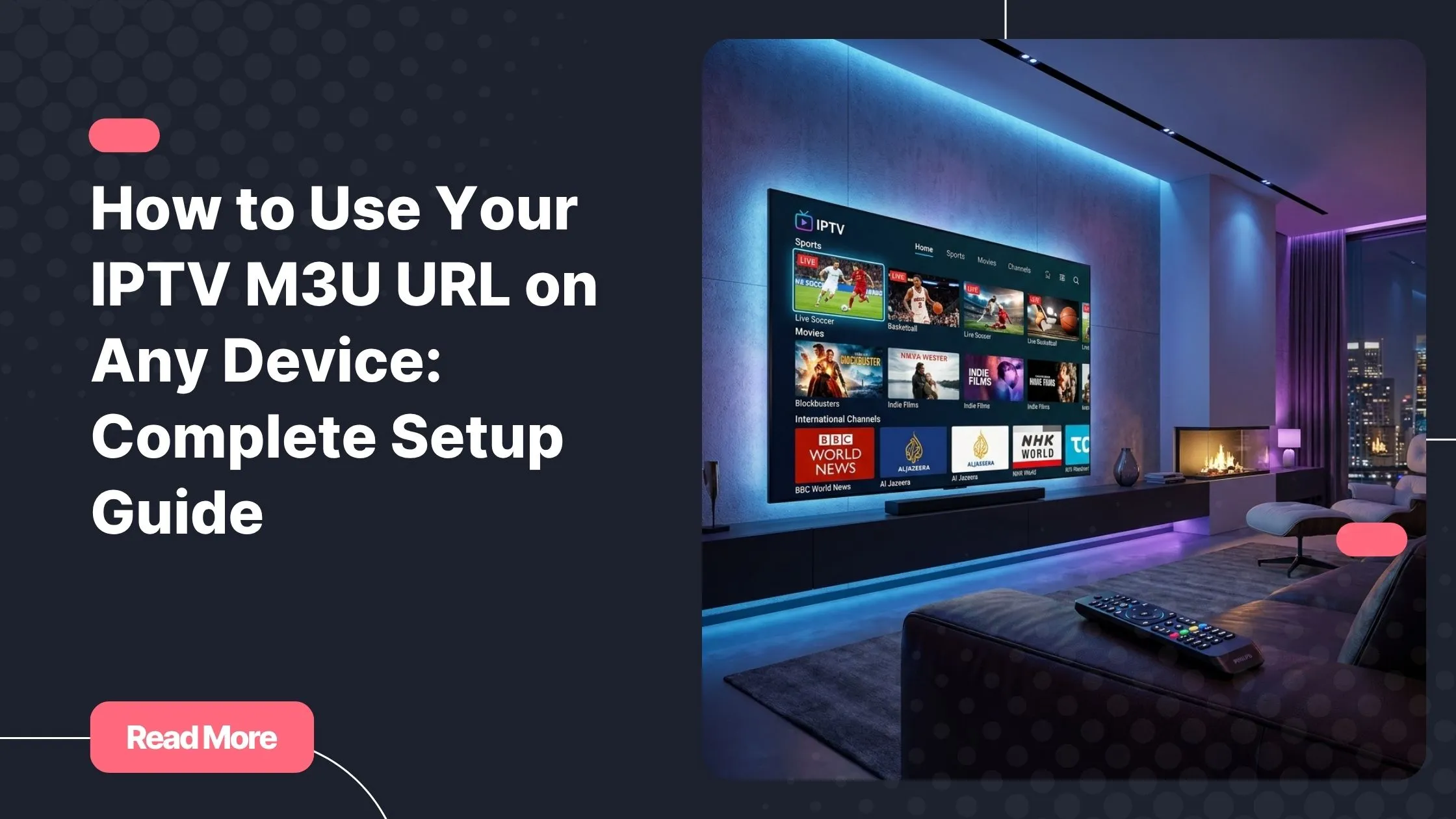
You’ve just received your IPTV M3U link, your screen is ready, and the match kicks off in ten minutes. Then nothing loads. The app freezes, the URL doesn’t work, and frustration sets in fast. If that sounds familiar, you’re not alone — and this guide exists precisely to make sure it never happens again. Whether you’re setting up your first url iptv m3u or switching to a new player, everything you need is right here. And if you’re still looking for a reliable provider, you can buy iptv subscription on Natixtv and get started with a free 24 to 48-hour trial.
The truth is, most setup problems have nothing to do with the service itself. They come from a mismatched player, a wrong setting, or simply not knowing which step to take first. Once you understand how an url iptv m3u actually works, configuration becomes straightforward — even enjoyable.
This complete guide walks you through everything: what an M3U link is, how to configure it on every major device, which player to choose, and how to troubleshoot the most common issues. By the end, you’ll know exactly how to get your streams running smoothly, on any screen you own.
Table of Contents
What Is an IPTV M3U URL and How Does It Work?
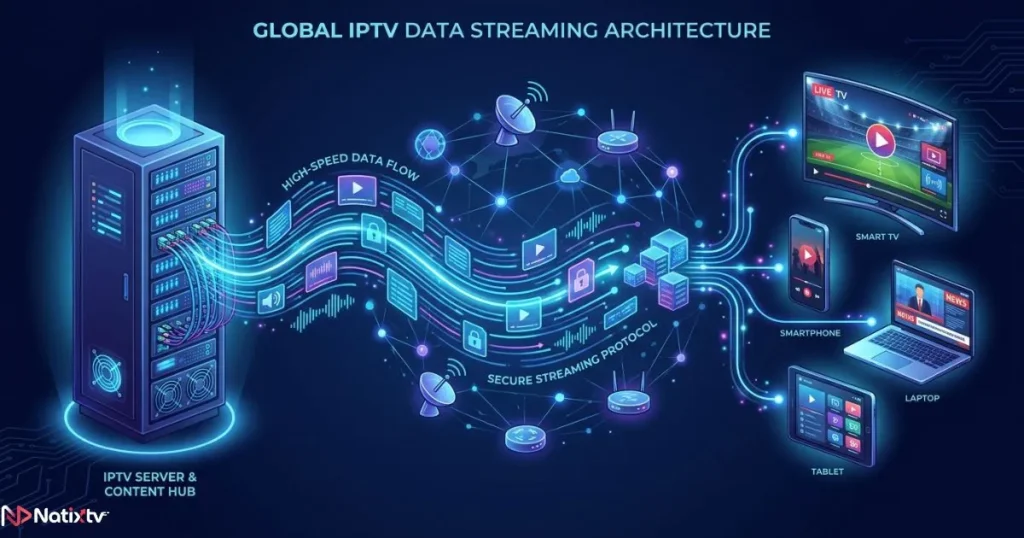
Before diving into setup, it helps to understand what you’re actually working with. An url iptv m3u is a playlist link that tells your media player where to find the video streams. M3U originally stood for “MP3 URL,” but the format has evolved far beyond music — today it’s the backbone of most IPTV delivery systems worldwide.
When you receive an url iptv m3u from your provider, it typically looks something like this:
http://provider.com/get.php?username=yourname&password=yourpass&type=m3u_plusThat URL contains your credentials and instructs your player to fetch a structured list of live TV channels, VOD content, and catch-up streams. Your player reads that list and connects directly to each stream in real time — no downloading, no waiting.
It’s worth understanding how M3U compares to other IPTV formats, especially if your provider gives you multiple options:
| Format | Compatibility | EPG Support | Ease of Use |
|---|---|---|---|
| M3U URL | Very wide | Via external EPG link | Easy |
| Xtream Codes | Medium | Native | Moderate |
| EPG XML | Limited alone | Yes | Technical |
The M3U format wins on compatibility. It works with virtually every IPTV player on the market, across all platforms — which is exactly why it remains the most widely used format. If you want a deeper look at how IPTV technology works end to end, this complete overview of IPTV setup, apps, and streaming tips covers everything in detail.
What You Need Before Getting Started
Setting up your url iptv m3u is fast when you have everything ready. Here’s what you need before you open any app:
- A valid IPTV subscription that provides an M3U link (Natixtv includes a 24 to 48-hour free trial)
- A stable internet connection — at least 10 Mbps for SD, 25 Mbps for HD, and 50 Mbps for 4K
- A compatible M3U IPTV player installed on your device
- Your full URL, exactly as your provider sent it (even a single character error will break it)
If your connection is solid and your credentials are correct, you’re already 80% of the way there. The remaining steps are just about choosing the right app and entering the settings properly.
How to Configure Your IPTV M3U URL on Every Device
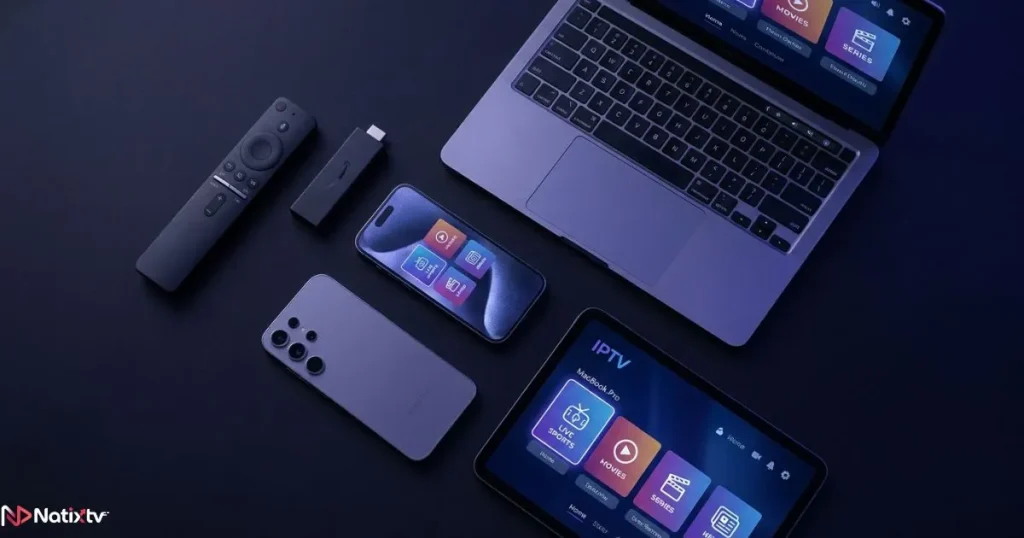
Every platform has its preferred apps and its own quirks. Follow the section that matches your device — or read them all if you’re setting up on multiple screens.
Smart TV (Samsung, LG, Android TV)
Smart TVs are probably the most popular screen for IPTV, and setup is simpler than most people expect. The best apps to use are IPTV Smarters Pro, TiviMate, and Smart IPTV.
- Install your chosen app from the TV’s app store
- Open the app and navigate to “Add Playlist” or “Add New User”
- Select “M3U URL” as the playlist type
- Paste your url iptv m3u exactly as provided
- Confirm and wait for the channel list to load
Note: Samsung and LG TVs using Smart IPTV require a one-time activation via the Smart IPTV website using your TV’s MAC address.
Amazon Fire TV Stick
The Fire Stick is one of the most versatile IPTV devices available. To install apps like TiviMate or IPTV Smarters that aren’t on the Amazon store natively, you’ll need to sideload them:
- Go to Settings > My Fire TV > Developer Options and enable “Apps from Unknown Sources”
- Install the Downloader app from the Amazon store
- Use Downloader to fetch and install the APK of your chosen player
- Open the app and add your iptv m3u url under playlist settings
Android Smartphone and Tablet
Android gives you the most flexibility. The Google Play Store hosts several excellent M3U players — IPTV Smarters Pro, Televizo, and GSE Smart IPTV are all solid choices. Once installed, look for “Add Playlist via URL” and paste your link directly. For the best experience, connect to Wi-Fi rather than mobile data, especially for HD channels.
iPhone and iPad (iOS)
iOS is more restricted, but it works perfectly with the right app. Download GSE Smart IPTV or IPTV Smarters from the App Store. In GSE, go to “Remote Playlists,” tap the plus icon, and paste your url iptv m3u. Avoid trying to open the link directly in Safari — a dedicated player is always more stable.
Windows PC and Mac
For desktop users, VLC Media Player is the quickest solution and requires zero configuration beyond pasting your link. Here’s how:
- Open VLC and click Media (on Windows) or File (on Mac)
- Select “Open Network Stream”
- Paste your url iptv m3u and click Play
For a richer experience with EPG and a proper TV interface, Kodi with the PVR IPTV Simple Client addon is an excellent alternative. According to Kodi’s official documentation, the PVR addon supports both M3U playlists and XMLTV EPG feeds, giving you a full electronic program guide alongside your channels.
MAG Box and Enigma2 Receivers
MAG boxes typically use a portal URL rather than a direct M3U link, but most providers supply both. For Enigma2-based receivers, you can import your iptv playlist m3u using the OpenWebif interface or a dedicated plugin. This is the most technical setup in this guide — if you’re new to Enigma2, consult your device’s manual before proceeding.
Kodi (All Platforms)
Kodi deserves its own section because it works on nearly every platform — Windows, Mac, Android, Fire TV, Raspberry Pi, and more. The setup process is consistent across all of them:
- Install Kodi and navigate to Add-ons > My Add-ons > PVR Clients
- Install “PVR IPTV Simple Client”
- Open the addon settings and set the M3U playlist location to “Remote Path (Internet address)”
- Paste your url iptv m3u and save
- Enable Live TV in Kodi’s main menu and enjoy
Choosing the Right M3U IPTV Player
Not all players are equal. Your choice of M3U IPTV player directly impacts your streaming quality, the reliability of your EPG, and how smoothly catch-up content works. Here’s a quick comparison of the top options:
| Player | Platform | EPG | Catch-Up | Free/Paid |
|---|---|---|---|---|
| TiviMate | Android / Fire TV | Yes | Yes | Freemium |
| IPTV Smarters Pro | Multi-platform | Yes | Yes | Free |
| GSE Smart IPTV | iOS / Android | Yes | Yes | Free |
| VLC | PC / Mac / Mobile | No | No | Free |
| Kodi | Multi-platform | Yes | Partial | Free |
TiviMate is widely regarded as the best overall experience for Android and Fire TV users. For iOS, GSE Smart IPTV handles the configure iptv m3u process better than most alternatives. VLC is perfect if you just want to test a stream quickly without installing anything heavy.
If you’re unsure which provider to pair with your player, reading about what makes an IPTV supplier trustworthy in 2026 can save you from costly mistakes and unreliable streams.
When you’re ready to commit to a service, you can buy iptv subscription on Natixtv and receive your url iptv m3u instantly, compatible with every player listed above.
Free IPTV M3U vs. Premium Subscriptions
A quick search will turn up hundreds of websites offering a free iptv m3u playlist. It’s tempting — but the reality rarely matches the promise.
| Criteria | Free M3U Lists | Premium (Natixtv) |
|---|---|---|
| Stability | Very low | High |
| HD/4K Quality | Rare | Standard |
| VOD Content | Minimal | Extensive |
| Customer Support | None | Included |
| EPG Guide | Rarely | Yes |
Free M3U lists go dead within hours. Channels disappear without warning, streams buffer constantly, and there’s no one to contact when things break. A premium iptv m3u link from a reliable provider gives you uptime guarantees, dedicated servers, and real support. The smartest way to try before you buy is to use Natixtv’s 24 to 48-hour free trial — real premium quality, no commitment.

Troubleshooting Common IPTV M3U URL Problems
Even with a perfect setup, occasional issues happen. Here are the most common problems and how to fix them:
- URL not loading: Check for typos in the link, verify your subscription is active, and confirm your provider’s servers aren’t down
- Buffering and freezing: Run a speed test, switch to Ethernet if you’re on Wi-Fi, or ask your provider for an alternative server URL
- No EPG displayed: Enter the EPG URL separately in your player’s settings — it’s usually provided alongside your url iptv m3u
- Channels missing from the list: Refresh or reload the playlist — many apps cache an old version of the M3U file
- App crashes on startup: Clear the app’s cache, update to the latest version, or try a different player
- Error 403 / Forbidden: You may have hit the simultaneous connection limit on your account, or your IP has been temporarily flagged
If the problem persists across multiple players, the issue is almost certainly with the subscription itself. Contact your provider’s support team with your M3U link details and device type.
Tips to Optimize Your Streaming Experience
Once everything is running, a few small adjustments can make a noticeable difference in quality and reliability:
- Use a wired Ethernet connection whenever possible — it eliminates Wi-Fi interference entirely
- Increase the buffer size in TiviMate or IPTV Smarters settings for smoother playback on slower connections
- Keep your M3U player app updated — providers often update stream formats, and old app versions may not handle them correctly
- Avoid running a VPN unless your provider explicitly supports it, as many IPTV servers block VPN IP ranges
- Refresh your playlist every few weeks if channels seem to drop off — providers occasionally restructure their M3U files
Frequently Asked Questions
What exactly is a url iptv m3u and why do I need one?
A url iptv m3u is a web address that points to a playlist of IPTV streams. Your media player reads that playlist and connects you to live TV channels, movies, and series. Without it, your player has no idea where to find the content — it’s the essential link between your subscription and your screen.
How do I use my M3U URL on a Smart TV?
Install a compatible app like IPTV Smarters or TiviMate from your TV’s app store, then go to the “Add Playlist” section, select M3U URL as the format, and paste the link your provider sent you. The channel list loads automatically within a few seconds.
Is a free IPTV M3U playlist a good option?
Free M3U lists are widely available but almost always unreliable. Streams go offline frequently, quality is inconsistent, and there’s no support when things break. Using a provider’s free trial period — like Natixtv’s 24 to 48-hour trial — gives you real premium performance without any cost upfront.
Can I use my url iptv m3u on more than one device at the same time?
Most providers limit simultaneous connections to one or two streams per subscription. Check your plan details — some premium plans, including those available on Natixtv, support multiple concurrent connections across different devices.
Why does my IPTV M3U link work on one device but not another?
This usually comes down to app compatibility or how each player handles stream formats. Try updating the app on the problematic device, or switch to a different player. If the issue persists, the device itself may have a hardware limitation affecting certain stream protocols.
How do I add an EPG guide to my M3U IPTV player?
Your IPTV provider should supply a separate EPG URL alongside your iptv m3u link. In most players, you’ll find an “EPG URL” or “XMLTV” field in the playlist or settings section. Paste the EPG link there, save, and your player will populate the channel guide automatically.
Conclusion
Setting up an url iptv m3u is not complicated once you know what you’re doing. The right player, the right link, and a reliable connection are all it takes to turn any screen into a full-featured TV experience. Whether you’re watching on a Smart TV, a Fire Stick, an iPhone, or a desktop, the process follows the same simple logic — and now you know exactly how to execute it.
The biggest variable in your experience isn’t the device or the app. It’s the quality of your provider. A stable, well-maintained url iptv m3u from a trusted source makes every other step easier. Natixtv delivers HD and 4K streams, a full VOD library, EPG support, and dedicated customer service — all compatible with every player and device covered in this guide. Buy iptv subscription today and test everything with a free 24 to 48-hour trial. No risk, no waiting — just great TV from the first minute.