Remember the last time your cable box froze right in the middle of a big game? Or when you spent twenty minutes scrolling through a bloated TV guide just to find nothing worth watching? That feeling of wasted time and quiet frustration is exactly what pushed millions of viewers in the US to make the switch. If you’re reading this, chances are you’re ready for something better — and iptv usa streaming through Xtream Codes IPTV might be the upgrade your living room has been waiting for.
Xtream Codes IPTV has quietly become the backbone of modern IPTV streaming. It powers the login system, the channel delivery, the video-on-demand libraries, and the real-time program guides that millions of users rely on every single day. Whether you own a Smart TV, an Android device, or an Amazon Firestick, this technology works across all of them — and setting it up is far simpler than most people expect.
This guide walks you through everything: what Xtream Codes IPTV actually is, which apps to use, how to configure your device step by step, and how to troubleshoot the most common issues. By the time you finish reading, you’ll be ready to stream with confidence — no tech degree required.
Table of Contents
What Is Xtream Codes IPTV and Why Does It Matter?
At its core, Xtream Codes IPTV is a communication protocol — a structured way for your IPTV app to talk to a media server. Instead of relying on a static playlist file, it uses a dynamic API connection that continuously syncs your channel list, VOD library, and electronic program guide in real time.
When you subscribe to an IPTV service, your provider sends you three pieces of information: a server URL, a username, and a password. Those three elements form your Xtream Codes login. Enter them into a compatible app, and within seconds, you have access to hundreds or thousands of live channels, movies, and TV series — all organized and ready to stream.
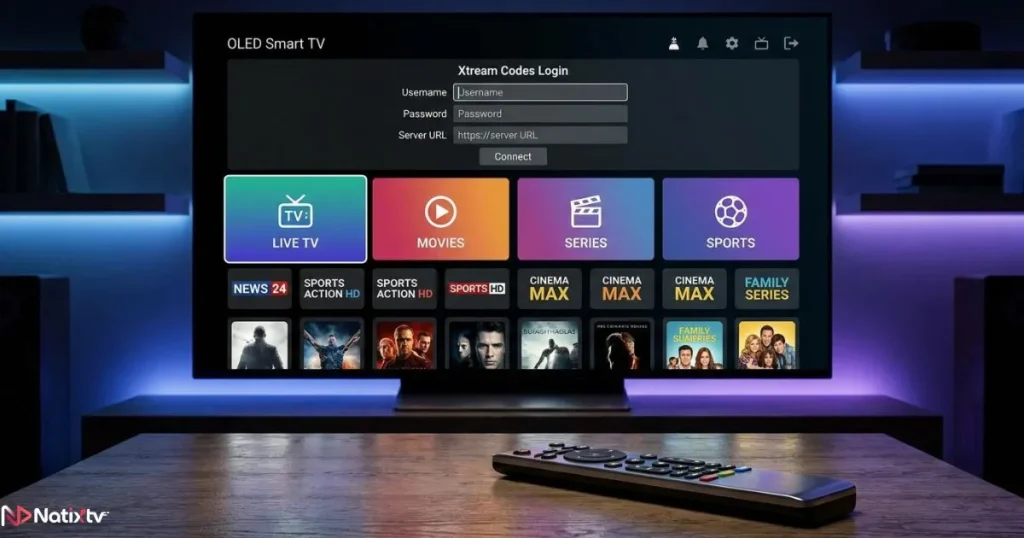
The Xtream Codes API is what makes this system so powerful compared to older methods. It’s faster, more stable, and significantly more feature-rich. Updates happen automatically. Channels load without manual refreshing. EPG data pulls in cleanly. If you’ve ever used an M3U playlist and found it clunky to manage, switching to Xtream Codes IPTV will feel like a genuine upgrade. You can learn more about how both formats compare in this complete guide to IPTV playlist setup on any device.
What You Need Before You Start
The Essentials
Before you dive into the setup process, make sure you have the following ready:
- An active IPTV subscription that includes Xtream Codes login credentials
- A stable internet connection with enough bandwidth for your preferred stream quality
- A compatible device: Smart TV, Android phone or tablet, or Amazon Firestick
- A reliable IPTV app that supports the Xtream Codes API
Your internet speed matters more than most people realize. Here’s a quick reference to help you gauge what you need:
| Stream Quality | Minimum Speed | Recommended Speed |
|---|---|---|
| SD (480p) | 4 Mbps | 6 Mbps |
| HD (720p) | 8 Mbps | 12 Mbps |
| Full HD (1080p) | 12 Mbps | 20 Mbps |
| 4K Ultra HD | 25 Mbps | 40+ Mbps |
Choosing the Right IPTV App
Not all IPTV apps are built the same way. For Xtream Codes IPTV, you want an app that natively supports the API login method — not just M3U import. Here are the top options available in 2026:
| App Name | Smart TV | Android | Firestick | Xtream Codes Support | Free Version |
|---|---|---|---|---|---|
| IPTV Smarters Pro | ✅ | ✅ | ✅ | ✅ | ✅ |
| TiviMate | ❌ | ✅ | ✅ | ✅ | Limited |
| GSE Smart IPTV | ✅ | ✅ | ❌ | ✅ | ✅ |
| Perfect Player | ❌ | ✅ | ✅ | ✅ | ✅ |
| Kodi + PVR IPTV | ✅ | ✅ | ✅ | Via add-on | ✅ |
IPTV Smarters remains the most universally recommended starting point. It’s free, easy to navigate, and fully compatible with Xtream Codes IPTV across all major devices. TiviMate is an excellent premium alternative if you want a more polished interface on Firestick or Android TV.
How to Set Up Xtream Codes IPTV on a Smart TV
Samsung and LG Smart TVs
Smart TVs from Samsung and LG both support IPTV apps through their respective app stores. Here’s how to get started:
- Open the app store on your TV (Samsung Smart Hub or LG Content Store)
- Search for IPTV Smarters or GSE Smart IPTV
- Install and launch the app
- Select “Add Playlist” and choose the Xtream Codes API option
- Enter your server URL, username, and password from your provider
- Wait for your channel list to load — this usually takes under a minute
- Browse your live channels, VOD, and series directly from your TV
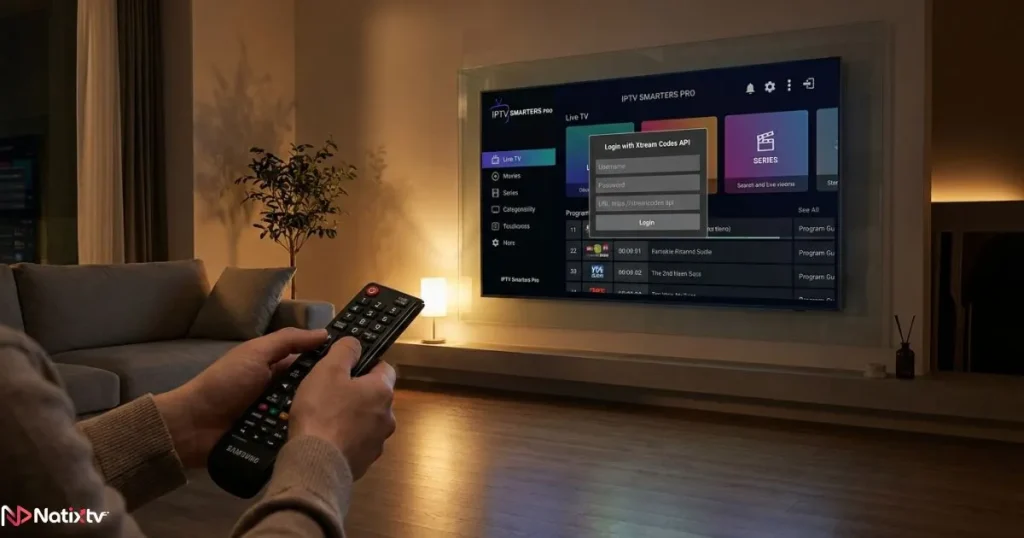
One important tip: make sure the URL you enter uses the exact format provided by your IPTV service, including the port number. Even a small typo will prevent the login from working.
Android TV (Sony, Philips, TCL)
If your TV runs Android TV, you can download IPTV Smarters directly from the Google Play Store. The setup process mirrors what’s described above. For apps not available on the Play Store, you can sideload the APK file using a file manager or the Downloader app. Once installed, the Xtream Codes login process is identical regardless of which Android TV brand you’re using.
How to Set Up Xtream Codes IPTV on Android
Step-by-Step Installation
Setting up Xtream Codes IPTV on an Android phone or tablet is straightforward. Follow these steps:
- Open the Google Play Store on your device
- Search for “IPTV Smarters Pro” and install it
- Open the app and tap Add User
- Select Xtream Codes API as your login method
- Enter your provider’s server URL, username, and password
- Tap confirm and allow the app to load your content library
Your entire channel list, VOD catalog, and EPG will be ready within moments. You can then cast your stream to a larger screen using Chromecast if you prefer watching on your TV.
Tips for a Better Android Experience
- Use a VPN to reduce throttling and improve stream consistency
- Adjust the video player buffer settings inside the app for smoother playback
- Set up multiple profiles if you manage more than one subscription
- Keep the app updated to benefit from the latest performance improvements
How to Set Up Xtream Codes IPTV on Amazon Firestick
The Firestick is one of the most popular streaming devices in the US, and it pairs exceptionally well with Xtream Codes IPTV. Since most IPTV apps aren’t available directly on the Amazon App Store, you’ll need to enable sideloading first.
Step 1 – Enable Apps from Unknown Sources
- Go to Settings on your Firestick
- Select My Fire TV, then Developer Options
- Toggle Apps from Unknown Sources to ON
- Confirm when prompted
Step 2 – Install Your IPTV App
- Download the Downloader app from the Amazon App Store
- Open Downloader and enter the APK download URL for IPTV Smarters or TiviMate
- Follow the on-screen instructions to install the app
- Launch the app once installation is complete
Step 3 – Configure Your Xtream Codes Login on Firestick
- Open your IPTV app (IPTV Smarters recommended for IPTV for Firestick)
- Navigate to Add Playlist or Load your Playlist / Xtream API
- Select the Xtream Codes API option
- Enter your server URL in the format:
http://yourprovider.com:PORT - Input your username and password
- Save your settings and let the channel list load
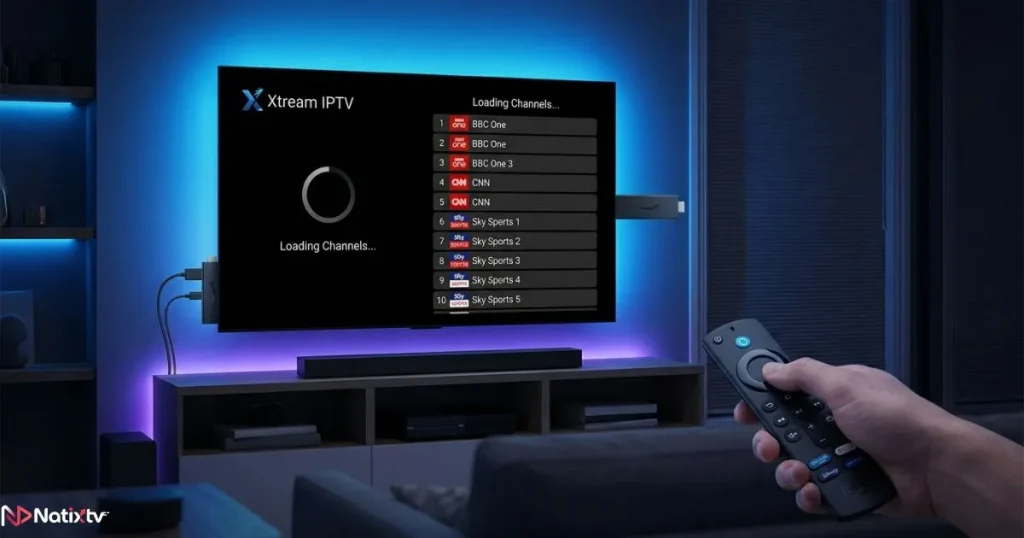
Using a Bluetooth keyboard with your Firestick makes entering your credentials significantly faster and reduces the chance of typos — a common source of login frustration.
If you want to explore which hardware and software combination gives you the best overall IPTV experience, this guide to choosing the best streaming setup for IPTV is an excellent resource to read alongside this article.
Troubleshooting Common Xtream Codes IPTV Issues
Even the best setups run into occasional hiccups. Here are the most common problems users face with Xtream Codes IPTV, along with practical fixes:
- Login failed error: Double-check your server URL for missing colons or incorrect port numbers. Verify your username and password are copied exactly as provided.
- Buffering or freezing streams: Test your internet speed, switch to a wired connection if possible, or contact your provider about switching to a less congested server.
- No EPG data showing: Re-enter the EPG URL inside your app’s settings, or trigger a manual guide refresh.
- App not loading channels: Clear the app’s cache, restart your device, and try relaunching. If the issue persists, reinstall the app.
- Certain streams not playing: Update your app to the latest version, or switch to an alternative video player within the app’s settings.
A VPN is also worth considering. Services like NordVPN are well-regarded for improving IPTV stability by preventing ISP throttling and offering servers optimized for streaming. Configure your VPN before launching your IPTV app for the best results.
Xtream Codes IPTV vs. M3U Playlist: Which One Should You Use?
Both formats have their place, but understanding the difference helps you make a smarter choice for your setup.
| Feature | Xtream Codes API | M3U Playlist |
|---|---|---|
| Login Method | URL + Username + Password | Direct URL link |
| Channel Updates | Automatic | Manual refresh needed |
| EPG Support | Built-in | Requires external URL |
| VOD Access | Full library | Limited |
| Security | Higher | Lower |
| Best For | Daily long-term use | Quick testing |
For most users, Xtream Codes IPTV is the clear winner for everyday streaming. The automatic updates, built-in EPG, and superior VOD integration make it more practical for long-term use. M3U is still useful for quick tests or one-time setups, but it requires more manual maintenance over time.
Why Natixtv Is the Right IPTV Provider for Your Setup
Once your device is configured and your app is ready, the final piece of the puzzle is choosing a reliable provider. iptv usa streaming through Natixtv gives you access to one of the most stable and content-rich IPTV services available today. Natixtv delivers full Xtream Codes IPTV compatibility right out of the box, so you can plug in your credentials and start watching within minutes.
Here’s what makes Natixtv stand out:
- Instant delivery of your Xtream Codes login credentials after signup
- Full compatibility with IPTV Smarters, TiviMate, GSE Smart IPTV, and more
- Multi-device support — use it on your Smart TV, Android phone, and Firestick simultaneously
- A massive library of live channels, sports, movies, and international content
- Low-buffering servers built for reliable daily use
- A free trial period of 24 to 48 hours so you can test everything before committing
- 24/7 customer support if you ever need help with your setup
That free trial is particularly valuable. You get real access to the full service — no limitations, no credit card required — so you can verify that everything works perfectly on your specific device and internet connection before making any financial commitment.
Frequently Asked Questions
What is Xtream Codes IPTV and how does it actually work?
Xtream Codes IPTV is a protocol that connects your IPTV app to a media server using three credentials: a server URL, a username, and a password. Once connected, your app pulls a live channel list, VOD library, and EPG data directly from the server in real time. It’s faster and more dynamic than a static M3U playlist, and it forms the backbone of most modern IPTV services.
Which app is best for Xtream Codes IPTV in 2026?
IPTV Smarters Pro is the most universally compatible option, working across Smart TVs, Android devices, and Firestick. TiviMate is a strong premium alternative with a more refined interface, particularly on Android TV and Firestick. Both fully support the Xtream Codes API login method.
Can I use Xtream Codes IPTV on my Firestick?
Absolutely. You’ll need to enable “Apps from Unknown Sources” in your Firestick’s developer settings and use the Downloader app to install IPTV Smarters or a similar app. From there, you enter your Xtream Codes login credentials and your channels load automatically. It’s one of the most popular IPTV for Firestick setups in use today.
Why is my Xtream Codes IPTV stream buffering?
Buffering is usually caused by a slow internet connection, ISP throttling, or server congestion on your provider’s end. Start by running a speed test to rule out bandwidth issues. If your speeds are adequate, try using a VPN to bypass throttling, or ask your provider to assign you a different server. Clearing your app’s cache can also help in some cases.
Is Xtream Codes IPTV legal to use?
The Xtream Codes API technology itself is completely legal. The legality of what you watch depends on whether your IPTV provider holds the rights to distribute that content. Choosing a reputable and transparent provider like Natixtv ensures you’re working with a service built on legitimate infrastructure.
How do I get Xtream Codes IPTV credentials?
Your credentials come directly from your IPTV provider when you sign up for a subscription. If you haven’t chosen a provider yet, Natixtv offers a free 24 to 48-hour trial that gives you full access to your Xtream Codes IPTV login details instantly — so you can test the service on your device before purchasing a plan.
Start Streaming Smarter with Xtream Codes IPTV Today
Xtream Codes IPTV is not just a technical protocol — it’s your ticket to a completely different streaming experience. The frustrating cable boxes, the frozen screens, the limited channel selections — all of that belongs to a past you no longer need to revisit. With the right app, a solid internet connection, and a trustworthy provider, you’re just a few minutes away from a setup that actually works the way entertainment is supposed to.
Whether you’re configuring a Smart TV in your living room, setting up an Android tablet for travel, or building the ultimate Firestick setup for your bedroom, the steps in this guide cover every path. The technology is consistent, the apps are proven, and the results speak for themselves across millions of happy households.
Your next move is simple: head over to iptv usa via Natixtv, claim your free 24 to 48-hour trial, and put everything you’ve just learned to work. Friday night, couch, snacks in hand — this time, everything streams perfectly.