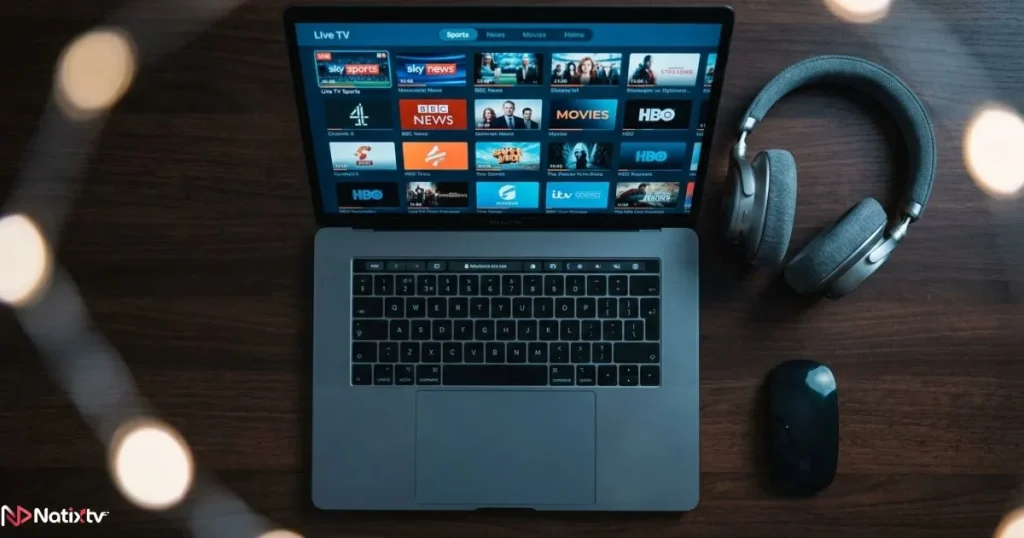
There is nothing quite like settling in for the evening, MacBook glowing on the table, a live match or a long-awaited series just one click away. Then the buffering starts. Or the app refuses to load your playlist. Or the interface looks like it was designed in 2009. You deserve better than that. Finding the right IPTV player for Mac can completely transform your streaming experience, and in 2026, your options as a Mac user have never been richer. As a trusted Iptv Provider, we have tested every major option so you do not have to start from scratch.
This guide is built for every type of Mac user: the casual viewer who just wants channels to work, the sports fan who needs a reliable electronic program guide, and the tech enthusiast chasing the sharpest 4K picture quality possible. Whether you are running a new Apple Silicon M3 chip or a slightly older Intel machine, this comparison will point you toward the right setup without wasting your time.
By the end of this article, you will know exactly which IPTV player for Mac suits your lifestyle, how to set it up in minutes, and which IPTV subscription makes the whole experience click into place. Let us get into it.
Table of Contents
Why Your Choice of macOS IPTV Player Changes Everything
macOS is a fantastic operating system for media consumption, but it comes with specific quirks that matter when choosing an IPTV app for Mac. Apple Silicon processors (M1, M2, M3) have transformed performance, but they also changed codec handling and app compatibility in ways that older IPTV players have not always caught up with.
A player that runs beautifully on Windows may stutter on macOS Sonoma or Sequoia. Rosetta 2 can help some apps run, but native support is always preferable. Beyond performance, features matter too: M3U playlist support, Xtream Codes login, an integrated EPG, and hardware-accelerated H.265/HEVC decoding all make a real difference in day-to-day use.
Here is what to keep in mind before choosing your setup:
- Native Apple Silicon support means smoother playback and lower battery drain
- H.265/HEVC hardware decoding is essential for HD and 4K streams without lag
- M3U and Xtream Codes compatibility is non-negotiable for most IPTV subscriptions
- A built-in EPG saves you from constantly checking a separate schedule app
- AirPlay support lets you push your stream to an Apple TV or compatible screen
The Best IPTV Players for Mac in 2026 – Full Comparison
After hands-on testing across different Mac hardware and macOS versions, here are the top contenders for the best IPTV player Mac users should consider this year.
VLC Media Player – The Reliable Free Classic
If you have used a Mac for more than a week, VLC is probably already installed. As a streaming solution for Mac, it remains one of the most dependable free options available. It supports virtually every codec, loads M3U playlists without any fuss, and runs natively on both Intel and Apple Silicon Macs.
The trade-off is the interface. VLC was not designed as a dedicated IPTV app for Mac, so there is no channel guide, no EPG, and no VOD browser. You are essentially using a general media player to handle a streaming task it was never built for. That said, for a quick and free solution, nothing beats VLC IPTV Mac setup for simplicity.
Best for: Budget-conscious users or anyone who wants a fast, no-install-needed IPTV solution.
IPTV Smarters Pro – Feature-Rich and Familiar
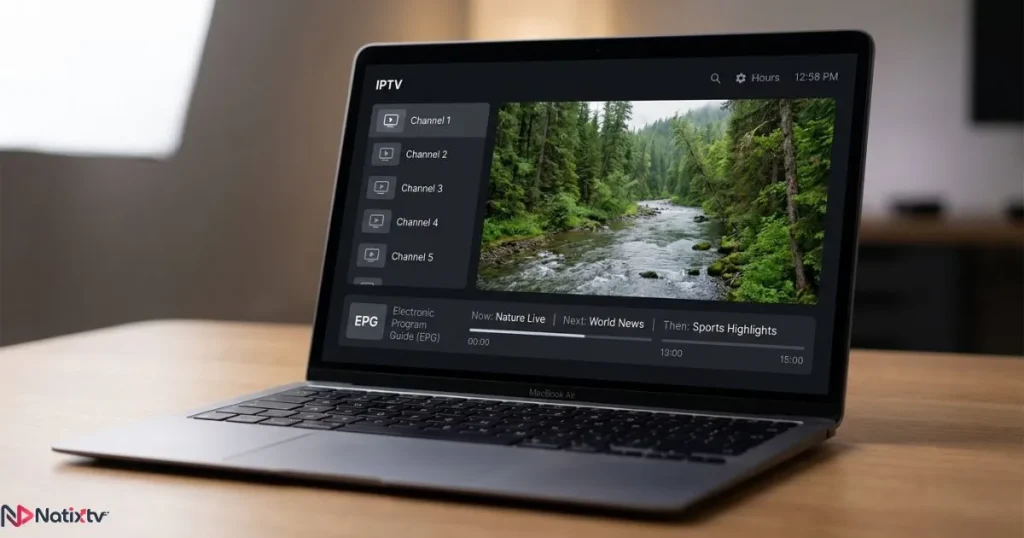
IPTV Smarters Pro is one of the most recognized names in the IPTV world, and for good reason. It offers a clean TV-like interface, full EPG support, VOD browsing, catch-up TV, and both M3U and Xtream Codes login options. For Mac users, the main hurdle is that there is no dedicated macOS app. However, on Apple Silicon machines, you can run the iOS version directly, and a browser-based interface is also available.
Once you work around the installation step, IPTV Smarters Pro Mac delivers an experience that feels far closer to a premium streaming service than most free players. It pairs exceptionally well with an IPTV subscription that provides Xtream Codes credentials, such as the ones offered by Iptv Provider.
Best for: Users who want a full TV experience with EPG and VOD on their Mac.
IINA – The Modern macOS IPTV Player Built for Mac
IINA is the macOS IPTV player that Mac purists have been waiting for. It is open-source, free, and built from the ground up using Apple’s own frameworks, which means it looks and feels perfectly at home on macOS Sonoma and Sequoia. The interface is genuinely beautiful: dark, minimal, and exactly what you would expect from a native Mac app.
IINA supports M3U playlists and handles H.265/HEVC decoding efficiently on Apple Silicon. Its main limitation mirrors VLC: there is no EPG and no dedicated channel management UI. But as a lightweight, native macOS IPTV player, it is arguably the most polished free option available in 2026.
Best for: Mac users who prioritize a native, elegant interface over advanced IPTV features.
Infuse 7 – The Premium Mac-Native Streaming Experience
Infuse 7, available on the Mac App Store, is what happens when a media player takes design seriously. It supports M3U playlists with a Pro subscription, handles HDR and Dolby Vision content beautifully, and runs natively on Apple Silicon. The interface rivals anything you will find on a Smart TV.
EPG support is limited compared to dedicated IPTV apps, but for pure video quality and a premium feel, Infuse 7 is in a class of its own. If you are pairing it with a high-quality IPTV subscription focused on stable 4K streams, the investment is worthwhile.
Best for: Users willing to pay for the best possible visual experience on Mac.
Elmedia Player – The Versatile All-Rounder
Elmedia Player sits in an interesting space between a general media player and an IPTV app for Mac. Available on the Mac App Store, it supports IPTV streams via M3U, offers AirPlay and Chromecast casting, and includes a free tier alongside a Pro upgrade for advanced features.
It handles both local media files and live IPTV streams equally well, making it a strong choice if you want one app to cover all your video needs on Mac. It is also worth noting that Elmedia is regularly updated for the latest macOS releases, so compatibility is rarely an issue.
Best for: Users who want a single app for both IPTV and local media on Mac.
OTT Navigator – The Power User Option via Android Emulator
OTT Navigator is not natively available on macOS, but through an Android emulator like BlueStacks, power users can access one of the most fully featured IPTV interfaces available anywhere. It includes advanced EPG, favorites management, parental controls, and multi-stream support.
The setup is more involved than the other players listed here, and performance depends heavily on your Mac’s hardware. However, if you want maximum control over your IPTV experience and you are comfortable with technical setup, OTT Navigator is worth the effort.
Best for: Advanced users who want the most complete IPTV feature set on their Mac.
Quick Comparison Table – IPTV Players for Mac 2026
| Player | Free/Paid | M3U Support | EPG | Native macOS | Best For |
|---|---|---|---|---|---|
| VLC | Free | Yes | No | Yes | Budget users |
| IPTV Smarters Pro | Free/Paid | Yes | Yes | Workaround | Feature seekers |
| IINA | Free | Yes | No | Yes | Mac minimalists |
| Infuse 7 | Freemium | Yes (Pro) | Limited | Yes | Premium UX |
| Elmedia Player | Freemium | Yes | No | Yes | All-rounders |
| OTT Navigator | Free | Yes | Yes | Emulator only | Power users |
How to Set Up Your IPTV Player for Mac – Step by Step
No matter which player you choose, the setup process follows a similar logic. You will need an active IPTV subscription that provides either an M3U URL or Xtream Codes credentials. Here is how the most popular setups work.
Setting Up VLC IPTV on Mac
- Download VLC from videolan.org (official, free, no account required)
- Open VLC and go to File, then Open Network
- Paste your M3U URL from your IPTV subscription into the URL field
- Press Open and your channel list will begin loading
- Optionally, save the M3U file locally for faster future access
Setting Up IINA with M3U on Mac
- Download IINA from iina.io (free, no account required)
- Open IINA and select File, then Open URL
- Paste your M3U playlist URL and confirm
- Your channels will populate as a playlist on the left panel
- Double-click any channel to start streaming immediately
Setting Up IPTV Smarters Pro on Apple Silicon Mac
- On an M1/M2/M3 Mac, open the App Store and search for IPTV Smarters Pro under iPhone and iPad apps
- Install and launch the app
- Choose between M3U URL login or Xtream Codes API login
- Enter your credentials from your IPTV provider
- Browse Live TV, VOD, and Series from the main dashboard
Pro tip: If you are using a provider like Natixtv, you will receive both M3U and Xtream Codes details after activation. This means you can try the same subscription across multiple players to find the one that works best for your Mac setup. If you are curious about how different providers stack up overall, this guide to the top IPTV services ranked for 2026 is a useful reference.
Key Features to Look for in a macOS IPTV Player
Not all IPTV players are equal, and knowing which features matter for your use case saves you time. Here is what to prioritize when choosing your IPTV player for Mac:
- M3U and M3U8 playlist support: The industry standard for IPTV streams. Non-negotiable.
- Xtream Codes API compatibility: Enables richer features like EPG, VOD, and catch-up TV when supported by your provider.
- H.265/HEVC hardware decoding: Critical for HD and 4K streams without taxing your CPU or battery.
- Native Apple Silicon support: Avoids Rosetta 2 overhead for better performance and efficiency.
- Built-in EPG: Lets you see what is on now and what is coming next without leaving the app.
- AirPlay or external display support: Useful for pushing your stream to a larger screen.
- VOD and catch-up TV: Extends your IPTV experience beyond live channels.
- Multi-stream support: Lets you watch one channel while recording or monitoring another.
It is also worth noting that the player alone is only half the equation. If you are using TiVimate on other devices and want to compare setups, this article on pairing the best IPTV subscription with TiVimate covers the subscription side in depth.
Fixing Common IPTV Playback Issues on Mac
Even with the best IPTV player for Mac, you may occasionally run into hiccups. Here is how to solve the most common ones quickly.
Buffering and Lag
Buffering is almost always a network issue rather than a player problem. Make sure your internet connection is delivering at least 25 Mbps for HD streams and 50 Mbps for 4K. If possible, switch from Wi-Fi to a wired Ethernet connection using a USB-C adapter. Within the player, try lowering the stream quality one step to see if that resolves it.
M3U Playlist Not Loading
First, double-check that you copied the M3U URL correctly with no trailing spaces. Then confirm your IPTV subscription is still active. If the URL is correct and the subscription is live, try refreshing the playlist inside the app or pasting the URL directly into VLC as a quick diagnostic step.
No Sound or Wrong Audio Track
This is common with streams that carry multiple audio tracks (for example, multilingual channels). In VLC, go to Audio, then Audio Track and select the correct one. In IINA, the audio track selector is available in the menu bar while a stream is playing.
App Crashes on macOS Sonoma or Sequoia
Always make sure you are running the latest version of your chosen player. If crashes persist on Apple Silicon, check whether the app requires Rosetta 2 and whether Rosetta 2 is installed. A clean reinstall resolves most stability issues.
Why Natixtv Is the Ideal Subscription to Pair with Your Mac Player
Choosing the right IPTV player for Mac is only meaningful when it is paired with a reliable IPTV subscription. Natixtv is designed to work seamlessly with every player covered in this guide, delivering stable streams for live TV, sports, VOD, and international content.
When you subscribe to Natixtv, you receive both an M3U URL and Xtream Codes credentials, giving you full flexibility regardless of which player you choose. Streams are optimized for HD and 4K playback, with uptime that matches the reliability you expect from a premium service.
Perhaps most importantly for new users, Natixtv offers a free trial period of 24 to 48 hours. That means you can test every channel, load the M3U URL into VLC or IINA or IPTV Smarters Pro, and verify the quality firsthand before committing to any plan. As a dedicated Iptv Provider, the goal is to make sure the setup works perfectly on your Mac before you spend a single cent.

Mac vs. Other Devices for IPTV – Is Mac the Right Choice?
Mac is a genuinely excellent IPTV platform when paired with the right player and subscription. Compared to a Smart TV, your Mac gives you far more flexibility in which player you use. Compared to an iPhone or iPad, you get a larger screen and better multitasking. Compared to a Fire Stick, the Mac requires a little more initial configuration but delivers significantly more power and customization.
If you have already invested in a Mac, there is no need to buy additional hardware for IPTV. The right player and a quality subscription turn your existing machine into a world-class streaming hub.
Frequently Asked Questions About IPTV Player for Mac
What is the best free IPTV player for Mac in 2026?
VLC and IINA are both excellent free choices. VLC is the most widely compatible option and supports M3U playlists out of the box. IINA offers a more native macOS design and is actively maintained for Apple Silicon. Neither includes a built-in EPG, but both are reliable for straightforward live TV streaming.
How do I set up an IPTV player for Mac using an M3U URL?
In VLC, go to File and then Open Network, paste your M3U URL, and press Open. In IINA, use File and then Open URL and paste the same link. If you are using Infuse or Elmedia, look for an “Add URL” or “Add Playlist” option in the app’s settings. Your IPTV provider will give you the M3U URL when you activate your subscription.
Can I use IPTV Smarters Pro on a Mac?
Yes, with a workaround. On Apple Silicon Macs (M1, M2, M3), you can install the iOS version of IPTV Smarters Pro directly from the Mac App Store. You can also access a browser-based version on Intel Macs. The experience is not quite identical to a native macOS app, but the EPG, VOD, and channel browsing features all function correctly.
Does VLC work well as an IPTV app for Mac?
VLC works reliably as a basic macOS IPTV player. It loads M3U playlists, handles virtually all video codecs including H.265/HEVC, and runs natively on both Intel and Apple Silicon Macs. Its main limitation is the absence of any channel guide or EPG, which means it is better suited for users who know exactly what they want to watch rather than browsing live schedules.
Is there a native macOS IPTV player with full EPG support?
True native EPG support on macOS is still a gap in the market. IPTV Smarters Pro (via the iOS workaround on Apple Silicon) offers the most complete EPG experience. Infuse 7 includes limited EPG functionality. For full EPG on a Mac, OTT Navigator via an Android emulator is the most powerful option, though the setup is more complex.
Can I try Natixtv on my Mac before committing to a subscription?
Absolutely. Natixtv offers a free trial of 24 to 48 hours, which is more than enough time to load your M3U URL into your preferred IPTV player for Mac, browse the channel lineup, test the stream quality, and confirm everything works smoothly on your specific Mac hardware. There is no risk in trying it before you subscribe.
Final Verdict – Which IPTV Player for Mac Is Right for You?
After walking through every major option, here is the short version: choose VLC or IINA if you want a free, lightweight setup that just works. Go with IPTV Smarters Pro if you need full EPG and VOD features on your Mac. Pick Infuse 7 if premium video quality is your top priority. Opt for Elmedia Player if you want one app that handles both IPTV and local files. And consider OTT Navigator via emulator if you are a power user who wants every available feature.
Whichever direction you go, remember that the player is only as good as the subscription behind it. A stable, high-quality IPTV service with reliable HD and 4K streams makes every player perform at its best. Natixtv is built exactly for that purpose, with full M3U and Xtream Codes support across all the players in this guide, a broad channel lineup, and a risk-free trial of 24 to 48 hours to verify everything works on your Mac before you commit.
Your Mac is already a powerful machine. Pair it with the right IPTV player for Mac and the right subscription, and your evenings will never look the same. Start your free trial today at Iptv Provider and experience the difference for yourself.