Remember the last time you missed a live match because the stream kept buffering, or spent a full evening jumping between five different apps just to watch your favorite shows? That frustration is real – and it is one most IPTV users have felt at some point. The good news is that things have changed dramatically, and the right setup can make all the difference. If you are looking for the best iptv service experience, understanding the tools at your disposal is the first step.
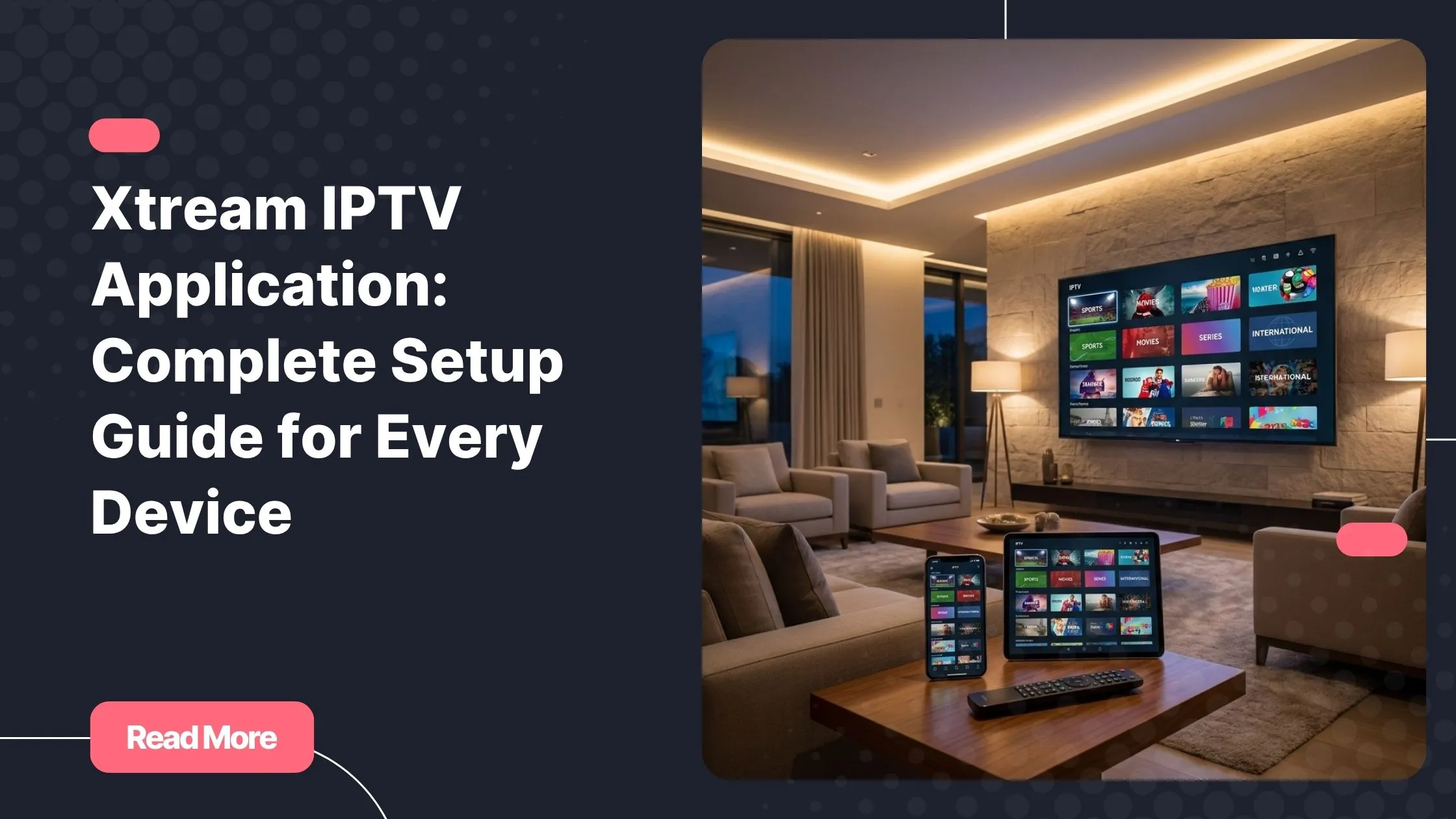
The xtream iptv application has become one of the most widely adopted solutions in the world of internet television. It brings together live TV, movies, and series under a single, clean interface – no juggling apps, no confusing file formats. Just your content, ready when you are.
In this guide, you will learn exactly what this platform is, which apps support it, how to set it up on every major device, and how to get the smoothest possible streaming experience. Whether you are a first-time IPTV user or looking to fine-tune your current setup, this is the resource you need.
Table of Contents
What Is the Xtream IPTV Application?
From Xtream Codes to Modern IPTV Players
The story of the xtream iptv application starts with Xtream Codes, a server-side management panel originally built for IPTV providers to organize and distribute content to subscribers. Over time, the API that powered this panel became an open standard – and developers quickly adopted it to build a new generation of IPTV players.
Today, the term “Xtream Codes app” broadly refers to any IPTV player that supports Xtream Codes-style login. That means a consistent, three-credential authentication system that works across hundreds of compatible apps and providers worldwide. What started as back-end infrastructure has effectively become the universal language of modern IPTV.
How Does the Xtream Codes API Work?
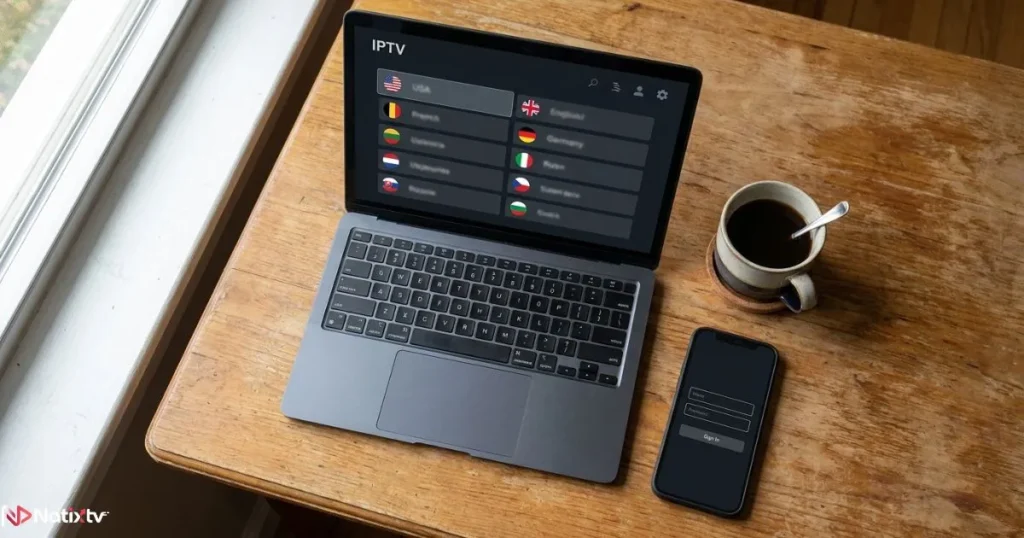
The principle is simple. Instead of downloading a playlist file or managing a long M3U URL on your own, you log in to your IPTV service using three pieces of information:
- Portal URL: the server address provided by your IPTV provider
- Username: your personal account identifier
- Password: your account password
Once connected, the app pulls your full playlist – live TV channels, VOD movies, and series – directly from the server. Everything updates in real time. This is one key difference from a standard M3U playlist, which is a static file you have to refresh manually. With an Xtream login, your content library stays current without any extra steps on your end. If you want to understand more about how IPTV URLs and portals work under the hood, this guide to IPTV portal addresses and connection formats is a solid starting point.
Top Xtream IPTV Apps Available Today
One of the great strengths of this Xtream ecosystem is its variety. You are not locked into a single player. Instead, you can choose from a growing list of IPTV apps that all support Xtream login, each with its own interface, feature set, and device compatibility.
| App Name | Platforms | Free / Paid | Xtream Login | Notable Features |
|---|---|---|---|---|
| IPTV Smarters Pro | Android, iOS, FireStick, Web | Paid (one-time) | Yes | Multi-profile, EPG, VOD |
| TiviMate | Android, FireStick | Freemium | Yes | Best EPG UI, catch-up TV |
| GSE Smart IPTV | iOS, Android, macOS | Freemium | Yes | M3U and Xtream dual support |
| Lazy IPTV | Android | Free | Yes | Lightweight, simple UI |
| Xtream Player | Android | Free | Yes | Native Xtream interface |
| Perfect Player | Android, Windows | Free | Yes | DLNA support, clean UI |
For beginners, IPTV Smarters Pro is the most approachable option – its interface walks you through the Xtream login process step by step. If you watch a lot of live TV and want a premium electronic program guide, TiviMate is hard to beat. On Apple devices, GSE Smart IPTV is the most reliable choice, supporting both Xtream and M3U formats in the same app.
According to Digital TV Europe, the adoption of Xtream-compatible IPTV players has grown consistently year over year as subscribers demand more flexible, device-agnostic viewing options.
Xtream IPTV Setup: Step-by-Step for Every Device
The xtream iptv application is designed to be accessible – but the exact steps vary depending on which device you are using. Here is a clear walkthrough for every major platform.
Before you begin: Make sure you have valid Xtream login credentials from your IPTV provider. Natixtv – one of the best iptv service options available – offers a free trial of 24 to 48 hours so you can test everything before committing to a plan.
How to Set Up the Xtream IPTV App on Android
- Open the Google Play Store and download your chosen IPTV app (IPTV Smarters Pro is recommended for first-time users).
- Launch the app and tap “Add User” or “Add Playlist.”
- Select the Xtream Codes login option.
- Enter your portal URL, username, and password exactly as provided by your subscription service.
- Tap “Add User” and wait a few seconds while your playlist loads.
- You will now see your full channel library organized into Live TV, VOD, and Series tabs.
Setup on Amazon FireStick and Fire TV
Both TiviMate and IPTV Smarters Pro are available directly on the Amazon App Store, making setup on FireStick straightforward. If your preferred app is not listed there, you can use the Downloader app to sideload it:
- Go to Settings, then My Fire TV, and enable “Apps from Unknown Sources.”
- Install the Downloader app from the Amazon App Store.
- Use Downloader to navigate to the APK download page of your chosen IPTV player.
- Once installed, open the app and complete the Xtream login as described above.
Tip: use a Bluetooth keyboard paired with your FireStick to type your credentials quickly and avoid typing errors with the remote.

Setup on iPhone and iPad (iOS)
On iOS, GSE Smart IPTV is the most reliable IPTV Xtream Player available. You can find it on the App Store. Once installed:
- Open the app and go to “Remote Playlists.”
- Tap the plus icon and choose “Xtream Codes API.”
- Enter your portal URL, username, and password.
- Save and wait for the library to populate.
Keep in mind that Apple occasionally restricts certain IPTV apps in specific regional App Stores. If you cannot find your preferred app, check whether a different region’s store carries it.
Setup on Smart TV (Samsung and LG)
Smart TVs require a slightly different approach. On Samsung (Tizen OS), apps like Smart IPTV and SS IPTV can be installed via the TV’s browser or through a USB drive containing the app file. On LG (webOS), GSE Smart IPTV and similar apps are available through the LG Content Store or via sideloading.
If your Smart TV does not support direct app installation, the easiest workaround is to plug in an Android TV stick (such as the Chromecast with Google TV or a Xiaomi Mi Box) via HDMI. This instantly turns your TV into a fully compatible IPTV device.
Setup on Windows and macOS
On Windows, Perfect Player is a clean and free option with full Xtream login support. On macOS, GSE Smart IPTV has a desktop version available. For either platform, you can also use VLC Media Player as a fallback by entering your Xtream-generated M3U URL directly into the network stream input. This is not the most feature-rich experience, but it works reliably for basic live TV viewing.
Key Features of the Xtream IPTV Application
Once you are set up, this IPTV player opens up a feature set that goes well beyond basic channel playback. Here is what you should know about each major capability.
Live TV with Electronic Program Guide (EPG)
The EPG is your TV schedule – displayed directly inside your IPTV app. It shows you what is currently on each channel, what comes next, and how far back you can go with catch-up TV (also called time-shift). To enable it, your IPTV provider must supply an EPG URL, which you enter in your app’s settings under “EPG” or “Program Guide.” Once active, you can browse programming visually, just like a traditional TV guide.
Video On Demand and Series
The VOD section of the xtream iptv application gives you access to a library of movies and TV series organized by genre, language, or provider-defined categories. Series are structured by season and episode, with most players supporting resume playback so you never lose your place. The quality of the VOD library depends on your subscription – a comprehensive provider like the right IPTV provider for your needs makes a significant difference here.
Multi-Screen and Multi-Profile Support
Many IPTV apps allow you to create separate profiles for different household members. Multi-connection plans let two or more streams run simultaneously on different devices – ideal for families. The number of concurrent streams is determined by your subscription tier, not the app itself.
Stream Quality Settings
You can usually choose your stream quality within the player settings. Higher resolutions deliver a better picture but require more bandwidth. Use this table as a reference before adjusting your settings:
| Stream Quality | Recommended Internet Speed |
|---|---|
| SD (480p) | 5 Mbps |
| HD (720p) | 10 Mbps |
| Full HD (1080p) | 15 to 20 Mbps |
| 4K (2160p) | 25 Mbps or more |
Best Practices for a Smooth IPTV Experience
A great subscription and a well-configured xtream iptv application are only part of the equation. How you configure your setup – and your home network – makes a significant impact on day-to-day quality.
Optimize Your Internet Connection
For live TV in particular, a wired Ethernet connection is always preferable to Wi-Fi. It reduces latency and eliminates the signal interference that can cause sudden drops in quality. If Ethernet is not practical, use the 5 GHz band on your router rather than 2.4 GHz, and position your device as close to the router as possible. Close any background apps or downloads running on the same network while you stream.
Use a VPN Wisely
A VPN can help in two specific situations: when your internet provider is throttling streaming traffic, and when you want to access geo-restricted content. For IPTV use, protocols like WireGuard or OpenVPN offer the best balance of speed and security. Avoid free VPN services – they often add latency and can make buffering worse rather than better. A reputable paid VPN is a small investment that pays off in stream stability.
Keep Your Credentials and App Secure
Your Xtream login credentials are tied to your subscription. Do not share them publicly or with people outside your household, as unauthorized use could lead to service suspension. Always download IPTV apps from official sources: Google Play, the Amazon App Store, the Apple App Store, or the developer’s official website. This protects you from modified APKs that may carry security risks.
Troubleshooting Common Issues
Most problems with the xtream iptv application come down to a handful of recurring causes. Here is a quick reference for the most common ones:
- “Authentication failed” – Double-check your portal URL, username, and password for typos or extra spaces. Copy and paste from your confirmation email if possible.
- Constant buffering – Run a speed test first. If your connection is fine, switch to a lower stream quality or try a different server in your provider’s panel.
- EPG not loading – Verify your EPG URL in the app settings. Try removing it and re-entering it, then force-reload the playlist.
- App crashes or freezes – Clear the app cache, restart your device, and if the problem persists, try a different IPTV player from the comparison table above.
Why Choose Natixtv for Your IPTV Subscription?
Getting the most out of your Xtream IPTV setup starts with having a reliable subscription behind it. Without stable server infrastructure, even the best player cannot deliver a consistent experience. This is where your choice of provider matters as much as your choice of app.
Natixtv is designed to work seamlessly with every app covered in this guide. Your Xtream login credentials arrive ready to paste directly into IPTV Smarters Pro, TiviMate, GSE Smart IPTV, or any other compatible player. Key reasons users choose Natixtv include:
- Full compatibility with Android, iOS, FireStick, Smart TV, Windows, and macOS
- A large library of live TV channels, VOD movies, and series
- HD and Full HD streams with 4K availability on select channels
- Reliable uptime and fast server response times
- Flexible subscription plans for individuals, couples, and families
- Responsive customer support to assist with Xtream IPTV setup on any device
Most importantly, Natixtv – the provider this xtream iptv application guide recommends – offers a free trial of 24 to 48 hours with no credit card required. You can test the full service on your preferred device before making any commitment. It is the simplest way to verify that everything works exactly the way you expect – channels, EPG, VOD, and stream quality included.
Frequently Asked Questions
What is the xtream iptv application and how does it work?
The xtream iptv application is an IPTV player that uses the Xtream Codes API to connect to your subscription service. You authenticate with three credentials – a portal URL, a username, and a password – and the app immediately loads your full content library, including live channels, movies, and series, streamed directly from the provider’s server.
Which IPTV app works best on Amazon FireStick?
TiviMate and IPTV Smarters Pro are the top choices for FireStick. TiviMate stands out for its polished EPG interface and catch-up TV support, while IPTV Smarters Pro is more beginner-friendly. Both support Xtream login and can be set up in a few minutes directly from the Amazon App Store.
How do I enter my Xtream login credentials in a new IPTV app?
Open your chosen IPTV app and look for an “Add Playlist,” “Add User,” or “Add Source” option. Select Xtream Codes as the login type, then enter your portal URL, username, and password exactly as provided by your IPTV provider. Confirm, and your channels will load within seconds.
Can I use the xtream iptv application on more than one device at a time?
Yes, provided your subscription plan includes multiple connections. Providers like Natixtv offer multi-screen plans that allow two or more simultaneous streams on different devices. Check your account details or contact your provider to confirm how many concurrent connections your current plan supports.
What is the difference between an M3U playlist and an Xtream login?
An M3U playlist is a static file or link listing all your channels at once. An Xtream login connects your app directly to your provider’s server using three credentials, allowing the app to fetch live, updated content – including VOD and series – without manual file management. Xtream login generally delivers faster loading times and better performance.
Is there a free trial available before I buy an IPTV subscription?
Yes. Natixtv offers a free trial of 24 to 48 hours, giving you full access to the service on your chosen device with no payment required upfront. It is an easy way to confirm that your setup works correctly and that the channel and VOD library meets your expectations before subscribing.
Start Streaming Smarter with the Right Xtream IPTV Setup
The xtream iptv application is one of the most versatile and widely compatible ways to access television content today. Whether you are streaming on Android, FireStick, iPhone, Smart TV, or a laptop, the Xtream Codes standard provides a consistent, stable connection to your entire content library – live channels, movies, and series all in one place.
You now have everything you need to get started: a clear picture of how the technology works, a comparison of the best IPTV apps available, step-by-step setup instructions for every major device, and a set of practical tips to keep your streams smooth and secure. The next step is simply choosing the right subscription to power it all.
If you want a provider that delivers on every point covered in this guide – broad device compatibility, solid stream quality, a large content library, and responsive support – the best iptv service to start with is Natixtv. Claim your free 24 to 48 hour trial today and experience the full setup for yourself, completely risk-free.