There is a particular kind of frustration that comes from staring at a brand-new MAG Box, remote in hand, with absolutely no idea where to begin. You bought it because someone told you it would change how you watch TV – hundreds of live channels, on-demand movies, sports from every corner of the world. Nobody mentioned the portal URL, the MAC address, or the screen that just sits there saying “Loading” with no sign of life.
This guide is written for exactly that moment. Whether you just unboxed your device or you have been trying to figure out iptv on mag box for the past hour, you will find a clear, step-by-step path forward. No jargon left unexplained. No step skipped. If you are looking for the best iptv provider to pair with your MAG Box, this article will point you in the right direction there too.
By the time you reach the end, your channels will be live, your EPG will be loaded, and you will wonder why it ever seemed complicated.
Table of Contents
What Is a MAG Box and Why Is It Built for IPTV?
Before jumping into the setup process, it helps to understand what you are working with. A MAG Box is a Linux-based set-top box manufactured by Infomir, a Ukrainian hardware company that has been building dedicated streaming devices since the early 2010s. Unlike generic Android boxes that run dozens of different apps, a MAG Box is engineered from the ground up for one purpose: delivering a premium IPTV experience as smoothly as possible.
Understanding Your MAG Box Model
Infomir has released several generations of the device. The most common models you will encounter today include the MAG 322, MAG 420, MAG 524, and MAG 544. Each one runs the Stalker Middleware interface, which is the portal-based system that makes IPTV content delivery so reliable on these devices. Higher-end models support 4K resolution and have built-in Wi-Fi, while entry-level units rely on a wired Ethernet connection for best results.
| Model | Max Resolution | Built-in Wi-Fi | Portal Support |
|---|---|---|---|
| MAG 322 | Full HD 1080p | No (adapter needed) | Yes – Stalker |
| MAG 420 | Full HD 1080p | Yes | Yes – Stalker |
| MAG 524 | 4K UHD | Yes | Yes – Stalker |
| MAG 544 | 4K UHD | Yes | Yes – Stalker |
Why IPTV Is the Natural Match for MAG Devices
The key advantage of using iptv on mag box compared to other streaming hardware is the portal system. Most IPTV services that support MAG devices send you a single URL – the IPTV portal URL – and your device connects to it automatically on startup. There is no app to install, no login screen to navigate every time. The authentication happens in the background using your device’s MAC address. The result is a clean, television-friendly interface that loads fast and stays stable.
If you are curious about high-definition streaming quality and what modern IPTV can deliver visually, this deep dive into what 4K IPTV extreme quality actually looks like is worth reading before you choose your subscription plan.
What You Need Before You Begin
A smooth MAG IPTV setup starts with having the right pieces in place before you touch a single menu. Run through this checklist and you will avoid the most common setup frustrations.
- A working MAG Box – any model with Stalker Middleware support
- An HDMI cable and a TV with an available HDMI port
- An Ethernet cable – strongly recommended over Wi-Fi for stable streams
- A reliable internet connection – minimum 10 Mbps for HD, 25 Mbps for 4K
- Your MAG Box MAC address – found on the sticker on the bottom of the unit, or inside Settings – Device Info
- An active MAG Box IPTV subscription with a provider that supports Stalker portal format
- Your IPTV portal URL – sent by your provider after registration
Speed reference: SD streams require around 4 Mbps. HD streams need at least 10 Mbps. 4K UHD streams perform best at 25 Mbps or above. If your connection falls short, buffering is likely regardless of which provider you use.
Not sure which provider to choose? Natixtv offers a free trial of 24 to 48 hours specifically designed for MAG Box users. You get full access to the channel lineup, VOD library, and portal system before spending a cent. It is one of the most risk-free ways to evaluate iptv on mag box performance on your actual hardware and connection.
How to Install IPTV on MAG Box: Step-by-Step
This is the core of what you came here for. Follow these five steps in order, and your MAG Box IPTV will be live before you know it.
Step 1 – Connect Your MAG Box to Your TV and Network
Plug one end of your HDMI cable into the back of the MAG Box and the other into your TV. Connect an Ethernet cable from your router directly into the LAN port on the MAG Box. Power on the device and wait for the Stalker Middleware home screen to appear. If you do not have an Ethernet port available near your TV, Wi-Fi works too – you can configure it under Settings – Network after the device boots up for the first time.
Step 2 – Locate Your MAG Box MAC Address
Your MAC address is the unique hardware identifier that your IPTV provider uses to activate your subscription on your specific device. You can find it in two places: printed on a sticker on the underside of your MAG Box, or by navigating to Settings – Device Info on the home screen. It looks like six pairs of alphanumeric characters separated by colons, for example 00:1A:79:XX:XX:XX. Write it down or take a photo of it – you will need to provide this to your provider during signup.
Step 3 – Subscribe and Receive Your IPTV Portal URL
An IPTV portal URL is the server address your MAG Box connects to in order to retrieve your channel list, EPG data, and on-demand content. It typically follows a format like http://provider-domain.com:8080/c/. Every provider uses a different URL, and it is sent to you by email after you register and your MAC address is activated on their system.
With Natixtv, the process is fast. You submit your MAC address during signup, select your plan, and receive your portal URL within minutes. Their free 24-to-48-hour trial gives you everything you need to test the full experience of iptv on mag box at no cost. If you are also considering budget-friendly long-term options, this guide on finding an affordable IPTV subscription without sacrificing quality is a useful companion read.
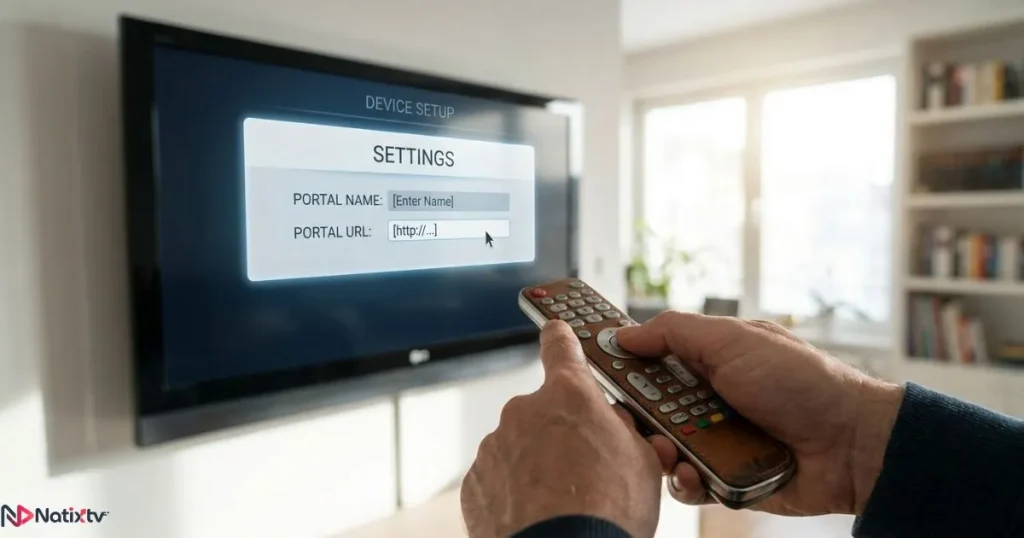
Step 4 – Enter the Portal URL in MAG Box Settings
This is the step that actually connects your device to your IPTV service. Here is the exact path to follow:
- From the MAG home screen, open Settings
- Select System Settings
- Navigate to Servers, then Portals
- In the Portal 1 Name field, type a name for your service (for example: Natixtv)
- In the Portal 1 URL field, enter the exact portal URL your provider sent you
- Press OK to save, then select Restart Portal or simply reboot the device
Accuracy matters here. A single wrong character in the portal URL will prevent the connection. Copy and paste from your provider’s email whenever possible, or enter it character by character with care.
Step 5 – IPTV Activation and First Launch
After the device restarts, it will automatically attempt to connect to the portal using your MAC address as the authentication key. If your provider has activated your MAC, the channel list will begin loading within a few seconds. The first launch may take a moment longer as the EPG data populates, but once it is loaded you will have full access to your entire lineup. IPTV activation is seamless when everything is in order – no manual login, no PIN entry, no extra steps.
MAG Box Configuration Tips for Better Performance
Getting iptv on mag box working is one thing. Getting it working at its best is another. These MAG Box configuration adjustments make a real difference to your daily experience.
Network Settings: Wired First, Always
Ethernet delivers the most stable connection for IPTV. If you have to use Wi-Fi, go to Settings – Network – Wi-Fi and connect to your 5GHz band rather than 2.4GHz whenever your router supports it. For extra responsiveness, you can also set custom DNS servers. Navigate to your network settings and replace the default DNS with 8.8.8.8 (Google) or 1.1.1.1 (Cloudflare). This small change often improves portal loading speed noticeably.
Stream Buffer and Timeout Settings
If you experience occasional pauses or choppy playback, the buffer size setting in Settings – System Settings – Advanced can help. Increasing the HTTP timeout and stream buffer gives the device more room to pre-load content before displaying it. This is particularly useful on slower connections or when streaming over Wi-Fi.
Setting Up a Second Portal
MAG devices support two portals simultaneously – Portal 1 and Portal 2. This is useful if you want to try a secondary provider or keep a backup service active. During Natixtv’s free trial period, you can use Portal 2 to test while keeping your existing setup untouched. Switching between portals is done from the same Settings – Servers – Portals menu.
Time Zone and EPG Accuracy
Your Electronic Programme Guide will only show accurate schedule times if your time zone is set correctly. Head to Settings – System Settings – Time Zone and select your region. You can also update the interface language here if the default is not your preferred option.
Troubleshooting Common IPTV on MAG Box Issues
Even with a correct setup, occasional issues can appear. Here are the most frequent problems users encounter with iptv on mag box, and exactly how to resolve them.
| Error or Symptom | Most Likely Cause | How to Fix It |
|---|---|---|
| “Portal not available” | Incorrect URL or server issue | Double-check the URL character by character. Contact your provider if it looks correct. |
| Black screen after loading | MAC address not activated | Contact your IPTV provider and confirm your MAC was registered correctly. |
| Channels load but will not play | Bandwidth too low | Run a speed test. Switch to Ethernet. Try a lower-quality stream first. |
| EPG not showing programme data | Wrong time zone setting | Update the time zone in Settings – System Settings. |
| Constant buffering on all channels | Weak Wi-Fi or ISP throttling | Switch to Ethernet. Consider a VPN if your ISP throttles streaming traffic. |
Portal URL Not Connecting
Start by confirming you are entering the correct protocol – some portals use http:// while others use https://. Check that your MAG Box is connected to the internet first by visiting a free public portal. If the URL looks right and the internet is working, the issue is likely on the provider’s server side. Contact support directly.
MAC Address Not Recognized
The format of the MAC address sometimes varies. Your provider may expect it with colons (AA:BB:CC:DD:EE:FF) or without (AABBCCDDEEFF). Verify which format your provider requires at signup and re-submit if needed. Natixtv’s support team typically resolves MAC activation issues within minutes.
Persistent Buffering
If buffering continues even on a wired connection with good speed, ask your provider to switch your account to a different server region. Geographic distance between you and the streaming server adds latency. The best iptv provider services operate multiple server clusters to give you options and reduce this kind of issue significantly.
Choosing the Right MAG Box IPTV Subscription
Not every IPTV service works with a MAG Box. Providers that only support M3U playlists will not connect to your device at all – the MAG Box requires a Stalker-compatible portal URL. Before subscribing to any service, verify explicitly that they support MAG devices and that they send you a portal URL upon activation.
What to Look For in a Provider
- Native MAG portal support – the provider must offer a Stalker-compatible URL
- Large channel count – look for 10,000 or more channels across international markets
- VOD library depth – movies and series should be updated regularly
- Server uptime and reliability – check community reviews and forums for real-world reports
- Responsive customer support – fast response times matter when something goes wrong
- Free trial availability – any reputable provider will let you test before you pay
Why Natixtv Works Well for MAG Box Users
Natixtv is fully compatible with all current MAG Box models. After signup, your IPTV portal URL is delivered immediately by email, and your MAC address is activated on their system within minutes. The free trial period of 24 to 48 hours gives you real access to the full service – not a limited demo – so you can judge the quality of streams, the depth of the channel lineup, and the reliability of iptv on mag box on your own hardware before committing.
Subscription plans are flexible, with monthly, quarterly, and annual options available. The service also works across Smart TVs, Amazon Firestick, Android and iOS devices, and more – meaning your subscription travels with you beyond the living room.
Frequently Asked Questions
How do I set up iptv on mag box for the first time?
The process has five steps: connect your MAG Box to your TV and internet, find your MAC address in Settings – Device Info, subscribe to a MAG-compatible service like Natixtv and receive your portal URL, enter that URL under Settings – System Settings – Servers – Portals, then reboot. Your channels will load automatically after the device restarts and your MAC address is verified.
What is an IPTV portal URL and where do I get one?
The IPTV portal URL is the server address your MAG Box connects to in order to retrieve your channel list and on-demand content. It is provided by your IPTV subscription service after you register and submit your MAC address. It typically follows a format like http://provider.com:8080/c/. You cannot access any content without it.
Can I use any IPTV subscription with a MAG Box?
No. Your provider must specifically support the Stalker Middleware portal format used by MAG devices. Providers that offer M3U playlists only will not work natively with a MAG Box. Always confirm MAG compatibility before signing up. Natixtv explicitly supports all current MAG models with a dedicated portal URL.
Why does my MAG Box show “Portal not available”?
This error almost always points to one of three causes: a typo in the portal URL, a MAC address that has not been activated by your provider, or a temporary server outage on the provider’s end. Start by checking the URL carefully, then confirm with your provider that your MAC is registered and active. If the server is down, the issue will resolve itself within a short time.
Does iptv on mag box work without an Ethernet cable?
Yes, Wi-Fi is supported on most MAG Box models that have a built-in wireless adapter (such as the MAG 420, 524, and 544). However, a wired Ethernet connection is always recommended for consistent HD and 4K playback. If you must use Wi-Fi, connect to the 5GHz band and position your router as close to the MAG Box as possible.
Is there a free trial available for MAG Box IPTV?
Yes. Natixtv offers a free trial period of 24 to 48 hours for new users. The trial gives you full access to the complete channel lineup and VOD library on your MAG Box, with no restrictions and no credit card required. It is the most straightforward way to evaluate the service before choosing a subscription plan.
Conclusion
Setting up iptv on mag box comes down to three things: a compatible subscription, a working portal URL, and a correctly registered MAC address. Once those three elements are in place, the MAG Box handles everything else automatically. The Stalker interface loads your content cleanly, the EPG keeps your schedule organised, and the hardware delivers a consistently stable picture – especially over a wired connection.
The MAG Box is one of the few devices where IPTV truly feels native rather than bolted on. There is no app to launch, no manual refresh required, and no cluttered interface to navigate. You press the remote and your channels are there. That experience is worth the few minutes it takes to configure correctly.
If you are still choosing your provider, start with a risk-free test. Natixtv’s 24-to-48-hour free trial is one of the most straightforward ways to experience iptv on mag box at full quality before making any commitment. Visit best iptv provider to start your trial, get your portal URL, and be watching within the next few minutes.