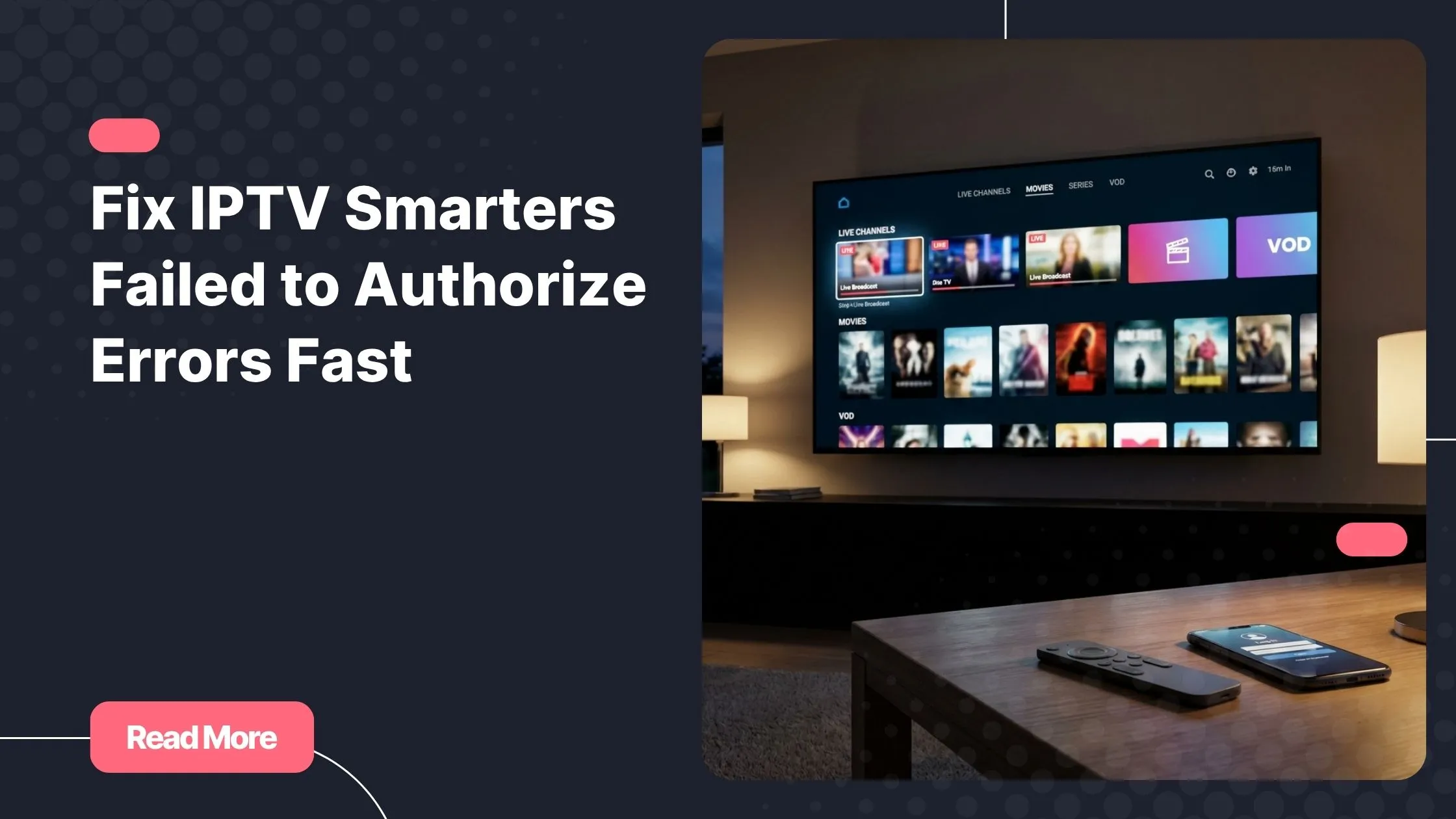
Picture this: it is Friday night, you have settled into your couch with snacks in hand, ready to stream your favorite show. Then instead of your content library, you are staring at a cold, cryptic message that tells you your login has been refused. That sinking feeling is all too familiar. You did nothing wrong, and the app was working perfectly yesterday. Situations like this are exactly why choosing a best iptv provider matters more than most people realize.
The good news is that an IPTV Smarters authorization error is almost never permanent. In the vast majority of cases, a simple fix is within reach. This guide walks you through every possible cause and every proven solution, step by step, so you can get back to what matters: watching without interruption.
Whether you are dealing with IPTV Smarters login failed messages, a spinning loader that never resolves, or an outright refusal to connect, the answers are all here. By the end of this article, you will have a complete toolkit to diagnose and fix the issue on any device, any time it appears.
Table of Contents
What “IPTV Smarters Failed to Authorize” Actually Means
Before diving into fixes, it helps to understand what the error is actually telling you. In the IPTV world, authorization is the process by which the app verifies that you have permission to access a stream. When that process breaks down, you see the dreaded message: iptv smarters failed to authorize.
There is an important distinction worth knowing. An IPTV Smarters authentication error typically means the app cannot verify your identity at all, usually because of wrong credentials. An authorization error, by contrast, usually means your identity was recognized but access was still denied, often because of a subscription issue or a server-side restriction.
This distinction matters because it points you toward the right fix. Wrong credentials call for one solution. A lapsed subscription calls for another. A server problem requires yet another approach. Understanding the cause is half the battle.
The Most Common Causes of IPTV Smarters Login Failed
When IPTV Smarters is not working and you cannot get past the authorization screen, one of the following causes is almost always responsible.
Incorrect Login Credentials
This is the single most common trigger for iptv smarters failed to authorize errors. Your portal URL, username, or password may have a typo, an extra space from copy-pasting, or a case-sensitivity mismatch. Always type credentials manually if you suspect copy-paste is the culprit.
Expired or Suspended Subscription
IPTV subscriptions have expiry dates. When yours lapses, the server immediately stops granting access, and the app returns an IPTV Smarters authorization error with no further explanation. Check your subscription dashboard or contact your provider to confirm your account status.
Server-Side Issues from Your Provider
Providers sometimes experience overloaded servers during peak hours, scheduled maintenance windows, or DNS-level disruptions. In these cases, the problem is entirely outside your control. The error message looks identical to a credential issue, which is why this cause is often overlooked.
App Cache and Data Corruption
Over time, IPTV Smarters stores temporary files that can become corrupted or outdated. These stale files can cause a persistent IPTV Smarters authentication error even when your credentials are perfectly correct. Clearing the cache often resolves the issue instantly.
Network and Firewall Restrictions
Some internet service providers throttle or block IPTV traffic. Router firewall settings can also block the ports that IPTV Smarters relies on. A VPN is often the fastest workaround in these situations.
Outdated App Version
Older versions of IPTV Smarters contain known bugs that can cause iptv smarters failed to authorize errors on specific devices or with specific server configurations. Updating to the latest version takes minutes and eliminates this possibility entirely.
| Cause | Likelihood | User-Fixable? |
|---|---|---|
| Wrong credentials | Very High | Yes – immediately |
| Expired subscription | High | Yes – renew plan |
| Provider server issue | Medium | Partial – wait or switch |
| App cache corruption | Medium | Yes – clear cache |
| ISP or network block | Medium | Yes – use a VPN |
| Outdated app version | Low to Medium | Yes – update app |
| Device compatibility issue | Low | Partial – try another player |
Step-by-Step Fixes for IPTV Smarters Failed to Authorize
Work through these fixes in order. The majority of users resolve iptv smarters failed to authorize within the first three steps. Do not skip ahead without completing the earlier ones, as each step eliminates a specific class of causes.
Step 1 – Double-Check Your Login Credentials
Open IPTV Smarters and navigate to your playlist or Xtream Codes API login screen. Verify three things carefully: the portal URL (no trailing slash, correct protocol), your username (case-sensitive), and your password (no leading or trailing spaces). If you received credentials by email, type them manually rather than copy-pasting.
One often-missed detail: some providers use an M3U URL instead of the Xtream Codes API format. If you have been using the wrong connection method, the app will reject your login every time regardless of how accurate your credentials are.
Step 2 – Clear App Cache and Data
Cached data is a silent saboteur. Here is how to clear it on each major platform:
- Android: Go to Settings, then Apps, find IPTV Smarters, and tap both “Clear Cache” and “Clear Data.” For more information, see Google’s guide on how to clear app cache and data on Android.
- Amazon Firestick: Open Settings, go to Applications, then Manage Installed Applications, select IPTV Smarters, and clear its cache.
- iOS and Apple TV: Delete the app entirely and reinstall it from the App Store. iOS does not expose a cache-clearing option directly.
- Android TV and Smart TVs: Use the app management section within the TV’s system settings.
After clearing, relaunch the app and re-enter your credentials from scratch. Do not restore from any saved login.
Step 3 – Verify Your Subscription Status
Log into your provider’s customer portal and check your account expiry date. If your subscription has lapsed, renew it and allow up to 30 minutes for the server to update before trying again. If you are unsure whether your provider is reliable or responsive, it may be worth exploring alternatives. As a best iptv provider, Natixtv offers subscriptions fully compatible with IPTV Smarters Pro and a free trial period of 24 to 48 hours, so you can verify that everything works before committing to a paid plan.
Step 4 – Restart and Reset Your Network
Unplug your router, wait 30 seconds, and plug it back in. Once reconnected, try IPTV Smarters again. If the issue persists, switch temporarily from your home Wi-Fi to mobile data as a diagnostic test. If the error disappears on mobile data, your router or ISP is the cause.
You can also change your DNS settings to improve stability. Google DNS (8.8.8.8 and 8.8.4.4) and Cloudflare DNS (1.1.1.1) are both reliable choices that often resolve connectivity issues.
Step 5 – Use a VPN to Bypass ISP Restrictions
If your ISP is throttling or blocking IPTV traffic, a VPN routes your connection through a different server and typically resolves the issue. Choose a provider that supports WireGuard or OpenVPN protocols for the best streaming performance. Keep in mind that some IPTV providers block known VPN IP ranges, so you may need to try a few server locations.
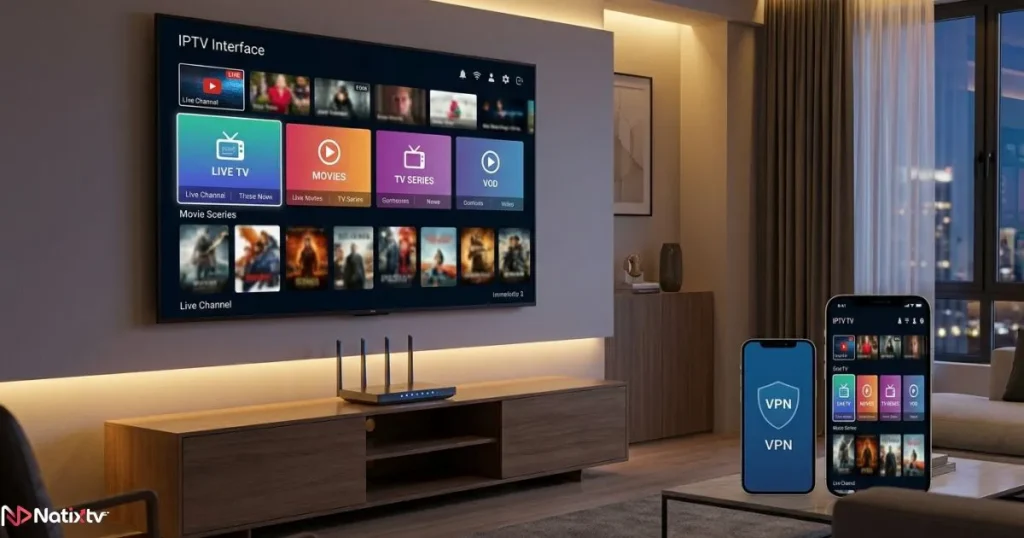
A VPN will not fix iptv smarters failed to authorize errors caused by wrong credentials or an expired subscription, but it is highly effective for network-related blocks.
Step 6 – Update or Reinstall IPTV Smarters
Check the Google Play Store, Apple App Store, or Amazon Appstore for pending updates. If you are on a Firestick and the store version is outdated, you can sideload the latest APK from the official IPTV Smarters website using the Downloader app. After updating, clear the cache once more before logging back in.
Step 7 – Test with an Alternative IPTV Player
If the error persists across all the steps above, try loading your M3U or Xtream credentials into a different app. There are several top-rated IPTV players available in 2026 worth testing, including TiviMate, GSE IPTV, and Kodi with a PVR addon. If another player connects successfully with the same credentials, the issue is specific to IPTV Smarters itself rather than your subscription or network.
Device-Specific Troubleshooting for IPTV Smarters Authentication Error
Some devices have quirks that make iptv smarters failed to authorize errors more likely. Here is what to watch for on each platform.
Android Smartphones and Tablets
Make sure you have granted IPTV Smarters permission to access the network and storage. On some Android builds, these permissions are restricted by default and must be enabled manually in Settings under App Permissions.
Amazon Firestick and Fire TV
The version available through the Amazon Appstore is sometimes behind the latest release. If you are experiencing persistent IPTV Smarters authorization errors on Firestick, sideloading the latest APK is often the most effective fix. Enable “Apps from Unknown Sources” in Developer Options first.
Smart TVs – Samsung, LG, Android TV
Smart TV operating systems offer limited access to app internals. If clearing the app data from the TV’s settings menu does not work, consider casting from your phone using Chromecast as a temporary workaround while you troubleshoot further.
iOS and Apple TV
On iOS, iCloud Keychain can auto-fill incorrect saved passwords into login fields without you noticing. Always confirm that the password field contains exactly what you intend. If in doubt, delete the app, disable auto-fill for the login, and reinstall cleanly.
Windows and Mac
If you access your IPTV service through a browser-based portal or a desktop application, firewall software or browser extensions (particularly ad blockers and privacy tools) can interfere with the authorization handshake. Try disabling extensions temporarily, or use a private browsing window as a test.
When the Problem Is Your IPTV Provider, Not the App
There is one reliable way to confirm that your provider is the source of the iptv smarters failed to authorize error: test the same credentials on two different devices and two different apps simultaneously. If the error appears everywhere without exception, the problem is almost certainly server-side.
When contacting support, include your device type, app version, exact error message, time and date of the failure, and a screenshot if possible. This information dramatically speeds up the resolution process.
Provider reliability matters more than most users acknowledge until something goes wrong. If your current provider is frequently down or unresponsive to support requests, it is worth considering whether your subscription is actually worth renewing. You can read more about this in our article on whether long-term IPTV commitments deliver real value before making your next decision.
Natixtv is built specifically to eliminate these pain points. As a trusted best iptv provider, it offers high-uptime servers, full compatibility with IPTV Smarters Pro, and responsive support, backed by a 24 to 48 hour free trial so you can experience the service before paying anything.
How to Prevent IPTV Smarters Authorization Errors in the Future
Once you have resolved the current issue, a few simple habits will dramatically reduce the chance of it recurring:
- Keep IPTV Smarters updated – enable automatic updates wherever possible.
- Save your portal URL, username, and password in a password manager like Bitwarden or 1Password.
- Set a calendar reminder one week before your subscription renewal date.
- Use a stable DNS server (Google or Cloudflare) rather than your ISP’s default.
- Clear the app cache every two to four weeks as routine maintenance.
- Choose a provider with documented uptime guarantees and responsive customer support.
- Consider keeping a VPN subscription active for consistent, uninterrupted access.
Frequently Asked Questions
Why does IPTV Smarters failed to authorize keep happening even after I reset my password?
Resetting your password does not automatically refresh cached credentials inside the app. After changing your password with your provider, clear the app’s data completely before logging in again. Also note that some providers take up to 30 minutes to propagate a new password across their servers. If the error persists beyond that window, contact your provider directly to confirm the change is active on their end.
What is the difference between an IPTV Smarters authorization error and a login failed message?
A login failed message typically means the app cannot match your credentials to any known account. An authorization error is one step further: your account exists and was found, but the server has denied access, usually because your subscription has expired, your IP address has been flagged, or there is a server-side restriction in place. Each requires a different fix.
Can a VPN fix iptv smarters failed to authorize errors?
Yes, but only in specific situations. A VPN is effective when your ISP is blocking or throttling IPTV traffic, or when your provider restricts access based on geographic region. It will not resolve errors caused by incorrect credentials, an expired subscription, or app data corruption. Run through the other steps in this guide first to confirm the network is actually the cause before turning to a VPN.
How long does it take for IPTV Smarters to authorize after renewing my subscription?
In most cases, access is restored within minutes of a successful renewal. If you are still seeing iptv smarters failed to authorize after 30 minutes, clear the app cache and try logging in again with fresh credentials. If the issue continues beyond one hour, reach out to your provider’s support team with your renewal confirmation as proof of payment.
Is IPTV Smarters not working always related to an authorization error?
Not always. IPTV Smarters can stop working for several unrelated reasons, including buffering caused by a slow connection, a black screen from a misconfigured stream format, EPG loading failures, or app crashes caused by insufficient device memory. Authorization errors are distinct: they prevent you from logging in entirely, rather than causing problems after a successful login.
Which IPTV provider works best with IPTV Smarters Pro?
The ideal provider supports the Xtream Codes API format, maintains high server uptime, and offers multi-device compatibility. Natixtv meets all of these criteria and is specifically optimized for IPTV Smarters Pro users. Their 24 to 48 hour free trial lets you verify compatibility on your exact device and network before spending a single dollar.
Stop Letting Authorization Errors Ruin Your Streaming
The iptv smarters failed to authorize error is frustrating, but it is almost never the end of the road. You now have a complete, prioritized toolkit: start with your credentials, clear the cache, verify your subscription, reset your network, apply a VPN if needed, and update or reinstall the app. Each step eliminates a specific cause and narrows the field until your stream is back online.
The most important long-term lesson is that your provider is the foundation of your entire streaming experience. A reliable service with strong uptime and real support eliminates the majority of these errors before they ever happen. If you are ready to upgrade your setup, Natixtv is a proven best iptv provider that is fully compatible with IPTV Smarters Pro across all major devices, offering a free 24 to 48 hour trial so you can stream with complete confidence from day one.