Picture this: you sit down at your desk, coffee in hand, ready to catch a live match or your favorite series — and your IPTV app makes you feel like you lost the remote. Menus that only respond to a phantom TV remote, no keyboard shortcuts, mouse clicks that go nowhere. For anyone watching IPTV on a Windows machine, that friction is genuinely exhausting. You deserve better. Your PC is a precision instrument, and your top rated iptv experience should reflect that.
This guide is written specifically for PC users who want full, fluid control using a keyboard and mouse. Whether you multitask across windows, prefer snappy shortcut keys, or simply want a player whose interface was built for a cursor rather than a D-pad, you will find your answer here. We tested and compared every major player to help you find the best IPTV player on PC and bring you an honest, practical breakdown.
By the end, you will know exactly which software works best for your setup, how to configure it, and where to find a reliable IPTV subscription that plays nicely with all of them. Let us get into it.
Table of Contents
Why Keyboard and Mouse Control Matters for IPTV on Windows
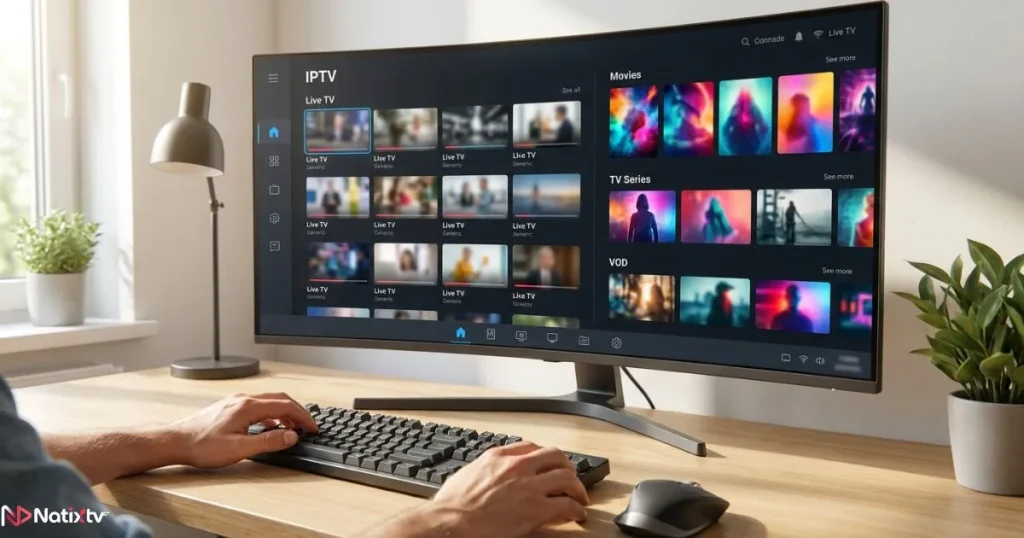
Your PC is not a passive screen. You are switching browser tabs, checking messages, and managing a playlist all at the same time. A Windows IPTV player that forces you to use arrow keys like an old TV remote, or one that ignores your mouse entirely, actively works against the way you use your computer.
Good IPTV mouse control means you can click through the Electronic Program Guide (EPG) the same way you browse a website. Solid keyboard shortcuts let you mute, seek, or jump to the next channel without ever leaving the keyboard. These are not luxury features — they are the baseline for a smooth PC IPTV navigation experience.
- Speed: Zapping channels with a keyboard shortcut is significantly faster than navigating a grid with arrow keys alone.
- Comfort: Mouse-driven menus reduce physical effort during long viewing sessions.
- Multitasking: Quick keyboard commands let you control playback without switching focus from your main task.
- Accessibility: Keyboard navigation is essential for users with mobility limitations.
The best IPTV player on PC is one that feels like it was built for desktop computing, not ported from a set-top box afterthought.
What Makes a Great PC IPTV Player in 2026?
Before diving into specific apps, it helps to know what separates a great player from a passable one. When you are evaluating a Windows IPTV player, these are the features that actually matter for daily use:
- M3U and M3U8 playlist support – the standard format for IPTV channel lists.
- Xtream Codes API compatibility – lets you log in directly with credentials from your provider.
- EPG / XMLTV support – for a proper program guide with channel schedules.
- Hardware acceleration – GPU decoding keeps 4K and HD streams smooth without maxing your CPU.
- Mouse-friendly interface – clickable menus, scrollable channel lists, hover previews.
- Keyboard shortcut depth – ideally customizable, covering playback, volume, channels, and EPG.
- Stability and low resource usage – no crashes, no memory leaks during extended sessions.
Keep this checklist in mind as we go through each player. For a broader look at players across all devices, check out this comprehensive guide to the top IPTV players for all platforms — it covers Smart TV, Android, and iOS options too.
Top IPTV Players for PC with Excellent Keyboard and Mouse Support
These five players consistently stand out when it comes to PC IPTV navigation. Each has its strengths — read carefully to find the one that matches your workflow.
1. VLC Media Player
FreeOpen SourceKeyboard-First
VLC is the undisputed champion of versatility. It handles virtually every stream format without additional codecs, launches in seconds, and uses minimal system resources. For anyone who just wants to paste an M3U URL and start watching, it remains the fastest path from zero to live TV on Windows.
Where VLC truly shines for keyboard users: its shortcut list is genuinely impressive. Space bar pauses and resumes. F toggles fullscreen. Arrow keys seek forward or backward. The plus and minus keys adjust playback speed. M mutes the audio instantly. You can also remap nearly every action from the Preferences menu, which makes it one of the most flexible IPTV player shortcuts systems available on any platform.
Mouse control is equally solid. Right-clicking opens a full context menu. The scroll wheel adjusts volume. Clicking the timeline seeks to any point in a recorded stream. The one real limitation: VLC has no native EPG. For channel guide support, you need to pair it with a separate playlist manager or use it alongside Kodi.
Best for: Users who want a lightweight, no-setup player with comprehensive IPTV player shortcuts.
2. Kodi with PVR IPTV Simple Client
FreeEPG SupportHighly Customizable
Kodi transforms your PC into a full media center. Once you add the PVR IPTV Simple Client add-on, it becomes the most feature-complete IPTV on Windows solution available without paying a cent. It supports M3U playlists, Xtream Codes via additional add-ons, full XMLTV program guides, and a visual interface that is genuinely designed for navigation.
Keyboard control in Kodi is thorough. T opens the EPG. I displays stream information. P starts playback. Arrow keys move through menus with precision. Backspace goes back one level. Enter confirms selections. The whole interface is navigable from a keyboard alone, which is ideal if you frequently switch between channels using IPTV player shortcuts.
Mouse support is equally polished. Every menu item is clickable. The EPG grid scrolls cleanly. You can resize the window, use it in windowed mode during work sessions, and click directly on EPG entries to switch channels. The trade-off: initial setup takes some time, and Kodi uses more RAM than lighter players like VLC.
Best for: Power users who want the best IPTV player on PC experience, with a full EPG and deep customization options.
3. IPTV Smarters Pro
FreemiumMouse-OptimizedXtream Codes
IPTV Smarters Pro is purpose-built for IPTV and it shows. The interface is clean, polished, and clearly designed around mouse interaction. Browsing VOD libraries, switching categories, and managing favorites all feel natural with a cursor. The EPG is built in, and catch-up TV (where your provider supports it) works with a single click.
Keyboard support is functional but limited compared to VLC or PotPlayer. Arrow keys plus Enter handle most navigation tasks. Direct shortcut keys for specific actions are fewer, which means if you are a keyboard-first user, you may occasionally find yourself reaching for the mouse more than you’d like.
It connects directly with Xtream Codes credentials or an M3U URL, which means setup takes under two minutes if your provider supports either format. Available through the Microsoft Store or directly from the developer’s site.
Best for: Users who prioritize IPTV mouse control and a polished, consumer-grade interface over raw keyboard depth.
4. PotPlayer
FreeFully RemappableMouse Gestures
PotPlayer is a hidden gem for IPTV player shortcuts. Every single keyboard action is remappable from the preferences panel, giving you a level of control that even VLC does not quite match. You can assign any key to any function, creating a personal shortcut layout tailored to exactly how you watch.
Mouse gesture support adds another layer of IPTV mouse control. You can configure swipe gestures to control volume, seek, switch audio tracks, or toggle subtitles. These gestures work in both fullscreen and windowed modes. Combined with M3U playlist support for network streams, PotPlayer works perfectly as a daily Windows IPTV player for anyone who takes their keyboard setup seriously.
The interface looks dated compared to Smarters, and first-time setup can feel overwhelming. But once configured, it runs fast and consistently, even with high-bitrate 4K streams.
Best for: Advanced users who want maximum control over IPTV player shortcuts and mouse gestures on Windows.
5. GSE Smart IPTV (Windows)
FreemiumCross-DeviceParental Controls
GSE Smart IPTV bridges Windows and mobile platforms, letting you sync playlists and settings across devices. Its Windows version offers a clean interface with good mouse support, built-in EPG, M3U and Xtream Codes compatibility, and parental controls — a feature set that makes it appealing for households with multiple viewers.
Keyboard navigation covers the essentials: arrow keys and Enter handle menus, and basic playback controls work from the keyboard. It is not as deep as VLC or PotPlayer in terms of shortcut customization, but it is more accessible for less technical users who just want a reliable PC IPTV navigation experience without configuration complexity.
Best for: Multi-device households who want consistent IPTV on Windows and mobile, with a simple setup process.
Side-by-Side Comparison: Best IPTV Players on PC
Use this table to compare each player at a glance. Ratings reflect PC keyboard and mouse usability specifically, not overall IPTV feature breadth.
| Player | Keyboard Shortcuts | Mouse Control | EPG Support | M3U | Xtream Codes | Price |
|---|---|---|---|---|---|---|
| VLC | ★★★★★ | ★★★★ | No native | ✓ | No native | Free |
| Kodi + PVR | ★★★★★ | ★★★★ | Full XMLTV | ✓ | Via add-on | Free |
| IPTV Smarters Pro | ★★★ | ★★★★★ | ✓ | ✓ | ✓ | Free / Paid |
| PotPlayer | ★★★★★ | ★★★★★ | No native | ✓ | No native | Free |
| GSE Smart IPTV | ★★★ | ★★★★ | ✓ | ✓ | ✓ | Freemium |
Ratings reflect PC-specific keyboard and mouse usability. EPG and Xtream Codes availability may vary by player version.
Essential IPTV Player Shortcuts Every PC User Should Know
Knowing the right shortcuts transforms your IPTV on Windows from a passive experience into something genuinely fast. Here are the most useful commands across the three keyboard-strongest players:
| Action | VLC | Kodi | PotPlayer |
|---|---|---|---|
| Play / Pause | Space | P | Space |
| Fullscreen toggle | F | F | Alt + Enter |
| Volume up / down | ↑ / ↓ | + / – | Scroll wheel |
| Mute | M | F8 | M |
| Next channel | N | Page Down | Tab |
| Open EPG | N/A | T | N/A |
| Stream information | Ctrl + I | I | Tab |
| Seek forward 10s | Alt + Right | Right Arrow | Right Arrow |
Both VLC and PotPlayer allow you to remap every shortcut from their preferences panels. In VLC, go to Tools – Preferences – Hotkeys. In PotPlayer, right-click the player and open Preferences – Keyboard. Taking ten minutes to configure shortcuts to your own muscle memory pays dividends immediately.
For mouse users: VLC and PotPlayer both support scroll wheel volume control out of the box. PotPlayer goes further with configurable drag gestures — swipe left to seek backward, swipe up to increase volume. Solid IPTV mouse control at zero extra cost.
How to Set Up Your IPTV Player on Windows: Step by Step
Using VLC with an M3U Playlist
- Open VLC and click Media in the top menu bar.
- Select Open Network Stream (or press Ctrl + N).
- Paste your M3U URL provided by your IPTV subscription (such as Natixtv).
- Click Play — use arrow keys and scroll wheel to navigate channels.
Using Kodi with PVR IPTV Simple Client
- Install Kodi from kodi.tv, then launch it and go to Add-ons.
- Search for and install PVR IPTV Simple Client from the official repository.
- Open the add-on settings, enter your M3U URL under the General tab, and add your XMLTV EPG URL if available.
- Restart Kodi and navigate to TV – Channels — the entire interface is controllable by keyboard.
Using IPTV Smarters Pro on Windows
- Download IPTV Smarters Pro from the Microsoft Store or the developer’s official site.
- On the login screen, choose Xtream Codes API or Load Your Playlist.
- Enter your credentials or M3U URL from your provider.
- Browse live TV, VOD, and catch-up content with full mouse control from the main dashboard.
Tips to Optimize Your PC IPTV Navigation Experience
Even with the best IPTV player on PC installed and configured, a few extra tweaks can make a noticeable difference in daily use:
- Enable hardware decoding: In VLC, go to Tools – Preferences – Input / Codecs and set Hardware-accelerated decoding to Automatic. In PotPlayer, this is found under Preferences – Video. This offloads stream decoding to your GPU and dramatically reduces buffering on HD and 4K content.
- Use windowed mode during work: Keep your IPTV player in a resizable window rather than fullscreen. This lets you monitor streams while working without constant fullscreen toggling.
- Organize your M3U into groups: Most providers, including Natixtv, structure their playlists with group tags. Players like Kodi and GSE Smart IPTV display these as category tabs, making keyboard navigation through large channel lists far faster.
- Run a dual-monitor setup: Dedicate one screen to live TV and the other to the EPG grid. Kodi handles this elegantly when windowed across two displays.
- Keep your playlist URL updated: If your provider updates their server, your M3U URL changes. Check your account dashboard to keep your player’s playlist current and avoid unnecessary buffering or dead streams.
Why Your IPTV Provider Matters as Much as Your Player
Here is a truth that does not get said enough: even the best IPTV player on PC cannot fix a bad stream source. If your provider’s servers are under-resourced, if their channel list is outdated, or if they do not support proper M3U or Xtream Codes formatting, you will fight buffering and freezing regardless of which app you use.
Choosing a provider that is genuinely compatible with Windows players matters. Look for these minimum requirements before subscribing:
- Standard M3U or M3U8 playlist format
- Xtream Codes API credentials
- XMLTV EPG data for program guide support
- Consistent server uptime above 99%
- A free trial period so you can test before paying
Natixtv is fully compatible with every player listed in this guide — including VLC, Kodi, IPTV Smarters Pro, PotPlayer, and GSE Smart IPTV. Whether you connect via M3U URL or Xtream Codes API, setup takes under five minutes. Natixtv delivers a top rated iptv experience across thousands of channels in HD and 4K, and offers a free trial of 24 to 48 hours so you can verify stream quality, EPG accuracy, and compatibility with your chosen Windows player before committing to a subscription. No credit card is required to start the trial. If you are also exploring budget options without sacrificing quality, this guide to affordable IPTV providers that maintain premium stream quality is worth reading alongside this article.
Frequently Asked Questions
What is the best IPTV player on PC for keyboard and mouse control in 2026?
For pure keyboard shortcut depth, VLC and PotPlayer lead the field. For a complete EPG experience navigable by both keyboard and mouse, Kodi with PVR IPTV Simple Client is the strongest option. If you prefer a polished, click-first interface with less configuration, IPTV Smarters Pro is the best IPTV player on PC for mouse-driven browsing. Your ideal choice depends on how much setup time you are willing to invest and whether EPG support is a priority.
Can I use VLC as a Windows IPTV player?
Absolutely. VLC supports M3U playlists directly via the Open Network Stream feature. It handles most IPTV stream formats without additional codecs, offers extensive IPTV player shortcuts out of the box, and uses very few system resources. The only gap is native EPG support, which requires pairing VLC with a separate playlist manager or switching to Kodi for a full program guide experience.
How do I control IPTV channels with my keyboard on Windows?
Most Windows IPTV players use arrow keys for menu navigation and Enter or Space for playback control. In VLC, N moves to the next item in a playlist. In Kodi, Page Down jumps to the next channel and T opens the EPG. PotPlayer maps Tab to channel switching by default, but every shortcut is remappable. Spending a few minutes customizing your key bindings to your personal muscle memory makes PC IPTV navigation significantly faster.
Does the best IPTV player on PC require a paid subscription to work?
The players themselves are free in most cases — VLC, Kodi, and PotPlayer cost nothing to download and use. IPTV Smarters Pro and GSE Smart IPTV offer free tiers with optional paid upgrades for advanced features. What you do need is an IPTV subscription from a provider that supplies an M3U URL or Xtream Codes credentials. Natixtv offers a free 24 to 48 hour trial so you can test stream quality on your preferred player before paying anything.
Which PC IPTV player has the best mouse support?
IPTV Smarters Pro is the most mouse-optimized player available on Windows. Its entire interface is designed around cursor interaction: clickable category tabs, hover previews, scrollable channel lists, and a visual EPG grid that responds naturally to click and drag. GSE Smart IPTV is a strong second for mouse control. PotPlayer is the best option if you want to combine deep mouse gesture customization with comprehensive keyboard shortcut configuration.
Is Kodi really the best IPTV player on PC for EPG browsing?
For full XMLTV Electronic Program Guide support that is navigable by both keyboard and mouse, yes — Kodi is unmatched among free Windows IPTV players. It displays a multi-day EPG grid, supports category filtering, and allows you to schedule recordings or reminders if your provider includes catch-up data. The setup investment is worth it for anyone who regularly uses program guides to discover and schedule content.
Final Verdict: Which Player Should You Choose?
If you are a keyboard-first power user, VLC or PotPlayer give you the deepest shortcut customization with minimal setup. If you want the best IPTV player on PC for a complete, EPG-driven experience navigable by both keyboard and mouse, Kodi with PVR IPTV Simple Client is the clear winner. For a polished, consumer-friendly interface where the mouse does most of the work, IPTV Smarters Pro delivers without a learning curve.
Every one of these players is only as good as the stream behind it. A reliable provider that supports M3U, Xtream Codes, and full EPG data is not optional — it is the foundation your whole experience sits on. That is why testing your provider before committing is so important.
Natixtv is compatible with all five players reviewed here and gives you a free 24 to 48 hour trial to test everything on your own machine, on your own schedule. No commitments, no risk. Try it with whichever player fits your workflow and see the difference that a top rated iptv service makes when paired with the right Windows player.Start Your Free Trial on Natixtv