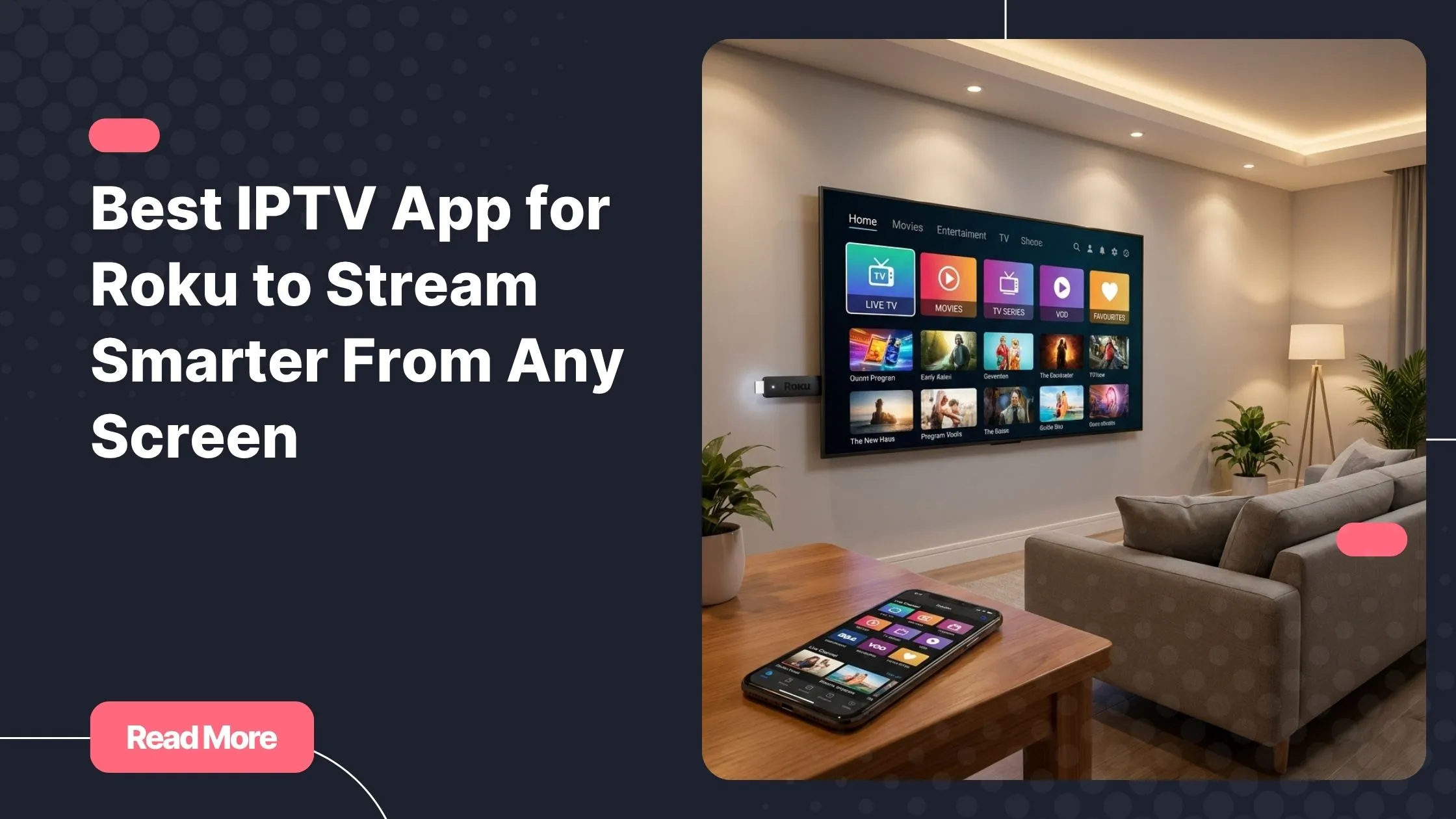
Picture this: you’re settled on the couch, your favourite show is streaming on your phone, and the big TV in front of you is sitting completely idle. Or maybe you’ve passed the remote to someone else and now changing the channel requires a negotiation. It’s the kind of small frustration that sneaks up on you — and it’s far more common than it should be in 2026.
The truth is, most people never unlock the full potential of their Roku device. With the right best IPTV app for Roku, you can stream any channel directly on your television, control everything from your smartphone, and even cast or mirror content from your phone to the big screen without touching the physical remote. It changes the entire experience, and finding the right combination of app and iptv service is the first step.
This guide walks you through exactly what to look for, which apps stand out, and how to get the smoothest, most flexible setup possible on your Roku device today.
Table of Contents
Why Roku Is a Smart Choice for IPTV Streaming
Roku has quietly become one of the most flexible streaming platforms available. Unlike some walled-garden ecosystems, Roku allows you to install private channels and sideload applications, which opens the door to a wide range of IPTV apps that would otherwise be unavailable.
The device lineup is also impressively broad. Whether you own a Roku Express, a Roku Streaming Stick, a Roku Ultra, or a Roku-powered smart TV, the experience stays consistent. Roku reported over 80 million active accounts globally in recent figures, which speaks to just how mainstream the platform has become.
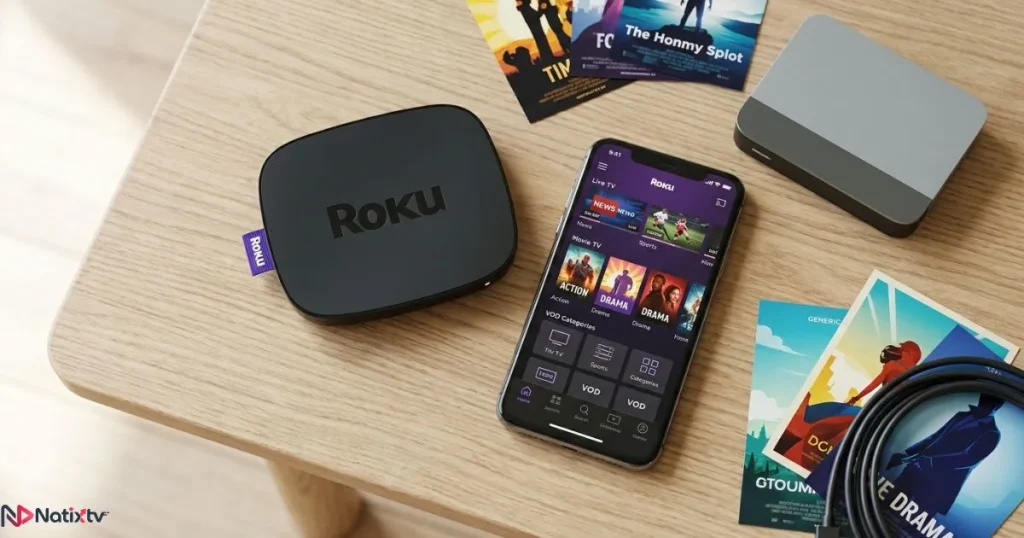
For IPTV users specifically, Roku’s ability to handle high-bitrate streams, its native screen mirroring support, and its compatibility with the official Roku mobile app for remote control make it a genuinely capable platform for live television and on-demand content alike. It also explains why searching for the best IPTV app for Roku has become one of the most common questions in the streaming community.
What to Look for in the Best IPTV App for Roku
Before diving into specific apps, it helps to know what actually separates a great IPTV app from a frustrating one. Here are the features that matter most:
- M3U playlist and Xtream Codes support – These are the two standard formats used by virtually every IPTV provider. If an app doesn’t support both, your options become limited.
- Electronic Program Guide (EPG) – A live TV guide built into the interface, so you always know what’s on and what’s coming next.
- Mobile control integration – The ability to use your phone as a controller, browse channels, or adjust playback without relying on the physical Roku remote.
- Screen mirroring and casting support – Whether you want to mirror your phone screen to Roku or send a stream directly to the TV while freeing your device, this is a core feature for flexible viewing.
- Codec support – Look for H.264 and H.265 compatibility to ensure smooth playback across different stream qualities.
- Regular updates and active development – Apps that are maintained tend to be far more stable and compatible with Roku OS updates.
Screen Mirroring vs. Casting: Which One Should You Use?
These two terms are often used interchangeably, but they describe different technologies with different trade-offs.
Roku IPTV screen mirroring works by replicating your phone’s screen in real time on the Roku display. Whatever you see on your device appears on the TV. It’s universal and works with most Android devices natively, and with iOS via certain third-party apps. The downside is that your phone’s battery drains faster, and any notification or UI interruption shows up on the big screen too.
Roku IPTV casting is a smarter approach when available. Instead of mirroring the screen, your phone sends the stream URL directly to the Roku device, which plays it independently. Your phone is freed up to do other things, the picture quality is typically better, and there’s less latency. Think of it like handing off the job: your phone delegates, and Roku handles the rest.
For daily IPTV use, casting is the preferred method when supported by your app and provider. Screen mirroring is an excellent fallback when casting isn’t available.
Roku IPTV Mobile Control: Why Your Phone Is Your Best Remote
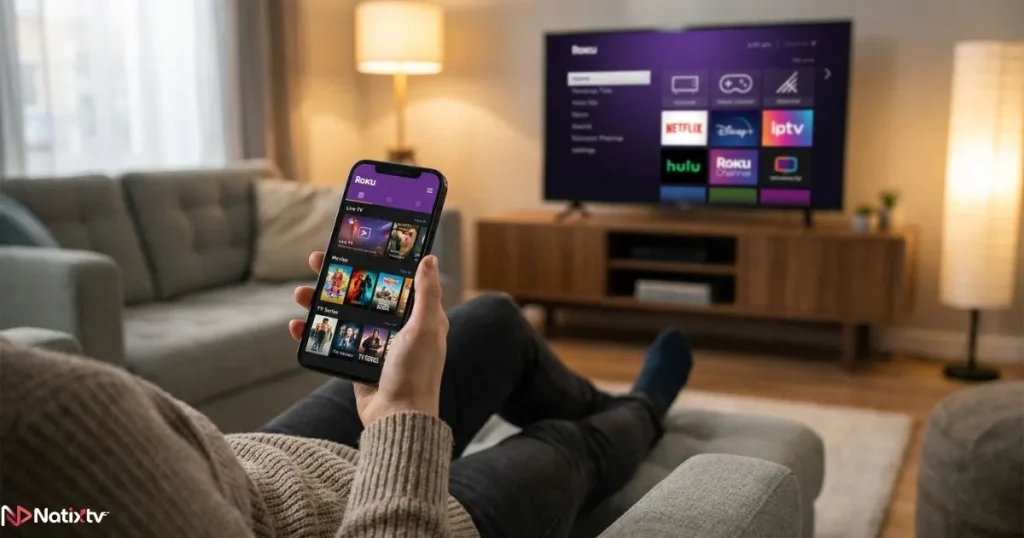
One of the most underrated features of a proper IPTV setup on Roku is the ability to use your phone as a full remote control. This goes well beyond what the physical Roku remote offers.
With the right app, you can browse your entire channel list from your phone, search within the EPG, jump to a specific time slot, and switch streams, all without disturbing anyone or getting up from where you’re sitting. Using your phone as an IPTV app Roku remote is especially useful when watching with others, since you can quietly navigate without interrupting the screen.
The official Roku mobile app already gives you basic remote functionality. But IPTV-specific companion apps take this further by letting you manage playlists, favourites, and playback settings directly from your phone while content plays on the TV.
The Best IPTV Apps for Roku – A Practical Comparison
Not every IPTV app is created equal, and not every one works the same way on Roku. Below is a breakdown of the strongest options available today, along with their key characteristics.
IPTV Smarters Pro
IPTV Smarters Pro is one of the most widely used apps in the IPTV community, and for good reason. It supports both M3U playlists and Xtream Codes API, making it compatible with virtually every IPTV provider on the market. The interface is clean, the EPG integration is solid, and it includes a companion mobile app that gives you full remote control over your Roku session.
It requires sideloading onto Roku via developer mode, which adds a few steps to the initial setup, but the process is well-documented and manageable for most users. VOD libraries and catch-up TV are both supported, which adds real value beyond live channels.
TiviMate
TiviMate is the app of choice for power users. Its multi-screen view, advanced EPG layout, and highly customisable interface make it a standout for anyone who watches a lot of live TV. It also requires sideloading, but once it’s installed, the experience is remarkably polished.
Mobile control works well through the Roku mobile app in conjunction with TiviMate, and its playlist management is among the best available. If you’re comfortable with a slightly more involved setup, TiviMate rewards the effort.
GSE Smart IPTV
GSE Smart IPTV shines when it comes to cross-platform compatibility. Its mobile app for iOS and Android is excellent, and it integrates neatly with Roku through screen mirroring and casting workflows. If controlling your Roku IPTV stream from your phone is your priority, GSE’s mobile-first design makes it one of the most intuitive options.
It supports multiple playlist formats, handles EPG data reliably, and is generally considered one of the easier apps to set up for newcomers.
Plex with IPTV Plugin
Plex takes a different approach. It’s natively available in the Roku Channel Store, which means no sideloading required. Through Plex’s IPTV plugin support, you can integrate M3U streams into a familiar media-centre interface.
The Plex mobile app provides excellent Roku streaming control, letting you manage playback, browse content, and even cast directly to your Roku device. EPG support is more limited compared to dedicated IPTV apps, but for users who already live in the Plex ecosystem, this is the smoothest path.
Smart IPTV (SIPTV)
Smart IPTV is a lightweight, no-frills option that works well for users who want a simple, reliable player. Setup is straightforward, EPG is supported, and it handles live streams without unnecessary complexity. Mobile control is more limited here, making it better suited for users who primarily use the standard Roku remote and just need a clean, stable player.
App Comparison Table
| App | Roku Native | Sideload Required | Screen Mirroring | Mobile Control | EPG | VOD | Ease of Setup |
|---|---|---|---|---|---|---|---|
| IPTV Smarters Pro | No | Yes | Yes (via phone) | Yes | Yes | Yes | Medium |
| TiviMate | No | Yes | Yes (via phone) | Yes | Yes | Yes | Medium |
| GSE Smart IPTV | No | Yes | Yes | Yes | Yes | Yes | Easy |
| Plex + IPTV | Yes | No | Yes | Yes | Limited | Yes | Easy |
| Smart IPTV | No | Yes | Yes (via phone) | Limited | Yes | No | Easy |
How to Set Up Screen Mirroring for IPTV on Roku
Getting IPTV on Roku from phone via screen mirroring takes only a few minutes once you know the steps. Roku’s platform supports this natively on most devices, and you can find official guidance on the Roku screen mirroring support page if you need to verify compatibility for your specific model. Here’s the practical walkthrough:
- Enable mirroring on your Roku: Go to Settings, then System, then Screen Mirroring. Set the mode to either “Always Allow” or “Prompt” depending on your preference.
- Connect both devices to the same Wi-Fi network: Screen mirroring won’t work if your phone and Roku are on different networks. This is the most common cause of connection failures.
- On Android: Open your phone’s quick settings panel, tap “Cast” or “Screen Mirror,” and select your Roku device from the list.
- On iOS: Use AirPlay via a compatible third-party app that supports Roku mirroring, since native AirPlay is not directly supported on Roku devices.
- Launch your IPTV app on your phone and begin playback. The stream will appear on your TV in real time.
Pro tip: If you experience lag during Roku IPTV screen mirroring, move closer to your router or switch to a 5GHz Wi-Fi connection. Distance and interference are the main culprits.
For a better streaming experience overall, particularly if you’re concerned about privacy during streaming sessions, it’s worth reading up on how a VPN can protect and stabilise your IPTV connection. It’s a straightforward step that many users overlook.
How to Control Your Roku IPTV App From Your Phone
Full mobile control of your Roku IPTV setup is easier than most people realise. Here’s how to get it working properly:
- Download the official Roku app on iOS or Android. This gives you a touchscreen remote, a keyboard for text input, and basic navigation, all from your phone.
- Use your IPTV app’s companion mobile interface (where available, such as IPTV Smarters or GSE) to browse your channel list, EPG, and VOD library directly from your device.
- Make sure both devices share the same Wi-Fi network. Without this, the Roku app won’t detect your device and the connection will fail.
- Enable private listening through the Roku app if you want to hear audio through your phone’s headphones while the stream plays on the TV.
The combination of the Roku app and a well-configured IPTV client gives you genuine Roku IPTV mobile control: full channel browsing, stream selection, and playback management, all from the palm of your hand. It’s the kind of setup that once you experience, you won’t want to go back from.
If you’re still evaluating which IPTV provider to use with your Roku setup, this detailed guide on choosing a reliable IPTV provider for stable streaming covers the key factors worth checking before you commit.
The Role of Your IPTV Subscription – Why It Matters as Much as the App
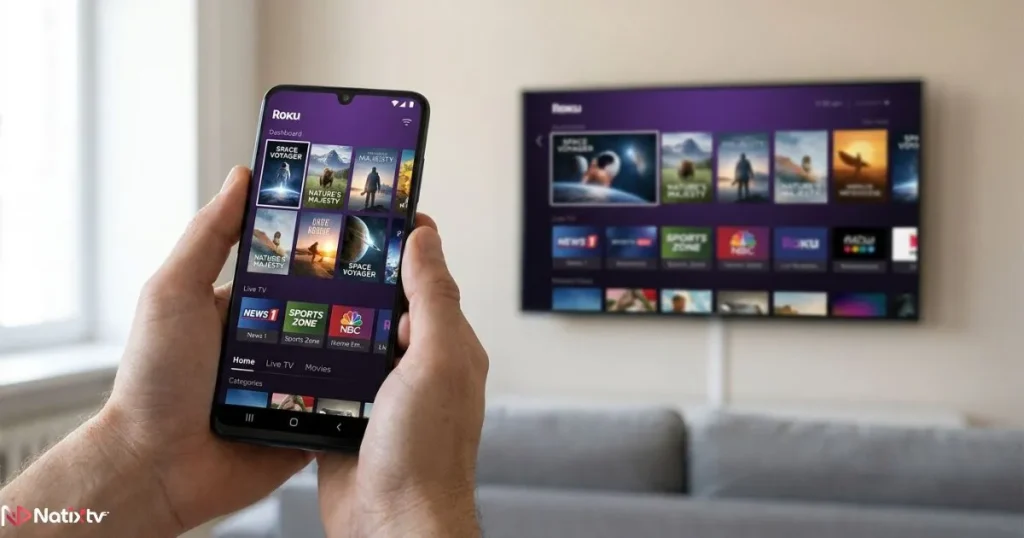
Here’s something that’s easy to overlook: even the best IPTV app for Roku is only as good as the subscription behind it. An unreliable provider means buffering, frozen streams, and channels that drop in and out, regardless of how polished your app is.
When evaluating an IPTV subscription for your Roku setup, look for:
- High server uptime, ideally above 99%
- Broad compatibility with M3U playlists and Xtream Codes
- A strong channel library including your preferred regions and categories
- HD, Full HD, and 4K stream options
- A VOD library that’s actively maintained
- Responsive customer support
- A trial period so you can test before committing
Why Natixtv Is the Right IPTV Partner for Your Roku
If you’re looking for an iptv service that checks all of those boxes and works seamlessly with the apps listed in this guide, Natixtv is the provider worth starting with.
Natixtv is compatible with IPTV Smarters Pro, TiviMate, GSE Smart IPTV, and virtually every major IPTV player available for Roku. It delivers both M3U and Xtream Codes credentials, which means setup takes minutes. The channel library spans thousands of live channels across multiple regions, backed by a robust VOD collection that’s updated regularly.
What makes Natixtv particularly appealing for new users is its free trial period of 24 to 48 hours. You get full access to the service before spending a cent, which means you can test stream quality, channel availability, and EPG accuracy on your actual Roku setup. If it works for you, you subscribe. It’s a genuinely risk-free way to find the best IPTV app for Roku combination that suits your household.
Tips to Get the Best IPTV Experience on Roku
Once you’ve identified the best IPTV app for Roku that fits your needs, these practical tips will help you squeeze the most out of your setup from day one:
- Use a 5GHz Wi-Fi band instead of 2.4GHz for lower latency and more stable streams
- Restart your Roku device weekly to clear cache and maintain performance
- Prefer H.264 streams if H.265 causes buffering on older Roku hardware
- Use an EPG-enabled app like TiviMate or IPTV Smarters to organise your channels and plan your viewing
- Test multiple stream quality tiers during your Natixtv free trial to identify which one performs best on your connection
- Avoid free or unknown IPTV sources – they often carry unstable streams and may pose security risks
- Keep your IPTV app updated to benefit from the latest Roku OS compatibility fixes
Frequently Asked Questions
What is the best IPTV app for Roku in 2026?
The best IPTV app for Roku depends on your priorities. For advanced users who want the richest EPG and multi-screen features, TiviMate leads the pack. For ease of use and strong mobile integration, IPTV Smarters Pro and GSE Smart IPTV are excellent choices. If you want a native Roku Channel Store app with no sideloading, Plex with an IPTV plugin is the most accessible route. The best results in each case come from pairing the app with a reliable provider like Natixtv, which is compatible with all of them.
Can I watch IPTV on Roku from my phone without touching the TV remote?
Yes, entirely. You can use the official Roku mobile app to navigate and control your IPTV player remotely, or use the IPTV app’s own companion mobile interface where available. Once you’ve cast or mirrored your stream to the TV, your phone can manage playback, channel switching, and EPG browsing. It’s one of the biggest quality-of-life upgrades you can make to your viewing setup.
Is there a native IPTV app available directly from the Roku Channel Store?
Most dedicated IPTV apps are not available natively in the Roku Channel Store and require sideloading through Roku’s developer mode. The notable exception is Plex, which is available natively and supports IPTV streams through its plugin system. Sideloading is straightforward once you’ve done it once, and it unlocks access to the best IPTV app for Roku options that aren’t officially listed.
What is the difference between screen mirroring and casting for IPTV on Roku?
Screen mirroring duplicates your phone’s display onto the Roku screen in real time, using your phone’s processing power throughout. Casting sends the stream URL directly to the Roku device, which plays it independently, freeing your phone and typically delivering better picture quality with less battery drain. For regular IPTV use, casting is the more efficient and reliable method when supported by your app.
Does the best IPTV app for Roku support 4K streaming?
App-side 4K support is available in most of the apps listed here, but the best IPTV app for Roku in a 4K setup also requires a Roku device capable of 4K output (such as the Roku Ultra) and a subscription that includes 4K streams. Natixtv offers 4K stream options for select channels, making it a solid choice for users who have invested in a 4K television and compatible Roku hardware.
Do I need a VPN with IPTV on Roku?
A VPN isn’t strictly required, but it can improve your streaming experience by preventing bandwidth throttling from your internet provider, and it adds a layer of privacy. Some geo-restricted channels may also become accessible depending on which server you connect through. For a full breakdown of how to set this up, the guide on choosing the right VPN for IPTV is a useful resource.
Take Your Roku Streaming to the Next Level
Finding the right app is only half the equation. The best IPTV app for Roku performs at its best when it’s connected to a fast, reliable, and well-stocked IPTV provider. That’s exactly what Natixtv is built to deliver.
With thousands of live channels, a rich VOD library, full compatibility with every app in this guide, and a free 24 to 48-hour trial that requires no commitment, there’s no reason not to test it on your own setup today.
Visit Natixtv’s iptv service and start your free trial. Stream more, enjoy more, and finally use your Roku the way it was meant to be used.