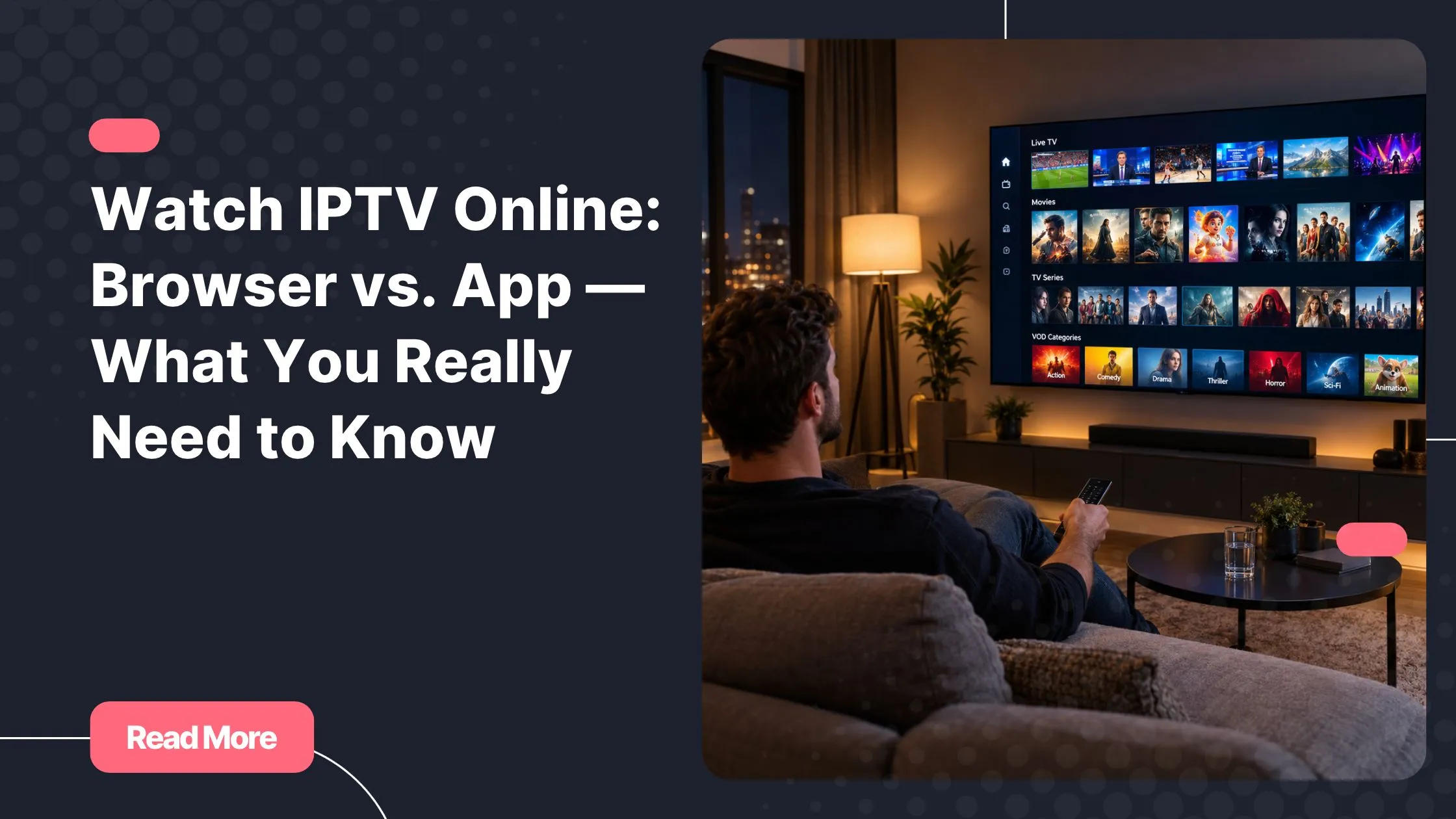
You settle into the couch, open a browser tab, and paste a link someone sent you — expecting to stream live TV instantly. A few seconds later, nothing happens. No picture, no channels, just a blank player staring back at you. If you’ve been there, you already know that iptv in usa doesn’t work the way most people assume. The technology is real and powerful, but the path between “I want to watch” and “I’m watching” has more steps than a simple URL.
The good news: once you understand how iptv online actually works — in a browser, through a dedicated app, and everything in between — the whole experience clicks into place. This guide walks you through exactly that: what runs under the hood, what you genuinely need to get started, and how to tell a legitimate service from a dead-end web player.
No technical background required. By the end, you’ll know precisely which setup works best for your devices, your habits, and your expectations.
Table of Contents
What “Watching IPTV Online” Really Means
IPTV stands for Internet Protocol Television. Instead of receiving channels through a cable or satellite signal, you receive them over your internet connection — packaged as data streams and delivered directly to a player. That player can be an app, a smart TV interface, or a browser window.
When people search for iptv online, they’re usually picturing one of two things: either a website where they can click and immediately watch live TV, or a login portal their provider gave them. Both exist — but they work very differently, and mixing them up causes a lot of frustration.
The single most important distinction to understand right away:
- An IPTV web player is a tool — a video interface that reads and displays streams.
- An IPTV subscription is the actual service — the source of channels, VOD content, and live streams.
Without a subscription behind it, a web player shows nothing. Searching for a free “online IPTV player” and expecting to watch channels is like downloading a music app and expecting songs to appear without a library. The player is just the window. Your subscription is what fills it.
How Browser-Based IPTV Playback Works
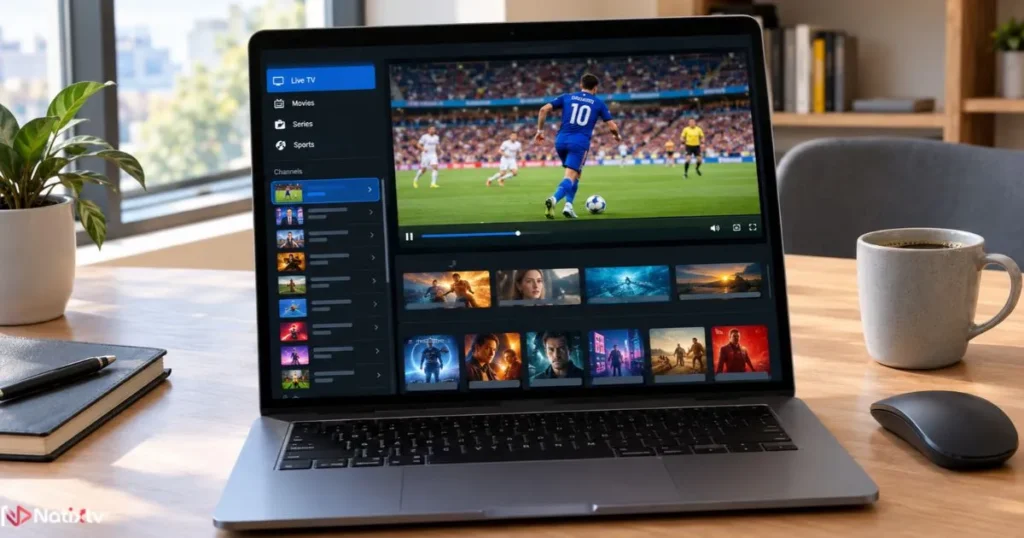
The Mechanics of an IPTV Browser Player
When you open an IPTV browser player, you’re typically loading an HTML5 video interface — often built on open-source tools like Video.js or JW Player — that fetches a stream URL and renders it inside your browser window. Most IPTV streams use the HLS format (HTTP Live Streaming), delivered through M3U8 playlists. Modern browsers can handle HLS through a technology called Media Source Extensions (MSE), a W3C standard that allows JavaScript to feed video data to the browser’s built-in player in real time.
What this means in practice: your browser is working harder than you think. It’s pulling playlist data, buffering stream segments, decoding video and audio, and rendering everything simultaneously — all inside a single tab.
Login and Playlist Requirements
To access iptv online content through a browser, you need one of two things from your provider:
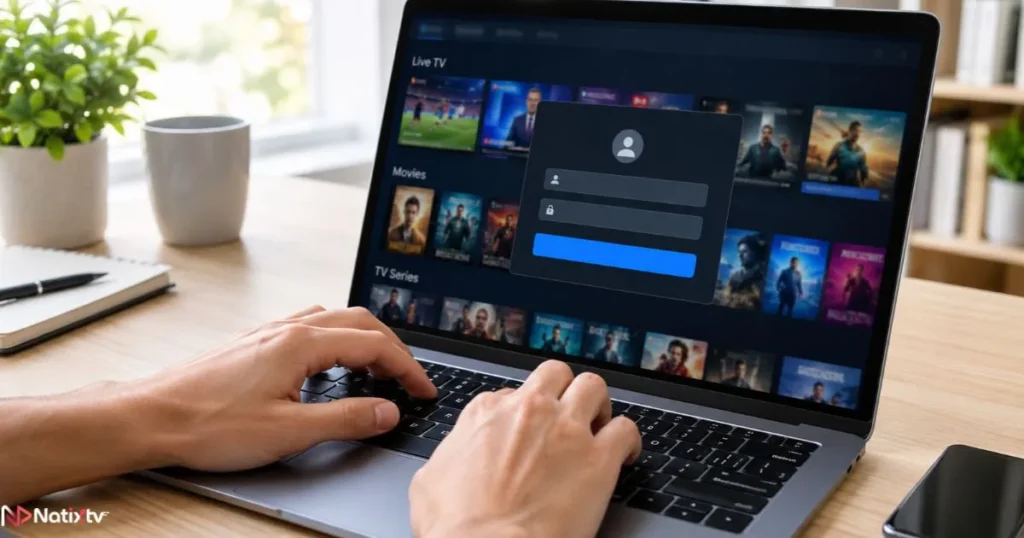
- An M3U URL – a direct link to your channel playlist that you paste into a compatible player.
- Xtream Codes credentials – a username, password, and server URL that authenticate you on your provider’s portal.
Most legitimate providers give you both. The M3U URL contains your full channel list, while Xtream Codes credentials give you access to a more feature-rich interface that may include an Electronic Programme Guide (EPG) — the on-screen channel schedule. EPG support in browsers is limited, which is one reason many viewers eventually migrate to a dedicated app.
If you’re managing multiple M3U playlists or need to move them between devices, learning how to safely back up and transfer your playlist files will save you a lot of hassle down the line.
Here’s the basic process for connecting through a browser:
- Get your M3U URL or Xtream Codes login from your IPTV provider.
- Navigate to your provider’s official web portal, or open a trusted online IPTV player.
- Enter your credentials or paste your M3U link into the appropriate field.
- Select a channel from the list and allow the stream a moment to buffer.
Device and Format Compatibility for IPTV Online Streaming
Which Browsers Handle IPTV Streaming Best?
Not all browsers handle iptv online streaming equally. The key factor is whether they support Media Source Extensions and the codecs your streams use. Here’s how the main options compare:
| Browser | HLS Support | MPEG-TS Support | Recommended? |
|---|---|---|---|
| Chrome | Native (via MSE) | Limited | Yes – best overall |
| Firefox | Yes (via MSE) | Limited | Yes – solid alternative |
| Safari | Native HLS | Better on Apple | Yes – ideal for iOS/macOS |
| Edge | Yes (Chromium-based) | Limited | Yes – reliable |
| Older IE / Legacy | No MSE | No | No – avoid entirely |
Chrome is the safest choice for most users. Its MSE implementation is mature, it supports the H.264 codec that most IPTV streams use, and it runs consistently across Windows, macOS, and Android.
IPTV Device Compatibility Beyond the Desktop
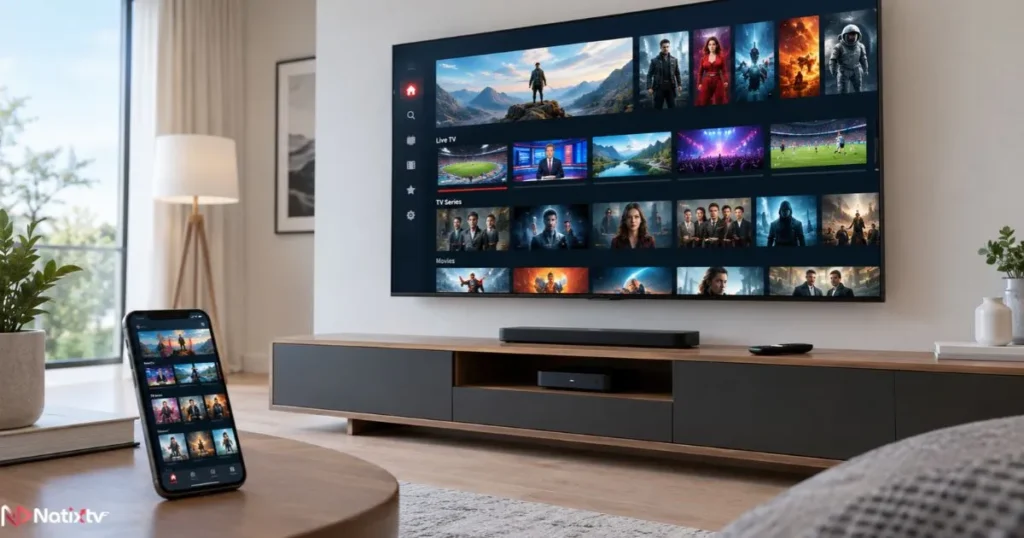
IPTV device compatibility varies significantly depending on where you’re trying to watch. A browser on a laptop or desktop PC is your most reliable starting point. Mobile browsers — Chrome on Android, Safari on iPhone — can handle HLS streams reasonably well, though multi-audio tracks and very high-bitrate content may cause issues.
Where browser-based viewing breaks down is on smart TVs and streaming sticks. Samsung’s Tizen browser and LG’s WebOS browser both have limited MSE support, and streaming live IPTV through them is rarely a smooth experience. For those devices, a dedicated app or IPTV-compatible firmware is the right approach — not a browser workaround.
Devices where browser-based IPTV typically works:
- Desktop PC and laptop (Windows, macOS, Linux)
- Android tablets and smartphones (Chrome)
- iPhone and iPad (Safari – HLS only)
Devices where a dedicated app is strongly preferred:
- Amazon Fire TV Stick
- Android TV and Android Box
- Apple TV
- Roku
- Smart TVs (Samsung, LG, Sony)
Common Browser Limitations When Watching IPTV Online
Being honest about what browsers can’t do well is what helps you make the right call for your setup. Here’s what you’ll run into if you rely exclusively on a browser for iptv online viewing:
- No background playback. Close or minimize the tab and your stream stops immediately. There’s no way around this in a standard browser.
- Codec gaps. HEVC/H.265 streams — used by most 4K IPTV channels — rarely decode natively in browsers. You may see a black screen or an error where crisp 4K content should be. This is one reason why upgrading to a 4K-capable IPTV stream makes the most sense on a dedicated device rather than a browser.
- Higher resource consumption. Browsers use roughly 20-30% more CPU and RAM to decode a live HLS stream than a native app does. On older machines, this translates directly to buffering and frame drops.
- No PVR or DVR features. Pausing live TV or recording a channel requires a dedicated app — browsers offer no mechanism for this.
- Limited EPG display. Even when your provider supports a full programme guide, browser portals rarely render it fully or update it cleanly.
- Ad injection risk. Third-party online IPTV players you find through a search engine may inject ads, pop-ups, or worse — tracking scripts — directly into your session.
- DRM complexity. Some content uses DRM protection (Widevine, PlayReady) that requires specific browser configurations. Mismatches can block playback entirely.
Privacy and Security Considerations
Risks of Unofficial Online IPTV Players
This is the part most guides skip. When you search for a free “online IPTV player” and find a third-party site willing to take your M3U URL or credentials, you are handing sensitive authentication data to an unknown operator. The risks are real:
- Credential theft through fake login portals designed to mimic your provider’s interface
- Malicious JavaScript embedded in the player page that tracks your behavior or harvests data
- Your M3U URL being logged and resold — invalidating your subscription without warning
How to Keep Your IPTV Online Streaming Secure
Protecting yourself doesn’t require technical expertise. A few consistent habits go a long way toward secure IPTV streaming:
- Always use your provider’s official web portal — navigate there directly, never from a search result link.
- Verify that the page uses HTTPS before entering any credentials.
- Use a reputable VPN. It encrypts your traffic, prevents your ISP from throttling streaming data, and keeps your viewing activity private. Make sure your VPN plan can sustain at least 25 Mbps for HD and 4K content.
- Never paste your M3U URL into a player page you didn’t land on from your provider’s own website.
- On shared or public devices, always log out and clear browser cookies after a session.
The rule is simple: your subscription credentials are as sensitive as a password. Treat them accordingly.
Browser vs. Dedicated App: When the App Wins
A browser is a perfectly reasonable way to try iptv online for the first time. It requires no installation, no configuration, and works on any device with an internet connection. For a quick test or occasional session on a laptop, it does the job.
But if you’re planning to watch regularly — especially on a TV, a set-top box, or a mobile device — a dedicated app is a categorically better experience. Here’s the comparison that matters:
| Feature | Browser (IPTV without an app) | Dedicated IPTV App |
|---|---|---|
| Setup time | Instant | Requires install |
| Stream quality | Variable | Optimized |
| EPG support | Limited | Full |
| PVR / DVR features | Rarely available | Often included |
| Background playback | No | Yes |
| Smart TV support | Poor | Excellent |
| Codec support | H.264 mainly | H.264 + H.265/HEVC |
| Security | Browser-dependent | More controlled |
Apps like TiviMate, IPTV Smarters Pro, and GSE Smart IPTV are purpose-built for this use case. They handle codec decoding efficiently, display full EPG grids, support multiple streams simultaneously, and give you a remote-friendly interface that a browser simply cannot replicate.
For viewers based in the US, the iptv in usa landscape has a wide range of compatible apps depending on your device — and a good provider will guide you toward the right one for your setup.
What You Actually Need to Watch IPTV Online Legitimately
Let’s be direct about this, because it’s where a lot of confusion happens. Here is exactly what you need — and what you don’t:
- A valid IPTV subscription. This is the non-negotiable foundation. Without it, no player — browser-based or app-based — will show you anything. The subscription is the service. Everything else is the delivery mechanism.
- Your M3U URL or Xtream Codes credentials. Your provider sends these when you subscribe. Keep them secure and don’t share them.
- A compatible player. A browser works for getting started. A dedicated app like TiviMate or IPTV Smarters is better for ongoing use.
- A stable internet connection. Minimum 10 Mbps for HD. 25 Mbps or more for 4K. Wired connections are more stable than Wi-Fi for live content.
- A VPN (optional but recommended). Especially if your ISP is known to throttle streaming traffic.
Everything else — the “free” player sites, the third-party portals, the apps promising thousands of channels with no login — either require a legitimate subscription behind them to function, or they are something you should stay away from entirely.
How to Identify a Legitimate IPTV Service
The market for iptv online services ranges from outstanding to outright scams. Knowing what signals to look for protects both your money and your device security.
Signs of a legitimate provider:
- Clear, transparent pricing with defined subscription tiers
- A free trial period — typically 24 to 48 hours — so you can test quality before committing
- Accessible customer support (live chat, ticket system, or email)
- Compatibility with multiple devices and major IPTV apps
- A disclosed channel count and uptime track record
- Standard payment methods — no pressure to use gift cards or cryptocurrency only
Natixtv checks every one of these boxes. Their subscriptions are compatible with a wide range of devices — from Android boxes and Fire TV Sticks to smartphones, smart TVs, and popular apps like TiviMate and IPTV Smarters. Their free 24 to 48-hour trial means you can verify stream quality and channel availability before spending a cent — exactly the kind of transparency that separates a real provider from a risky one.
Frequently Asked Questions About IPTV Online
Can I watch IPTV online without downloading an app?
Yes. Many legitimate IPTV providers offer a browser-accessible web portal or support pasting your M3U URL into an online IPTV player. That said, you still need a valid IPTV subscription to authenticate and access any content. The browser is the viewer; your subscription is what fills it.
What is the best browser for IPTV online streaming?
Google Chrome is the most reliable IPTV browser player for most users. Its support for HLS via Media Source Extensions is mature and consistent across platforms. Firefox and Edge are solid alternatives. Safari is the best option on Apple devices, since it handles HLS natively.
Why does my IPTV buffer in the browser but stream fine in the app?
Browsers handle video decoding less efficiently than native apps. They consume more CPU and RAM, may lack hardware acceleration for certain codecs, and don’t prioritize network resources the same way a dedicated player does. Switching to a dedicated IPTV app almost always resolves persistent buffering for the same subscription and the same internet connection.
Is it safe to use an iptv online player I found through a search engine?
Only if it’s your provider’s official portal. Third-party online IPTV players you find through search may log your M3U URL, inject ads or tracking scripts, or mimic legitimate login pages to steal credentials. Always navigate directly to your provider’s official website rather than clicking a third-party player link.
What internet speed do I need for iptv online streaming?
A minimum of 10 Mbps handles standard HD streams reliably. For 4K content, plan on at least 25 Mbps. A wired Ethernet connection is more consistent than Wi-Fi for live TV, where a brief drop in bandwidth shows up immediately as buffering or pixelation.
How do I know if an IPTV provider is legitimate before subscribing?
Look for transparent pricing, a free trial period (24 to 48 hours is standard among reputable providers), multi-device compatibility, and responsive customer support. Legitimate services clearly state what’s included in their plans and accept standard payment methods — they don’t push you toward unconventional payment methods as the only option.
The Right Setup Makes All the Difference
Watching iptv online doesn’t have to be complicated — but it does require understanding what you’re actually working with. A browser is a genuinely useful starting point: no installation, instant access, and compatible with virtually any device that has Chrome or Firefox. For a trial run or an occasional session, it works fine.
For daily viewing, especially on a TV or a dedicated streaming device, a purpose-built IPTV app is the clear winner. Better codec support, full EPG, background playback, and a remote-friendly interface all add up to an experience that no browser tab can match.
What never changes, regardless of which path you take: you need a valid subscription first. The player is just the tool. The subscription is what makes iptv online worth watching.
If you’re ready to try a service that’s built around reliability, multi-device support, and honest transparency, iptv in usa has never been more accessible. Natixtv offers a free 24 to 48-hour trial — enough time to test channels, check stream quality, and decide with confidence before committing to a plan. Start there, and you’ll have everything you need to watch exactly the way you want.