You know that feeling – you’re on the couch, remote in hand, scrolling through hundreds of channels you never asked for, paying a cable bill that somehow keeps climbing. It doesn’t have to stay that way. Millions of people have already made the switch, and the solution is sitting right behind your TV: your Amazon Firestick.
When you install IPTV on Firestick, you stop renting access to a limited content catalog and start streaming on your own terms. Live sports, international news, movies, series – all of it, through a device you already own. If you’re using the best iptv service, the picture quality, channel variety, and reliability will genuinely surprise you.
This guide walks you through every step, from enabling the right settings on your device to loading your first channel list. Whether you’re completely new to IPTV or just switching providers, you’re in the right place.
Table of Contents
What Is IPTV and Why Firestick Is Built for It
IPTV stands for Internet Protocol Television. Instead of receiving a broadcast signal through a cable or satellite dish, your content travels over your internet connection. That single shift changes everything: no contracts tied to hardware, no service areas, and no restrictions on where you watch.
Amazon Firestick is one of the most popular platforms for Fire TV IPTV streaming because it hits a rare combination of low cost, portability, and flexibility. It runs on a modified version of Android, which means it can install third-party applications beyond what Amazon officially lists in its store. You plug it into any HDMI port, connect it to Wi-Fi, and you’re ready to go.
IPTV vs. Cable vs. Satellite: Which One Makes Sense for You?
| Feature | IPTV | Cable TV | Satellite TV |
|---|---|---|---|
| Monthly Cost | Low | High | High |
| Channel Variety | Very High | Medium | High |
| HD / 4K Availability | Yes | Limited | Limited |
| Device Flexibility | Any smart device | Set-top box only | Dish + receiver |
| Internet Required | Yes | No | No |
| Contract Required | Usually no | Yes | Yes |
The case for IPTV is straightforward. If you have a reliable internet connection and a Firestick, you already have everything you need to cut the cord for good.
What You Need Before You Install IPTV on Firestick
Getting prepared before you start saves you time and avoids confusion halfway through. Here’s what to have ready:
- An Amazon Firestick: Any generation works – 4K, 4K Max, Lite, or a standard Fire TV stick.
- A stable internet connection: Minimum 10 Mbps for HD. If you’re streaming in 4K, aim for 25 Mbps or more.
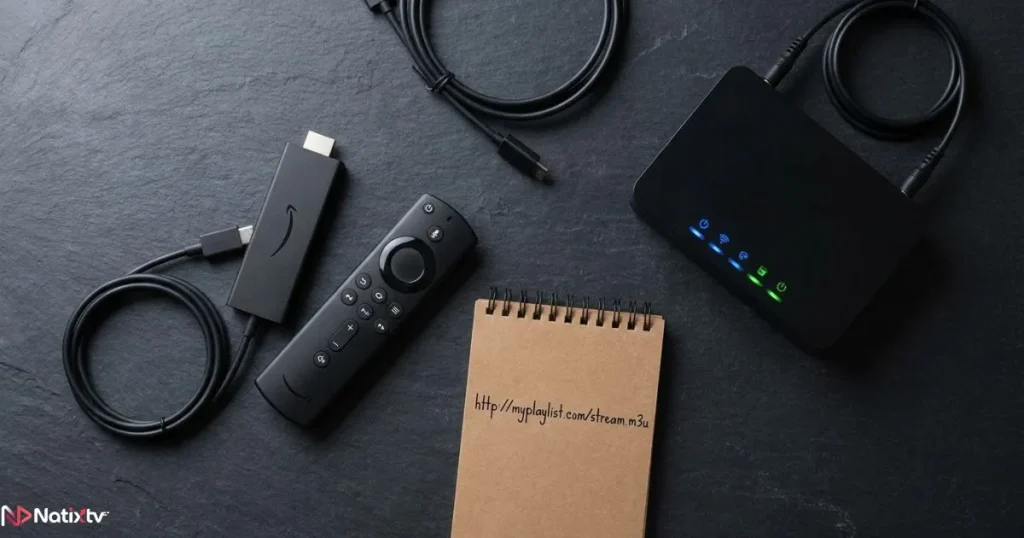
- An active IPTV subscription: Your provider will give you either an M3U playlist URL or Xtream Codes credentials (a server URL, username, and password).
- A compatible IPTV app: We’ll cover the best options in the next section.
A quick note on connection type: Wi-Fi works well for most users, but if you experience buffering, an Ethernet adapter for Firestick is worth the small investment. A wired connection virtually eliminates packet loss issues.
Choosing the Right IPTV App for Firestick
The IPTV app you choose is the interface between your subscription and your screen. There are several solid options, but two consistently stand out for Firestick users.
| App | Best For | EPG Support | Cost |
|---|---|---|---|
| IPTV Smarters Firestick | Beginners | Yes | Free / Pro version |
| TiviMate Firestick | Power users | Yes | ~$4.99/year |
| GSE Smart IPTV | Multi-format | Yes | Free |
| Perfect Player | Minimalists | Yes | Free |
| OTT Navigator | Advanced users | Yes | Free / Premium |
For most people reading this IPTV installation guide, IPTV Smarters is the easiest entry point. TiviMate is the upgrade path once you want a more polished, TV-native experience. Both are fully covered in the steps below.
You can also find a detailed walkthrough of setting up IPTV Smarters Pro step by step on the Natixtv blog if you want to go deeper on that app specifically.
Step 1: Enable Apps from Unknown Sources
Before you install IPTV on Firestick using a third-party app, you need to unlock one setting. By default, Firestick only allows apps from the official Amazon App Store. Changing this takes about 30 seconds and does not affect your warranty.
- From your Firestick home screen, open Settings (gear icon in the top-right).
- Select My Fire TV (on older models, this may say Device).
- Tap Developer Options.
- Toggle Apps from Unknown Sources to ON.
- Confirm the warning that appears – this is normal and expected.
Note: If you plan to use ADB debugging for advanced sideloading, you can enable it here too, but it’s not required for this guide.
Step 2: Download and Install the Downloader App
The Downloader app is the bridge that lets you install IPTV on Firestick without needing a computer, USB drive, or any extra equipment. Everything happens directly on your device.
- Go to the Search icon on your Firestick home screen.
- Type Downloader and select the orange-icon app by AFTVnews.
- Click Download and wait for it to install.
- Open Downloader and accept any permissions it requests.
Once Downloader is open, you have a built-in browser and file manager that lets you grab any APK directly from a URL. This is how you’ll install your chosen IPTV app in the next step.
Step 3: Install Your IPTV App via Downloader
How to Install IPTV Smarters on Firestick
IPTV Smarters Firestick is the most beginner-friendly choice. Its interface is clean, setup is fast, and it supports both M3U and Xtream Codes logins.
- Open the Downloader app on your Firestick.
- In the URL field, type the direct APK download address for IPTV Smarters. Check the official IPTV Smarters website for the latest verified link.
- Tap Go. The APK will download automatically.
- When the download finishes, tap Install.
- Once installed, tap Open to launch the app immediately.
How to Install TiviMate on Firestick
TiviMate Firestick has become the preferred choice among experienced IPTV users. It offers a smoother interface, better EPG integration, and a recording feature with the premium version.
- Open Downloader and enter the TiviMate APK direct URL (verify the latest version on the official TiviMate page before downloading).
- Tap Go and wait for the download.
- Tap Install when prompted.
- Open TiviMate and move to the playlist setup screen.
Tip: Keep your APKs updated. Outdated versions can cause login errors or buffering issues even when your subscription is active.
Step 4: Add Your IPTV Subscription to the App
This is the step where your channels actually appear. When you install IPTV on Firestick and connect it to a subscription, you’re linking the app to your provider’s server. You’ll use one of two login methods: an M3U URL or Xtream Codes credentials.
Adding Your Subscription in IPTV Smarters
- Open IPTV Smarters and tap Add New User.
- Choose either Xtream Codes API or M3U URL – your provider will tell you which to use.
- Enter your server URL, username, and password (for Xtream Codes) or paste your M3U link directly.
- Tap Add User. Your full channel list will load within seconds.
Adding Your Subscription in TiviMate
- Open TiviMate and navigate to Add Playlist.
- Select M3U Playlist or Xtream Codes.
- Enter your subscription credentials from your IPTV provider.
- Tap Add. TiviMate will sync your channel list and EPG data automatically.
Setting Up Your EPG (Electronic Program Guide)
EPG turns your channel list into a proper TV guide with show names, air times, and descriptions – just like a cable TV grid. Most quality providers include an EPG URL with your subscription. To activate it:
- In IPTV Smarters: go to Settings and enter the EPG URL in the designated field.
- In TiviMate: go to Playlists, select your playlist, and add the EPG URL under EPG Sources.
A good IPTV subscription Firestick setup always includes EPG support. If yours doesn’t, it’s worth upgrading to a provider that does. For a broader look at what separates a great IPTV app experience from a frustrating one, this breakdown of the top IPTV options for easy Firestick streaming is worth reading before you commit to any provider.
Step 5: Optimize Your Firestick IPTV Setup for Best Performance
Getting the app running is only half the job. A few quick tweaks make a noticeable difference in stability, speed, and picture quality.
- Clear your cache regularly: Go to Settings – Applications – Manage Installed Applications – select your IPTV app – Clear Cache.
- Use a VPN: Some ISPs throttle streaming traffic. A VPN routes your connection around those restrictions and protects your privacy.
- Try an Ethernet adapter: If Wi-Fi signal strength near your TV is weak, a wired connection eliminates most buffering.
- Adjust buffer size: TiviMate lets you increase the buffer in Settings – Player. A larger buffer helps on slower connections.
- Restart your Firestick weekly: Firestick has limited RAM. A regular restart clears background processes and keeps performance sharp.
- Disable automatic app updates: Unexpected updates during a stream can interrupt playback.
Troubleshooting Common IPTV Firestick Issues
| Problem | Likely Cause | Fix |
|---|---|---|
| Constant buffering | ISP throttling or slow Wi-Fi | Use a VPN or connect via Ethernet |
| App won’t install | Unknown sources not enabled | Re-check Step 1 in this guide |
| Channels not loading | Wrong credentials or expired subscription | Verify your login details or renew your plan |
| No EPG data showing | EPG URL missing or incorrect | Re-enter the EPG URL from your provider |
| Black screen on launch | Outdated APK version | Uninstall and reinstall the latest APK |
Try Natixtv – The IPTV Subscription Built for Firestick
Every step in this guide works perfectly with a Natixtv subscription. Natixtv is compatible with all Firestick generations, Fire TV devices, and most other smart devices. It delivers a massive channel library covering live sports, news, entertainment, and international content – all in HD and 4K where available.
Natixtv provides full EPG support, Xtream Codes and M3U compatibility, and servers built for reliability. It works out of the box with both IPTV Smarters Firestick and TiviMate Firestick.
And before you commit: Natixtv offers a free trial of 24 to 48 hours. Test the streams, check the channel quality, and decide with confidence. Visit the best iptv service and claim your free trial today.
Is It Legal to Install IPTV on Firestick?
This is one of the most common questions people ask before they install IPTV on Firestick, and the answer depends entirely on the content source – not the device or app.
Your Firestick is a legal, consumer device. IPTV apps like IPTV Smarters and TiviMate are legal software tools. What matters is whether your subscription sources content legally – meaning the provider holds the proper broadcast rights for what they stream.
Licensed IPTV providers operate within copyright law and pay for the content they distribute. Unlicensed services stream pirated content without rights, which is illegal in most countries. Always choose a provider that operates transparently and legally, like Natixtv.
As a practical step, many users add a VPN to their setup regardless. It adds a layer of privacy and protects against ISP throttling, though it is not a substitute for choosing a legitimate provider.
Frequently Asked Questions
How do I install IPTV on Firestick for the first time?
To install IPTV on Firestick from scratch, start by enabling “Apps from Unknown Sources” in your Developer Options. Then download the Downloader app from the Amazon App Store, use it to grab the APK of your preferred IPTV app (IPTV Smarters or TiviMate), and install it. Finally, open the app, enter your subscription credentials, and your channels will load automatically.
Can I install IPTV on Firestick without a computer?
Yes, the entire process is done directly on the Firestick. The Downloader app handles APK downloads without needing a PC, USB drive, or any additional hardware. Everything in this guide was designed to work that way.
What is the best IPTV app for Firestick in 2026?
TiviMate Firestick is the top pick for users who want the most polished experience – smooth UI, reliable EPG, and great customization. IPTV Smarters Firestick is the best starting point if you’re new to IPTV and want something simpler to configure. Both work excellently with a Natixtv subscription.
Why is my IPTV buffering on Firestick?
Buffering usually comes from one of three sources: a slow internet connection, ISP throttling of streaming traffic, or weak Wi-Fi signal near your TV. Try using a VPN to bypass throttling, move your router closer to your Firestick, or use an Ethernet adapter for a wired connection. Increasing the buffer size in TiviMate’s player settings can also help on unstable connections.
Does Natixtv work with IPTV Smarters and TiviMate on Firestick?
Yes. Natixtv provides both M3U URLs and Xtream Codes credentials, which are the two standard formats used by IPTV Smarters Firestick and TiviMate Firestick. Setup takes under five minutes after you receive your login details. Natixtv also includes a free 24 to 48-hour trial so you can test everything before committing.
How much internet speed do I need to install IPTV on Firestick and stream smoothly?
For HD streams, 10 Mbps is the minimum. For a stable HD experience with multiple devices on the same network, 20 Mbps is more comfortable. If you plan to stream in 4K, aim for 25 Mbps or higher dedicated to your Firestick stream.
Conclusion
You now have everything you need to install IPTV on Firestick from start to finish. The process breaks down into five clear steps: unlock your device settings, download the Downloader app, install your IPTV app of choice, connect your subscription, and fine-tune your setup for the best possible stream quality.
Whether you go with IPTV Smarters Firestick for its simplicity or TiviMate Firestick for its depth, the real difference in your experience comes from the quality of your subscription. A reliable provider means stable streams, accurate EPG, and content you can actually count on night after night.
Your Firestick was always capable of this. You just needed the right guide – and the right provider to back it up. Don’t wait: activate your free 24 to 48-hour trial with the best iptv service, install IPTV on Firestick today, and find out what you’ve been missing.