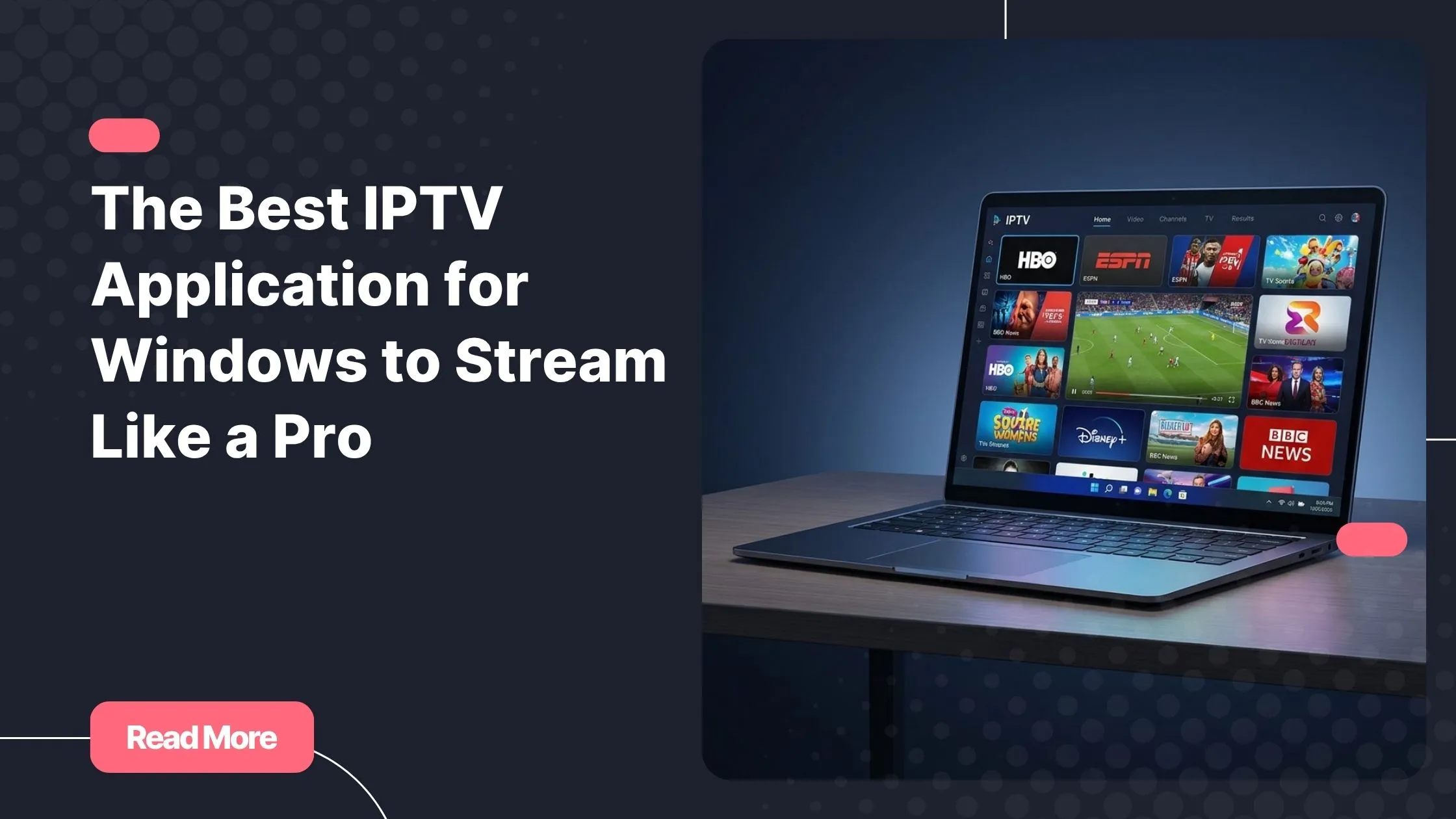
You know that feeling — you’ve just settled in for the big match, snacks on the table, remote in hand, and then your cable provider decides it simply doesn’t carry that channel. Or worse, the stream buffers every 30 seconds and ruins the entire experience. If that sounds familiar, you’re not alone. Millions of viewers are making the switch to a smarter, more flexible way to watch TV. An iptv application for windows puts you in control: your channels, your schedule, your screen. As a leading iptv service, Natixtv gives you access to thousands of live channels and on-demand content — all from your Windows PC.
Windows is one of the most powerful platforms for streaming. Your laptop or desktop already has the processing power, the screen real estate, and the internet connection to deliver a cinema-quality experience. All you need is the right player and a reliable subscription. This guide walks you through everything: choosing the best app, downloading it, connecting your subscription, and fine-tuning your setup for smooth, buffer-free streaming.
Whether you’re a complete beginner or you’ve already dabbled with M3U playlists, this article covers every step in plain language. By the end, you’ll have a fully working iptv application for windows up and running — and a free 24 to 48-hour trial from Natixtv waiting for you to put it all to the test.
Table of Contents
What Is an IPTV Application for Windows and Why Does It Matter?
IPTV stands for Internet Protocol Television. Instead of receiving TV signals through a cable or satellite dish, your content is delivered over your internet connection — just like Netflix or YouTube, but with live channels, EPG guides, and full VOD libraries included. An iptv application for windows is the software that receives, decodes, and displays that stream on your PC.
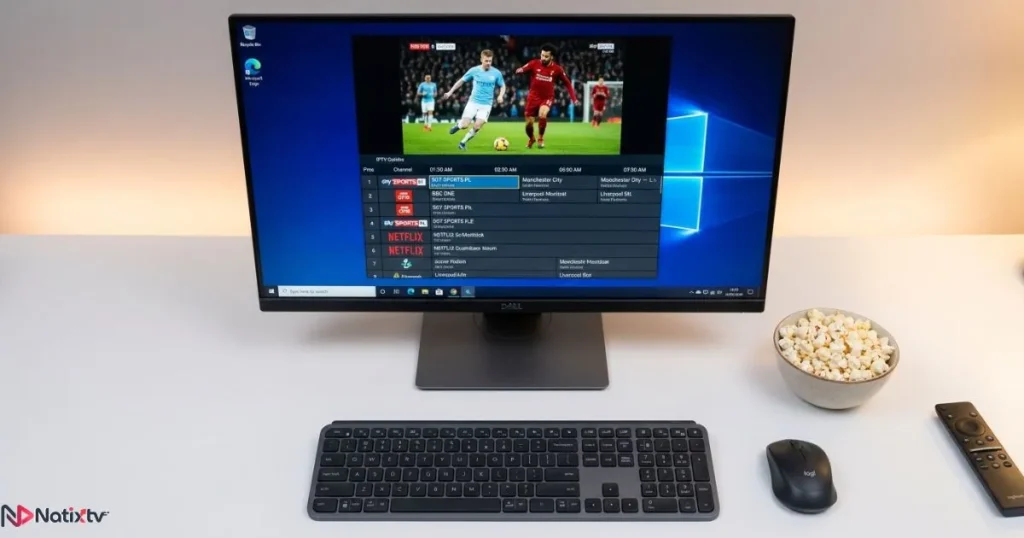
Why use Windows specifically? Because your PC offers capabilities that most smart TVs and streaming sticks simply can’t match:
- Full HD and 4K playback with hardware-accelerated decoding
- Multitasking: browse the web while a match runs in a side window
- Easy playlist and EPG management through a keyboard and mouse
- Access to a wide range of free and premium IPTV software for PC
- Compatibility with VPN tools for added privacy and geo-flexibility
The right iptv application for windows supports M3U playlists and Xtream Codes, which are the two most common formats used by IPTV providers. If your subscription comes with either of those, you’re ready to go. Not sure what format your provider uses? Check out this complete guide to IPTV setup and streaming apps to get up to speed quickly.
Top IPTV Applications for Windows: Compared and Ranked
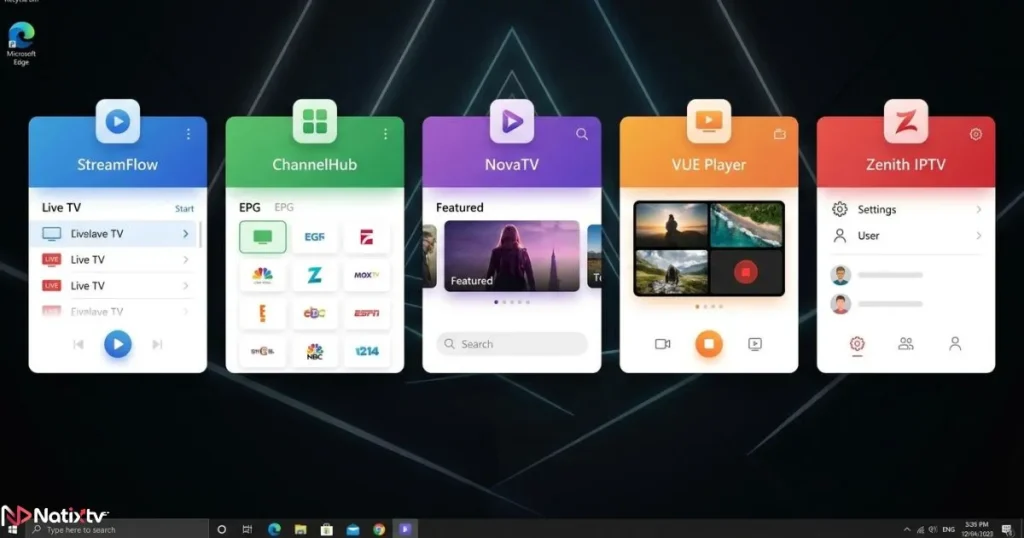
There’s no shortage of options when it comes to the best IPTV player for Windows. Below are the most reliable and widely used apps in 2026, each suited to a different type of user.
VLC Media Player
VLC is the most downloaded media player in the world, with good reason. It’s free, open-source, and handles virtually every video format and M3U playlist without extra configuration. If you’re looking for an iptv player for pc free, VLC is the fastest way to get started. The downside is that it lacks a built-in EPG, so channel browsing isn’t the most elegant experience.
IPTV Smarters Pro
IPTV Smarters Pro is one of the most popular dedicated iptv application for windows options available today. It features a clean, TV-style interface, built-in EPG, a VOD section, and multi-profile support — ideal if more than one person uses the same computer. A free tier is available, with a premium upgrade for additional features.
Kodi
Kodi is a powerful open-source media center. With the right add-ons (such as PVR IPTV Simple Client), it becomes a fully featured live TV platform with EPG, recordings, and catch-up support. It’s the go-to choice for advanced users who want total control. New users may find the initial setup a bit technical.
GSE Smart IPTV
Available directly from the Microsoft Store, GSE Smart IPTV is a polished and user-friendly app. It supports multiple M3U playlists, parental controls, and EPG integration. It’s particularly well-suited for families or anyone who wants a clean experience without digging into settings.
TiviMate
TiviMate is widely considered one of the most elegant IPTV players available. On Windows, it requires running through an Android emulator such as BlueStacks, but the experience is worth it: smooth channel switching, beautiful EPG layout, and strong customization options. Best for users who want a premium feel.
Comparison Table
| App | Free Version | EPG Support | VOD | Ease of Use | Best For |
|---|---|---|---|---|---|
| VLC | Yes | No | Limited | ★★★★★ | Beginners |
| IPTV Smarters Pro | Yes / Paid | Yes | Yes | ★★★★☆ | General use |
| Kodi | Yes | Yes | Yes | ★★★☆☆ | Power users |
| GSE Smart IPTV | Yes / Paid | Yes | Yes | ★★★★☆ | Families |
| TiviMate | Paid | Yes | Yes | ★★★★☆ | Premium experience |
How to Download an IPTV App on Windows
Getting your iptv application for windows installed takes just a few minutes. The method depends on which app you choose.
Method 1 – Direct Download (VLC, IPTV Smarters Pro)
- Visit the official website of the app (e.g., videolan.org for VLC)
- Download the Windows installer (.exe file)
- Run the installer and follow the on-screen instructions
- Launch the app once installation is complete
Always download from the official source. Third-party download sites can bundle unwanted software or, worse, malware.
Method 2 – Microsoft Store (GSE Smart IPTV)
- Open the Microsoft Store on your Windows 10 or 11 PC
- Search for “GSE Smart IPTV” in the search bar
- Click Install and wait for the download to complete
- Open the app and proceed to configuration
Method 3 – Android Emulator (TiviMate)
- Download and install BlueStacks or LDPlayer from their official websites
- Open the emulator and sign in with a Google account
- Search for TiviMate in the Play Store within the emulator
- Install TiviMate and launch it from inside the emulator
For this method, make sure your PC has at least 8 GB of RAM and a dedicated GPU for a smooth experience.
Complete Windows IPTV Setup: Connecting Your Subscription
Installing the app is only half the job. The next step is connecting it to your IPTV subscription. This is where your windows iptv setup really comes to life.
What You Need Before You Start
- An active IPTV subscription with an M3U URL or Xtream Codes credentials (username, password, server URL)
- A stable internet connection: minimum 10 Mbps for HD, 25 Mbps for 4K
- Windows 10 or Windows 11 (fully updated)
Loading Your M3U Playlist
In VLC:
- Open VLC and go to Media > Open Network Stream
- Paste your M3U URL into the field
- Click Play – VLC will load your channel list automatically
In IPTV Smarters Pro:
- Open the app and select “Add User” or “Login with Xtream Codes API”
- Enter your server URL, username, and password (provided by your IPTV provider)
- Alternatively, select “M3U URL” and paste the link directly
- Wait for the playlist to load – channels and VOD will populate automatically
In Kodi:
- Install the PVR IPTV Simple Client add-on from the Kodi repository
- Go to Add-ons > My Add-ons > PVR Clients > PVR IPTV Simple Client > Configure
- Paste your M3U URL under the “General” tab
- Enable the add-on and restart Kodi
Setting Up Your EPG
An EPG (Electronic Program Guide) shows you what’s on now and what’s coming next, just like a traditional TV guide. Most IPTV providers, including Natixtv, supply an EPG URL alongside your subscription credentials. To add it:
- In IPTV Smarters: go to Settings > EPG Settings and paste the URL
- In Kodi: add the EPG URL in the PVR IPTV Simple Client settings under the “EPG” tab
- Refresh the guide and allow a few minutes for it to populate
Natixtv: A Compatible IPTV Service for Every Windows App
Natixtv subscriptions work seamlessly with all the apps listed in this guide. Whether you prefer IPTV Smarters, Kodi, VLC, or GSE Smart IPTV, your Natixtv credentials connect in seconds via M3U or Xtream Codes. As a trusted iptv service, Natixtv offers thousands of live channels, a massive VOD library, and full EPG support. Before committing, you can try everything risk-free with a 24 to 48-hour free trial – no payment details required.
Optimizing Your IPTV Experience on PC
Once your iptv application for windows is running, a few tweaks can make a significant difference in quality and reliability.
Best Settings for Smooth Streaming
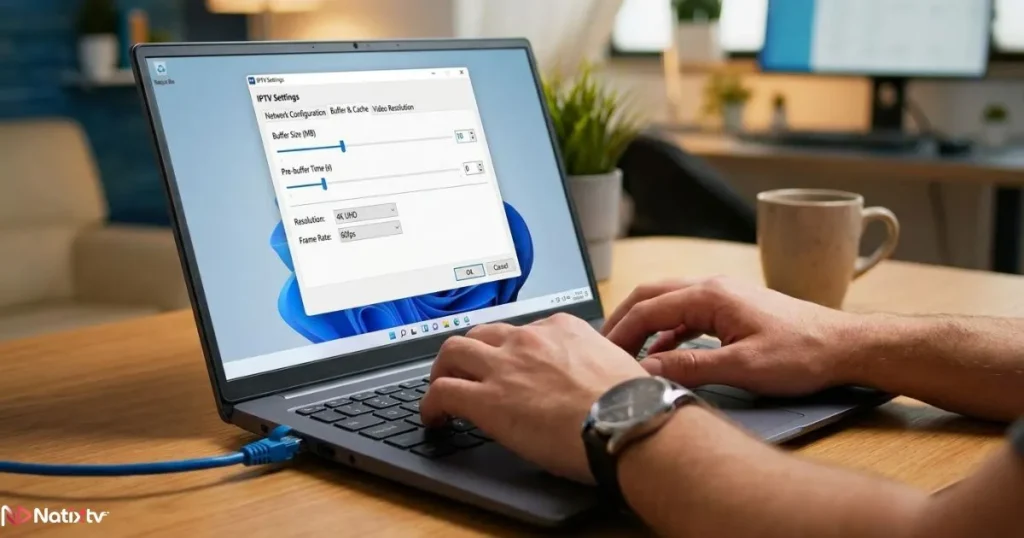
- Buffer size: In VLC, go to Tools > Preferences > Input/Codecs and increase the network caching value to 2000ms for smoother playback
- Hardware acceleration: Enable GPU decoding in your app settings to reduce CPU load and prevent overheating during long sessions
- Wired over Wi-Fi: A direct ethernet connection dramatically reduces buffering compared to Wi-Fi, especially for 4K streams
Using a VPN with Your IPTV App
A VPN can help stabilize your connection if your ISP throttles streaming traffic. It also allows you to access geo-restricted content when travelling. Look for a VPN with fast servers and a no-logs policy. Popular options include NordVPN and ExpressVPN, both of which offer dedicated Windows apps that run alongside any iptv application for windows without conflict.
Organizing Channels and Favorites
Most apps let you create favorites lists and organize channels by category: sports, news, movies, French-language content, and more. Taking 10 minutes to set up your favorites list will save you hours of scrolling over time. IPTV Smarters and GSE Smart IPTV both make this particularly easy through their built-in channel management tools.
Troubleshooting Common IPTV Issues on Windows
Even with the best iptv application for windows, occasional issues can pop up. Here’s how to fix the most common ones quickly:
- Buffering or freezing: Run a speed test first. If your connection is fine, reduce the stream quality in the app settings or increase the buffer size
- Playlist not loading: Double-check that your M3U URL is active and correctly copied. Contact your provider if the issue persists
- App crashes on launch: Update the app to the latest version and ensure your Windows is up to date
- No audio or video: Install the K-Lite Codec Pack or switch to VLC, which includes built-in codec support
- EPG not displaying: Re-fetch the EPG guide manually, verify the URL, and check that your time zone settings match your region
If you’re still experiencing issues after trying these fixes, the problem may be on the provider’s side. Understanding how to evaluate how to choose a reliable IPTV provider for stable streaming can help you avoid instability from the source.
Frequently Asked Questions
What is the best IPTV application for Windows in 2026?
The best iptv application for windows depends on your needs. IPTV Smarters Pro is the top pick for most users thanks to its clean interface, EPG support, and VOD library. VLC is the best free option for beginners, while Kodi suits advanced users who want full customization. TiviMate offers the most polished experience if you’re willing to use an Android emulator.
Can I use an IPTV application for Windows without a paid subscription?
Yes, several apps like VLC and the free tier of IPTV Smarters are completely free to download and use. However, you’ll still need an active IPTV subscription to access live channels and VOD content. Natixtv offers a free 24 to 48-hour trial so you can test the full experience before subscribing.
Is IPTV software for PC legal?
The apps themselves are legal. What matters is the source of the content. Always use a licensed IPTV provider that has the rights to broadcast the channels it offers. Natixtv operates as a legitimate service with full compliance in mind.
How do I download an IPTV app on Windows for free?
For a free iptv app windows download, head to the official VLC website at videolan.org or search for GSE Smart IPTV directly in the Microsoft Store. Both are free, safe, and take under five minutes to install.
Does Natixtv work with IPTV applications on Windows?
Absolutely. Natixtv is fully compatible with every app mentioned in this guide, including VLC, IPTV Smarters Pro, Kodi, and GSE Smart IPTV. Your subscription credentials work via both M3U URL and Xtream Codes, making setup effortless regardless of which player you choose.
What internet speed do I need for IPTV on a Windows PC?
For HD streaming, a minimum of 10 Mbps is recommended. For 4K Ultra HD content, aim for at least 25 Mbps with a stable, low-latency connection. A wired ethernet connection always outperforms Wi-Fi for IPTV reliability.
Ready to Start Streaming on Your PC?
Setting up an iptv application for windows is one of the best upgrades you can make to your viewing experience. From the simplicity of VLC to the feature-rich world of IPTV Smarters or Kodi, there’s a perfect player for every type of user. With the right app and a reliable subscription, your Windows PC becomes a full entertainment hub — live sports, international channels, films, and series all in one place.
Natixtv is built to work perfectly with every app covered in this guide. Thousands of channels, a rich VOD library, stable streams, and EPG support are all included in every plan. And because the best way to judge a service is to try it yourself, your first 24 to 48 hours are completely free. Start your free trial today through Natixtv, the iptv service designed for viewers who expect more.