You finally sit down after a long week, grab the remote, and expect everything to just work. But instead of your favorite live channel, you get a spinning buffer icon or a cryptic installation error. If you have ever been there, you are not alone. Setting up IPTV on a Firestick can feel like the promise of effortless TV keeps slipping just out of reach.
The truth is, your Fire TV Stick is a genuinely powerful little device. The gap between frustration and a flawless IPTV Firestick streaming experience is almost always a matter of knowing which app to install, which settings to adjust, and which quirks belong to your specific Firestick model. This guide closes that gap entirely.
Whether you are streaming on an entry-level device or the latest 4K Max, and whether you are brand new to iptv in usa or just trying to squeeze better performance out of your current setup, everything you need is laid out here in plain language.
Table of Contents
Understanding IPTV Fire TV Compatibility Across Device Generations
Not every Firestick was built equal. When it comes to IPTV Fire TV compatibility, the gap between a first-generation Firestick Lite and a current 4K Max is significant. Choosing the right device for your viewing habits is the first and most important decision you will make.
Fire TV Stick Models and What They Can Actually Handle
Amazon has released several Fire TV Stick generations over the years, each with different processors, RAM sizes, and codec support. These hardware differences directly affect which IPTV streams play smoothly and which apps run without crashing.
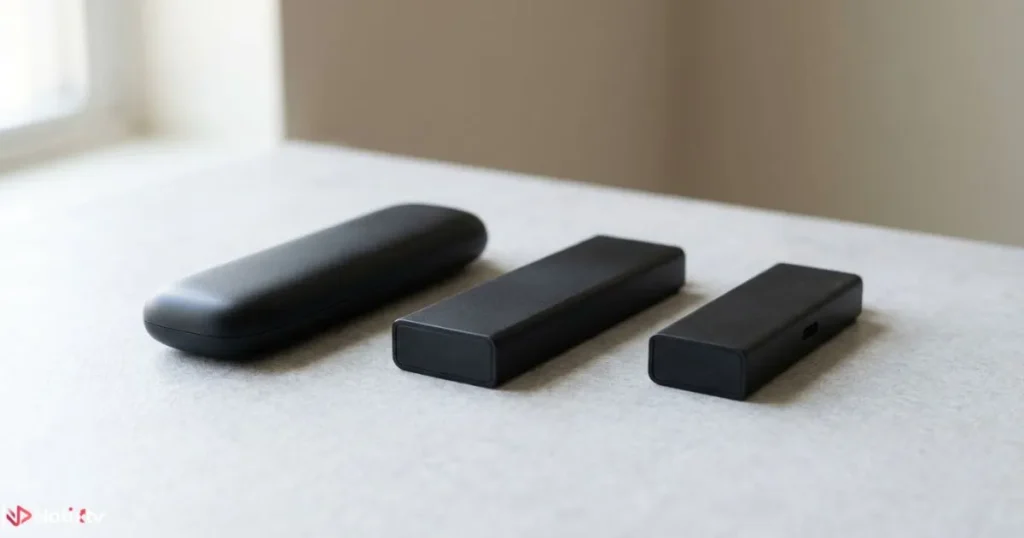
| Model | RAM | Storage | Max Resolution | AV1 Support | IPTV Suitability |
|---|---|---|---|---|---|
| Fire TV Stick Lite | 1 GB | 8 GB | 1080p | No | Basic |
| Fire TV Stick 3rd Gen | 1 GB | 8 GB | 1080p | No | Good |
| Fire TV Stick 4K | 1.5 GB | 8 GB | 4K | No | Very Good |
| Fire TV Stick 4K Max (Gen 1) | 2 GB | 8 GB | 4K | Yes | Excellent |
| Fire TV Stick 4K Max (2023) | 2 GB | 16 GB | 4K | Yes | Excellent |
Minimum Requirements for Buffer-Free Streaming
For smooth HD streaming, your device needs at least 1 GB of RAM and H.264 codec support. To enjoy 4K IPTV channels reliably, you want H.265 (HEVC) decoding and at least 1.5 GB of RAM. The 4K Max models add AV1 support, which matters if your IPTV provider uses newer compression formats to reduce bandwidth. If you want to understand the full hardware picture before committing to a 4K subscription, this overview of 4K streaming hardware requirements covers every relevant spec in detail.
How to Install IPTV Player on Firestick: Every Method Compared
There are four ways to get a Firestick IPTV app onto your device. Each one suits a different type of user, and each has real trade-offs worth knowing before you start.
Method 1 – Install Directly from the Amazon Appstore
A handful of popular IPTV players are available natively on the Appstore, including TiviMate and Kodi. This is the safest and easiest path. You get automatic updates, no need to change security settings, and the confidence that the APK is unmodified. The main downside is that the selection is limited and some apps are geo-restricted.
Method 2 – Sideloading with the Downloader App (Recommended)
This is the most popular method for getting a wider range of Firestick IPTV apps installed. It gives you access to any APK file, from IPTV Smarters Pro to GSE Smart IPTV, without needing a computer.
- Go to Settings, then My Fire TV, then Developer Options and toggle Apps from Unknown Sources to ON.
- Return to the Appstore and install the free Downloader app by AFTVnews.
- Open Downloader and enter the direct APK URL for your chosen IPTV player.
- Allow the download to complete, then tap Install when prompted.
- Once installed, open the app, enter your M3U URL or Xtream credentials, and you are live.
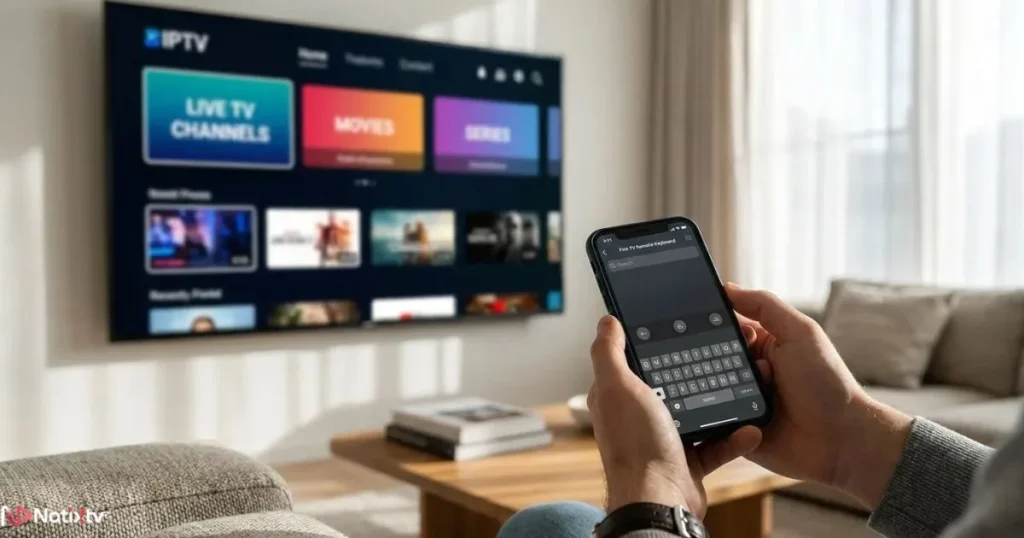
Pro tip: Use the Fire TV mobile app (available on iOS and Android) as a keyboard during setup. Typing long M3U URLs with a remote is painful. The app turns your phone into a touchpad and keyboard, and it works on every Firestick generation.
Method 3 – Sideloading via ADB from a Computer
ADB (Android Debug Bridge) lets you push APK files from a PC or Mac to your Firestick over your local Wi-Fi network. To use it, enable ADB Debugging in Developer Options alongside Unknown Sources, find your device’s IP address under About, and use ADB commands to push the APK. This method is best for advanced users managing multiple devices or working with large app packages.
Method 4 – Amazon’s Send-to-Device Feature
For Appstore-approved apps only, you can log into your Amazon account on a browser, find the app, and select your Firestick as the target device. It installs wirelessly. This is useful when you have multiple Fire TV devices to manage from one place.
Remote Navigation and Interface Differences Across Firestick Generations
The remote that ships with your device changes more about your IPTV experience than most people realize. Older models lacked TV power and volume controls. Newer Alexa Voice Remote Pro models add a dedicated headphone jack and a mute microphone button. More importantly for IPTV users, voice search with Alexa only works within Amazon’s ecosystem by default. To launch an IPTV app by voice, you say something like “Alexa, open TiviMate” and it works reliably on all Alexa-enabled remotes.
Navigating EPGs and Playback Controls
Inside your IPTV player, the remote buttons behave differently depending on which app you use. In TiviMate, the fast-forward and rewind buttons scrub through catchup content in 30-second jumps. In IPTV Smarters Pro, the same buttons may require a long press. Getting familiar with your app’s key mapping saves real frustration during live sports or a movie halfway through. Most apps also let you remap buttons in settings.
Firestick Storage Management for IPTV Users
Storage is the most overlooked performance bottleneck on older Firestick models. With only 8 GB of total internal storage and Amazon’s system apps already claiming a significant chunk, managing what remains is critical to keeping your IPTV setup running smoothly.
How Much Space Does IPTV Actually Use?
The apps themselves are small: TiviMate runs around 25 MB, IPTV Smarters Pro around 30 MB, and Kodi can reach 100 MB or more with add-ons. The real storage drain is EPG cache data. If you subscribe to a package with thousands of channels and a multi-day programme guide, your EPG cache can swell to 300 to 500 MB over a few weeks without you ever noticing.
Practical Storage Management Tips
- Go to Settings, then Applications, then Manage Installed Applications to clear cached data per app.
- In TiviMate’s settings, set your EPG cache retention to 3 to 5 days instead of the maximum.
- Uninstall pre-installed Amazon apps you genuinely never use, such as Silk Browser or IMDb TV, to recover 100 to 200 MB.
- Avoid enabling local recording unless you are on a 4K Max model with external storage attached via USB-OTG.
The 4K Max (2023) model’s doubled storage, at 16 GB, largely solves these pressures. If you are still on an 8 GB device, consistent cache management is non-negotiable.
IPTV Playback Settings: Getting the Best Picture and Audio
Your Firestick’s system-level display settings and your IPTV app’s internal playback configuration both matter. Getting them aligned is how you go from “it works” to “this looks incredible.”
Display and Resolution Settings
Navigate to Settings, then Display and Sounds, then Display. Set the resolution to Automatic. This allows the Firestick to switch between 1080p and 4K dynamically based on the content. On 4K Max models, you can also enable Dolby Vision and HDR10, which adds real visual depth to supported premium channels. If sports channels look slightly smeared or over-smooth, the TV’s motion enhancement is the likely culprit, not IPTV itself. Disable motion smoothing in your TV settings for live content.
Audio Configuration for Surround Sound
In the same Display and Sounds menu, set Audio to Dolby Atmos if your TV or soundbar supports it. For everyone else, Stereo is the safest choice. Inside your IPTV player, look for the audio track settings and choose AC3 or EAC3 for channels that broadcast in Dolby Digital. Fire TV Stick streaming performance on 4K Max genuinely shines when Dolby Atmos pass-through is active through HDMI ARC.
Buffer Size and Player Engine Settings
Inside TiviMate or IPTV Smarters, the buffer setting is one of the most impactful IPTV playback settings you can tune. For live TV, a buffer between 10 and 20 seconds strikes the right balance: enough to absorb short network hiccups without introducing noticeable delay. For VOD content, you can push this higher. The player engine matters too. ExoPlayer is the default and works well on most streams. If you encounter stuttering on H.265 content, switching to MX Player or VLC as an external player often fixes it immediately, especially on older Firestick generations without hardware H.265 decoding.
Troubleshooting IPTV Issues by Firestick Generation
When something goes wrong with your IPTV Firestick setup, the fix usually depends on which model you have. Generic advice often misses the mark. Here is what to look for by generation.
Issues on Firestick Lite and 3rd Gen (1 GB RAM Devices)
- Buffering on HD streams: Force-close all background apps before launching your IPTV player. RAM pressure is the primary cause on 1 GB devices.
- H.265 streams stuttering or failing: These devices lack hardware HEVC decoding. Switch your IPTV app to request H.264 streams when available, or configure your provider’s stream type in the app settings.
- App crashes after 30 to 60 minutes: Clear the app’s cache, restart the device, and relaunch. Memory leaks in some IPTV players compound over time on low-RAM hardware.
- Sideload “parsing error”: The APK you downloaded may be compiled for a different CPU architecture. Always download the ARM build of any IPTV app.
Issues on 4K and 4K Max Firesticks
- Washed-out picture in HDR mode: Some 4K IPTV channels broadcast in SDR despite triggering HDR on your Firestick. Disable HDR Match for that channel in your TV’s settings or use the app’s video settings to force SDR output.
- AV1 streams not playing in older apps: Update your IPTV player to the latest version. AV1 playback was added to many players only recently. If your app cannot update via the Appstore, re-sideload the latest APK.
- USB-OTG drive not recognised: Format the drive to FAT32 rather than exFAT. Some Firestick 4K Max models are inconsistent with exFAT external storage.
Network and DNS Troubleshooting
Before you blame your Firestick or IPTV app, check the network. A strong Wi-Fi signal at the device level does not always mean low latency to your IPTV server. Use your router’s 5 GHz band instead of 2.4 GHz whenever possible. If certain channels load slowly or fail, try switching to a public DNS server. In your Firestick’s Wi-Fi settings, you can manually enter a DNS address such as 1.1.1.1 (Cloudflare) or 8.8.8.8 (Google). For the most reliable connection, the USB Ethernet adapter (compatible with 4K and 4K Max models) eliminates Wi-Fi entirely, which matters enormously for 4K live streams.
For users exploring different IPTV subscription tiers and wanting to understand what providers offer in terms of reliability and channel coverage, this breakdown of IPTV subscription plans and trial options is a useful reference before committing.
Choosing the Right IPTV App for Your Firestick Model
The right app for your specific device makes a bigger difference than most users expect. Here is a quick comparison of the most widely used Firestick IPTV apps and how they perform across models.
| IPTV App | Best Firestick | EPG | Xtream API | M3U | RAM Impact |
|---|---|---|---|---|---|
| TiviMate | 4K / 4K Max | Yes | Yes | Yes | Low |
| IPTV Smarters Pro | All models | Yes | Yes | Yes | Medium |
| GSE Smart IPTV | 3rd Gen and up | Yes | Yes | Yes | Medium |
| Kodi with PVR add-on | 4K Max recommended | Yes | Via add-on | Yes | High |
| Perfect Player | Lite / 3rd Gen | Yes | No | Yes | Low |
Frequently Asked Questions
What is the best iptv firestick setup for a first-time user?
For most people starting out, a Fire TV Stick 4K paired with TiviMate is the ideal combination. Install TiviMate via the Downloader app, add your provider’s Xtream credentials or M3U URL, and you will have a full EPG, catch-up support, and reliable 4K playback within minutes. Pair that with a provider like iptv in usa that offers a free 24 to 48-hour trial, and you can verify stream quality before spending a dollar.
Can I use iptv firestick on a Lite model?
Yes, absolutely. The Fire TV Stick Lite can run IPTV apps like Perfect Player and IPTV Smarters Pro without much trouble on HD streams. The key is to keep background apps closed, limit your EPG retention window, and request H.264 streams rather than H.265 when your provider gives you the choice.
Why does my IPTV Firestick keep buffering even with fast internet?
Buffering is rarely just about raw internet speed. Common causes include your Firestick being too far from your router (switch to 5 GHz or use an Ethernet adapter), background apps consuming RAM, a buffer size set too low in your IPTV player, or brief congestion on your provider’s streaming server. Work through each one systematically: restart your router, force-close background apps, increase the buffer to 20 seconds, and if the problem persists, test a different server from your provider’s list.
How much storage does IPTV use on a Firestick?
The player app itself uses 25 to 100 MB depending on which one you choose. The real concern is EPG and thumbnail cache, which can grow to 300 to 500 MB over weeks. On 8 GB models, clearing this cache once a week from the Applications menu keeps things running cleanly. On the 4K Max 2023 model with 16 GB, this is far less of a concern.
Is IPTV on Fire TV Stick legal to use?
IPTV as a technology is entirely legal. The legality depends on the content and the provider. Licensed IPTV services that have proper broadcast rights are legal to subscribe to and use. Always choose a verified, reputable provider. If you want to learn more about what a reliable provider looks like before choosing one, check Streaming Media for independent industry coverage.
Does sideloading an IPTV app void my Firestick warranty?
No. Enabling Developer Options and sideloading apps is a supported feature on all Fire TV Stick devices. Amazon explicitly provides this capability for developers and power users. You can re-disable it at any time by toggling Unknown Sources back off in Developer Options.
Ready to Experience IPTV on Your Firestick?
Every Firestick generation covered in this guide is fully compatible with Natixtv, a trusted IPTV provider with a stable infrastructure, a rich channel lineup, and full support for all major players including TiviMate, IPTV Smarters Pro, and GSE Smart IPTV. Before you commit, Natixtv offers a free trial of 24 to 48 hours so you can test stream quality, EPG accuracy, and 4K channel performance on your exact device with zero risk.
You already have the setup knowledge. The only thing left is a subscription worth using it with. Start your free trial at Natixtv – iptv in usa