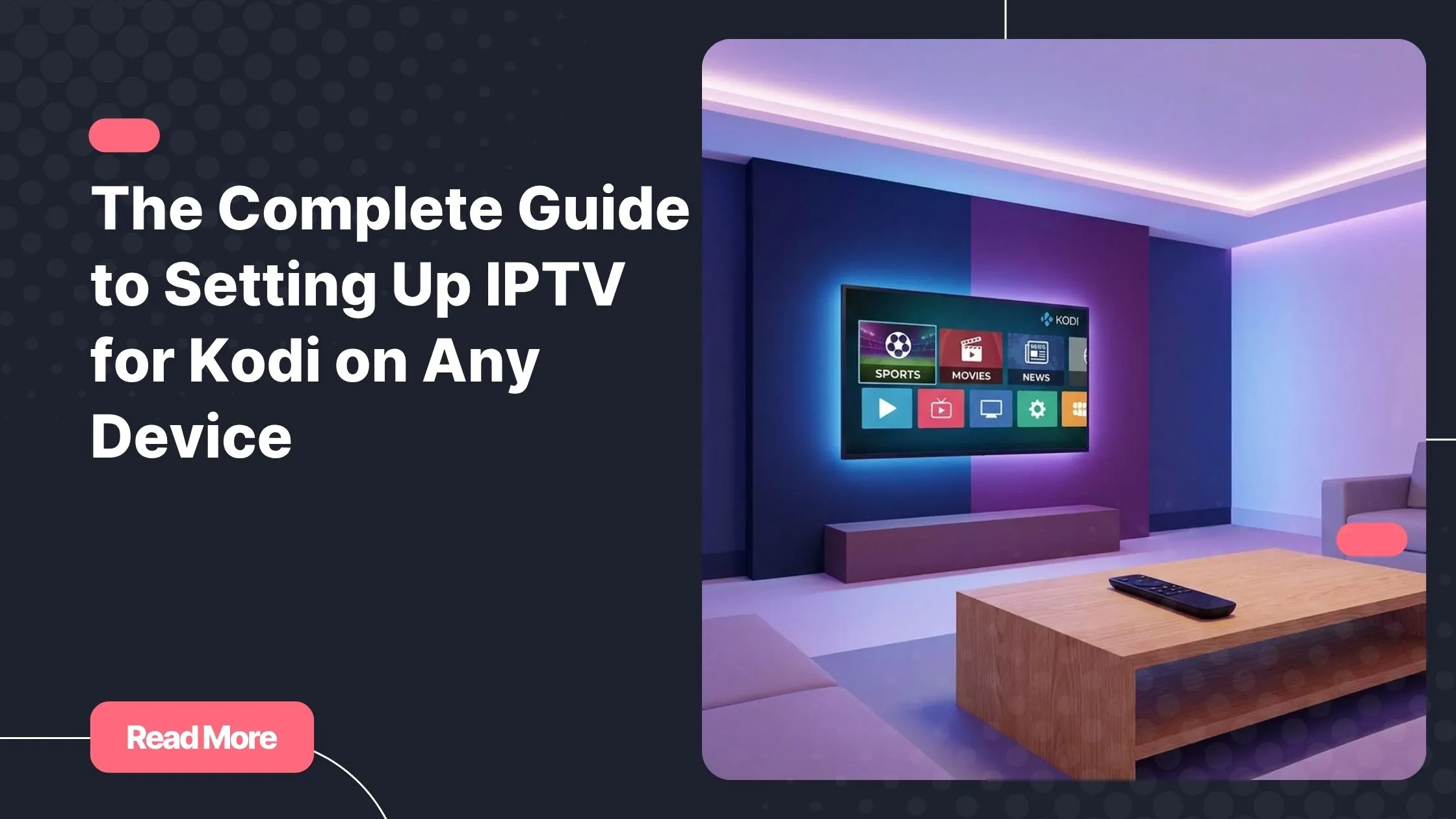
Remember the last time you spent 20 minutes flipping through a bloated cable menu, paying for 300 channels and finding nothing worth watching? That frustration is familiar to millions of households, and it is exactly what pushes people toward smarter alternatives. IPTV for Kodi is one of the most powerful combinations available today: a free, open-source media player paired with a live TV service that delivers hundreds of channels, a full program guide, and on-demand content, all without a satellite dish or a climbing monthly bill. If you want a top rated iptv experience, Kodi is the platform to build it on.
Setting up IPTV for Kodi might sound technical at first, but the process is surprisingly straightforward once you understand the logic. Whether you are watching on a Fire Stick, an Android TV box, a Windows laptop, a Raspberry Pi, or a Mac, Kodi runs on your device and transforms it into a fully featured live TV system. This guide covers every step: what you need before you start, how to install the right Kodi IPTV addon, how to configure your playlist, device-specific tips, and how to fix the most common issues.
No prior experience needed. No confusing jargon. Just follow the steps in order, and you will be streaming live TV in under 15 minutes.
Table of Contents
What Is IPTV and Why Kodi Is Perfect for It
A Quick Primer on IPTV
IPTV stands for Internet Protocol Television. Instead of receiving TV signals through a cable or antenna, your channels arrive as data streams over your internet connection. Your provider gives you either an M3U playlist URL or an Xtream Codes login, and from there you can access live TV, catch-up content, and on-demand libraries from a single interface. As streaming technology continues to reshape how we consume television in 2026, IPTV is firmly at the center of that shift.
The two core components of every IPTV setup are:
- M3U playlist: a file containing the stream links for every channel your subscription includes
- EPG (Electronic Program Guide): an XML file that populates your TV guide with show names, broadcast times, and descriptions
Why Kodi Stands Out
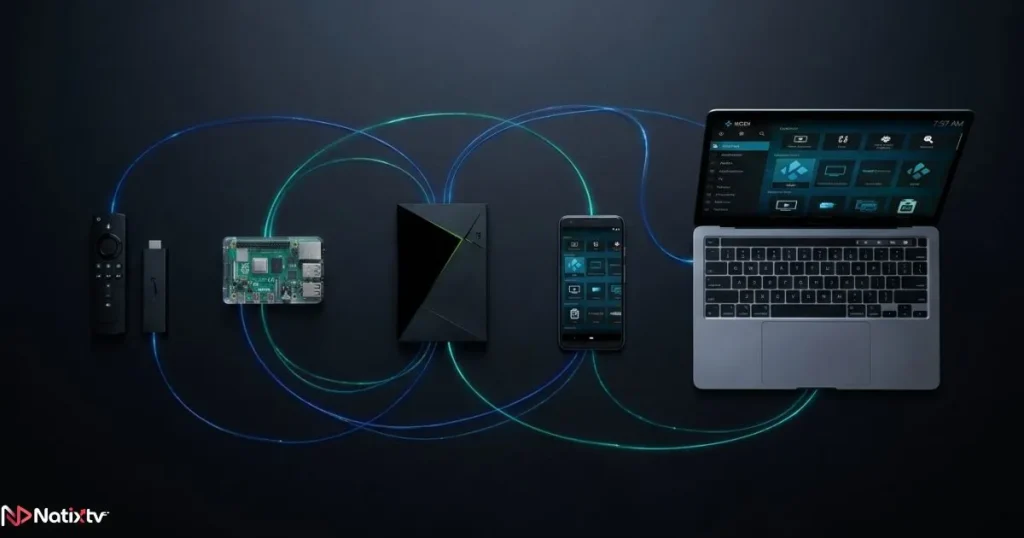
Kodi is a free, open-source media center built by the XBMC Foundation, with over 50 million downloads across every major platform. It runs on Windows, macOS, Android, Fire TV, Raspberry Pi, and iOS, and it comes with a built-in PVR (Personal Video Recorder) system designed specifically for live TV streams. That is what makes IPTV for Kodi such a natural pairing: the infrastructure for live channels is already baked into Kodi, and an IPTV subscription is simply what brings it to life. Add a well-curated channel list and a working EPG, and you have a TV experience that rivals any traditional cable package.
What You Need Before You Start
Before you install IPTV for Kodi, run through this checklist to make sure everything is in place:
| Requirement | Details |
|---|---|
| Kodi version | v19 Matrix or later (v21 Omega recommended) |
| Internet speed | Minimum 10 Mbps for HD | 25 Mbps for 4K |
| Compatible device | Windows, Android TV, Fire Stick, Raspberry Pi, macOS, iOS |
| IPTV subscription | M3U URL or Xtream Codes credentials (e.g., Natixtv) |
| EPG source | XML guide URL – provided by your IPTV provider after sign-up |
Choosing a Reliable IPTV Provider
Your streaming experience is only as good as the provider behind it. A quality provider delivers stable streams, a regularly updated channel list, a working EPG, and responsive customer support. top rated iptv providers like Natixtv supply both M3U playlist URLs and Xtream Codes credentials, making them fully compatible with Kodi and every major streaming device. Better still, Natixtv offers a free trial period of 24 to 48 hours so you can test everything before committing. If you want a deeper look at how playlists work across platforms, the guide on using an M3U playlist on any device is the best place to start.
Step-by-Step: How to Install IPTV for Kodi
Step 1 – Install or Update Kodi
Head to the official Kodi download page and grab the latest version for your platform. On Windows and macOS, run the standard installer. On Android, find Kodi directly in the Google Play Store. On Fire TV, use the Downloader app to sideload the Kodi APK after enabling “Apps from Unknown Sources” in Developer Options. Always confirm you are running Kodi v19 or above, since older versions have limited PVR support and may not work correctly with modern IPTV streams.
Step 2 – Enable the PVR IPTV Simple Client Addon
The PVR IPTV Simple Client is the native Kodi IPTV addon built to handle M3U playlists and EPG data. It comes bundled with Kodi, so no third-party repositories are required.
- Open Kodi and navigate to Add-ons
- Select Install from repository, then choose Kodi Add-on repository
- Navigate to PVR clients
- Find PVR IPTV Simple Client and click Install
- Wait for the confirmation notification before moving on
Step 3 – Configure Your M3U Playlist
This step connects your IPTV subscription to Kodi and populates your channel list. Take your time here and make sure the URLs are entered correctly.
- Go to Add-ons – My add-ons – PVR clients
- Select PVR IPTV Simple Client and click Configure
- Under General, set the source type to M3U playlist URL
- Paste the M3U link from your IPTV provider (Natixtv provides this after sign-up or trial activation)
- Under EPG Settings, paste the XML EPG URL for the program guide
- Click OK, then fully close and restart Kodi
Step 4 – Enable Live TV and Start Watching
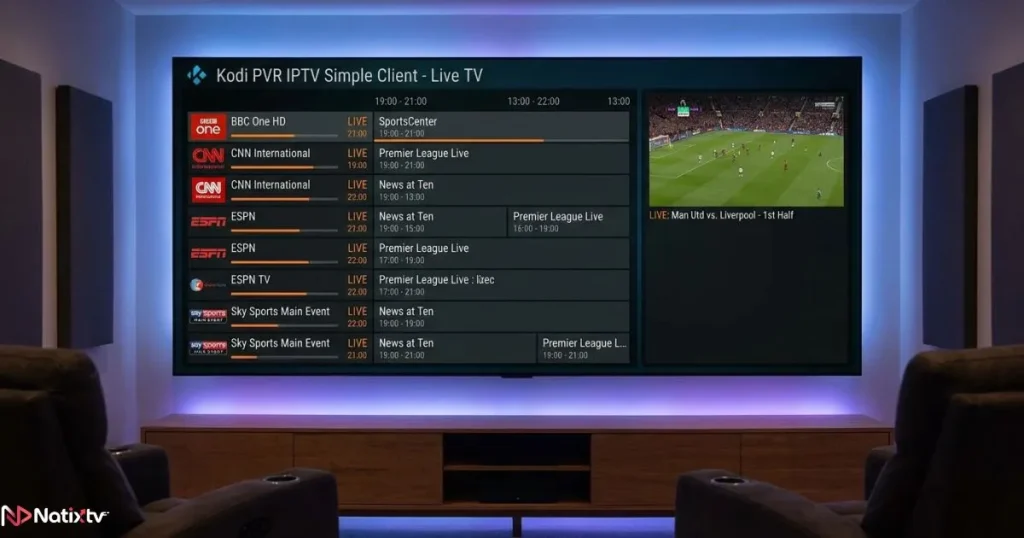
After restarting Kodi, a TV section will appear in the main menu. Click it and Kodi will scan your M3U file and load your full channel list. If the TV menu does not appear automatically, go to Settings – PVR and Live TV and make sure the feature is toggled on. Your Kodi live TV setup is now complete and ready to use.
Step 5 – Optional: Xtream Codes Setup
If your provider uses Xtream Codes instead of a plain M3U URL, you will need a dedicated addon such as IPTV Smarters or Sparkle. Both are available through third-party Kodi repositories. They offer a more app-like interface with VOD categories, series libraries, and multi-profile management, which is useful if you want more than just live channels from your subscription.
Best IPTV Kodi Addons to Enhance Your Experience
The PVR IPTV Simple Client handles most use cases well, but it helps to know your options. Here is a side-by-side comparison of the leading Kodi IPTV addons:
| Addon | Type | Best For |
|---|---|---|
| PVR IPTV Simple Client | Native | M3U playlists, EPG loading |
| IPTV Smarters | Third-party | Xtream Codes, VOD management |
| Sparkle TV | Third-party | Multi-provider management |
| TVirl (Android only) | Bridge app | Advanced EPG and recording |
Whichever addon you use, these practical tips will improve your day-to-day experience:
- Organize channels into groups using M3U group tags to clean up a long channel list
- Adjust Kodi’s cache size via the advancedsettings.xml file to reduce buffering during peak hours
- Set your EPG to auto-refresh every 24 hours so schedules stay accurate
- Use the Kodi TV guide view for a classic broadcast-style browsing experience
Device-Specific Tips for IPTV for Kodi
Amazon Fire TV and Fire Stick
Enable “Apps from Unknown Sources” in your Fire TV Developer Options, then use the Downloader app to sideload the Kodi APK. Once Kodi is installed, the addon configuration is exactly the same as on any other device. Fire Stick 4K Max handles HD and 4K streams particularly well due to its faster processor and improved Wi-Fi antenna.
Android TV and Android Boxes
Install Kodi directly from the Google Play Store on Android TV. Android boxes typically offer more RAM and internal storage than Fire Sticks, making them the most flexible option for heavy use. Pairing your box with a wired ethernet connection will give you the most consistent stream quality.
Windows and macOS
Download the standard installer from the official Kodi website and run it like any other application. Desktop setups are ideal for testing your M3U URL and EPG configuration before deploying the same credentials on a living room device. The larger screen real estate also makes navigating the TV guide a more comfortable experience.
Raspberry Pi with LibreELEC or OSMC
Both LibreELEC and OSMC ship with Kodi pre-installed and PVR IPTV Simple Client ready to configure out of the box. A Raspberry Pi 4 connected via ethernet makes a reliable, always-on media center that draws minimal power and fits neatly behind any TV.
iPhone and iPad (iOS)
Kodi is not available on the App Store and must be sideloaded using a tool like AltStore. The iOS version works but is more limited than the Android build. For most Apple device users, a dedicated IPTV streaming app may offer a smoother and more stable experience.
Troubleshooting Common Issues
Even the smoothest IPTV for Kodi setup can hit occasional bumps. Here are the most frequent problems and how to resolve them quickly:
- Channels not loading: check your M3U URL carefully for typos, re-enter it manually, and restart Kodi after saving
- Buffering or freezing: increase Kodi’s cache size via advancedsettings.xml, switch to a wired ethernet connection, or upgrade your internet plan
- EPG not displaying: verify that the XML URL is correct and trigger a manual guide refresh inside the PVR settings menu
- Black screen on playback: switch the video decoder in Kodi’s player settings from software to hardware rendering, or vice versa
- Addon not found in repository: confirm you are running Kodi v19 or later and that the official Kodi repository is enabled in your addon settings
If you are using Natixtv and run into stream issues, their support team can provide updated M3U and EPG URLs at any time, which is a real advantage of working with a provider that offers dedicated after-sale support.
Is IPTV for Kodi Legal?
Kodi itself is 100% legal, open-source software maintained by an independent non-profit community. The legality of your streaming experience depends entirely on the IPTV provider you choose. Licensed, subscription-based services like Natixtv operate fully within the law by distributing content through proper agreements. As long as you use a legitimate provider, your setup is completely above board.

Using a VPN alongside your IPTV connection is a personal privacy choice and is not required for legal use. Choose a reputable service, subscribe correctly, and stream with confidence.
Frequently Asked Questions
What is the easiest way to set up IPTV for Kodi as a beginner?
The simplest approach is to install the PVR IPTV Simple Client from the official Kodi repository, then paste your M3U URL and EPG link into the addon settings. With a provider like Natixtv, you receive both links immediately after activating your free 24 to 48-hour trial. IPTV for Kodi does not get much more accessible than that.
Which Kodi IPTV addon should I use?
For standard M3U playlist setups, PVR IPTV Simple Client is the top recommendation. It is built directly into Kodi, requires no third-party repositories, and handles live channels and EPG data reliably. If your provider uses Xtream Codes, IPTV Smarters offers a better-organized interface for managing live TV and VOD content side by side.
Can I install IPTV for Kodi on a Fire Stick?
Yes, absolutely. Enable “Apps from Unknown Sources” in the Fire TV Developer Options, sideload Kodi via the Downloader app, and follow the standard PVR IPTV Simple Client configuration. The entire process takes about 10 minutes, and the Kodi IPTV setup experience on Fire Stick is identical to Android devices once Kodi is running.
Why is my EPG not displaying in Kodi?
The most common cause is an incorrect or expired EPG URL. Verify the XML link your provider gave you, paste it cleanly into the PVR IPTV Simple Client settings without any trailing spaces, and trigger a manual guide refresh. If the issue persists, contact your provider directly for an updated EPG link.
Does Natixtv offer a free trial to test IPTV for Kodi?
Yes. Natixtv provides a free trial of 24 to 48 hours. After activating it, you receive your M3U credentials and EPG URL, which you can plug straight into the PVR IPTV Simple Client and begin testing immediately on any device running Kodi.
Do I need a VPN to stream IPTV on Kodi?
No. A VPN is a privacy tool, not a technical requirement. If you are subscribed to a licensed service with properly authorized content, your streams are legal and a VPN adds no functional benefit. Some users choose to run one for general privacy reasons, but it is entirely optional and has no effect on stream quality or channel availability.
Conclusion
IPTV for Kodi puts live TV back in your hands, on your terms, on any device, without the overpriced contract. The setup process is clear and repeatable: install Kodi, enable the PVR IPTV Simple Client, enter your M3U URL, and you are watching live TV within minutes. Whether you are streaming on a Fire Stick in the living room or a Raspberry Pi in the study, the experience is consistent and genuinely impressive.
The only variable that matters is the quality of your provider. That is why the smartest first step is choosing a top rated iptv service like Natixtv: activate your free 24 to 48-hour trial today, test your Kodi setup with real credentials, and make an informed decision before committing to a subscription.