There’s a moment most people recognize: you’re sitting on the couch, remote in hand, scrolling through the same 200 channels you’ve had for years, and nothing feels worth watching. You’re paying more every month for content that barely interests you. Meanwhile, millions of people have already made the switch to a smarter way of watching television. If you’ve been curious about it but weren’t sure where to start, this guide is exactly what you need. You can buy IPTV subscription today and be up and running in less than 15 minutes.
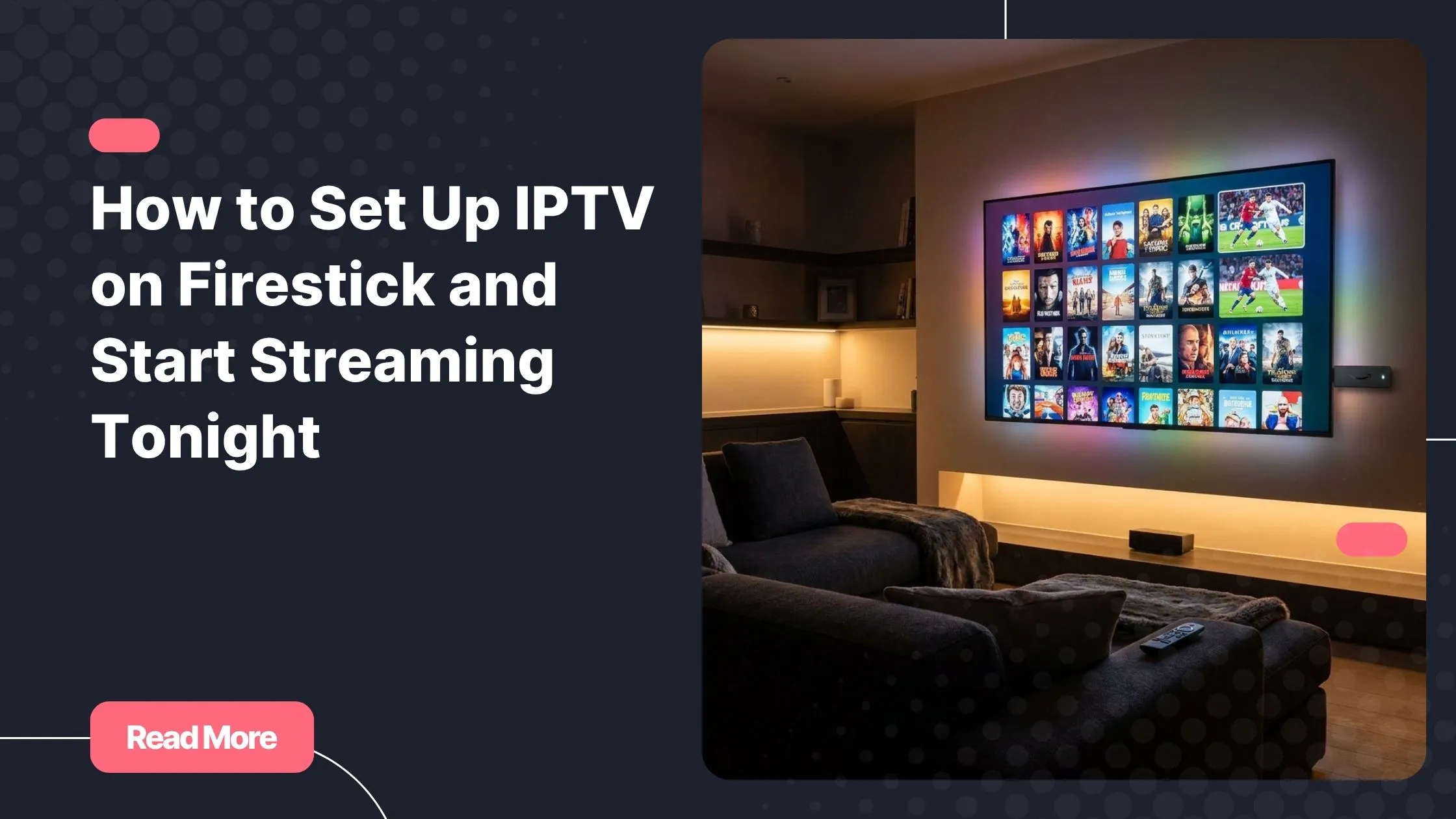
IPTV on Firestick is the combination that changed how everyday viewers consume TV. It’s affordable, flexible, and surprisingly easy to set up, even if you’ve never sideloaded an app in your life. This guide walks you through every step, from enabling the right settings to launching your first live channel, with no technical background required.
By the end of this article, your Firestick will be transformed into a powerful streaming hub with access to thousands of live channels, movies, and series on demand. Let’s get started.
Table of Contents
What Is IPTV and Why Does Firestick Make It So Good?
IPTV stands for Internet Protocol Television. Instead of receiving TV signals through cable or satellite, your content is delivered over your internet connection. This means you get live TV, video on demand, and catch-up content all in one place, with nothing to install beyond a small stick plugged into your TV’s HDMI port.
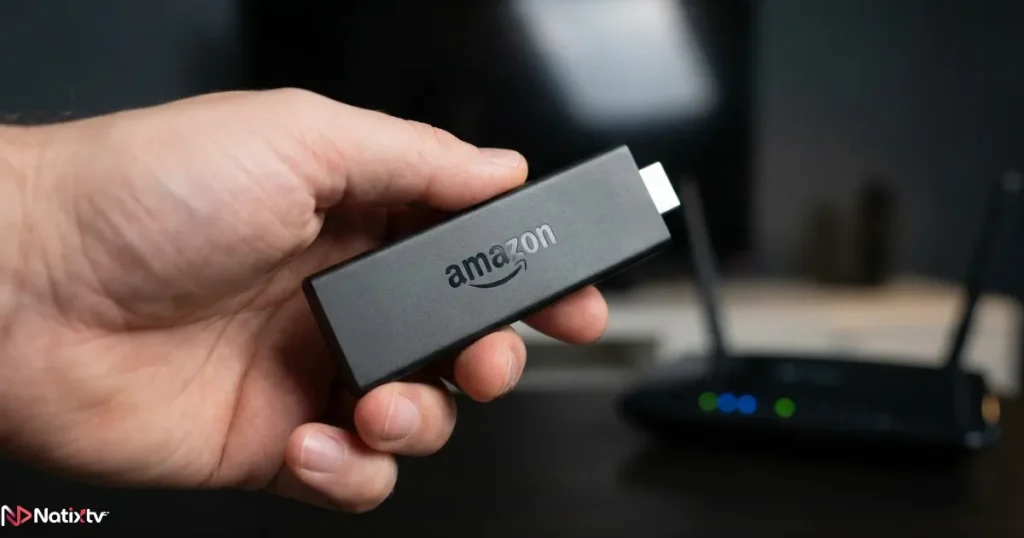
The Amazon Firestick is one of the best devices for IPTV streaming for several reasons. It’s affordable (starting around $30), it runs a full Android-based operating system, and it supports a wide range of third-party applications. Whether you own a Fire TV Stick Lite, the standard model, or the 4K Max version, IPTV works seamlessly across all of them.
Here’s a quick look at how the Firestick compares to other popular IPTV-compatible devices:
| Device | Price Range | Ease of Setup | IPTV Compatibility |
|---|---|---|---|
| Amazon Firestick | $30–$55 | ⭐⭐⭐⭐⭐ | Excellent |
| Smart TV (built-in) | Varies | ⭐⭐⭐ | Good |
| Android TV Box | $40–$100 | ⭐⭐⭐⭐ | Excellent |
| PC or Laptop | Varies | ⭐⭐⭐ | Good |
For most beginners, IPTV on Firestick offers the best balance of price, simplicity, and performance. You plug it in, follow a few steps, and you’re watching live TV within minutes.
What You Need Before You Begin
The Essential Equipment
Before you install anything, make sure you have the following ready:
- Any Amazon Firestick model (Lite, standard, 4K, or 4K Max)
- A stable internet connection – minimum 10 Mbps for HD, 25 Mbps for 4K
- An active Amazon account to access the App Store
- An IPTV subscription with either an M3U playlist URL or Xtream Codes credentials
Choosing a Reliable IPTV Subscription
Your IPTV experience is only as good as the provider behind it. A poor-quality service means buffering, dead channels, and frustration. When evaluating providers, look for a solid channel lineup, reliable uptime, responsive customer support, and compatibility with popular Firestick apps.
Most importantly, always choose a provider that offers a free trial. NatixTV, for example, offers a free 24 to 48-hour trial period with no commitment required. This lets you test the channel quality, streaming stability, and interface before spending a single euro or dollar. It’s the smartest way to evaluate IPTV on Firestick without any risk.
Watch out for these red flags when choosing a provider:
- No trial period offered
- No customer support channel
- Prices that seem too good to be true
- No clear information about server locations or uptime guarantees
Step 1 – Enable Apps from Unknown Sources on Your Firestick
By default, Amazon locks the Firestick to apps available in its official store. To install a dedicated IPTV app for Firestick, you’ll need to unlock this restriction first. The process is simple and takes under two minutes.
- From your Firestick home screen, go to Settings
- Select My Fire TV
- Tap Developer Options
- Toggle Apps from Unknown Sources to ON
- Confirm the warning message by selecting Turn On
This is a one-time step. Once it’s done, you won’t need to repeat it. You can optionally also enable ADB Debugging in the same menu if you plan to manage your device from a computer later.
Step 2 – Install the Downloader App
The Downloader app is your gateway to installing any third-party APK on your Firestick. It’s available for free in the Amazon App Store and is the most reliable method for beginners.
- Press the search icon on your Firestick home screen
- Type Downloader and select the result from AFTVnews
- Download and install the app
- Open it and allow file access when prompted
With Downloader installed, you’re ready to fetch any IPTV app directly onto your device using a URL. You can learn more about the best options in this overview of reliable IPTV players compatible with Firestick.
Step 3 – Choose and Install Your IPTV App
The Best IPTV Apps for Firestick
Several great apps support IPTV on Firestick. Each one has its strengths, but they all support both M3U URLs and Xtream Codes, which are the two main formats used by IPTV providers.
| App | Free Version | M3U Support | Xtream Codes | Best For |
|---|---|---|---|---|
| IPTV Smarters Pro | Yes (freemium) | ✅ | ✅ | Beginners |
| TiviMate | Yes (freemium) | ✅ | ✅ | Power users |
| GSE Smart IPTV | Yes | ✅ | ✅ | Free option |
| Duplex Play | Yes (freemium) | ✅ | ✅ | Clean UI |
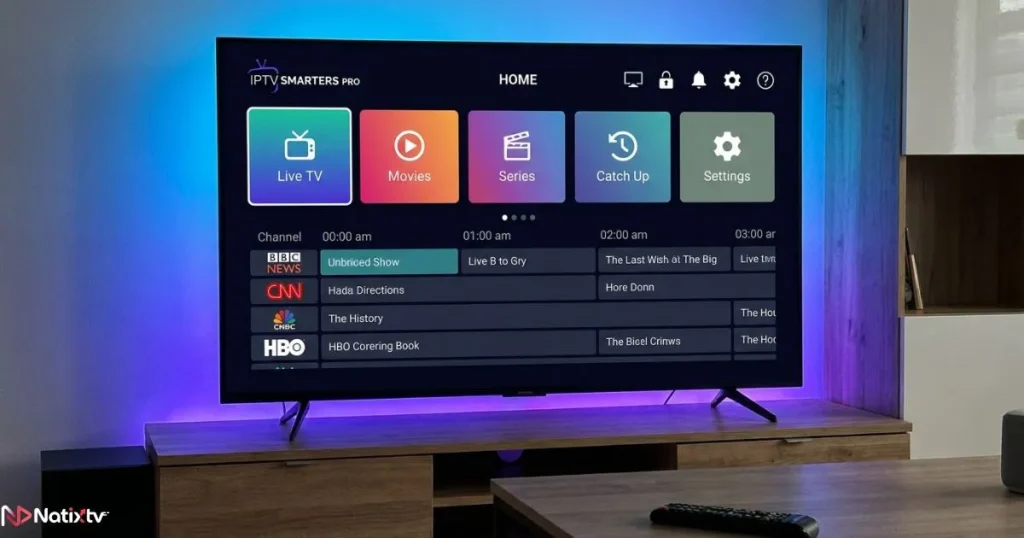
For most first-time users, IPTV Smarters Pro is the recommended starting point. Its interface is clean, navigation is intuitive, and setup takes just a few taps. If you want a deeper comparison of compatible players before deciding, this guide on choosing the right IPTV app for your Firestick covers the key differences in detail.
How to Install IPTV Smarters on Firestick
- Open the Downloader app you installed earlier
- Enter the official APK download URL for IPTV Smarters Pro
- Wait for the download to complete, then tap Install
- Once installed, tap Open to launch the app
Amazon may display a warning during installation. This is normal for any app installed outside the official store. As long as you’re downloading from the official developer’s URL, it’s safe to proceed.
Step 4 – Configure IPTV Smarters with Your Subscription
This is the step where everything comes together. You’ll connect your IPTV subscription to the app so your channels, movies, and series can load.
Using Xtream Codes Login
- Open IPTV Smarters Pro on your Firestick
- Select Add User from the main screen
- Choose Login with Xtream Codes API
- Enter the server URL, username, and password provided by your IPTV provider
- Tap Add User to confirm
Using an M3U URL
- On the Add User screen, select Load Your Playlist or File/URL
- Paste your M3U link in the URL field
- Give your playlist a name and tap Add User
Once loaded, your channel list will appear within seconds. You can navigate between Live TV, Movies, and Series using the bottom menu. Setting up a favorites list right away will save you time later, especially if your provider carries hundreds of channels.
Optimizing Your IPTV Streaming Experience
Getting IPTV on Firestick working is one thing. Getting it working smoothly is another. A few simple adjustments can make a significant difference in your viewing quality.
- Use a wired connection: An Ethernet adapter for your Firestick eliminates Wi-Fi interference and is the single most effective fix for buffering
- Adjust video quality: In IPTV Smarters, you can lower the default stream quality if your connection isn’t stable enough for HD
- Close background apps: Too many apps running at once can slow your Firestick down – restart it before long streaming sessions
- Keep your Firestick updated: Go to Settings – My Fire TV – About – Check for Updates to make sure you’re on the latest firmware
- Use a VPN (optional): If you’re traveling or want an extra layer of privacy, a VPN can improve geo-access and protect your connection
According to Ookla, the average global broadband speed now exceeds 100 Mbps in many regions, meaning most home connections are more than fast enough for high-quality IPTV streaming without buffering, provided you’re not overloading your network.
Is IPTV on Firestick Legal?
IPTV as a technology is completely legal. The same way a web browser is legal regardless of what sites you visit, the Firestick and IPTV apps themselves are neutral tools. What matters is the source of the content you access.
Licensed IPTV providers acquire broadcasting rights for the channels and content they distribute. When you subscribe to a legitimate service, you’re accessing that content legally. Always choose providers who operate transparently and offer clear terms of service. NatixTV is built on this principle: a reliable, tested service with a free trial so you can verify quality before you buy IPTV subscription with full confidence.
Troubleshooting Common Issues
Buffering or Freezing Streams
The most common cause is a slow or unstable internet connection. Run a speed test, switch to a wired Ethernet connection if possible, and check whether other devices on your network are consuming bandwidth.
Channels Not Loading
Double-check your subscription credentials. If the credentials are correct, contact your provider to confirm server status. Temporary server downtime happens occasionally with any provider.
App Crashing on Launch
Go to Settings – Applications – Manage Installed Applications, find your IPTV app, and clear the cache. If the problem persists, uninstall and reinstall the app.
EPG Not Displaying
The Electronic Program Guide (EPG) sometimes needs a manual refresh. Open the app settings and look for an option to force-reload or re-sync the EPG data.
Frequently Asked Questions
How do I set up IPTV on Firestick for the first time?
Start by enabling “Apps from Unknown Sources” in your Firestick’s Developer Options. Then install the Downloader app from the Amazon App Store, use it to download your chosen IPTV player’s APK, and enter your subscription credentials inside the app. The whole process takes under 15 minutes.
What is the best IPTV app for Firestick in 2026?
IPTV Smarters Pro and TiviMate consistently rank as the top choices. For beginners, IPTV Smarters offers the most straightforward setup. TiviMate is preferred by advanced users for its customizable interface and smooth EPG integration.
Does IPTV on Firestick work without a subscription?
No. IPTV on Firestick requires an active subscription that includes either an M3U URL or Xtream Codes login. Some free, ad-supported services exist, but they offer limited channels and inconsistent quality. A paid subscription from a reputable provider is always the better experience.
Why is my IPTV on Firestick buffering so much?
Buffering on IPTV on Firestick almost always points to a network issue. Check that your internet speed meets the minimum (10 Mbps for HD, 25 Mbps for 4K), reduce the number of devices connected to your Wi-Fi, or use an Ethernet adapter for a stable wired connection.
Can I try a service before I pay for IPTV on Firestick?
Yes. NatixTV offers a free 24 to 48-hour trial that gives you full access to the channel lineup and streaming quality before any commitment. It’s the best way to make sure the service suits your needs before subscribing.
Is IPTV on Firestick safe to use?
Yes, when you use a legitimate provider and download apps from official sources. Stick to established IPTV players like IPTV Smarters or TiviMate, and always verify the APK source before installing.
Start Streaming – Your Firestick Is Ready
You now have everything you need to turn your Firestick into a full-featured streaming device. IPTV on Firestick isn’t complicated once you understand the steps, and as you’ve seen, every part of the process is manageable even for a complete beginner. You’ve unlocked the settings, chosen an app, connected your subscription, and optimized your setup for the best possible experience.
The only thing left is to find the right provider. NatixTV is compatible with every major IPTV app for Firestick, works across all Firestick models, and gives you a free trial so there’s no risk involved. When you’re ready to take the leap, go ahead and buy IPTV subscription and start exploring thousands of channels tonight. Your Firestick was always capable of this. Now you know exactly how to use it.