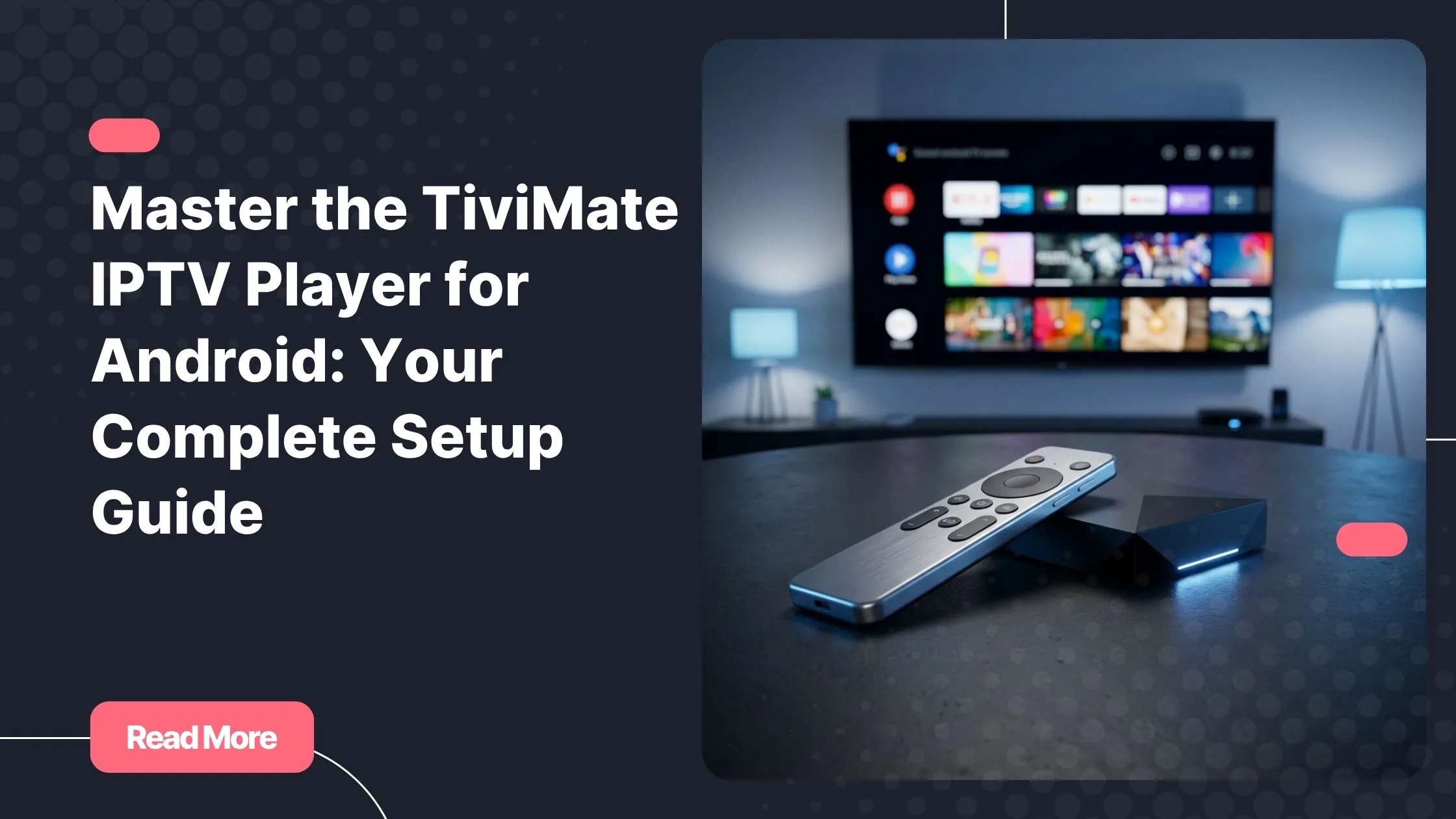
Remember the days of juggling a cable box, a satellite dish, and three remote controls just to watch your favourite channel? You paid a small fortune every month, and you still missed half the content you actually wanted. Streaming has changed everything, and if you are looking for a top rated iptv experience on your Android device, you are in exactly the right place.
The tivimate iptv player for android has earned a reputation as one of the slickest, most reliable IPTV players available today. It combines a clean, intuitive interface with a powerful feature set that rivals apps you would expect to pay much more for. Whether you are a first-timer or migrating from a clunky player that kept crashing mid-match, TiviMate makes the transition effortless.
This guide walks you through everything: what TiviMate is, how to install it, how to connect your IPTV subscription, and how to squeeze the best possible performance out of it across every screen in your home. Let’s get started.
Table of Contents
What is TiviMate and why it stands out as an IPTV player for Android?
The tivimate iptv player for android is a dedicated media player designed specifically for IPTV streams. Unlike generic video players, it is built around the way IPTV works: playlist files (M3U), Xtream Codes APIs, and Electronic Programme Guides (EPG). The result is an experience that feels less like a workaround and more like a purpose-built television app.
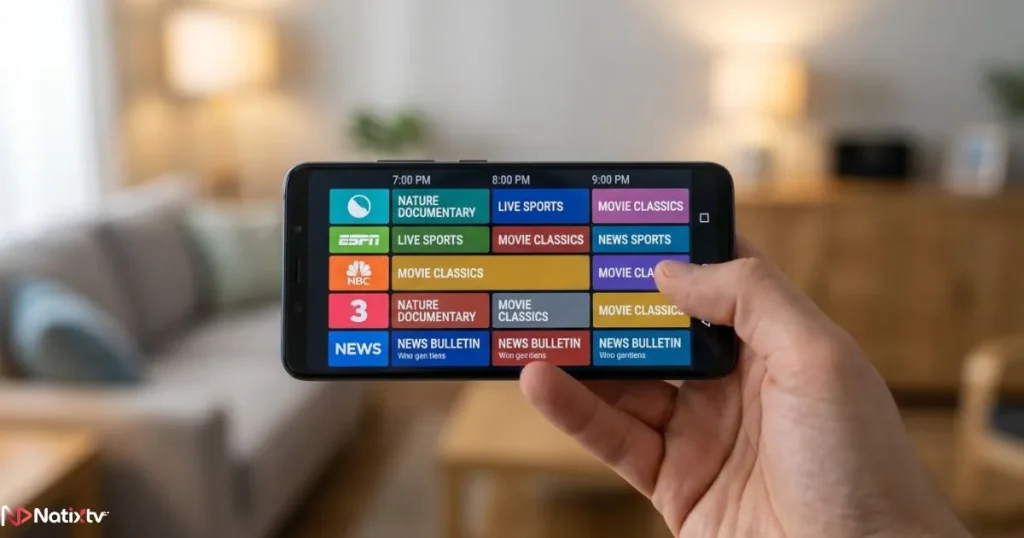
What makes TiviMate stand apart from the crowd is the combination of speed, stability, and design. The channel list loads in seconds. The EPG is smooth and colour-coded. The player itself supports hardware acceleration, meaning even 4K streams run without dropped frames on a mid-range Android box. For anyone who has wrestled with a laggy IPTV Smarters interface or an outdated player, TiviMate feels like a genuine upgrade.
TiviMate runs on Android 5.0 and above, which covers virtually every Android phone, tablet, Fire TV Stick, Android TV box, NVIDIA Shield, and Smart TV running Android OS sold in the last decade.
TiviMate Free vs TiviMate Premium: which one do you need?
TiviMate comes in two tiers. The free version is a solid starting point, but if you plan to watch regularly, tivimate premium unlocks features that genuinely transform the experience.
| Feature | Free | Premium |
|---|---|---|
| Number of playlists | 1 | Unlimited |
| Multi-screen viewing | No | Yes |
| Catch-up TV | No | Yes |
| Scheduled recordings | No | Yes |
| Full EPG guide | Basic | Full |
| Panel lock / PIN | No | Yes |
| Multiple profiles | No | Yes |
TiviMate Premium is a one-time purchase available through the Google Play Store. It is one of the few cases where the tivimate iptv player for android rewards you generously for the upgrade cost, both in features and in daily comfort.

How to install the tivimate iptv player for android on your device
Installation is straightforward on most Android devices, though the method varies slightly depending on your hardware. Here is a breakdown of the most common setups.
Installing TiviMate on Android phones, tablets, and Android TV boxes
If your device has access to the Google Play Store, the process is about as simple as it gets:
- Open the Google Play Store on your device.
- Search for TiviMate IPTV Player.
- Tap Install and wait for the download to complete.
- Open the app. You will be greeted by the playlist setup wizard.
On Android TV boxes (Formuler, BuzzTV, Mecool, and similar), the same Play Store method applies. If your box runs a custom Android fork without the Play Store, you can sideload the APK directly from the official TiviMate website after enabling “Install from unknown sources” in your device settings.
Installing TiviMate on Fire TV Stick
Amazon Fire devices do not have the Google Play Store, so you will need a sideloading method. The easiest route uses the Downloader app:
- Go to Settings – My Fire TV – Developer Options and enable Apps from Unknown Sources.
- Install the Downloader app from the Amazon Appstore.
- Open Downloader and enter the direct APK URL for TiviMate (available on the official TiviMate site).
- Follow the on-screen prompts to install.
- Once installed, launch TiviMate from your apps list.
This is a well-established process and completely safe when you download directly from the official source. The tivimate iptv player for android runs smoothly on the Fire Stick 4K and the Fire Stick 4K Max in particular, where hardware acceleration gives you a noticeably fluid experience.
Adding your IPTV subscription to TiviMate: a step-by-step walkthrough
Once TiviMate is installed, the next step is connecting your IPTV subscription. TiviMate supports three methods: M3U URL, Xtream Codes API, and MAC address. The M3U and Xtream Codes methods are the most widely used.
Using an M3U URL
- Open TiviMate and tap Add Playlist on the welcome screen.
- Select M3U Playlist.
- Paste your M3U URL exactly as provided by your IPTV provider. Pay close attention to the port number and any trailing characters.
- Give the playlist a name (for example, “Natixtv”), then tap Next.
- TiviMate will fetch and parse your channel list. This can take 30 to 60 seconds for large playlists.
Using Xtream Codes credentials
- Select Xtream Codes API at the playlist type step.
- Enter your server URL, username, and password as provided in your welcome email.
- Tap Load. TiviMate will connect to the server and import your full channel and VOD catalogue.
Using Natixtv? After you subscribe (or activate your free 24 to 48-hour trial at top rated iptv), you will receive your M3U URL and Xtream Codes credentials by email. Both methods work perfectly with TiviMate, and your channels will load within a minute.
Setting up your Electronic Programme Guide (EPG)
A good EPG turns a channel list into a real TV guide, and it is one of the areas where the tivimate iptv player for android truly shines compared to simpler alternatives. TiviMate supports XMLTV EPG feeds, which most quality providers supply. To set yours up, go to Settings – Playlist – Edit Playlist – EPG Source and paste your EPG URL. Set the auto-refresh interval to every 24 hours so your guide stays current.
If you want a richer programme guide experience, take a look at the most reliable EPG sources for IPTV to find feeds that offer 14-day guides and multi-language channel support.
Configuring TiviMate for the best streaming experience
Installing and connecting the tivimate iptv player for android is only half the job. The right configuration settings can mean the difference between smooth 4K playback and annoying buffering pauses.
Video and playback settings
- Hardware acceleration: Enable this in Settings – Player. It offloads video decoding to your device’s GPU, dramatically reducing CPU load and buffering on HD and 4K streams.
- Buffer size: Set this to 10 to 15 seconds for most connections. If you are on a slower network, nudge it up to 20 seconds.
- Preferred stream quality: If your provider offers multiple bitrates per channel, you can set a default quality level here. Choose “Auto” to let TiviMate adapt dynamically.
- Player type: For most content, the built-in player works well. For H.265/HEVC streams or Dolby Audio, switching to ExoPlayer can improve compatibility.
Using TiviMate Premium features: recordings and catch-up
With tivimate premium active, you unlock two features that many users consider essential. Catch-up TV lets you rewind live broadcasts by hours or even days, depending on what your IPTV provider supports. Recordings let you save content to your device or an external USB drive and watch it at any time.
To schedule a recording, simply open the EPG, find the programme you want, and long-press it. Select Record and TiviMate will handle the rest automatically. Your recordings appear in the dedicated Recordings tab.
Organising your channels and favourites
Large IPTV playlists can contain thousands of channels. TiviMate lets you create custom groups, hide channels you never use, and build a favourites list that loads instantly on startup. Long-press any channel to access these options. Once your favourites are set up, the tivimate iptv player for android starts to feel like your own personalised TV platform.
Multi-device compatibility: watch on every screen in your home
One of the strongest arguments for choosing TiviMate is how well it scales across different hardware. Whether you are on your Android phone during a commute or your 65-inch OLED at home, the same setup applies. Here is a quick reference for supported devices:
| Device | Install Method | 4K Support | Premium |
|---|---|---|---|
| Android phone / tablet | Google Play Store | Yes | Yes |
| Android TV box (Formuler, BuzzTV, Mecool) | Google Play Store | Yes | Yes |
| Fire TV Stick / Fire TV Cube | Sideload APK | Yes | Yes |
| NVIDIA Shield TV | Google Play Store | Yes | Yes |
| Smart TV with Android OS | Play Store / APK | Yes | Yes |
Managing multiple playlists for different household members
TiviMate Premium allows you to add unlimited playlists, which means each person in your household can have a fully separate channel setup. You can lock each profile with a PIN, so children’s profiles stay in a family-friendly group and your sports setup is never accidentally rearranged.
The number of simultaneous streams you can run depends on your IPTV plan rather than TiviMate itself. Most providers offer 2-connection and 4-connection packages. If you run into stream limits, the issue is on the provider side, not the app.
Troubleshooting common issues with the tivimate iptv player for android
Even the best IPTV setup can hit a snag. Here is how to diagnose and fix the most common problems quickly.
Buffering or freezing streams
- Run a speed test. IPTV in HD needs at least 10 Mbps; 4K needs 25 Mbps or more.
- Switch from Wi-Fi to a wired Ethernet connection if your Android box supports it.
- Increase the buffer size in TiviMate settings to 15 to 20 seconds.
- Try a different server if your provider offers multiple. Natixtv automatically routes you to the fastest available server.
- Disable any active VPN temporarily to rule out routing issues.
Black screen or channels not loading
- Check that your M3U URL or Xtream Codes credentials are still valid. IPTV credentials can expire if a subscription lapses.
- Force-stop TiviMate and clear the app cache from your device settings.
- Switch the player type in settings from the built-in player to ExoPlayer (or vice versa).
- Confirm that your subscription is active by logging into your provider’s dashboard.
EPG not loading or showing wrong data
EPG issues are usually a timing or URL problem. Go to Settings – Playlist – Edit, verify your EPG URL is correct and still active, then tap Update EPG to force a manual refresh. If the guide is showing channels in the wrong time zone, adjust the EPG offset in the same settings panel.
If you are also using IPTV Smarters and running into similar issues there, the guide to fixing common IPTV Smarters Pro errors covers several overlapping solutions that apply across players.
Most buffering and playback issues come from the network layer, not TiviMate itself. Before reinstalling the app, always eliminate your internet connection as the cause first.
Ready to stream? Your next step with TiviMate and Natixtv
The tivimate iptv player for android has genuinely raised the bar for what an IPTV experience on mobile and TV devices should feel like. It is fast, flexible, beautifully designed, and once configured properly, it just works. From the first-time setup to multi-device household streaming, it covers every use case without asking you to compromise.
The only thing you need to make it work is a quality IPTV subscription behind it. A great player paired with a poor-quality stream is still a frustrating experience. That is why pairing TiviMate with a top rated iptv provider like Natixtv makes such a tangible difference. Natixtv offers HD and 4K streams, a broad channel catalogue, full TiviMate compatibility via both M3U and Xtream Codes, and a free trial period of 24 to 48 hours, so you can test everything before you commit.
Set up the tivimate iptv player for android today, connect your Natixtv subscription, and you will wonder how you ever put up with anything less.
Frequently asked questions
What is the tivimate iptv player for android and how does it work?
The tivimate iptv player for android is a dedicated media player that reads IPTV stream playlists in M3U format or via Xtream Codes API. You add your provider’s URL or credentials, and TiviMate fetches your channel list, VOD catalogue, and EPG guide. It handles all the streaming, buffering, and display logic so you can focus on watching rather than configuring.
Is TiviMate free, or do I need to buy TiviMate Premium?
TiviMate has a functional free tier that supports one playlist and basic EPG. TiviMate Premium is a one-time purchase that unlocks unlimited playlists, multi-screen viewing, catch-up TV, scheduled recordings, and profile management. For regular daily use, Premium is well worth the investment.
Can I use TiviMate on a Fire TV Stick?
Yes. Since Fire TV devices do not include the Google Play Store, you install TiviMate by sideloading the APK using the Downloader app. Enable “Apps from Unknown Sources” in your Fire TV developer settings first, then use Downloader to fetch the APK from the official TiviMate website. The full setup takes under five minutes.
Why is my TiviMate stream buffering even though my internet is fast?
Buffering despite a fast connection is usually caused by the server route between you and your IPTV provider. Try increasing the buffer size in TiviMate settings, switch to a wired Ethernet connection if possible, and check whether your provider offers an alternative server URL. Disabling a VPN can also help, as VPNs often introduce latency on media-heavy traffic.
Does Natixtv work with the tivimate iptv player for android?
Yes, fully. Natixtv provides both M3U URLs and Xtream Codes credentials, both of which TiviMate supports natively. After subscribing or activating your free 24 to 48-hour trial, you receive your credentials by email and can be watching in under two minutes. Natixtv streams are optimised for TiviMate’s hardware-accelerated player, so 4K channels play without any additional tweaking.
How many devices can I use simultaneously with TiviMate and an IPTV subscription?
TiviMate itself places no limit on how many devices you install it on. The simultaneous stream limit is set by your IPTV subscription plan. Most providers, including Natixtv, offer 1-connection, 2-connection, and 4-connection plans. TiviMate Premium’s multi-screen feature works within whatever connection allowance your plan includes.