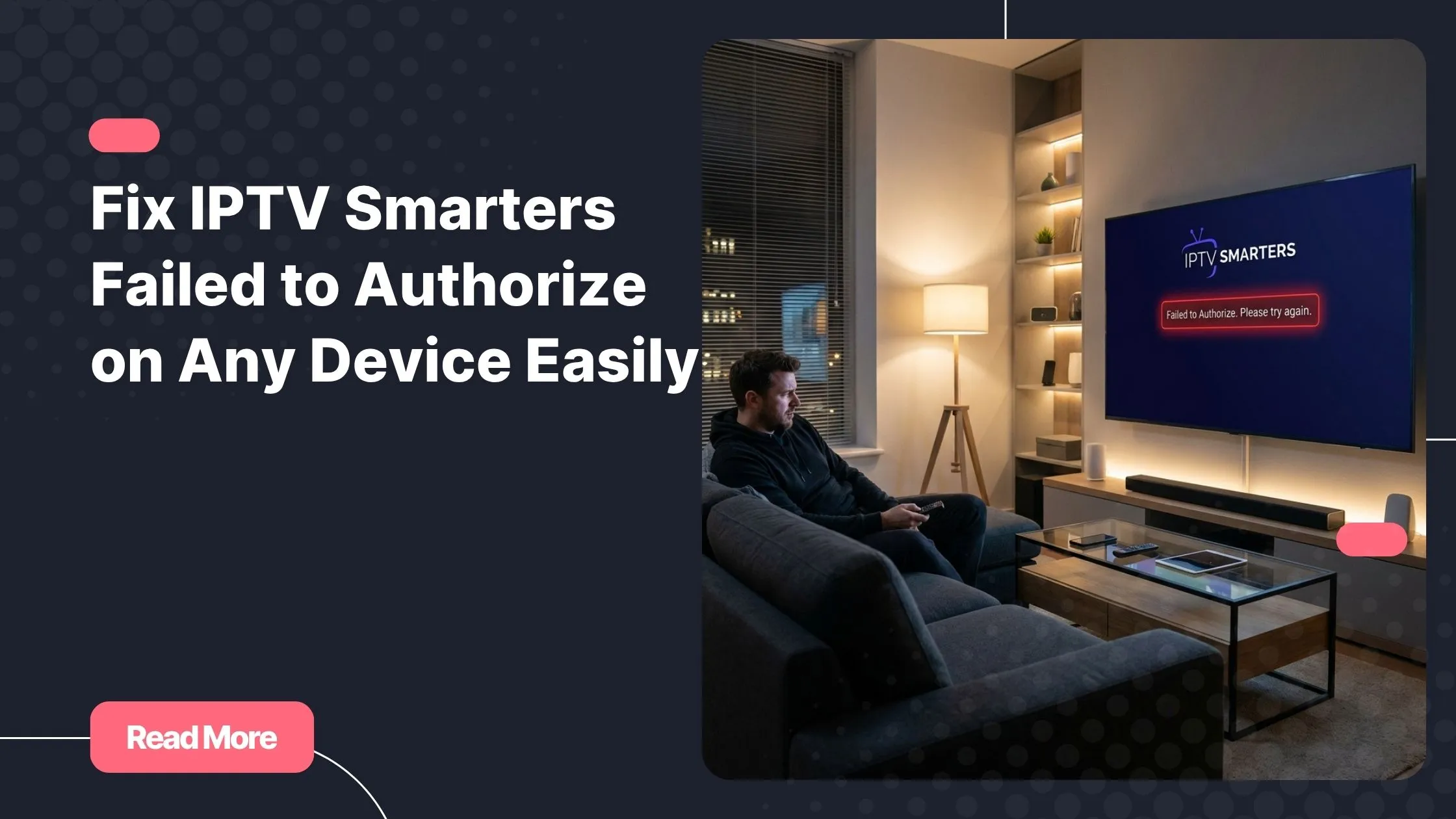
You finally sit down after a long day, ready to unwind with your favorite show. You open IPTV Smarters, enter your credentials, and then — nothing. A cold error message stares back at you: Failed to Authorize. That sinking feeling is real, and it happens to thousands of users every single day. Whether you’re on a Firestick, Android TV, Smart TV, iPhone, or Windows PC, this frustrating wall can appear out of nowhere and ruin your entire streaming experience.
The good news is that IPTV Smarters failed to authorize is almost never a permanent problem. In most cases, it comes down to something simple — a typo, a cache issue, a quick setting you missed. With the right steps, you can go from that dreaded error screen back to watching your content in just a few minutes. This guide covers every proven fix, organized clearly so you can jump straight to what applies to your situation.
Before you dive in, know that your choice of iptv service plays a huge role in how often you encounter authorization issues. A reliable provider with stable servers makes all the difference. Now, let’s get your stream back up and running.
Table of Contents
What Does IPTV Smarters Failed to Authorize Actually Mean?
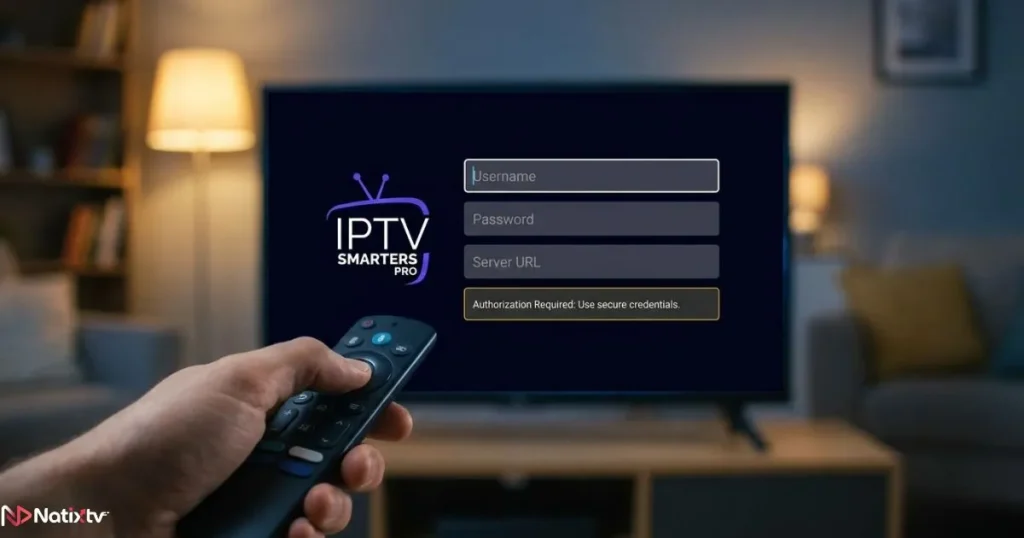
When IPTV Smarters failed to authorize appears on your screen, it means the app tried to verify your login credentials with your IPTV provider’s server — and something went wrong during that process. It’s essentially the server telling the app: “I can’t confirm who you are.”
This is different from a simple connectivity issue. Your internet might be working perfectly, but the authorization step still fails. The error can be triggered by problems on your side, your provider’s side, or somewhere in between.
Common HTTP codes behind this error include 401 Unauthorized (wrong credentials) and 403 Forbidden (access blocked). Understanding this helps you pinpoint the right fix instead of randomly trying everything.
Most Common Causes of the Error
Diagnosing the problem before applying fixes saves you time. Here are the most frequent reasons IPTV Smarters failed to authorize shows up on your device.
Incorrect or Expired Login Credentials
This is the number one cause. A single wrong character in your username, password, or server URL will block access entirely. Copy-pasting credentials from an email can silently add extra spaces or line breaks that you won’t even see.
Also, if your subscription has expired, your credentials are technically correct but your account is no longer active. Your provider simply won’t authorize access.
IPTV Provider Server Issues
Sometimes the problem isn’t on your end at all. If your provider’s server is down for maintenance, experiencing high traffic, or geo-blocking your IP address, even perfect credentials won’t get you through. Some providers also enforce a maximum number of simultaneous connections per account.
App and Device Configuration Problems
An outdated version of IPTV Smarters, corrupted app cache, or an incorrect playlist format (using M3U when your provider requires Xtream Codes API, for example) can all trigger this IPTV login issue. One often-overlooked cause: if your device’s date and time are out of sync, the authentication token validation fails silently.
Network and Connectivity Problems
Your VPN, your DNS settings, or even your internet service provider can interfere with IPTV authentication. Some ISPs actively throttle or block IPTV traffic, which results in what looks like an authorization failure but is actually a network-level block.
| Cause | How Common | Fix Difficulty |
|---|---|---|
| Wrong or mistyped credentials | Very High | Easy |
| Expired IPTV subscription | High | Easy |
| App cache corruption | Medium | Easy |
| Provider server downtime | Medium | None – wait it out |
| VPN conflict | Medium | Easy |
| ISP blocking IPTV traffic | Low | Moderate |
| Device date/time mismatch | Low | Easy |
| Max connections reached | Medium | Easy |
How to Fix IPTV Smarters Failed to Authorize – Step-by-Step
Work through these solutions in order. Most users resolve the problem within the first three steps.
Step 1 – Verify and Re-Enter Your Login Credentials
Start here. Open a plain text editor on your phone or computer and paste your credentials there first. Look carefully for:
- Extra spaces before or after your username and password
- Uppercase letters where lowercase is expected (credentials are case-sensitive)
- A missing “http://” or “https://” in your server URL
- A correct port number at the end of the server URL
Once you’ve confirmed everything looks right, manually type the credentials into IPTV Smarters rather than pasting. Then try logging in again. This simple check fixes IPTV Smarters failed to authorize for a surprising number of users.
Also make sure you’re using the correct login method. If your provider gave you an M3U URL, use the M3U playlist option. If they gave you a username, password, and server URL separately, use the Xtream Codes API option. Mixing these two methods is a very common mistake.
Step 2 – Check Your IPTV Subscription Status
Log in to your provider’s customer panel or reach out to their support team directly. Confirm that:
- Your subscription is currently active and not expired
- Your account hasn’t been suspended
- If you just purchased a plan, it may need 15 to 60 minutes to activate
If you’re looking for a provider with near-instant activation and consistent uptime, iptv service from Natixtv offers a free trial period of 24 to 48 hours so you can test the full experience before committing. It’s a smart way to verify that authorization works perfectly on your device right from the start.
Step 3 – Clear the App Cache and Data
Corrupted cache is one of the most overlooked causes of IPTV Smarters failed to authorize. Here’s how to clear it on each platform:
- Android / Android TV: Go to Settings, then Apps, find IPTV Smarters, and tap Clear Cache followed by Clear Data.
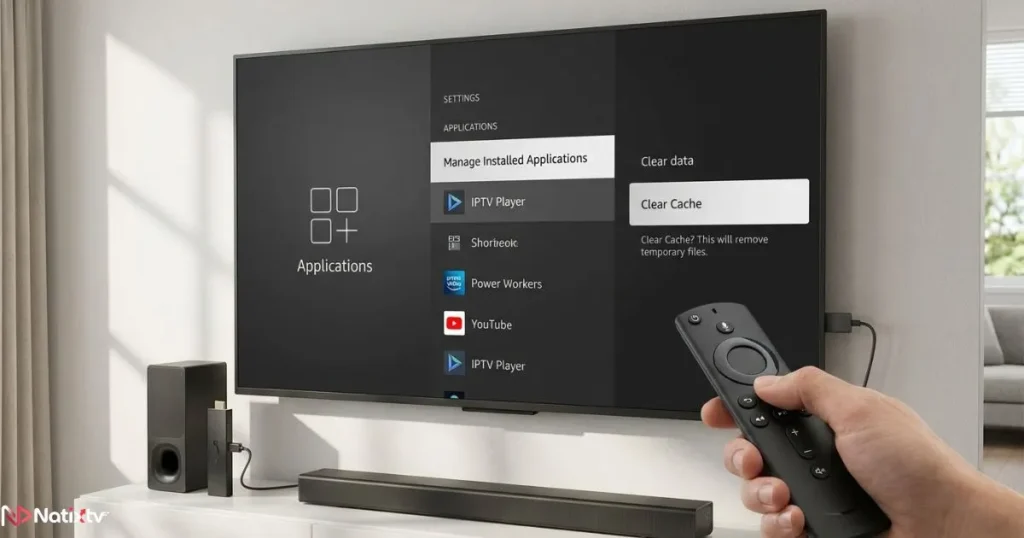
- Amazon Firestick: Go to Settings, then Applications, then Manage Installed Applications, select IPTV Smarters, and clear both cache and data.
- iPhone / iPad: iOS doesn’t allow cache clearing directly. Delete the app entirely and reinstall it from the App Store.
- Windows PC: Uninstall the app through Control Panel, then download and reinstall the latest version from the official source.
After clearing the cache, relaunch the app and re-enter your credentials from scratch.
Step 4 – Update IPTV Smarters to the Latest Version
An outdated app version can cause compatibility issues with your provider’s authentication system. Developers regularly push updates to fix bugs and improve server communication. Head to your device’s app store and check whether an update is available. If yes, install it and try logging in again.
Tip: Enable automatic updates on your device to avoid running into this IPTV Smarters error in the future.
Step 5 – Sync Your Device’s Date and Time
This fix sounds unrelated but it works more often than you’d expect. IPTV authorization relies on time-stamped tokens. If your device clock is off by even a few minutes, the token validation fails and IPTV Smarters failed to authorize appears.
- Android / Firestick: Settings – Device – Date and Time – Set Automatically
- iPhone / iPad: Settings – General – Date and Time – Set Automatically
- Windows: Settings – Time and Language – Sync Now
Step 6 – Disable or Reconfigure Your VPN
If you’re running a VPN, try turning it off completely and then attempt to log in again. VPNs can mask your IP address in ways that trigger geo-blocks or fail your provider’s IP verification checks. If disabling the VPN resolves the IPTV login issue, either browse without it or switch to a VPN server located in your home country.
For more persistent streaming problems beyond just authorization, this detailed troubleshooting guide for IPTV Smarters Pro covers a wide range of playback and connectivity errors that can help you restore smooth streaming.
Step 7 – Change Your DNS Settings
Your default DNS server might be blocking IPTV-related requests without you knowing it. Switching to a public DNS can resolve this quickly.
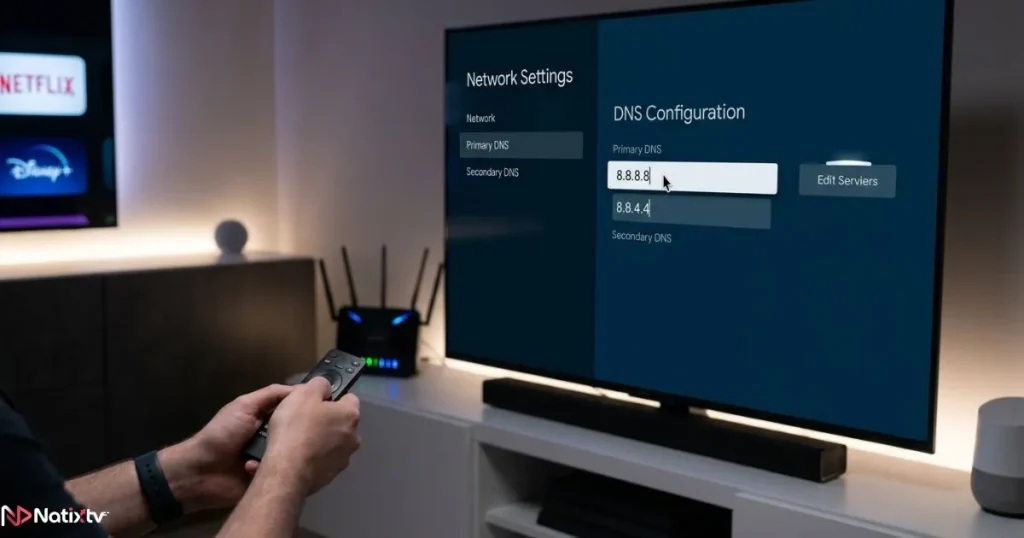
- Google DNS: 8.8.8.8 and 8.8.4.4
- Cloudflare DNS: 1.1.1.1
You can change DNS settings directly on your router (which applies to all devices on your network) or individually on each device through its network settings menu. According to Cloudflare’s DNS documentation, switching to a faster, more private DNS resolver can significantly improve connection reliability for streaming services.
Step 8 – Check Your Internet Speed and Stability
A weak or unstable connection won’t necessarily give you a “no internet” message — it can still cause IPTV Smarters failed to authorize because the handshake with the server times out. Run a speed test at fast.com or speedtest.net and make sure you have:
- At least 10 Mbps for standard definition streams
- At least 25 Mbps for HD content
- 50 Mbps or more for 4K streaming
If possible, switch from Wi-Fi to a wired Ethernet connection. Restart your router by unplugging it for 30 seconds and plugging it back in. Then try the app again.
Device-Specific Troubleshooting Tips
Firestick
If you sideloaded IPTV Smarters via APK, make sure you enabled “Apps from Unknown Sources” in your Firestick settings. Also verify the APK came from a trusted source, as a corrupted APK file can silently cause authorization failures.
Android TV and Smart TVs
Samsung and LG Smart TVs sometimes have aggressive network settings that conflict with IPTV apps. Try setting your DNS manually to 8.8.8.8 and disabling any “smart DNS” or “enhanced streaming” options in your TV’s network menu.
iPhone and iPad
Make sure Background App Refresh is enabled for IPTV Smarters. Also check that no content restrictions in Screen Time are blocking the app’s network access.
Windows PC
Windows Defender or third-party antivirus software may flag IPTV Smarters and block its outbound connections. Try whitelisting the app in your firewall settings, or temporarily disable your antivirus to test if it resolves the IPTV authorization fix.
| Device | Most Likely Cause | Priority Fix |
|---|---|---|
| Firestick | APK permissions issue | Re-enter credentials, clear cache |
| Android TV | Cache overload | Clear data, update app |
| Samsung / LG Smart TV | DNS or network config | Change DNS to 8.8.8.8 |
| iPhone / iPad | Outdated app version | Update via App Store |
| Windows PC | Firewall blocking the app | Whitelist in Windows Defender |
How to Improve Your IPTV Program Guide Experience
Once your authorization is fixed and streaming is back to normal, you might want to enhance your overall IPTV experience. A well-configured electronic program guide makes it much easier to browse and schedule your viewing. If you want to find the most reliable EPG source for your setup, this guide on how to find the best EPG for IPTV walks you through the top options available and how to configure them in IPTV Smarters.
How to Prevent IPTV Smarters Failed to Authorize in the Future
Once you’ve resolved the error, a few habits will help you avoid running into it again.
- Always copy your credentials directly from your provider’s official confirmation email or portal
- Renew your subscription a few days before it expires to avoid any gap in service
- Keep IPTV Smarters updated by enabling automatic updates on your device
- Avoid sharing your login credentials across more devices than your plan allows
- Restart your router and the app once a week to keep connections fresh
- Use a wired Ethernet connection whenever possible for more consistent authentication
- Choose a high-uptime IPTV provider with fast support to reduce server-related issues
Conclusion
Dealing with IPTV Smarters failed to authorize is frustrating, but it’s almost always fixable. Start with the basics: verify your credentials, check your subscription status, and clear the app cache. If those don’t work, move on to syncing your device time, switching your DNS, or disabling your VPN. With a structured approach, you’ll have your stream back within minutes in most cases.
If the error keeps coming back no matter what you try, the problem likely lies with your current IPTV provider. Unstable servers, poor support, and oversold plans all lead to repeated authorization headaches. Switching to a dependable iptv service like Natixtv, which offers full device compatibility, responsive customer support, and a free 24 to 48 hour trial, gives you the chance to test everything before you commit. No more error screens. Just smooth, uninterrupted streaming every time you sit down to watch.
Frequently Asked Questions
Why does IPTV Smarters failed to authorize keep appearing even when my credentials are correct?
If your credentials are definitely correct but IPTV Smarters failed to authorize still appears, the issue is likely on the server side. Your provider may be experiencing downtime, your account may have reached its maximum simultaneous connection limit, or your IP address may have been temporarily flagged. Try contacting your provider, waiting a few minutes, and clearing your app cache before retrying.
Can a VPN cause an IPTV login issue on IPTV Smarters?
Yes, absolutely. VPNs can interfere with IPTV authentication by changing your apparent IP address, triggering geo-restrictions, or introducing enough latency to cause the login handshake to time out. Disable your VPN temporarily to test whether it’s the cause. If it is, try a VPN server in your own country or connect without a VPN entirely.
How do I fix IPTV Smarters failed to authorize on my Firestick?
On Firestick, start by going to Settings, then Applications, then Manage Installed Applications, and clear the cache and data for IPTV Smarters. Re-enter your credentials manually, making sure there are no extra spaces. If the issue continues, uninstall and reinstall the app, and verify that your subscription is still active with your provider.
Does switching DNS settings really fix failed to authorize IPTV errors?
In some cases, yes. Your default ISP-assigned DNS can block or delay the connection to your IPTV provider’s authentication server. Switching to a public DNS like Google’s 8.8.8.8 or Cloudflare’s 1.1.1.1 often resolves this without any other changes needed.
How long does it take for a new IPTV account to activate?
Most providers activate new accounts within 15 to 60 minutes. However, some may take longer depending on their system. If you’ve waited over an hour and IPTV Smarters still won’t authorize, contact your provider directly. A quality provider like Natixtv typically activates accounts almost instantly, and their free 24 to 48 hour trial lets you confirm everything works before you pay.
Is IPTV Smarters failed to authorize the same as IPTV Smarters not working?
Not exactly. IPTV Smarters not working is a broader term that can refer to buffering, freezing, or crashing. IPTV Smarters failed to authorize is a specific error that occurs during the login or authentication step. The solutions for each can overlap, but the authorization error has its own distinct set of targeted fixes as covered in this guide.