There is a moment almost every cord-cutter knows. You have finally made the switch, signed up for a service, and then you are staring at a blank screen with a text field asking for something called a URL. You are this close to unlocking thousands of live channels, on-demand movies, and sports you actually care about, and one small technical detail is standing between you and all of it. That feeling of being almost there, but not quite, is more common than you think.
The truth is, once you understand how your IPTV URL works, everything else falls into place naturally. The setup is simpler than it looks, and the payoff is enormous. Whether you are streaming on a Firestick, an Android box, a Smart TV, or your laptop, this guide covers every essential thing you need to know heading into 2026. If you are looking for a reliable place to start, IPTV USA services like Natixtv make the entire experience straightforward from day one.
By the end of this article, you will know exactly what an IPTV URL is, how to set it up on any device, how to fix it when something goes wrong, and how to choose a provider that will not let you down. Let us get into it.
Table of Contents
1. What Is an IPTV URL and Why Does It Matter?
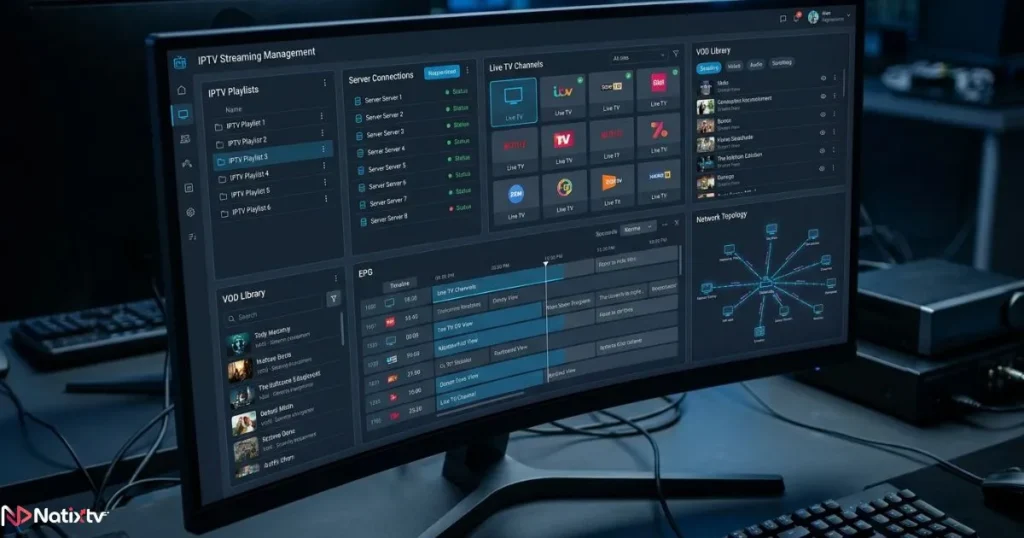
An IPTV URL is the web address that connects your streaming app or media player to a server delivering your television content. Think of it as the digital key to your channel library. Without it, your app has no idea where to look for your streams, your guide, or your on-demand content.
Unlike a regular website URL that opens a webpage, an IPTV URL points to a playlist file or a streaming server that feeds live and recorded video directly to your screen. It is the backbone of your entire IPTV configuration. Every channel you watch, every movie you load, every sports match you stream passes through this address.
IPTV technology works by delivering television over your internet connection rather than through a satellite dish or cable line. According to Statista, the global IPTV market has been growing steadily and shows no signs of slowing down in 2026. That growth is driven largely by how accessible and flexible the setup has become, and the IPTV URL is the foundation of all of it.
2. The Different Types of IPTV URLs You Will Encounter
Not all IPTV URLs look the same. Depending on your provider and your chosen app, you may work with one of three main formats.
M3U Playlist URLs
The IPTV M3U URL is the most widely recognized format. It points to a playlist file, usually ending in .m3u or .m3u8, that contains a list of every channel and stream available in your subscription. When your app loads this file, it reads every entry and organizes your content automatically.
M3U is compatible with a huge range of players including VLC, Kodi, and many Smart TV apps. It is a good starting point for new users because it is simple: one link, and you are ready to go.
Xtream Codes API Format
The Xtream Codes format breaks your login into three parts: a server address, a username, and a password. Many modern IPTV apps prefer this method because it offers better stability, faster channel loading, and more secure authentication. Rather than downloading a full playlist file every time, your app connects directly to the server and retrieves only what it needs.
If your provider supports both formats, Xtream Codes is generally the better choice for daily use.
EPG URLs for Program Guides
An EPG URL points to an XML file that adds the electronic program guide layer to your app. This is what gives you the on-screen TV schedule showing what is airing now and what is coming up next. Your provider usually supplies this separately, and you enter it alongside your main IPTV playlist URL during setup.
| URL Type | Format Example | Best For | Stability |
|---|---|---|---|
| IPTV M3U URL | http://server.com/playlist.m3u | VLC, Kodi, basic players | Medium |
| Xtream Codes API | http://server.com:port + credentials | TiviMate, Smarters, MAG | High |
| EPG URL | http://server.com/epg.xml | Adding TV schedule guide | Supplementary |
3. How to Set Up Your IPTV URL Step by Step
Getting your IPTV URL setup right the first time saves you from headaches later. Here is what you need and how to move through the process efficiently.
What You Need Before You Start
Before beginning the setup process, make sure you have everything required to avoid interruptions.
- An active IPTV subscription from a trusted provider
- Your IPTV URL or Xtream Codes credentials (server address, username, password)
- A compatible device: Firestick, Android TV, Smart TV, PC, or iOS device
- A stable internet connection with at least 20 Mbps for HD streaming
- Your preferred IPTV app installed and ready
Natixtv, for example, delivers your credentials instantly after signup and offers a free trial period of 24 to 48 hours so you can test your complete setup before making any long-term commitment. If you want guidance on evaluating providers before you commit, this breakdown of what to look for in a quality IPTV subscription is worth reading before you decide.
Setting Up on TiviMate (Step by Step)
The setup process inside TiviMate is straightforward and only takes a few minutes when you have your credentials ready.
- Open TiviMate and navigate to Settings
- Select “Add Playlist”
- Choose between “M3U Playlist” or “Xtream Codes” depending on your credentials
- Enter your IPTV URL or server login details carefully
- Add your EPG URL if your provider supplies one
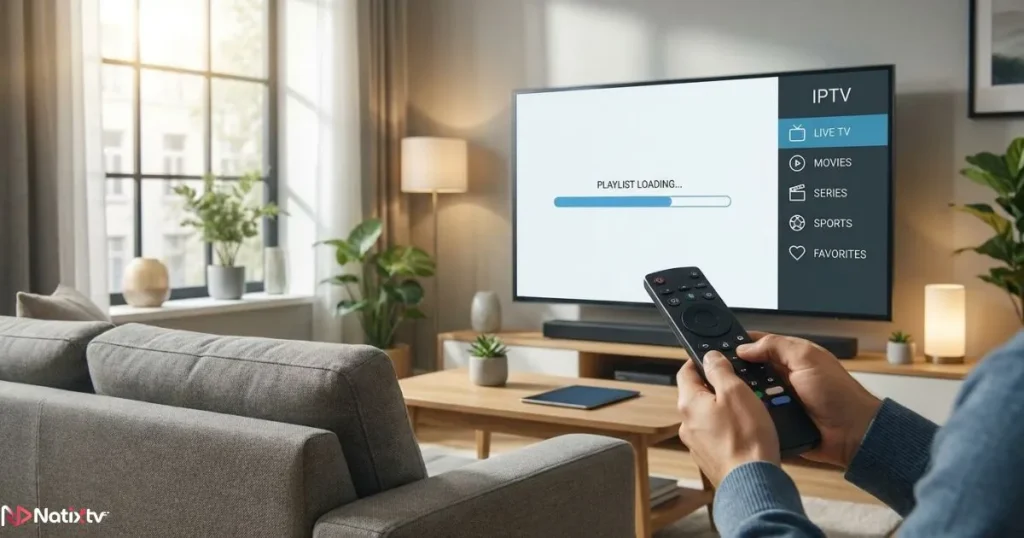
- Tap “Add” and allow the app to load your full channel list
Setting Up on Other Popular IPTV Apps
The process is similar across most platforms. In IPTV Smarters Pro, you select “Add User” and choose the Xtream Codes login method or paste your IPTV link directly. In VLC, you go to Media, then “Open Network Stream,” and paste your IPTV stream URL into the field provided. In Kodi, you install the PVR IPTV Simple Client plugin and add your IPTV playlist URL under its settings.
If you are setting up on an Android device specifically and want to pick the right player, this guide on the best Android apps for high-definition IPTV streaming walks you through the top options available this year.
Common Setup Mistakes to Avoid
Many setup problems come from small mistakes that are easy to prevent.
- Copying the URL with trailing spaces or invisible characters
- Mixing up HTTP and HTTPS when your server requires a specific protocol
- Forgetting to include the port number in the server address
- Not refreshing the playlist after your provider updates their server
4. Which Devices Are Compatible With IPTV URL Streaming?
One of the biggest advantages of IPTV in 2026 is how many devices support it. Whether you are at home or traveling, you can load your IPTV URL on virtually any screen you own.
| Device | Recommended App | URL Format | Ease of Setup |
|---|---|---|---|
| Amazon Firestick | TiviMate | Smarters | M3U + Xtream | ★★★★☆ |
| Android TV Box | TiviMate | GSE IPTV | M3U + Xtream | ★★★★★ |
| Samsung Smart TV | Smart IPTV | M3U URL | ★★★☆☆ |
| iPhone | iPad | IPTV Smarters | Xtream | M3U | ★★★★☆ |
| Windows PC | VLC | Kodi | M3U | Stream URL | ★★★★★ |
| MAG Box | Built-in portal | Xtream | Portal URL | ★★★☆☆ |
5. Internet Speed Requirements for Reliable Streaming
Your IPTV URL can only deliver what your internet connection allows. Speed matters, but consistency matters even more. A connection that fluctuates between 10 Mbps and 50 Mbps will cause more buffering than a steady 25 Mbps line.
| Stream Quality | Minimum Speed | Recommended Speed |
|---|---|---|
| SD (480p) | 5 Mbps | 10 Mbps |
| HD (720p) | 10 Mbps | 20 Mbps |
| Full HD (1080p) | 20 Mbps | 30 Mbps |
| 4K Ultra HD | 40 Mbps | 60+ Mbps |
Whenever possible, use a wired Ethernet connection instead of Wi-Fi. It reduces latency and eliminates the signal interference that causes random buffering. If you are on Wi-Fi, placing your router closer to your streaming device makes a measurable difference.
Using a VPN with your IPTV stream URL is an option worth considering for privacy, but it can reduce your effective speed. If you do use one, choose a VPN with high-speed servers and a streaming-optimized mode.
6. Troubleshooting Your IPTV URL When Streams Will Not Load
Even with a perfect setup, things occasionally go wrong. Knowing how to diagnose the issue quickly saves you a lot of frustration.
The Most Common Errors
Most IPTV playback issues fall into a few recognizable categories.
- “Stream not found” or blank screen: usually a server-side issue or an expired link
- Authentication error: incorrect username or password entered during IPTV configuration
- Buffering despite fast internet: server congestion or an overloaded provider
- URL not loading at all: DNS issue or a typo in the address
Step-by-Step Troubleshooting Checklist
Work through the following checklist one step at a time to isolate the problem.
- Double-check every character of your IPTV URL for typos or extra spaces
- Confirm your subscription is still active with your provider
- Test the IPTV link directly in VLC to see if the issue is app-specific
- Restart your router and streaming device completely
- Contact your provider to ask if the server address has changed
- Try switching between M3U and Xtream Codes formats if both are available
When to Contact Your Provider
If the IPTV URL works fine in VLC but not in your app, the issue is app-side. If it fails everywhere, the problem is almost certainly server-side. When you reach out to support, have your device type, error message, and the format of your IPTV URL ready. This speeds up the resolution significantly.
7. Security and Privacy With Your IPTV URL
Your IPTV URL and login credentials are tied directly to your account. Treat them the way you would treat a password. If you share your IPTV link with too many people, you risk hitting your provider’s connection limit, which causes buffering or locks you out of your own account.
Beyond account security, consider using a VPN to protect your streaming activity from your internet service provider. This is particularly relevant in regions where ISPs monitor or throttle streaming traffic. A VPN encrypts the connection between your device and the IPTV server, adding a useful layer of privacy.
Always choose a provider that operates transparently and offers real customer support. Natixtv, available through IPTV USA, is a clear example of a service built with both security and user experience in mind.
8. How to Organize and Manage Your IPTV Playlist URL
Once your IPTV URL is working, a little organization goes a long way toward improving your daily viewing experience.
Good playlist management helps keep your streaming experience smooth and easy to navigate.
- Save your credentials in a trusted password manager so you never lose them
- Label any saved playlist files with the date they were last updated
- Use your app’s favorites feature to pin the channels you watch most
- Clear your app’s cache once a month to prevent sluggish performance
- When your provider sends a new server address, update your IPTV M3U URL immediately to avoid downtime
- Stay within your plan’s connection limit to keep your account running smoothly
Most IPTV apps also allow you to organize channels by group, so your sports, news, and entertainment content are separated into clean categories. This makes the experience feel much more like a traditional TV guide and much less like scrolling through an endless list.
9. How to Choose the Right IPTV Provider in 2026
The quality of your streaming experience depends heavily on the provider behind your IPTV URL. A fast, well-maintained server makes every other part of the setup effortless. A poor provider makes even the best app feel broken.

Here is what to look for when evaluating your options:
These factors can help you separate dependable providers from unreliable ones.
- Server uptime of 99% or higher, with redundant infrastructure
- Support for multiple URL formats including M3U and Xtream Codes
- Broad compatibility with IPTV apps across all major devices
- Responsive customer support available when you need help
- A free trial period so you can verify the service before paying
- Regular EPG updates included in the subscription
- Transparent pricing with no surprise fees
Natixtv checks every box on that list. Their subscriptions deliver a fully working IPTV URL immediately after signup, support both M3U and Xtream Codes configurations, and are compatible with all the major IPTV apps and devices. The 24 to 48-hour free trial period means you can test your complete setup on your actual device before making any financial commitment. There is no risk and no guesswork involved.
Frequently Asked Questions About IPTV URL Setup
Below are answers to some of the most common questions users have when setting up and managing an IPTV URL.
What is an IPTV URL and where do I find mine?
An IPTV URL is the unique address that connects your streaming app to your provider’s server. After subscribing to an IPTV service, your provider sends you this address along with your login credentials. You enter it into your chosen IPTV app during the initial setup process.
Can I use the same IPTV URL on more than one device at the same time?
It depends on your subscription plan. Most providers offer tiered plans based on the number of simultaneous connections. Using your IPTV URL on more devices than your plan allows typically causes buffering or triggers an automatic lockout to protect server resources.
Why is my IPTV URL working in VLC but not in my IPTV app?
This usually points to an app configuration issue rather than a server problem. Check that you have entered the URL correctly in the app, that the correct format (M3U vs. Xtream Codes) is selected, and that the app has permission to access your network. Reinstalling the app often resolves persistent issues.
What is the difference between an IPTV M3U URL and Xtream Codes?
An IPTV M3U URL is a single link pointing to a full playlist file. Xtream Codes uses a server address combined with a separate username and password. Xtream Codes tends to offer better performance and deeper app integration, while M3U is simpler and works with a wider range of players.
Do I need a VPN to use my IPTV stream URL safely?
A VPN is not strictly required, but it does add a meaningful privacy layer. It prevents your ISP from monitoring your streaming activity and can help bypass potential throttling. Choose a VPN with fast servers and a dedicated streaming mode to avoid slowing down your connection.
Does Natixtv provide a ready-to-use IPTV URL with their subscription?
Yes. Natixtv delivers all the credentials you need, including your IPTV URL and Xtream Codes login, immediately after you sign up. Their service includes a free trial of 24 to 48 hours, giving you full access to test everything on your device before committing to a paid plan.
Your IPTV URL Is the Starting Point for Better Television
From understanding the basics to troubleshooting issues and choosing the right provider, you now have a complete picture of how IPTV URL setup works in 2026. The technical side is genuinely straightforward once you know what each piece does. Your URL connects you to the server. Your app displays the content. Your internet connection carries it all to your screen.
The hardest part is usually that first moment of confusion, and you are past it now. Whether you are setting up on a Firestick in your living room, an Android box in your bedroom, or a laptop while traveling, the process is the same: get your credentials, enter your IPTV URL into your app, and enjoy the experience that cable television never quite managed to deliver.
Ready to get started with a provider you can actually trust? Visit IPTV USA through Natixtv, claim your free 24 to 48-hour trial, and have your full IPTV setup running in minutes, on any device, from anywhere.