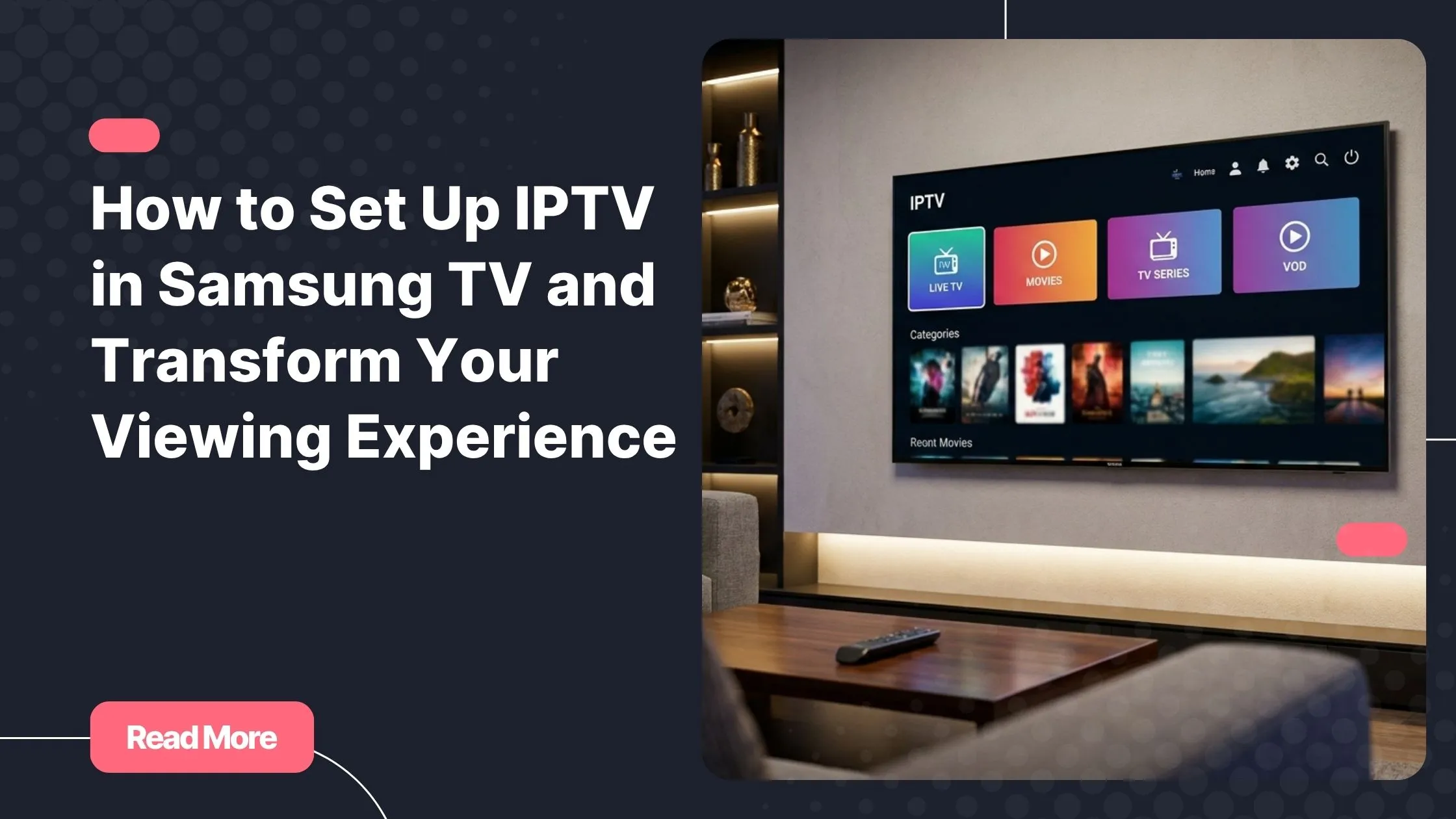
Picture this: it’s Friday evening, you sink into your couch, grab the remote, and scroll through the same 40 channels you’ve had for the past decade. Somewhere between a tired rerun and a shopping network, a quiet thought surfaces: there has to be a better way. There is. If you own a Samsung Smart TV, you’re already one short setup away from thousands of live channels, international sports, and on-demand content from every corner of the world.
The good news? Setting up IPTV in Samsung TV is far simpler than most people expect. You don’t need an engineer, a set-top box, or a cable technician. You need your Samsung remote, a solid internet connection, and the right subscription. Everything else, this guide covers step by step. Whether you’re completely new to IPTV or just switching providers, you’ll find everything you need right here, backed by the best iptv service recommendations for Samsung users.
By the time you finish reading, your Samsung Smart TV will be doing things you didn’t think were possible with a screen already sitting in your living room.
Table of Contents
What Is IPTV and Why Your Samsung Smart TV Is Built for It
IPTV stands for Internet Protocol Television. Instead of receiving content through a cable wire or a satellite dish, your TV receives it over your internet connection, just like Netflix or YouTube but with live TV channels, sports broadcasts, and massive on-demand libraries. The key difference is that a proper IPTV subscription gives you far broader coverage than standard OTT platforms, including linear channels that stream news, sports, and entertainment in real time.
Samsung Smart TVs running the Tizen operating system are uniquely well-suited for this technology. Tizen IPTV support has matured significantly over recent years, and today’s Samsung lineup allows you to install dedicated IPTV apps directly from the built-in app store, with no extra hardware required. If your Samsung TV was manufactured in 2016 or later, it almost certainly runs Tizen, which means it’s ready.
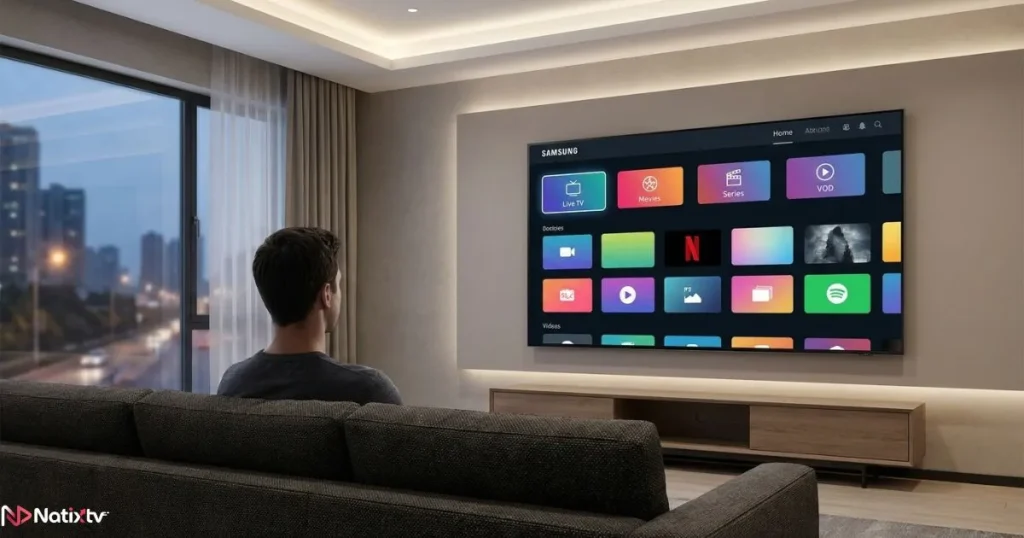
The global IPTV market has been growing at a remarkable pace, projected to surpass 100 billion dollars in value by 2027 according to Grand View Research. The reason is simple: viewers want flexibility, global content, and lower costs. IPTV in Samsung TV delivers all three without asking you to buy new hardware.
- Access thousands of live channels from across the globe
- No satellite dish, cable box, or external media player required
- Works natively via Samsung’s built-in app ecosystem
- Compatible with affordable, high-quality subscriptions like Natixtv
- Supports HD and 4K streams depending on your connection speed
What You Need Before You Install IPTV on Samsung TV
Before diving into the installation steps, it’s worth making sure your setup ticks a few basic boxes. Getting these right upfront will save you a lot of troubleshooting later.
Internet Speed and Network Requirements
Your internet connection is the backbone of the experience. A slow or unstable connection is the number one cause of buffering, and no app or subscription can fix a weak signal. Here’s a quick reference:
- SD quality: minimum 10 Mbps
- HD quality: 25 Mbps recommended
- 4K quality: 50 Mbps or higher
Whenever possible, connect your Samsung TV via Ethernet rather than Wi-Fi. A wired connection eliminates interference and keeps latency low, which matters a great deal for live TV. If Ethernet isn’t an option, place your router as close to the TV as practical and keep the signal path free of thick walls or competing devices.
Compatible Samsung TV Models
Any Samsung Smart TV running Tizen OS, typically models from 2016 onward, is compatible with IPTV apps. If you’re unsure of your model year, press the Home button, go to Settings, then Support, then About This TV. The model code will tell you the year.
Choosing the Right IPTV Subscription
This is arguably the most important decision you’ll make. The best app in the world can’t fix a low-quality server. When evaluating a Samsung IPTV subscription, look for:
- A wide channel library including your local, sports, and international preferences
- Stable servers with low downtime and minimal buffering
- Support for both M3U URL and Xtream Codes API formats
- A trial period so you can test before committing
- Responsive customer support for setup questions
Natixtv checks every one of those boxes. As one of the most reliable providers on the market, it offers IPTV on Samsung TV through a fully compatible setup, a large channel library, and a free 24 to 48 hour trial period that lets you test streams on your actual Samsung TV before spending a cent. You can also explore affordable IPTV subscription options that don’t compromise on quality if budget is a consideration.
The Best Samsung TV IPTV Apps Compared
The Tizen app store hosts several solid IPTV applications, each with its own strengths. Here’s how the top options stack up so you can choose what fits your needs before you install IPTV on Samsung TV.
| App Name | Available on Tizen | M3U Support | Xtream Codes | Cost | Best For |
|---|---|---|---|---|---|
| Smart IPTV (SIPTV) | Yes | Yes | Yes | One-time ~$5.49 | Beginners |
| IPTV Smarters | Yes | Yes | Yes | Free / Premium | Power users |
| SS IPTV | Yes | Yes | Limited | Free | Casual viewers |
| GSE Smart IPTV | Via workaround | Yes | Yes | Free / Pro | Multi-device users |
Smart IPTV (SIPTV) – The Most Popular Choice
Smart IPTV, often referred to as SIPTV, is the go-to app for most Samsung users. It’s available directly in the Samsung App Store, requires a one-time activation fee of around $5.49, and supports both M3U playlists and Xtream Codes. The interface is clean, fast, and reliable, making it the ideal starting point for anyone new to IPTV in Samsung TV.
IPTV Smarters Samsung TV – The Feature-Rich Option
IPTV Smarters on Samsung TV is the preferred choice for users who want more control. It supports multiple profiles within a single subscription, which is perfect for households with different viewing preferences. The Electronic Program Guide (EPG) integration is excellent, giving you a real TV-guide experience across your channels. It’s particularly powerful when paired with a subscription that provides Xtream Codes credentials, like Natixtv.
SS IPTV – The Free Alternative
If you want to test a new subscription without spending anything on an app, SS IPTV is worth considering. It’s completely free, available natively on Tizen, and supports M3U playlists without any activation steps. The interface is more basic than SIPTV or IPTV Smarters, but it gets the job done, especially during a trial period.
Step-by-Step Guide | How to Install IPTV in Samsung TV
Now for the practical part. The process for setting up IPTV in Samsung TV is straightforward once you know what each step involves. Below are two of the most reliable methods.
Method 1 | Installing and Configuring Smart IPTV
- Press the Home button on your Samsung remote to open the main menu.
- Navigate to the Apps section and open the search bar.
- Type “Smart IPTV” or “SIPTV” and select the app from the results.
- Click Install and wait for the installation to complete.
- Open the app. You’ll see your TV’s MAC address displayed on the screen. Write it down or take a photo of it.
- On any browser (phone, laptop, or tablet), go to siptv.eu and enter your MAC address.
- Paste your M3U playlist URL from your IPTV provider into the provided field and save.
- Return to the app on your TV and press Reload. Your channel list will populate within seconds.
Quick tip: If the Smart IPTV app doesn’t appear in your regional Samsung store, try changing your Samsung account region to the United States or United Kingdom under Settings. This resolves the issue for most users globally.
Method 2 | Setting Up IPTV Smarters on Samsung TV
- Open the Samsung App Store and search for “IPTV Smarters Pro”.
- Install and launch the app.
- Choose your login method: M3U URL or Xtream Codes API.
- Enter the credentials provided in your Natixtv confirmation email (server URL, username, and password for Xtream Codes, or just the M3U link).
- Wait for the playlist to load. You’ll see separate tabs for Live TV, Movies, and Series.
- If your provider supplies an EPG URL, enter it in the settings to activate the program guide.
Understanding M3U vs. Xtream Codes
M3U URL Method
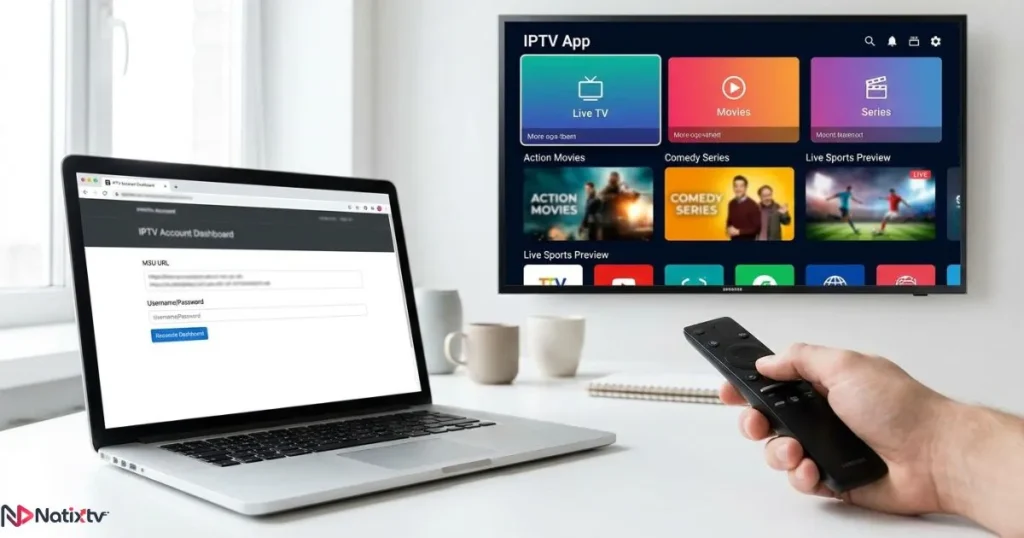
An M3U URL is a direct link to your channel playlist. It typically looks like: http://provider.com/get.php?username=X&password=Y&type=m3u. You’ll find this link in the account dashboard after subscribing. It’s the simplest method and works in every app that supports M3U.
Xtream Codes API Method
The Xtream Codes method requires three pieces of information: a server URL, a username, and a password. It tends to be more stable for large channel lists because the app fetches data more efficiently than parsing a flat M3U file. Both formats are provided by Natixtv after you sign up.
Optimizing Your IPTV Experience on Samsung Smart TV
Setting Up Your Electronic Program Guide
A good EPG transforms IPTV in Samsung TV from a raw list of channels into something that feels like a real television experience. Most quality providers, including Natixtv, supply an EPG URL alongside your credentials. Simply paste this into the EPG settings of your IPTV app to enable a full program schedule guide across your channels.
Reducing Buffering and Improving Stream Quality
Even with a fast connection, a few small tweaks can make a noticeable difference in stream stability:
- Switch from Wi-Fi to Ethernet for a direct, stable connection
- Change your DNS to 8.8.8.8 (Google) in your TV’s network settings
- Clear the cache of your IPTV app regularly (Settings – Apps – select your app – Clear Cache)
- If buffering occurs during peak hours, temporarily drop stream quality from HD to SD
- Make sure your Samsung TV firmware is up to date under Settings – Support – Software Update
Family-Friendly Setup with Parental Controls
If you’re setting up IPTV in Samsung TV for the whole family, both SIPTV and IPTV Smarters allow you to set PIN locks on restricted or adult channels. IPTV Smarters additionally supports separate user profiles within a single subscription, so each member of the household can have a personalised channel lineup and history.
Troubleshooting Common IPTV Issues on Samsung TV
Even the smoothest setups hit the occasional snag. Here’s a quick reference to the most common problems and how to solve them when working with IPTV on Samsung TV.
| Problem | Likely Cause | Solution |
|---|---|---|
| App not found in store | Regional restriction | Change Samsung account region to US or UK |
| Channels won’t load | Incorrect M3U URL | Re-copy the URL from your provider dashboard |
| Constant buffering | Slow connection or server load | Switch to Ethernet, test speed, try off-peak hours |
| Black screen on channels | Codec incompatibility | Try a different IPTV app or switch stream quality |
| EPG not displaying | Incorrect EPG URL | Re-enter EPG link and force a refresh in app settings |
| App crashing repeatedly | Outdated firmware | Run a software update on your Samsung TV |
Is IPTV in Samsung TV Legal?
This is one of the most frequently asked questions, and the answer is clear: IPTV technology itself is completely legal. The apps, the setup process, and the infrastructure behind it are all legitimate. What determines legality is the content source: a licensed provider distributing properly acquired content is legal; an unlicensed provider bypassing rights holders is not.
When you subscribe to a reputable service, you’re using IPTV exactly as it was intended. Natixtv is a legitimate provider, and choosing it not only puts you on the right side of the law, it also means you’re getting properly maintained servers, real customer support, and content that’s actually licensed to be delivered to you.
If you travel frequently or want an added layer of privacy, using a VPN on your home network is perfectly fine for personal privacy purposes, though it is not required for standard legal IPTV use.
Why Natixtv Is the Smart Choice for Samsung TV IPTV Users
There’s no shortage of IPTV providers on the market, but the quality gap between them is massive. Server uptime, channel availability, stream resolution, and customer support vary enormously from one service to the next. Natixtv has built its reputation specifically on the things that matter most to Samsung Smart TV users.
- Full compatibility with Smart IPTV Samsung, IPTV Smarters, and SS IPTV
- Thousands of live channels covering sports, news, entertainment, and international content
- Both M3U URL and Xtream Codes formats supported for maximum flexibility
- Simultaneous connections supported for multi-device households
- Stable, low-latency servers for consistently smooth streaming
- A free trial period of 24 to 48 hours with no credit card required
- Dedicated support team available to help with Samsung TV setup questions
Try before you commit: Natixtv offers a free 24 to 48 hour trial that gives you full access to test every channel and stream on your Samsung Smart TV. No risk, no payment details needed upfront. Simply sign up, get your credentials, follow the steps in this guide, and see the difference for yourself.
When you’re ready to commit to the best iptv service for your Samsung TV, Natixtv makes the transition effortless, with subscription plans designed around real viewing habits and a team that’s genuinely invested in your setup working perfectly from day one.
Frequently Asked Questions
Can I use IPTV in Samsung TV without buying any extra hardware?
Yes. Samsung Smart TVs running Tizen OS (2016 and newer) support IPTV apps natively through the built-in Samsung App Store. You don’t need a set-top box, streaming stick, or any external device. Your Samsung TV handles everything directly once you install a compatible app and connect your subscription credentials.
What is the best app to watch IPTV in Samsung TV?
The most widely used and recommended options are Smart IPTV (SIPTV) and IPTV Smarters Samsung TV. Both support M3U playlists and Xtream Codes, work smoothly on Tizen, and integrate well with providers like Natixtv. SIPTV is better for simplicity; IPTV Smarters is better if you want profiles, VOD browsing, and a richer EPG experience.
How much internet speed do I need for IPTV in Samsung TV?
You’ll need at least 10 Mbps for SD content, 25 Mbps for HD, and 50 Mbps or more for 4K streams. More important than raw speed is connection stability. A consistent 25 Mbps Ethernet connection will outperform a fluctuating 100 Mbps Wi-Fi signal every time when it comes to live TV streaming.
Does Natixtv work with Samsung Smart TV IPTV apps?
Yes, Natixtv is fully compatible with all major Samsung TV IPTV apps including Smart IPTV, IPTV Smarters, and SS IPTV. After subscribing (or starting your free 24 to 48 hour trial), you receive an M3U URL and Xtream Codes credentials that work immediately with any of those apps on your Samsung TV.
What should I do if my IPTV app isn’t available in the Samsung App Store in my region?
The most reliable fix is to change your Samsung account region to the United States or United Kingdom. Go to Settings, then General, then Samsung Account, and update the region. After signing back in, search for your preferred app again. This resolves availability issues for the vast majority of users globally.
Is setting up IPTV in Samsung TV complicated for someone with no technical experience?
Not at all. The process takes roughly 10 to 15 minutes from start to finish. Installing the app from the Samsung App Store is identical to installing any other app, and entering your subscription credentials is as straightforward as logging into a streaming service. The step-by-step guide in this article covers everything you need without assuming any prior technical knowledge.
Your Samsung TV Is Ready for a New Era of Television
Setting up IPTV in Samsung TV genuinely takes under 15 minutes, and once it’s done, you’ll wonder how you ever settled for a limited cable package. Samsung’s Tizen platform gives you one of the most IPTV-friendly smart TV ecosystems on the market, and pairing it with the right subscription makes all the difference in the world.
The apps are free or nearly free. The setup is simple. The content library, when paired with a quality provider, is deeper than anything traditional TV can offer. The one variable that truly defines the experience is your subscription. Unstable servers, poor channel selection, and unreliable streams are the fastest way to sour on IPTV before giving it a real chance.
That’s why starting with a provider like Natixtv, and taking advantage of the free trial before committing, is the smartest move you can make. Test it on your Samsung TV, browse through channels at peak hours, check the sport streams during a live event, and see the quality firsthand. Your Samsung remote was always capable of more. Now you have every tool you need to unlock it. Visit best iptv service today and start your free trial in minutes.Start Your Free Trial on Natixtv