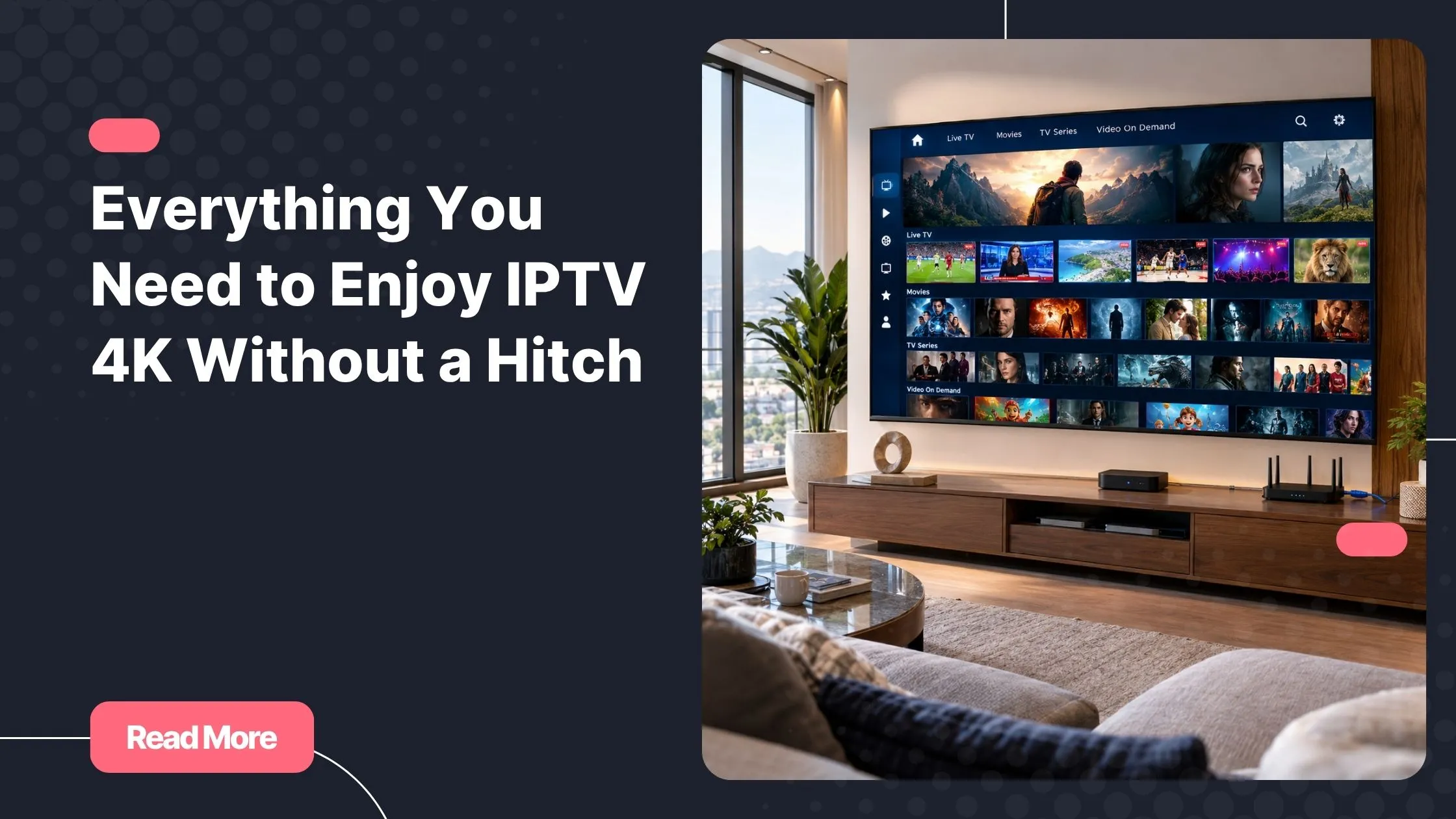
You settle into your couch after a long day. The movie starts. And then it hits: a pixelated mess, a buffering wheel, or a black screen that refuses to budge. You have a proper iptv 4k subscription. Your TV says “4K” right on the box. So what went wrong?
The truth is, a flawless 4K IPTV experience is never about a single piece of hardware. It is a chain: your device, your network, your screen, and your player all have to pull their weight at the same time. One weak link and the illusion shatters.
This guide walks you through every link in that chain. By the end, you will know exactly what your setup needs, what to check, and what to upgrade, so that next time you hit play, the only thing you feel is immersed. With iptv service providers like Natixtv offering a free 24-to-48-hour trial, you can validate your setup before committing to a single euro.
Table of Contents
Why Hardware Is the Real Star of Your 4K IPTV Setup
A lot of people assume that buying an iptv 4k subscription is the finish line. It is actually the starting gun. The subscription delivers a stream; your hardware decides whether that stream becomes a cinema-quality picture or a stuttering nightmare.
The difference between a standard HD stream and a 4K UHD one is not just resolution. A 4K HDR stream encodes a vastly larger amount of information per second. Where a 1080p feed might need 5 to 8 Mbps, a proper 4K HDR stream in H.265 demands 25 to 50 Mbps. Every device in your setup has to handle that volume gracefully, every single second.
Think of it as a relay race. A fast runner cannot save a slow team. Each component, from your router to your decoder to your screen, must pass the baton cleanly. Miss any handoff and you drop the image.
Key data point: A 4K HDR stream encoded in H.265/HEVC requires a sustained real-world throughput of 25 to 50 Mbps. H.264-encoded 4K streams demand even more bandwidth since the codec is less efficient at high resolutions.
Network Requirements: The Foundation Everything Else Rests On
How Much Bandwidth Does IPTV 4K Actually Need?
Raw speed numbers from your ISP are rarely the whole story. What matters for iptv 4k is your real, sustained, usable bandwidth. Here is what the benchmarks actually look like:
| Video Quality | Codec | Minimum Bitrate | Recommended Bitrate |
|---|---|---|---|
| HD 1080p | H.264 | 5 Mbps | 8 Mbps |
| 4K SDR | H.264 | 20 Mbps | 30 Mbps |
| 4K SDR | H.265/HEVC | 15 Mbps | 25 Mbps |
| 4K HDR | H.265/HEVC | 25 Mbps | 40-50 Mbps |
| 4K Dolby Vision | H.265 / AV1 | 30 Mbps | 50 Mbps+ |
Run a speed test right now. If your real download speed falls below 30 Mbps while other devices are active on your network, you will see buffering on 4K content. Evening peak hours often slash available bandwidth by 20 to 40 percent, which is precisely when you want to watch a film.
Wired vs. Wi-Fi: Which One Wins for 4K Streaming?
For smooth 4K IPTV playback, an Ethernet cable is still king. A wired connection eliminates the interference, latency spikes, and signal drops that plague wireless setups.
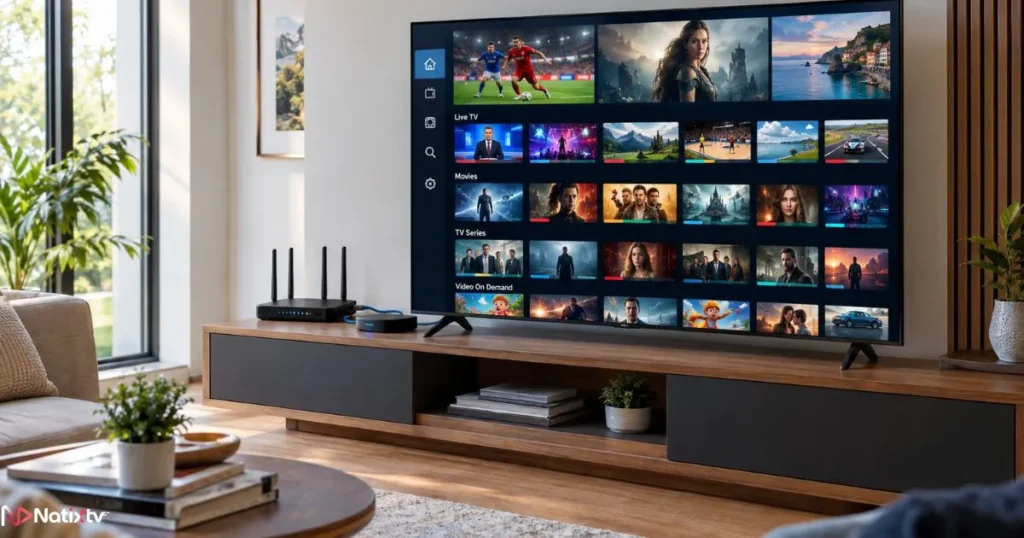
If running a cable is not possible, here is the hierarchy to follow:
- Best wireless option: Wi-Fi 6 (802.11ax) on the 5 GHz band, positioned within clear line of sight of your router.
- Acceptable option: Wi-Fi 5 (802.11ac) on 5 GHz, with a strong signal (at least -65 dBm).
- Avoid entirely: Wi-Fi on the 2.4 GHz band. It is congested, slower, and inconsistent for 4K loads.
Quick Network Checklist
- Real download speed confirmed above 30 Mbps via speedtest
- Wired Ethernet preferred, or Wi-Fi 6 on the 5 GHz band
- Router less than 5 years old with QoS support
- Fewer than 3 other devices streaming simultaneously
- No VPN active (VPNs often reduce effective throughput by 30 to 60 percent)
The 4K IPTV Decoder: Your Setup’s Most Important Component
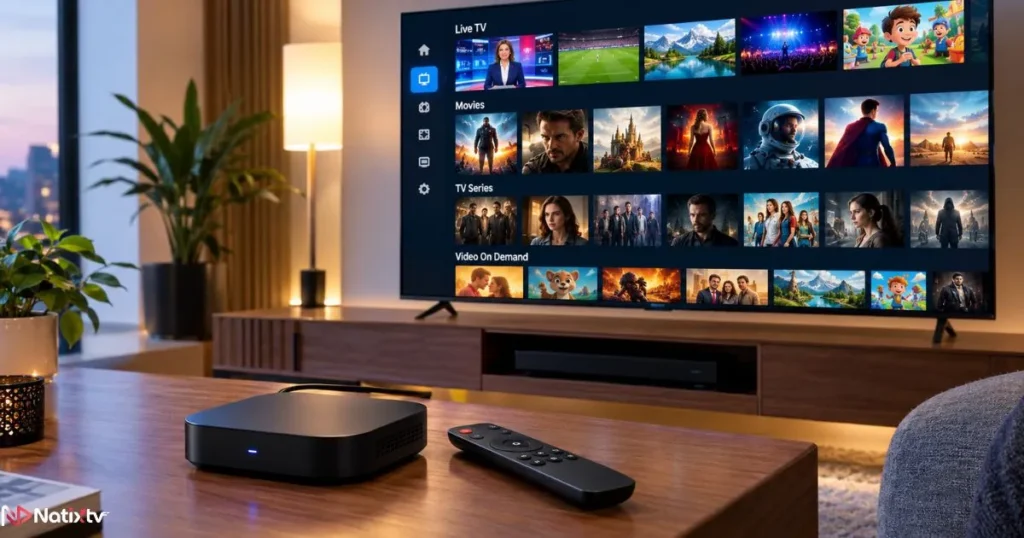
Your decoder, whether it is a standalone box, a stick, or a smart TV’s built-in chip, is where the heavy lifting happens. The 4K IPTV decoding process converts an incoming compressed stream into the pixel-perfect image on your screen. Do it wrong and no amount of bandwidth will fix the result.
Hardware Decoding vs. Software Decoding
There are two ways a device can decode a 4K stream. Software decoding uses the device’s CPU to process the video. This is slow, hot, and often incapable of handling 4K H.265 in real time. Hardware decoding uses a dedicated chip built for this exact job. For any 4K IPTV device worth using, hardware decoding for H.265/HEVC and, ideally, AV1, is non-negotiable.
If your current device shows freezing or high CPU usage during 4K playback, software decoding is almost certainly the culprit. Check your IPTV player settings and make sure hardware decoding is explicitly enabled.
The Best 4K Streaming Devices for IPTV
| Device Type | Examples | 4K Decoding | Approx. Price | Ease of Use |
|---|---|---|---|---|
| Android TV Box | Nvidia Shield, X96 Max+ | H.265 + AV1 | 30-200 € | Very good |
| Fire TV Stick 4K | Amazon Fire TV 4K Max | H.265 + HDR | 60-80 € | Excellent |
| Smart TV (built-in) | Samsung, LG, Sony OLED | Varies by model | Included | Excellent |
| Apple TV 4K | Apple TV 4K (3rd gen) | AV1 + Dolby Vision | 150-180 € | Very good |
| PC / Laptop | Windows 10/11, macOS | Depends on GPU | Variable | Moderate |
| Smartphone / Tablet | Android, iOS | Limited | Variable | Moderate |
Technical Specifications to Check Before You Buy
Not all 4K IPTV devices are equal. When evaluating a 4K streaming device, focus on these specs before anything else:
- Chipset: Amlogic S905X4 or Rockchip RK3588 are current benchmarks for Android TV boxes.
- RAM: 2 GB minimum; 4 GB recommended for smooth multitasking and large channel lists.
- Storage: 16 GB minimum for apps, buffers, and EPG data.
- HDMI output: HDMI 2.0 at minimum; HDMI 2.1 if you want 4K at 120 Hz.
- HDR support: HDR10 as a baseline; HDR10+ or Dolby Vision for premium displays.
- Codec support: H.265/HEVC hardware decoding is mandatory. AV1 hardware decoding is a strong bonus for future-proofing.
- Google Play certification: Ensures access to IPTV players like TiviMate and IPTV Smarters Pro.
Good to know: Natixtv delivers streams via both M3U playlists and Xtream Codes API. Understanding how Xtream login credentials work and what each field does will save you a lot of troubleshooting time when configuring your IPTV player for the first time.
Your 4K TV: What the Screen Actually Needs to Support
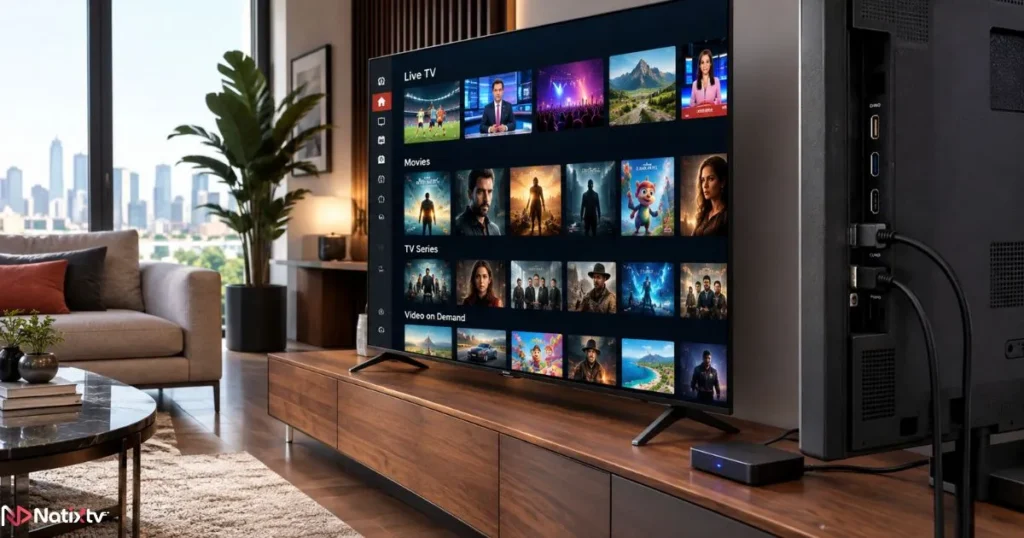
A television labeled “4K” is not automatically ready for iptv 4k. The screen is only one part of the compatibility equation. Several technical specifications determine whether your display can actually receive and render a 4K IPTV signal correctly.
4K vs. UHD: Knowing the Difference
Cinema 4K refers to a 4096 x 2160 pixel resolution. Consumer UHD (Ultra High Definition) is 3840 x 2160 pixels. Nearly all 4K IPTV content streams in UHD format. When a TV manufacturer says “4K UHD,” they mean UHD. Either way, for your IPTV setup, UHD is what counts.
Display Technologies and Their IPTV Compatibility
| Technology | Brightness | Black Levels | HDR Support | Verdict for IPTV 4K |
|---|---|---|---|---|
| LED/LCD 4K | Medium | Decent | HDR10 | Good value entry point |
| QLED 4K | High | Good | HDR10+ | Very good performance |
| OLED 4K | Very high | Perfect | Dolby Vision | Excellent, reference quality |
| Micro-LED 4K | Maximum | Perfect | HDR10+ | Premium tier, future-proof |
Ports and Features to Verify on Your TV
- HDMI 2.0 minimum for 4K at 60 Hz; HDMI 2.1 for 4K at 120 Hz.
- HDCP 2.2 on at least one HDMI port, required for protected 4K content.
- Native H.265/HEVC decoding if you plan to use the TV’s built-in IPTV app.
- Refresh rate of 60 Hz minimum; 120 Hz is a meaningful upgrade for sports and live events.
- HDMI ARC or eARC for passing Dolby Atmos or DTS audio to a soundbar or receiver.
Choosing the Right IPTV Player for 4K Content
Even with perfect hardware, the wrong IPTV player can ruin your iptv 4k experience. Not every app decodes 4K streams equally, and many default to software decoding unless you change a setting buried three menus deep.
The most reliable players for 4K IPTV playback are TiviMate (Android), IPTV Smarters Pro (Android and iOS), GSE Smart IPTV (multi-platform), and VLC for desktop setups. In every case, the first thing to do after installation is to open the video settings and enable hardware decoding manually.
If you are subscribing to a service that provides Xtream Codes access, make sure you know how to set up a recurring monthly subscription so your credentials stay active and your streams never drop mid-episode.
Natixtv note: Natixtv supports both M3U and Xtream Codes formats, covering every major player listed above. If you are unsure whether your current device and app combination handles 4K correctly, the free 24-to-48-hour trial lets you test everything in real conditions before committing.
Troubleshooting the Most Common IPTV 4K Problems
Buffering, Freezing, and Pixelation: What They Mean
| Symptom | Most Likely Cause | Fix |
|---|---|---|
| Freezes every 20-30 seconds | Insufficient sustained bandwidth | Switch to wired Ethernet; run a real-world speed test |
| Buffering in the evening | ISP network congestion | Contact ISP or switch provider; try a different server region |
| Audio but no picture | Unsupported codec, no hardware decode | Enable hardware decoding in player settings |
| Pixelated or blocky image | Bitrate too low for the resolution | Reduce stream quality or upgrade your connection |
| No HDR on supported TV | HDMI port not HDCP 2.2 compliant | Switch to the TV’s HDCP 2.2 certified HDMI input |
Audio Issues with Dolby Atmos and DTS
Many 4K streams now carry Dolby Atmos or DTS:X audio. To benefit from it, your player must be set to “passthrough” mode in its audio settings, your HDMI cable must support eARC, and your soundbar or AV receiver must be Atmos-compatible. A mismatch on any one of these three points will result in downgraded or missing surround audio.
FAQ: IPTV 4K Questions Answered
What hardware do I need to watch iptv 4k without buffering?
You need three things working in sync: a decoding device with hardware H.265 support (such as an Android TV box with an Amlogic S905X4 chip or an Amazon Fire TV Stick 4K Max), a real download speed above 30 Mbps on a wired or Wi-Fi 6 connection, and a UHD-compatible screen with an HDCP 2.2 HDMI port. Miss any one of these and buffering becomes likely.
Does iptv 4k work on every Smart TV?
Not automatically. Your Smart TV must support H.265/HEVC hardware decoding and have at least one HDMI 2.0 port with HDCP 2.2. Check your TV’s specification sheet. If it lacks native HEVC decoding, pairing it with an external Android TV box or a Fire TV Stick 4K is the most cost-effective solution.
What minimum internet speed does 4K IPTV streaming require?
For 4K SDR in H.265, you need at least 15 to 20 Mbps of real sustained bandwidth. For 4K HDR, plan on 25 Mbps minimum and ideally 40 to 50 Mbps. These are real-world figures, not the headline speeds your ISP advertises.
Is Wi-Fi good enough for 4K IPTV streaming?
Yes, but only under the right conditions. Wi-Fi 6 on the 5 GHz band with a strong signal and no competing heavy traffic can handle 4K comfortably. Wi-Fi 5 on 5 GHz is acceptable. The 2.4 GHz band is not suitable for sustained 4K loads. When in doubt, always prefer a wired Ethernet connection.
Can I try a 4K IPTV service before subscribing?
Yes. Natixtv offers a free trial period of 24 to 48 hours, giving you enough time to test 4K stream quality, codec compatibility, and player performance on your actual devices before spending a cent. It is the most reliable way to confirm that your current setup is truly 4K-ready.
What is the difference between a 4K IPTV decoder and a Smart TV’s built-in player?
A Smart TV integrates everything in one unit, which is convenient but limits your flexibility. An external 4K IPTV decoder, such as an Android TV box or an Apple TV 4K, gives you a more powerful and upgradeable chipset, better player app support, and the ability to switch the box without replacing the television. For users who want the best possible 4K IPTV compatibility, a dedicated external box is often the smarter long-term choice.
Conclusion: Build Your Chain Right, Then Press Play
A great iptv 4k experience is not luck. It is the result of three decisions made correctly: picking a device that decodes H.265 or AV1 in hardware, securing a connection that delivers 30 Mbps or more without dropping, and pairing everything with a screen that actually supports UHD and HDR. Every other detail, from your player settings to your HDMI cable, is there to protect those three pillars.
You now have the complete picture. You know which devices to consider, which specs to verify, which network conditions are non-negotiable, and which common errors trip up even experienced users. The next step is simply to test. A reliable iptv service should give you real-world conditions to validate your setup, not a sales pitch.
Natixtv is built for exactly that. Compatible with Android TV boxes, Fire TV, Apple TV, Smart TVs, PCs, and mobile devices, it covers every category in this guide. The free 24-to-48-hour trial means you can run your full setup through its paces, confirm your 4K streams are clean and stable, and subscribe only when you are satisfied. That is how a quality iptv service earns your trust.
Ready to test your 4K setup with a real IPTV signal? Natixtv’s free trial gives you 24 to 48 hours of full access, on any device, with no commitment required.