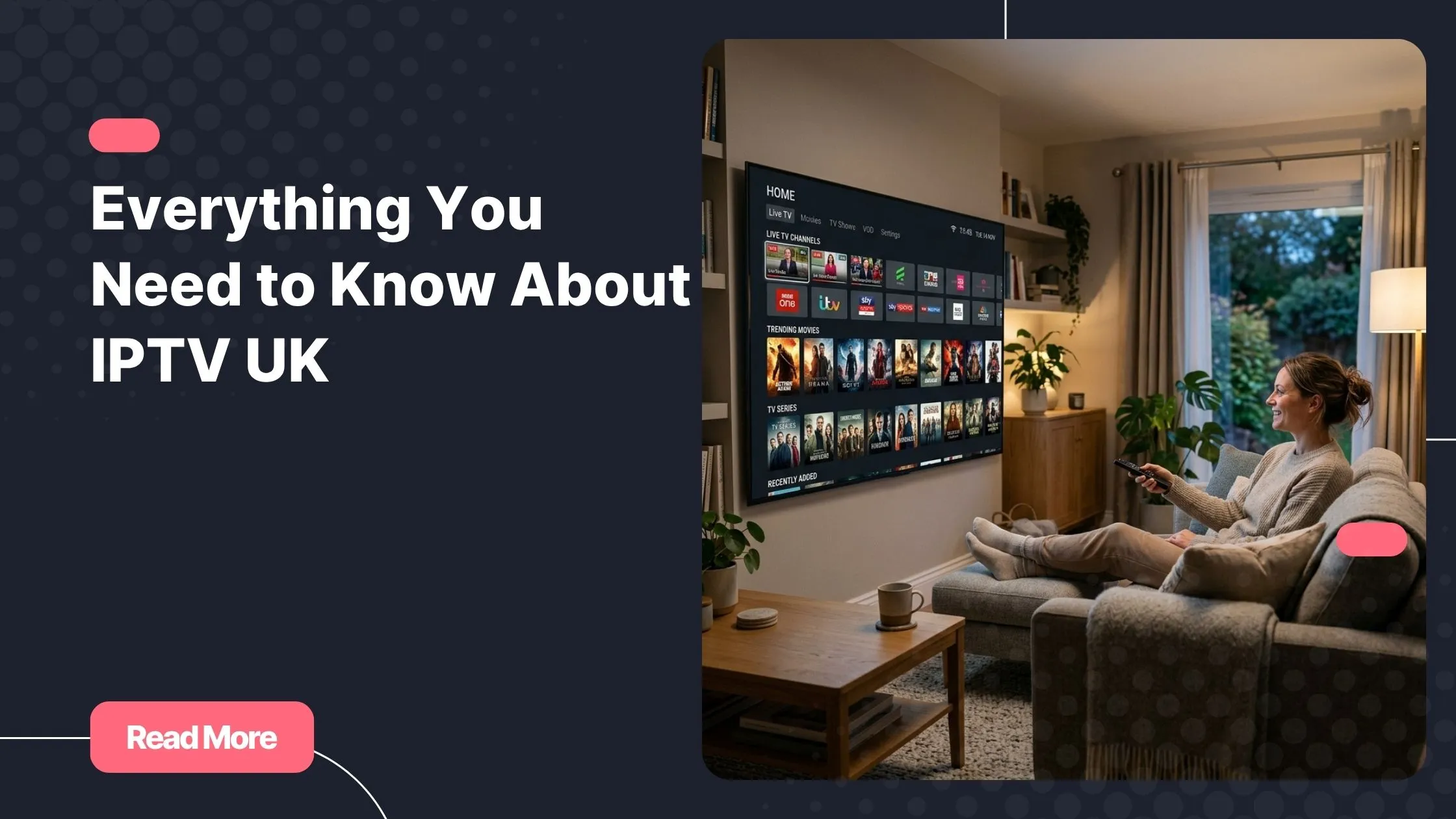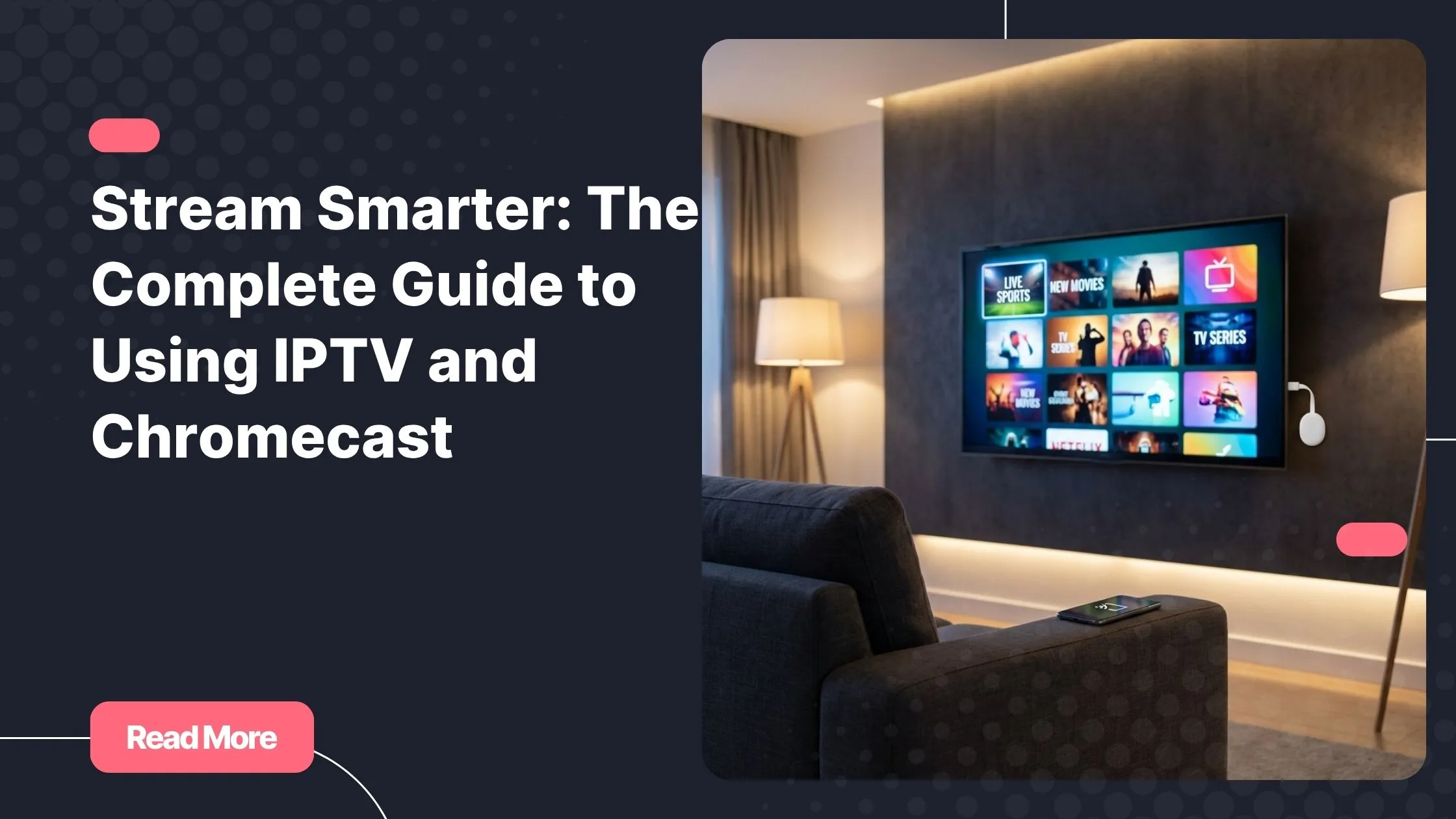
There’s a specific kind of frustration that comes with paying for entertainment and still not watching what you actually want. You open your TV, scroll through limited options, miss a live match, and wonder why your setup feels so disconnected from what’s out there. Combining IPTV and Chromecast solves exactly that problem. With the right subscription and a small device plugged into your HDMI port, you unlock thousands of live channels, sports events, films, and series — all on your big screen. If you’re looking for the best iptv experience available today, you’re in exactly the right place.
This guide walks you through the complete IPTV Chromecast setup process — from understanding what each piece does to getting live TV streaming on your television in under 10 minutes. Every method is covered: casting from your phone, mirroring your screen, and installing apps directly on the device. No technical background needed.
Let’s get into it.
Table of Contents
What Is IPTV and How Does It Work with Chromecast?
Understanding IPTV
IPTV stands for Internet Protocol Television. Instead of receiving TV signals through a cable or satellite dish, you stream content over your internet connection. This gives you access to live TV channels, video on demand (VOD), and catch-up content from anywhere in the world — as long as you have a reliable connection and an active subscription.
The technology is lightweight, flexible, and built for modern devices. You can watch on your phone, tablet, laptop, Smart TV, Android box, and through Chromecast on any standard television.
Why Chromecast Is the Perfect Match for IPTV Streaming
Chromecast is a compact dongle made by Google that plugs into any TV’s HDMI port and connects to your Wi-Fi. It transforms any regular television into a smart screen capable of displaying content cast from your phone, tablet, or computer. When you combine it with a solid subscription, IPTV and Chromecast become one of the most versatile home streaming setups available today.
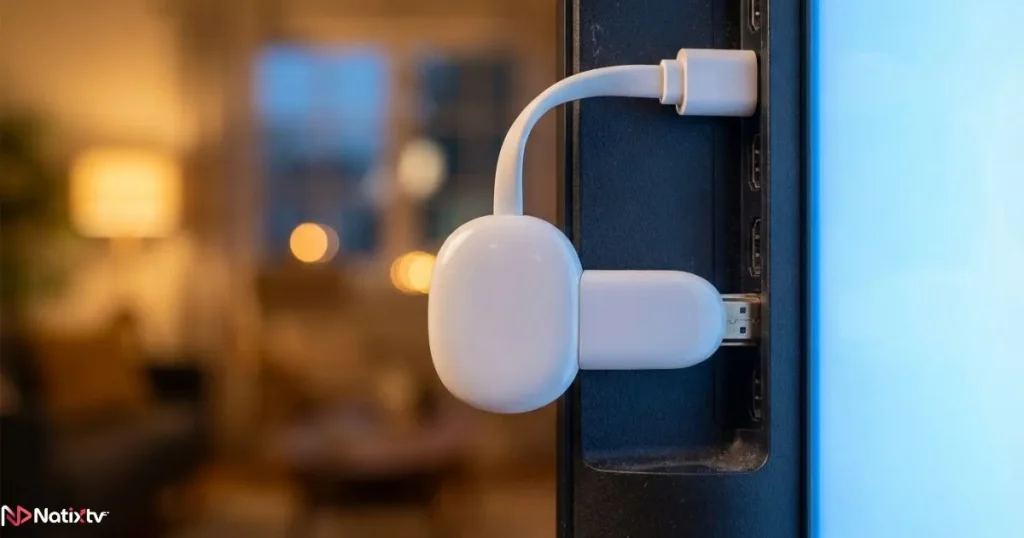
The beauty of this pairing is its simplicity. You don’t need to replace your TV. You don’t need a complex installation. Chromecast works across Android, iOS, and desktop — so your content follows you wherever you are.
Chromecast Models and IPTV Compatibility
| Model | Resolution | Native App Install | Cast Support | Best Use Case |
|---|---|---|---|---|
| Chromecast 3rd Gen | 1080p | No | Yes | Budget IPTV casting |
| Chromecast with Google TV | 4K HDR | Yes (Play Store) | Yes | Full IPTV experience |
| Built-in Chromecast (Smart TV) | Varies | Varies | Yes | All-in-one convenience |
What You Need Before You Start
Your Equipment Checklist
Before jumping into any setup method, make sure you have the following ready:
- A Chromecast device (any generation) or a Chromecast-enabled TV
- An active IPTV subscription with M3U URL or Xtream Codes access
- A stable internet connection – at least 10 Mbps for HD and 25 Mbps for 4K
- A smartphone or tablet (Android offers the best native casting experience)
- The Google Home app installed and configured on your phone
Picking the Right IPTV Subscription
Not all IPTV providers offer the same level of device compatibility. When evaluating a service, look for M3U URL support, multi-connection plans, and a reliable server infrastructure. When it comes to IPTV and Chromecast pairing specifically, you also want a provider that delivers a clean playlist and a stable Electronic Program Guide (EPG).
Natixtv checks all of these boxes. It’s one of the best iptv subscriptions for Chromecast users, offering full M3U compatibility, multi-device support, and a free trial of 24 to 48 hours with no commitment required.
How to Cast IPTV to Your TV with Chromecast
Method 1: Using a Native Chromecast IPTV App
The cleanest way to cast IPTV to TV is through an app that already supports Google Cast natively. Apps like IPTV Smarters Pro, TiviMate, and GSE Smart IPTV all have a Cast icon built right in. Here’s how to do it:
- Download a compatible IPTV app on your Android or iOS device
- Open the app and navigate to the playlist or settings section
- Enter your M3U URL or Xtream Codes credentials from your provider (Natixtv provides these after sign-up)
- Browse your channels or VOD library once your playlist loads
- Tap the Cast icon in the top corner and select your Chromecast device
- Your stream will instantly appear full-screen on your TV
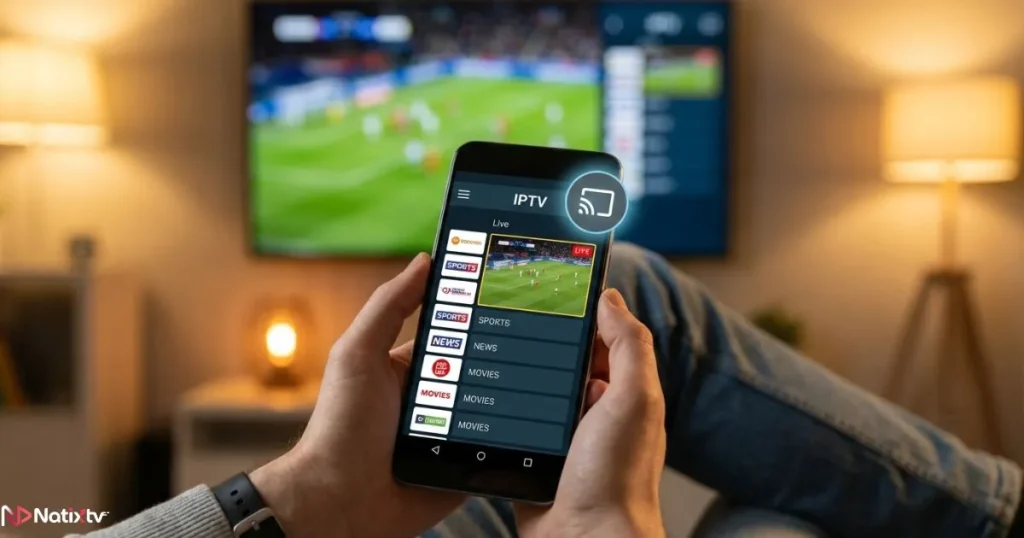
This method delivers the most stable IPTV streaming Chromecast experience. The stream runs through your home network rather than being mirrored from your phone display, which means minimal battery drain and near-zero lag.
Method 2: Screen Mirroring via Google Home
If your IPTV app doesn’t include a native Cast button, you can still get content on the big screen through screen mirroring. Open the Google Home app, select your Chromecast device, and tap “Cast my screen.” Everything visible on your phone will be reflected on the TV in real time.
This method works well in a pinch, but it comes with trade-offs. You may notice slight latency, and the image quality depends on your phone’s processing power. It’s most effective when casting from a PC via the Chrome browser, where the Cast option appears in the three-dot menu.
Method 3: Installing Apps Directly on Chromecast with Google TV
If you own a Chromecast with Google TV, you have full access to the Google Play Store. This means you can install IPTV apps directly onto the device without needing your phone at all. This is arguably the best way to use IPTV and Chromecast together for a clean, standalone home entertainment system.
Open the Play Store on your Chromecast with Google TV, search for your preferred IPTV app, install it, and enter your credentials. Once it’s configured, you launch it with your TV remote. No casting, no phone — just seamless IPTV and Chromecast streaming from your couch.
To find the right app for your specific device, browse our detailed guide on choosing the right IPTV app for your device — it covers every major platform with hands-on recommendations.
Troubleshooting Common Setup Issues
- Cast icon not showing: Make sure your phone and Chromecast are connected to the same Wi-Fi network
- Buffering or freezing: Switch to the 5GHz Wi-Fi band or use a Chromecast Ethernet adapter for a wired connection
- App crashes on load: Clear the app cache, reinstall, and verify your M3U URL is still active
- No audio on TV: Check audio output settings in the Google Home app and on your television
- Poor stream quality: Lower the resolution setting in your IPTV app temporarily and test again
Best IPTV Apps Compatible with Chromecast
Choosing among the available Chromecast IPTV apps comes down to your device, your preferences, and whether you want a free or paid interface. Here’s how the top options compare:
| App | Platform | Native Cast | Free Version | M3U Support |
|---|---|---|---|---|
| IPTV Smarters Pro | Android | iOS | Yes | Yes | Yes |
| TiviMate | Android | Yes | Limited | Yes |
| GSE Smart IPTV | Android | iOS | Yes | Yes | Yes |
| Flex IPTV | iOS | Yes | Yes | Yes |
| Kodi + PVR IPTV Plugin | All | Via screen mirror | Yes | Yes |
All of these apps work well with a Natixtv M3U subscription. IPTV Smarters Pro is the most beginner-friendly option, while TiviMate offers the richest interface for Android users who want full EPG support and a broadcast-style channel grid.
Tips to Optimize Your IPTV and Chromecast Experience
Network and Connectivity
Your internet connection is the single biggest factor in streaming quality. For stable HD streams, you need at least 10 Mbps. For 4K HDR, aim for 25 Mbps or more. If your Chromecast is far from your router, a Chromecast Ethernet adapter gives you a wired connection and eliminates Wi-Fi interference entirely — a small investment with a large impact on stability.
According to Speedtest by Ookla, testing your connection before streaming sessions helps you identify congestion early so you can adjust stream quality settings before problems appear on screen.
Stream Quality and Audio Settings
In your IPTV app, look for H.265/HEVC stream options when available. This codec delivers better picture quality at lower bitrates, which is especially useful when your connection fluctuates. On the audio side, enabling Dolby or DTS passthrough in the Google Home app — if your TV or soundbar supports it — makes a noticeable difference in your overall viewing experience.
Using Your EPG for Live TV Scheduling
One of the most underused features in any IPTV setup is the Electronic Program Guide. With a good EPG, you can see what’s airing right now and what’s scheduled next across every channel in your playlist. Pair your subscription with a well-organized live TV program schedule so you never miss a match, a season premiere, or a live event. Natixtv includes full EPG support across all plans.
IPTV and Chromecast vs. Other Streaming Devices
Chromecast is not your only option for IPTV on a TV screen — but it’s often the most cost-effective and practical one. Here’s how it compares to other popular streaming hardware:
| Device | Price Range | Native App Install | Cast Support | Best For |
|---|---|---|---|---|
| Chromecast 3rd Gen | ~$30 | No | Yes | Budget casting setup |
| Chromecast with Google TV | ~$50 | Yes | Yes | Full standalone IPTV |
| Amazon Firestick 4K | ~$50 | Yes (sideload) | Limited | Sideloading and Kodi |
| Android TV Box | $40-$100 | Yes | Yes | Power users |
The Chromecast with Google TV hits the sweet spot: affordable, fully capable of native app installs, and backed by Google’s ecosystem. For most users exploring IPTV and Chromecast as their primary home setup, it’s the recommended starting point before considering more expensive alternatives.
Frequently Asked Questions
Can I use IPTV and Chromecast without owning a smart TV?
Yes, absolutely. Any television with an HDMI port becomes a smart screen once you plug in a Chromecast. You don’t need a smart TV — the Chromecast handles all the processing, and your phone, tablet, or computer handles the casting or control.
What is the best app to cast IPTV to my TV screen?
For Android users, IPTV Smarters Pro and TiviMate are the top picks for native Chromecast casting. iOS users will find GSE Smart IPTV and Flex IPTV the most reliable. All four support M3U playlists directly from providers like Natixtv.
How much internet speed do I need for IPTV streaming on Chromecast?
At minimum, 10 Mbps for stable HD quality. For 4K HDR streams, target 25 Mbps or more. If multiple users share the same connection, factor in their simultaneous usage when assessing available bandwidth for your stream.
Is the IPTV and Chromecast setup complicated for beginners?
Not at all. With a native casting app like IPTV Smarters Pro, the whole process takes under 10 minutes from download to first stream. You install the app, add your M3U playlist, and tap Cast. Natixtv’s onboarding is designed to be beginner-friendly, and the 24-48 hour free trial lets you test every feature before committing to a plan.
Can I stream IPTV on Chromecast and another device at the same time?
Yes, with a multi-connection IPTV plan. Natixtv offers subscriptions that support simultaneous streams — meaning you can watch on your Chromecast in the living room while someone else uses the same account on a phone or tablet in another room.
Why is my IPTV buffering on Chromecast?
Buffering is usually caused by a weak Wi-Fi signal, distance from the router, or temporary server congestion. Try switching to the 5GHz band, repositioning your router, or using an Ethernet adapter. If the issue persists across multiple channels, contact your provider to check server availability.
Start Your IPTV and Chromecast Setup Today
By now, you have everything you need to build a smooth, reliable IPTV and Chromecast home streaming setup. Whether you’re casting from your phone, mirroring your screen, or running apps natively on a Chromecast with Google TV — the path is clear, the process is simple, and the result is genuinely better television.
The combination of IPTV and Chromecast gives you a flexibility that no traditional TV package can match: live sports, international channels, films, series, and more — all on your schedule, on your screen, at a fraction of the cost. Start with the best iptv provider built for Chromecast users: Natixtv offers a free 24 to 48-hour trial with full access and no credit card required. Plug in, cast on, and enjoy.