You finally settle onto the couch after a long day. You open your IPTV on VLC Player stream, press play, and within thirty seconds the screen freezes. That endless spinning buffer wheel does not feel like a technical glitch at that moment; it feels personal. If this situation sounds familiar, you are far from alone, and the good news is that it often has nothing to do with your internet plan or your device.
VLC media player is one of the most capable tools for IPTV streaming ever released. Yet most people run it straight out of the box, tap play, and hope for the best. A handful of deliberately chosen settings can turn a frustrating, choppy experience into something genuinely smooth. Whether you are streaming on a Windows PC, an Android phone, or a Mac, the difference between a laggy stream and a cinematic one is almost always buried inside VLC’s preferences panel, and it takes less time to fix than you think.
This guide walks you through every advanced configuration that matters, from caching and hardware decoding to network-level tweaks and the right IPTV service to pair with your setup. If you want a reliable starting point, the best iptv provider for VLC users offers a free 24 to 48-hour trial so you can test everything before committing to a subscription. Now, let’s get into the settings.
Table of Contents
Why VLC Is the Preferred Choice for IPTV Streaming
Before diving into configurations, it helps to understand why VLC media player IPTV support is so strong compared to dedicated IPTV apps. VLC is open-source, actively maintained by VideoLAN, and ships with a built-in codec library that covers practically every video format you will encounter in a modern IPTV stream. There is no licensing fee, no subscription to the player itself, and no forced advertising.
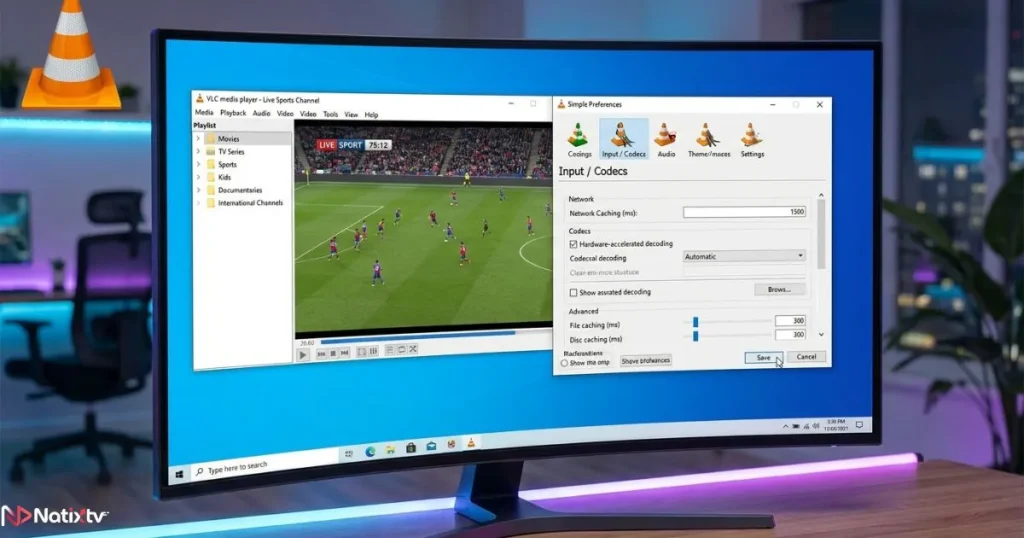
More importantly for IPTV playback, VLC gives you direct access to buffering controls, network caching values, and hardware decoding options that competing apps lock away or do not expose at all.
This level of control is exactly what separates a stable live TV experience from a frustrating one.
| Feature | VLC | Kodi | IPTV Smarters | TiviMate |
|---|---|---|---|---|
| Free and open-source | Yes | Yes | No | No |
| M3U playlist VLC support | Yes | Yes | Yes | Yes |
| Advanced buffering control | Yes | Partial | No | No |
| Cross-platform | Yes | Yes | Partial | No |
| Built-in codec library | Yes | Yes | No | No |
| Native EPG support | No | Yes | Yes | Yes |
How to Load Your M3U Playlist in VLC Correctly
The first step in any IPTV configuration is loading your channel list. M3U playlist VLC integration is seamless when done right, but a small mistake at this stage is enough to prevent your streams from loading at all.
Adding an IPTV Stream via M3U URL
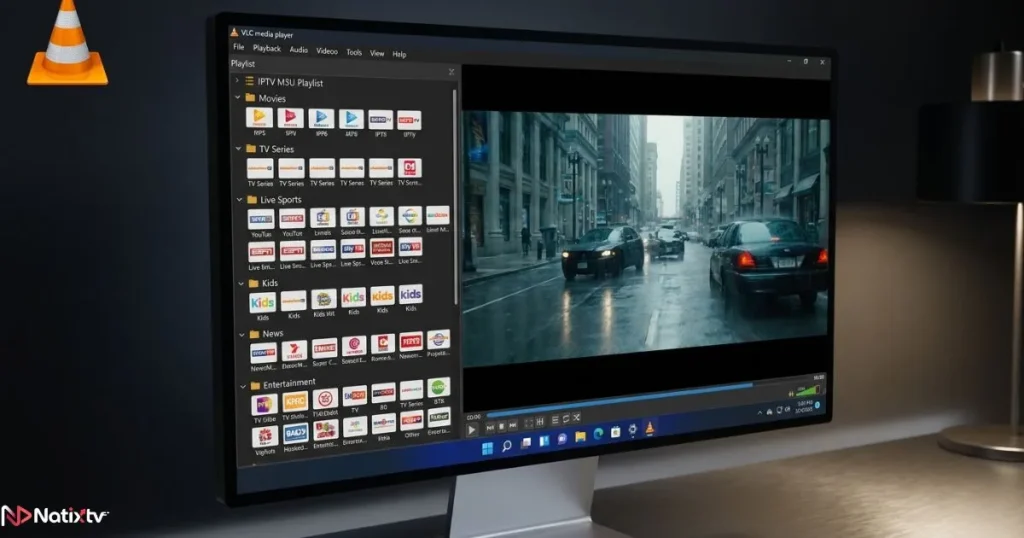
Your IPTV provider will give you an M3U link. Rather than downloading the file, paste the URL directly into VLC for the freshest channel data every time you open it. Here is how:
- Open VLC and go to Media, then Open Network Stream.
- Paste your full M3U URL into the input field.
- Click Play. VLC will parse the entire channel list automatically.
- Save the result: go to Media then Save Playlist to File for faster access next time.
Fixing an M3U Playlist That Will Not Load
If your IPTV streaming stops at a black screen or VLC throws an error, work through this quick checklist before changing anything else:
- Confirm the URL has not expired. Most providers refresh tokens periodically.
- Check for invisible characters or spaces in the pasted URL.
- Try Open File instead of Open Network Stream if you have downloaded the M3U locally.
- Update VLC to the latest stable release (version 3.x minimum).
Advanced VLC Settings to Eliminate Buffering
This is the core of the entire VLC setup. Buffering happens for predictable reasons: network jitter, packet loss, or a mismatch between the server’s delivery speed and VLC’s caching window. All of these are addressable inside VLC’s preferences.
To access the full settings panel, go to Tools, then Preferences, and at the bottom left switch from “Simple” to All. This unlocks every option covered below.
Increasing the Network Caching Value
The single most impactful change you can make for IPTV on VLC player is adjusting the network caching value. By default it sits at 1000 milliseconds, which is generous for local files but often too tight for live IPTV streams with variable bitrate. Raising it to between 2000ms and 5000ms gives VLC a larger buffer to work with, absorbing brief connection hiccups without dropping the stream.
Find this option at Input/Codecs inside the Preferences panel, then look for Network Caching. The trade-off is a slightly longer initial load before playback begins, but once the stream starts it will be dramatically more stable.
Live Stream and File Caching Tuning
Live stream caching is separate from general network caching and specifically affects real-time TV channels. Set it to around 1500ms for a good balance between responsiveness and stability. File caching applies to on-demand recordings and can stay lower, around 500ms to 1000ms, depending on your storage speed.
Clock Synchronization for Live IPTV Channels
Audio and video desync on live channels is almost always a clock jitter issue. Inside VLC’s advanced preferences, the clock-jitter value controls how aggressively the player corrects timing drift. A value of 5ms works well for most IPTV streams. If you still experience lip-sync issues after adjusting the cache, lower clock-jitter to 0ms and enable clock-synchro to let VLC resync automatically.
| Connection Speed | Network Caching | Live Stream Caching | File Caching |
|---|---|---|---|
| Under 10 Mbps | 5000ms | 3000ms | 1500ms |
| 10 to 50 Mbps | 3000ms | 2000ms | 1000ms |
| 50 to 100 Mbps | 2000ms | 1500ms | 500ms |
| 100 Mbps and above | 1000ms | 1000ms | 300ms |
Enhancing Video Quality in VLC for IPTV Playback
Caching fixes buffering; the settings in this section fix the picture itself. Many people settle for acceptable quality when VLC can deliver something noticeably sharper with a few targeted changes to IPTV playback settings.
Enabling Hardware Acceleration
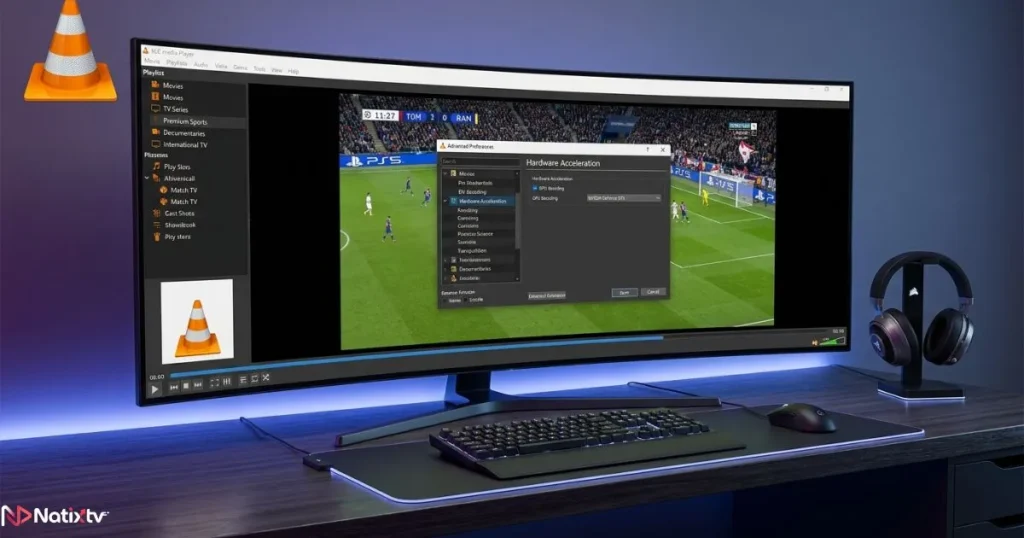
Hardware-accelerated decoding offloads video processing from your CPU to your GPU. For HD and 4K IPTV streams, this can mean the difference between a smooth 60fps picture and a stuttering one, especially on older machines. Find the option at Tools – Preferences – Input/Codecs – Hardware-accelerated decoding.
Choose the right method for your platform:
- Windows: DirectX Video Acceleration (DXVA 2.0) or D3D11VA
- macOS: VideoToolbox (works especially well on Apple Silicon)
- Linux: VA-API or VDPAU depending on your GPU driver
If certain streams glitch or show green artifacts after enabling hardware decoding, disable it for those specific streams via the codec preference and fall back to software decoding. A small number of older stream formats are not compatible with GPU decoding.
Video Output Module Selection
An incorrect output module causes visual tearing, color banding, or oversaturated hues. Under Video – Output modules, select the module suited to your operating system:
- Windows: Direct3D 11 video output (preferred) or DirectDraw
- macOS: OpenGL video output
- Linux: OpenGL or Wayland depending on your desktop environment
Deinterlacing for Live Sports and News Channels
Many live IPTV channels, particularly sports and news broadcasts, use interlaced video encoding. In VLC, go to Video – Deinterlace and enable it, then select either Blend for a softer result or Yadif for sharper edges with higher CPU usage. This single setting eliminates the characteristic “combing” artifact you may have noticed on fast-moving scenes.
Fixing Audio Delay in Real Time
If audio is out of sync, VLC’s built-in hotkeys let you adjust on the fly without pausing the stream. Press G to delay audio and J to advance it, in 50ms increments. For a permanent per-stream offset, go to Tools – Track Synchronization and set a fixed value. If you use a surround sound system, enable AC3 or DTS passthrough under Audio – Output for the best audio fidelity.
VLC IPTV Configuration by Device
IPTV on VLC player behaves differently depending on the hardware and operating system you are using. Here is what to prioritize on each platform.
Windows 10 and 11
Set the video output to Direct3D 11, enable DXVA 2.0 hardware decoding, and raise network caching to match the table above. Additionally, disable Windows network throttling via the registry or Group Policy to prevent the OS from capping bandwidth on background apps. This alone can resolve intermittent drops on otherwise fast connections.
Android and Mobile Devices
Battery management on Android can throttle CPU performance mid-stream, causing stuttering. Enable hardware decoding and set your phone’s battery mode to Performance or Unrestricted while streaming. For IPTV on VLC player on Android, keep screen orientation locked to landscape in VLC’s settings to prevent accidental rotation from interrupting a stream. You might also consider using a dedicated streaming device like a Roku stick for a more stable living room experience.
macOS and iOS
Apple Silicon Macs benefit enormously from VideoToolbox hardware decoding, which dramatically reduces CPU load during 4K streams. On iOS, AirPlay can introduce latency when casting IPTV streams; for live TV, streaming directly within the VLC app on your iPhone or iPad delivers far lower delay than casting to an Apple TV.
Smart TV via Casting or DLNA
VLC supports Chromecast output natively: go to Playback – Renderer to discover your Chromecast device. For Samsung or LG smart TVs, DLNA rendering works through the same menu. Performance varies depending on your TV’s processing power. If quality is inconsistent, a dedicated Android TV box running VLC natively is a more reliable approach.
Testing your VLC configuration is much easier with a stable, well-structured IPTV source. The best iptv provider
Natixtv offers a 24 to 48-hour free trial. M3U link delivered instantly, no technical setup beyond the VLC steps you have already read.
Network-Level Optimizations That Work Alongside VLC
VLC IPTV settings do a lot, but they cannot overcome a fundamentally unstable connection. If you have applied every configuration above and buffering persists, the problem is almost certainly at the network level. Here is where to look.
Wired vs. Wireless: Why It Matters More Than Speed
A 100 Mbps Wi-Fi connection can produce far more buffering than a 30 Mbps wired Ethernet connection because packet loss and jitter are dramatically higher over wireless. IPTV streaming is especially sensitive to jitter because live channels cannot re-request lost packets the way on-demand video can. If running a cable is not possible, place your router within direct line of sight and connect on the 5GHz band rather than 2.4GHz.
DNS and VPN Considerations
Switching your DNS to 1.1.1.1 (Cloudflare) or 8.8.8.8 (Google) can reduce the initial connection time to IPTV server nodes, particularly if your ISP’s default DNS is slow. As for VPNs, they can help bypass ISP throttling of IPTV traffic, but they also add latency. If your streams are stable without a VPN, keep it off. If your provider throttles streaming ports, choose a VPN server geographically close to the IPTV server for minimum overhead. This guide on choosing a VPN configured for IPTV streaming covers the topic in much more depth.
Quick Network Checklist Before Adjusting VLC
- Use Ethernet instead of Wi-Fi wherever possible
- Confirm your router firmware is up to date
- Pause any large downloads or uploads running in the background
- Disable VPN or switch to the nearest available server
- Set DNS to 1.1.1.1 or 8.8.8.8
- Enable QoS on your router and prioritize your streaming device’s IP address
Natixtv: A Premium IPTV Service Designed for VLC Users
Applying these configurations is far more rewarding when your IPTV source is reliable and well-structured. Natixtv delivers streams via a clean M3U URL that loads instantly into VLC with zero formatting errors, which means you spend your time watching rather than troubleshooting.
Their service is compatible with every platform covered in this article: Windows, macOS, Android, iOS, and Smart TV via casting. Channels are served over stable, high-bandwidth servers with consistent bitrates, which is exactly the type of source that benefits most from the VLC caching and decoding optimizations you have now set up. Most importantly, you can verify all of this yourself before spending a single cent. Natixtv offers a free trial period of 24 to 48 hours: sign up, receive your M3U link, paste it into VLC following the steps in section two of this guide, and you will be watching live TV in under two minutes.
Pro tip: Once you receive your Natixtv M3U link, open it in VLC as a network stream and immediately save it as a playlist file. This way you keep a local copy that loads instantly, while your URL stays live for fresh channel data whenever you want a full refresh.
Frequently Asked Questions
How do I set up IPTV on VLC Player for the first time?
Go to Media – Open Network Stream, paste your M3U URL, and press Play. VLC will parse your full channel list automatically. Save it as a playlist file via Media – Save Playlist to File so you do not have to re-enter the URL each session. Your IPTV provider, such as Natixtv, will supply the M3U link when you register for a trial or subscription.
Why does IPTV on VLC Player keep buffering even on a fast connection?
The most common cause is a network caching value that is too low for live stream delivery. Open Tools – Preferences – All – Input/Codecs and raise the network caching to at least 2000ms. Also check that no background applications are consuming bandwidth and that you are connected via Ethernet if possible. Hardware decoding settings can also contribute: try toggling the hardware-accelerated decoding option if buffering started after a VLC update.
What is the best network caching setting for IPTV on VLC Player?
For most home connections between 10 and 100 Mbps, a network caching value of 2000ms to 3000ms hits the right balance between stability and low initial load time. If your connection drops below 10 Mbps, increase the value to 5000ms. Refer to the caching table in this article for per-connection-speed recommendations.
Can I watch 4K IPTV streams on VLC?
Yes, provided your device supports hardware decoding for HEVC (H.265), which is the codec most 4K IPTV streams use. Enable hardware-accelerated decoding in VLC preferences and ensure your connection delivers at least 25 Mbps with low jitter. On older machines without GPU decoding support, 4K streams may stutter due to CPU limitations rather than network issues.
Is VLC or a dedicated IPTV app better for streaming?
VLC is better for users who want fine-grained control over buffering, decoding, and output settings. Dedicated apps like TiviMate or IPTV Smarters offer a cleaner EPG interface and easier channel navigation, but sacrifice the low-level performance controls that make VLC IPTV configurations so powerful. For maximum stream stability and quality, VLC is the stronger technical choice, especially when paired with the optimizations in this guide.
How can I try an IPTV service before committing to a subscription?
Look for providers that offer a genuine trial period with no credit card required. Natixtv provides a free 24 to 48-hour trial that gives you access to the full channel lineup and your M3U URL for testing with VLC. This is the best way to validate stream quality, server stability, and compatibility with all the VLC settings described in this article before making any payment.
Conclusion: Your VLC Setup Is Now a Streaming Machine
A few minutes spent inside VLC’s preferences panel is the difference between a player that constantly fights your IPTV stream and one that feels effortless. Raise your network caching, enable hardware decoding, choose the right video output module for your OS, and pair it all with a stable wired connection. Each change compounds the last, and the cumulative result is exactly the smooth, high-quality playback that IPTV on VLC player is actually capable of delivering.
The key takeaways from this guide:
- Increase network caching to match your connection speed using the table provided
- Enable GPU hardware decoding to handle HD and 4K streams without CPU strain
- Use the correct video output module for your operating system to avoid visual artifacts
- Combine VLC optimizations with a solid network foundation: Ethernet, updated firmware, and a clean DNS
If you want to put everything to the test right now, the best iptv provider for VLC users is Natixtv, with a free 24 to 48-hour trial and an M3U link that works out of the box with every configuration covered above. Better streaming is not a settings deep-dive away; it is a copy-paste away.