Picture this: it is the biggest match of the season. Your team is about to score from an impossible angle, and suddenly the screen freezes. The buffering wheel spins. The moment is gone forever, replaced by a pixelated mess and a sinking feeling in your chest. If you have ever felt that gut-punch frustration, you are far from alone.
Millions of viewers try to stream IPTV every day and run into the same wall: lag, dropped streams, and picture quality that swings between crystal-clear and unwatchable without warning. The good news is that this almost never comes down to IPTV itself being broken. It comes down to a network that was never set up to handle it properly.
Whether you are chasing flawless HD IPTV streaming for live sports or pushing into 4K IPTV streaming for movies and premium content, this guide gives you a practical, step-by-step roadmap. By the time you reach the conclusion, you will have everything you need to eliminate buffering for good and enjoy the kind of IPTV performance your setup is actually capable of. And if you are looking for a provider that matches this level of quality, best iptv starts right here.
Table of Contents
Why Your Network Controls IPTV Streaming Quality
How IPTV Actually Delivers Video to Your Screen
Unlike traditional broadcast TV, IPTV sends video content as data packets over an IP network, the same infrastructure your email and web browsing use. This architecture is powerful and flexible, but it comes with a key trade-off: sensitivity to network conditions.
On-demand platforms like Netflix use aggressive adaptive buffering. They pre-load several seconds of video ahead of playback and automatically drop quality when your connection wobbles. Most IPTV players do not work this way. They request a live stream in real time, which means any instability in your connection shows up immediately on screen as freezing, tiling, or dropped streams.
The takeaway: when you stream IPTV, your connection needs to be stable and consistent, not just fast on a good day.
The Most Common Causes of IPTV Lag and Buffering
Before diving into fixes, it helps to know what you are actually fighting. The most frequent culprits behind poor IPTV streaming quality include:
- Insufficient bandwidth – your plan simply does not deliver enough speed for the quality level you are requesting.
- Network congestion – during peak hours, your ISP’s local infrastructure gets overloaded, causing everyone’s speeds to drop.
- Wi-Fi interference or weak signal – walls, appliances, and neighboring networks all compete for the same frequencies.
- ISP throttling – some internet providers intentionally slow down video streaming traffic.
- Overloaded or outdated router – older hardware struggles to route multiple high-bandwidth streams simultaneously.
- Slow or misconfigured DNS – affects how quickly your device resolves server addresses before a stream can even begin.
Identifying which of these is your primary issue is the first step toward fixing it. In most cases, it is a combination of two or three factors working together.
Speed Requirements – What You Actually Need for HD and 4K Playback
Minimum vs. Recommended Bandwidth per Quality Level
One of the most common misunderstandings is treating raw internet speed as the only variable. Speed matters, but stability and latency matter just as much when you stream IPTV. With that in mind, here are the bandwidth benchmarks you should be hitting:
| Stream Quality | Minimum Speed | Recommended Speed | Notes |
|---|---|---|---|
| SD (480p) | 3-5 Mbps | 5 Mbps | Basic viewing, older devices |
| HD (720p) | 5-10 Mbps | 10-15 Mbps | Standard experience |
| Full HD (1080p) | 10-15 Mbps | 20-25 Mbps | Most popular IPTV format |
| 4K UHD | 25 Mbps | 50+ Mbps | Requires a stable, low-jitter connection |
| Multi-room (2 streams) | x2 per stream | x2 per stream | Multiply values accordingly |
How to Test Your Real IPTV Network Speed
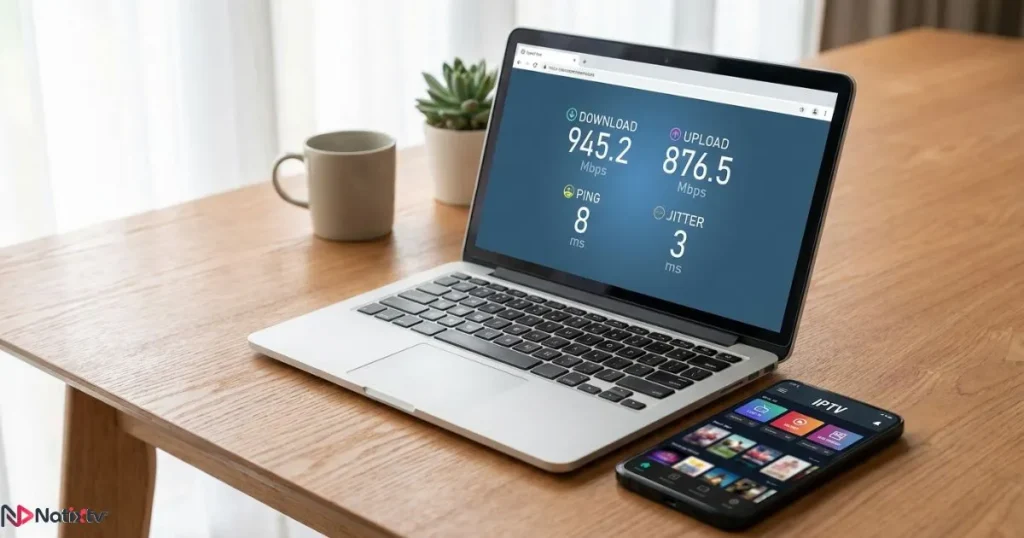
Your plan may advertise 200 Mbps, but what arrives at your streaming device is often a fraction of that. Use Speedtest.net or Fast.com to check your actual delivered speed, paying close attention to four values: download speed, upload speed, ping (latency), and jitter. High jitter, even on a fast connection, is a direct cause of IPTV freezing because it creates irregular gaps between incoming data packets. Run your test at different times of day, since peak-hour slowdowns often tell a very different story than a midday test.
IPTV Network Optimization – A Step-by-Step Approach
Wired vs. Wireless – Why Ethernet Is Always the Better Choice
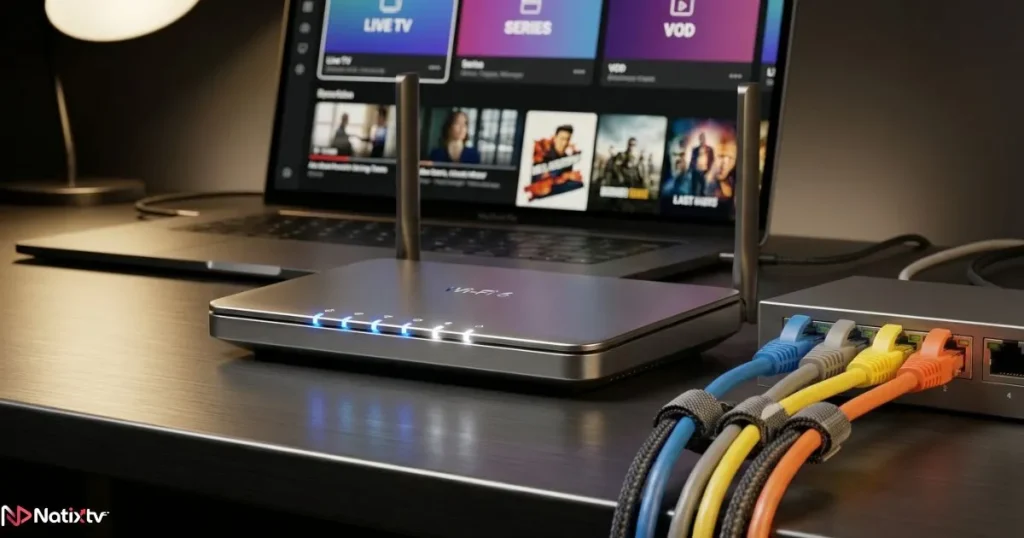
If there is one single change that will have the biggest impact on your ability to stream IPTV without interruption, it is switching from Wi-Fi to a wired Ethernet connection. Ethernet delivers consistent bandwidth, near-zero interference, and latency that Wi-Fi simply cannot match. Every wall, appliance, and nearby network degrades your wireless signal in ways that are invisible until your stream drops mid-scene.
If running an Ethernet cable through your home is not practical, consider these alternatives:
- MoCA adapters – use your home’s existing coaxial cable wiring to deliver wired-quality speeds.
- Powerline adapters – transmit network data over your home’s electrical wiring; quality varies by home, but far more stable than Wi-Fi for most users.
- Wi-Fi 6 mesh systems – if wireless is your only option, a modern mesh network dramatically reduces dead zones and interference.
Optimizing Your Wi-Fi Setup for Stable IPTV Playback
When a wired connection is out of the question, getting the most from your Wi-Fi setup becomes critical for IPTV network optimization. Start by choosing the right frequency band:
- 2.4 GHz – longer range but heavily congested in most homes and apartment buildings. Avoid for IPTV if possible.
- 5 GHz – shorter range but significantly faster and far less interference. This is the sweet spot for most IPTV setups.
- 6 GHz (Wi-Fi 6E) – the gold standard for high-density environments; nearly zero interference from neighboring networks.
Beyond band selection, position your router centrally in your home, elevated off the floor, and away from microwaves and cordless phones. Use a free tool like WiFi Analyzer to find the least congested channel in your area and manually assign it in your router settings.
Router Settings That Directly Reduce IPTV Lag
Your router’s default configuration is designed for general use, not for delivering smooth live video. A few targeted changes can dramatically reduce IPTV lag and eliminate stuttering:
Quality of Service (QoS)
QoS lets you tell your router to prioritize traffic from specific devices or applications. By assigning your IPTV device the highest priority, you ensure that your stream is protected even when other household members are downloading files or running video calls. Access QoS settings by logging into your router’s admin panel, typically at 192.168.1.1 or 192.168.0.1, then look under Advanced or Traffic Management.
IGMP Snooping and Multicast Support
If your router supports IGMP Snooping, enable it. This setting is specifically designed to optimize multicast traffic, which is exactly what many IPTV services use to deliver live channels. Without it, your router may flood all connected devices with stream data rather than directing it efficiently to your IPTV device only.
Firmware Updates
An outdated router firmware is a surprisingly common source of IPTV instability. Check your manufacturer’s website or your router’s admin panel for the latest update and apply it. Manufacturers regularly patch performance issues that affect streaming behavior.
DNS Optimization for Faster Channel Loading
Every time you switch channels or launch a stream, your device must resolve a domain name before the video can begin. A slow DNS server adds hundreds of milliseconds of delay to every channel change. Switching to a faster, more reliable DNS provider is a quick win that costs nothing and takes under five minutes.
| DNS Provider | Primary | Secondary | Key Advantage |
|---|---|---|---|
| Google DNS | 8.8.8.8 | 8.8.4.4 | Fast, globally reliable |
| Cloudflare | 1.1.1.1 | 1.0.0.1 | Fastest globally, strong privacy |
| OpenDNS | 208.67.222.222 | 208.67.220.220 | Good filtering and parental controls |
You can apply these DNS values directly in your router settings (which updates all connected devices at once) or individually on your Smart TV, Firestick, or Android box through the network settings menu.
VPN and IPTV – When It Helps and When It Hurts
If your speeds look fine on Speedtest but you still experience buffering when you stream IPTV, your ISP may be throttling video traffic specifically. A VPN can bypass this by encrypting your connection so your provider cannot detect and throttle your streams. However, a VPN also adds latency by routing your traffic through an additional server, and a low-quality VPN can make things significantly worse.
If you go this route, choose a premium VPN that supports the WireGuard protocol, which offers the best combination of speed and security. Always run a before-and-after speed test with your VPN active to confirm it is helping rather than hurting your IPTV performance.
Looking for a provider whose infrastructure is built to handle the demands of HD and 4K streams without leaning on a VPN? The best iptv services invest in server redundancy and CDN infrastructure so that buffering is the exception, not the rule.
Device-Side Optimizations for Smoother Playback
Choosing the Right IPTV Player and Configuring It Properly
Your choice of IPTV player has a direct effect on how well you stream IPTV, especially at higher resolutions. Some players are far better at handling large streams and recovering gracefully from network hiccups. Top options include IPTV Smarters Pro, TiViMate, GSE Smart IPTV, VLC, and Perfect Player.
Regardless of which player you use, these settings adjustments make a measurable difference:
- Buffer size – increase to 1,500-3,000ms on less stable connections to give the player more runway to smooth over brief dips.
- Hardware acceleration – always enable this for 4K IPTV streaming; it offloads video decoding to your device’s dedicated chip rather than the CPU.
- Stream reconnect timeout – lower values mean the player retries faster after a dropped connection.
- Video output codec – match the codec to your device’s hardware support for the best performance.
Keeping Your Device Running at Its Best
A device bogged down by background processes cannot dedicate full resources to your stream. Make these habits part of your routine:
- Close all unused apps before launching your IPTV player.
- Clear the cache on your Android-based device weekly, especially in the IPTV app itself.
- Keep your player app and device firmware updated to benefit from performance patches.
- On Firestick: disable background data for apps you do not use actively. On Smart TVs: enabling Game Mode can reduce processing lag caused by image post-processing.
- On PC or Mac: pause cloud sync services (Dropbox, OneDrive, iCloud) while streaming IPTV to free up bandwidth.
Hardware That Actually Makes a Difference
If you are still running IPTV on a budget Android box from 2018, your hardware may be the limiting factor regardless of your network setup. Here are the devices that consistently deliver the best IPTV performance in 2025:
- Nvidia Shield Pro – the top tier choice for 4K IPTV streaming, with exceptional processing power and Dolby Vision support.
- Amazon Firestick 4K Max – supports Wi-Fi 6, affordable, and widely compatible with IPTV players.
- Apple TV 4K – best-in-class for Apple ecosystem users, with excellent codec support and smooth playback.
- Formuler Z10 / Mecool KM2 – strong budget-friendly Android TV options with dedicated IPTV features.
Key rule of thumb: any device running Android 7.0 or below, or with less than 2GB of RAM, will struggle with HD IPTV streaming and fail entirely at 4K. Upgrading your hardware is sometimes the most cost-effective fix available.
Advanced Strategies to Eliminate Buffering Permanently
Manage Household Bandwidth During Peak Hours
Your internet connection is shared across every device in your home. When someone else is running a large download, a cloud backup, or a system update in the background, those processes compete directly with your stream IPTV traffic. Use your router’s scheduler or QoS rules to limit bandwidth for non-IPTV devices during your prime viewing hours, typically evenings and weekends.
When to Upgrade Your Internet Plan
If you have applied every optimization in this guide and your speeds are still consistently below the recommended thresholds, it may simply be time to upgrade your plan. Among the connection types available, fiber delivers the most consistent performance for IPTV because it is not susceptible to the neighborhood congestion that affects cable internet during peak hours. For households regularly running two or more simultaneous streams in 4K, a fiber plan of 500 Mbps or above removes bandwidth as a variable entirely.
Understanding what separates premium IPTV providers from unreliable ones is also worth your time – you can read a thorough breakdown of what to look for in a trustworthy IPTV service before committing to any subscription.
Dealing with ISP Throttling
The tell-tale sign of ISP throttling is a connection that tests well on Speedtest but consistently buffers during live IPTV streams. To confirm throttling, connect a VPN and compare your streaming experience. If your stream immediately improves with the VPN active, throttling is almost certainly the cause. Contact your ISP, request their IPTV optimization settings if they offer them, or consider switching to a provider with a stronger commitment to net neutrality in your region.
Why Your IPTV Provider Matters as Much as Your Network
Here is something worth understanding clearly: even a flawlessly optimized network cannot save a poorly built IPTV service. If the provider’s servers are underpowered, geographically distant, or overwhelmed during peak demand, no amount of router tweaking will give you a stable stream. The quality of your IPTV subscription is the other half of the equation.
When evaluating providers, these are the factors that actually determine long-term IPTV streaming quality:
- Server uptime guarantee – look for 99.9% or above, not just marketing claims.
- CDN infrastructure – providers with geographically distributed servers reduce the physical distance between you and the stream source.
- Anti-freeze technology – built-in stream recovery mechanisms that kick in before a brief hiccup becomes a full freeze.
- Multi-device compatibility – your subscription should work seamlessly across your Smart TV, Firestick, phone, and tablet without reconfiguration.
- Responsive support – when something does go wrong, how quickly can you get a real answer?
For a detailed look at how these criteria play out in the real world, this overview of what separates high-quality IPTV services from the rest in the US market is worth reading before you decide.
Try Natixtv Risk-Free for 24 to 48 Hours
Natixtv offers premium IPTV subscriptions fully compatible with Smart TVs, Firestick, Android boxes, smartphones, tablets, and MAG boxes. Experience the difference a properly built IPTV service makes with a free trial period of 24 to 48 hours – no commitment required.Start Your Free Trial
Frequently Asked Questions
How do I stream IPTV without constant buffering?
Start by switching from Wi-Fi to Ethernet if possible. Then enable QoS in your router settings to prioritize your IPTV device, increase the buffer size in your IPTV player to 1,500-3,000ms, and switch to a faster DNS provider such as Cloudflare (1.1.1.1). If issues persist, check whether your ISP is throttling video traffic using a VPN test.
What internet speed do I need to stream IPTV in Full HD and 4K?
For Full HD (1080p), a stable connection of 20-25 Mbps is recommended. For 4K IPTV streaming, you should aim for 50 Mbps or above. Remember that stability and low jitter matter more than peak speed – a consistent 30 Mbps connection outperforms an unstable 100 Mbps one for live IPTV.
Why does my IPTV keep freezing even though my internet is fast?
Fast internet on a speed test does not guarantee smooth IPTV. Common causes include Wi-Fi interference (try 5 GHz or Ethernet), ISP throttling of video traffic, an overloaded router, slow DNS resolution, or a poorly performing IPTV provider with under-resourced servers. Work through each variable systematically to isolate the issue.
Can I stream IPTV on multiple devices at the same time?
Yes, provided your subscription supports multiple simultaneous connections and your internet plan has enough headroom. Multiply the recommended bandwidth by the number of active streams. For two simultaneous Full HD streams, you need a reliable 40-50 Mbps. Enable QoS on your router to ensure each stream gets a fair share of available bandwidth.
Does a VPN help when you stream IPTV?
It depends on your situation. If your ISP is throttling IPTV traffic specifically, a VPN can bypass that throttling and restore full speed. However, a VPN adds latency by routing your traffic through an extra server. Always test with and without the VPN, and choose a provider that supports the WireGuard protocol for the best speed-security balance.
What is the best device for 4K IPTV streaming in 2025?
The Nvidia Shield Pro is the top-tier choice for raw performance and codec support. The Amazon Firestick 4K Max is the best value option, with Wi-Fi 6 built in. The Apple TV 4K is the best fit for households already in the Apple ecosystem. All three support hardware acceleration, which is essential for smooth 4K IPTV playback.
Final Thoughts
Smooth IPTV comes down to two things working in harmony: a properly optimized network and a provider whose infrastructure is built to deliver. With the steps covered in this guide, from choosing the right connection type and configuring QoS, to fine-tuning your player settings and selecting capable hardware, you now have a complete toolkit to reduce IPTV lag and enjoy stable HD and 4K playback every time you sit down to watch.
But network optimization is only half the story. The other half is choosing a service that holds up its end of the deal with reliable servers, broad device support, and the kind of IPTV performance that lets you forget the technology and just enjoy what you are watching.
If you are ready to find out what that experience actually feels like, the best iptv trial available right now is Natixtv’s free 24 to 48 hour test period – no credit card required, no risk, just a clear picture of what a premium subscription can do for your viewing experience. The buffering wheel does not have to be part of your story anymore.