Picture this: it’s a quiet Saturday evening, you’ve finally carved out some time for yourself, and all you want is to sink into your couch and watch something great. Then your cable box freezes. Again. That feeling of frustration, that sense of wasted time, is exactly what pushed millions of people toward smarter streaming solutions. If you’ve been hearing about Xcode IPTV and wondering whether it’s the answer, you’re in the right place. And if you’re looking for the best IPTV experience available today, this guide is your starting point.
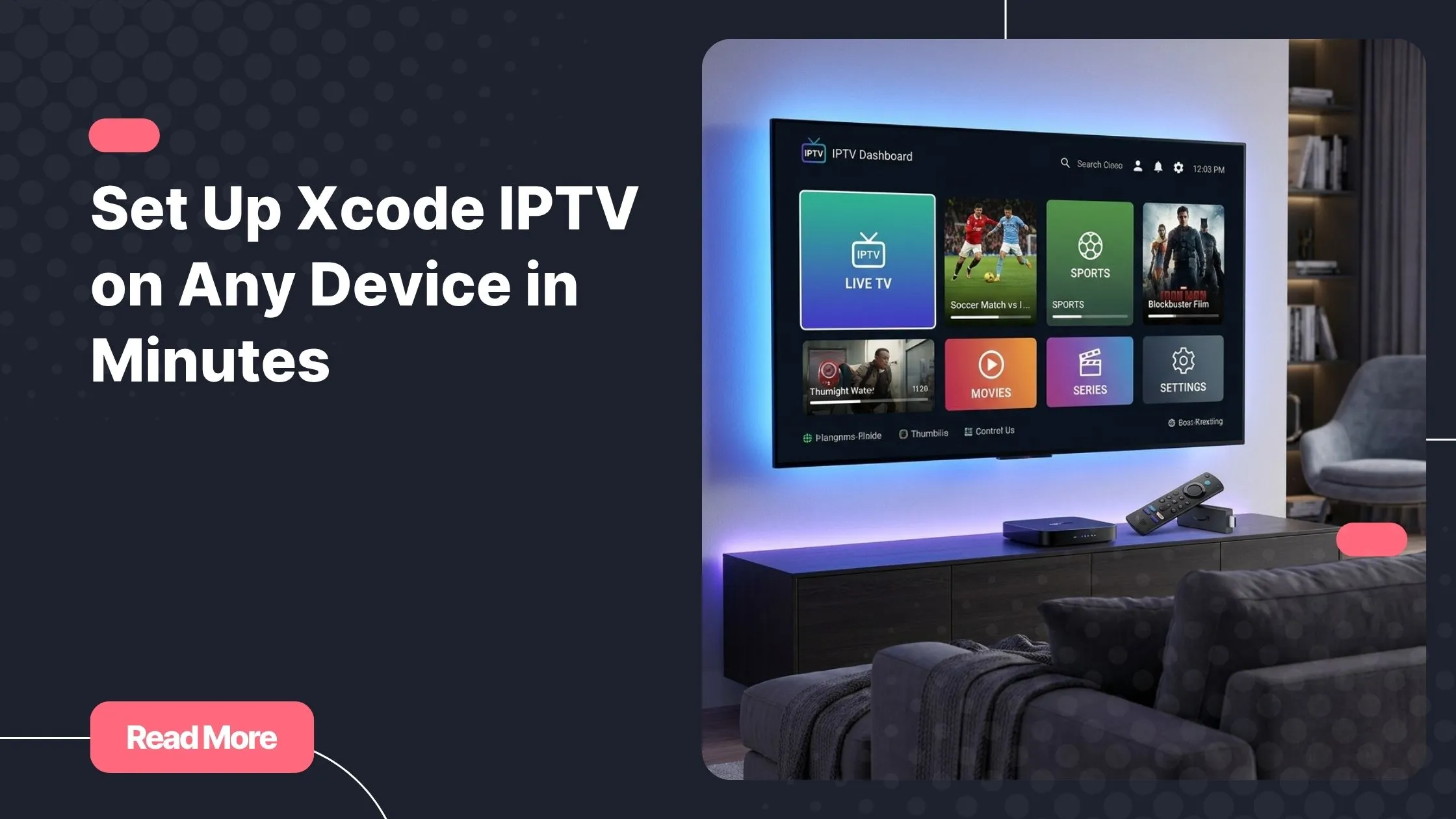
Setting up a new streaming app can feel intimidating, especially if you’ve never dealt with playlists, codes, or app sideloading before. But here’s the truth: Xcode IPTV is one of the most beginner-friendly IPTV players on the market. Whether you’re using an Android phone, a Smart TV, a Fire Stick, or a laptop, the process is straightforward. This complete IPTV setup guide will walk you through every step, on every major device, without any unnecessary jargon.
By the end of this article, you’ll know exactly how to download, install, and configure Xcode IPTV so you can start streaming live TV, on-demand content, and more, all within minutes. Let’s get into it.
Table of Contents
What Is Xcode IPTV and Why Are People Switching to It?
Xcode IPTV is a powerful IPTV streaming app designed to deliver live television channels, video on demand, and electronic program guide data directly to your screen — no satellite dish or cable contract required. It reads M3U playlists and Xtream Codes to connect you to your IPTV subscription, giving you access to thousands of channels from around the world.
Unlike traditional cable, which locks you into a set-top box and a rigid channel lineup, Xcode IPTV works across multiple devices and adapts to your lifestyle. You watch what you want, when you want, on the screen of your choice.
What Makes the Xcode IPTV App Stand Out
There are plenty of IPTV players available, but the Xcode IPTV app earns its reputation through a combination of performance and simplicity. Here’s what you get:
- Support for M3U, M3U8, and Xtream Codes API formats
- A built-in EPG for easy channel browsing — to get the most from it, pairing it with a well-configured program guide makes a real difference
- VOD and live TV support in one unified interface
- Favorites lists and parental controls
- Lightweight performance, even on older hardware
- Multi-device compatibility across Android, iOS, Smart TV, PC, and more
Xcode IPTV vs Traditional Cable
The comparison below shows how Xcode IPTV stacks up against a traditional cable subscription:
| Feature | Xcode IPTV | Traditional Cable |
|---|---|---|
| Monthly Cost | Low – flexible plans | High – fixed contracts |
| Channel Count | 10,000+ channels | Limited regional selection |
| Device Flexibility | Multi-device support | Set-top box only |
| On-Demand Content | Full VOD library | Limited availability |
| Setup Time | Under 10 minutes | Technician visit required |
| Free Trial | 24 to 48 hours (Natixtv) | Rarely offered |
What You Need Before You Start
Before diving into the installation steps, make sure you have everything in place. A smooth setup depends on a few essentials.
Your Pre-Setup Checklist
- A stable internet connection: Aim for at least 10 Mbps for HD streaming and 25 Mbps or more for 4K content.
- A compatible device: Android, Smart TV, Amazon Fire Stick, iPhone, iPad, Windows PC, or Mac.
- A valid IPTV subscription: Your provider will give you either an M3U URL or Xtream Codes credentials.
- The Xcode IPTV app: Downloaded from the appropriate source for your device.
Choosing the Right IPTV Subscription
Your IPTV subscription is the engine behind everything. A poor-quality provider means buffering, dropped channels, and a frustrating experience. Look for a provider that guarantees high uptime, offers a strong channel catalog, provides responsive support, and lets you test the service before paying in full.
Natixtv is fully compatible with Xcode IPTV and works across every device covered in this guide. It offers 10,000 or more live channels, an extensive VOD library, multi-language support, and most importantly, a free trial period of 24 to 48 hours. That means you can test the entire experience on your own device before committing to a subscription. No risk, no pressure.
How to Install Xcode IPTV on Every Major Device
This is the core of your IPTV player setup. Follow the steps for your specific device below.
Setting Up Xcode IPTV on Android
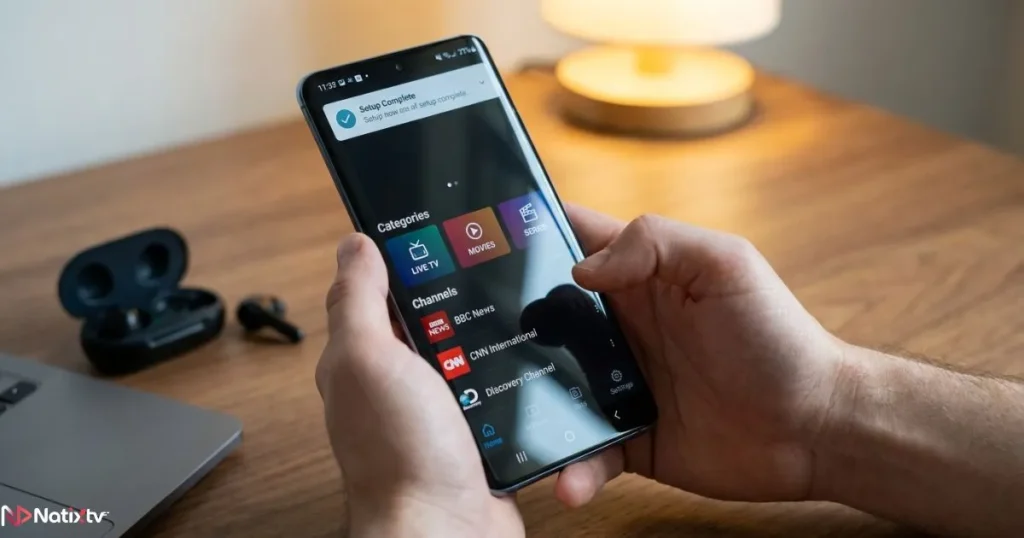
For anyone looking for a solid IPTV app for Android, the process is refreshingly simple.
- Open the Google Play Store on your Android device.
- Search for “Xcode IPTV” in the search bar.
- Tap “Install” and wait for the download to finish.
- Open the app and grant the necessary permissions.
- Proceed to the configuration section below to add your subscription.
If the app isn’t listed in your regional Play Store, go to Settings, enable “Unknown Sources” or “Install Unknown Apps,” then download the APK from a trusted source. The app supports Android 5.0 and above.
How to Set Up Xcode IPTV for Smart TV
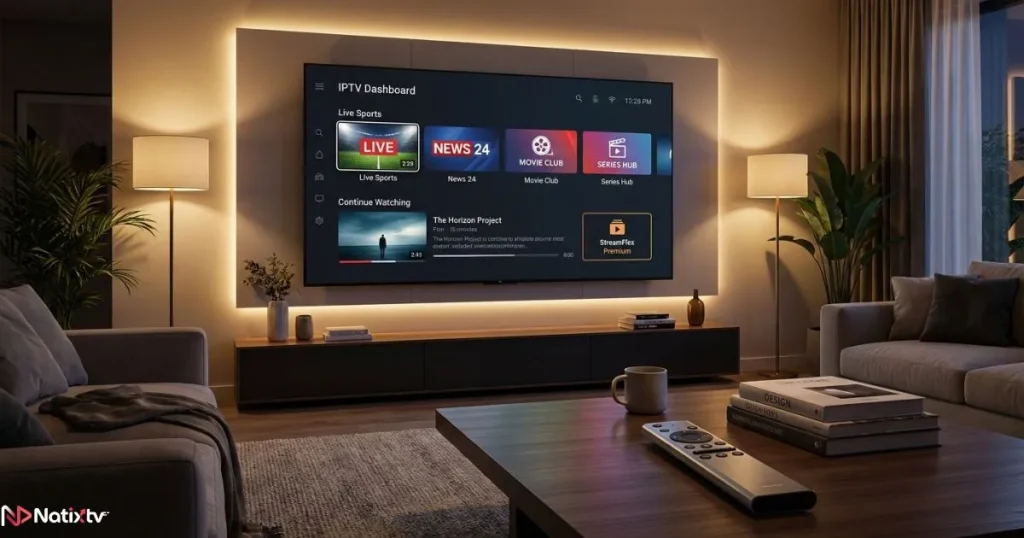
Getting Xcode IPTV running as your IPTV for Smart TV depends on the brand and operating system your TV uses.
Android TV (The Easiest Path)
- Open the Google Play Store on your Android TV.
- Search for “Xcode IPTV.”
- Install and launch the app.
- Follow the configuration steps below.
Samsung or LG Smart TV
- Use a USB drive to transfer the APK file to your TV.
- Enable installation from unknown sources in your TV settings.
- Navigate to the APK file and install it directly.
- Launch the app and connect your subscription.
Installing Xcode IPTV on Amazon Fire Stick
- Go to Settings, then My Fire TV, then Developer Options.
- Enable “Apps from Unknown Sources.”
- Download the Downloader app from the Amazon Appstore.
- Open Downloader and enter the URL for the Xcode IPTV APK.
- Follow the on-screen prompts to complete installation.
- Open the app and enter your IPTV credentials.
Pro tip: consider using a VPN on your Fire Stick to protect your privacy and reduce ISP throttling. If you’re also dealing with slow load times, reading up on proven techniques to improve your IPTV streaming speed can help significantly.
Setting Up Xcode IPTV on iPhone or iPad
- Open the App Store on your iOS device.
- Search for “Xcode IPTV” or a compatible IPTV streaming app.
- Download and install the app.
- Open it and follow the configuration steps to add your playlist.
Note: availability on the App Store can vary by region. If the app isn’t listed, look for a compatible IPTV player that supports M3U and Xtream Codes.
Using Xcode IPTV on Windows PC or Mac
- Visit the official Xcode IPTV website or a trusted download source.
- Download the version compatible with your operating system.
- Install the application following the standard setup wizard.
- Open the app and proceed to add your subscription details.
How to Configure Xcode IPTV with Your Subscription
Once the app is installed, it’s time to connect it to your IPTV subscription. There are two main methods: M3U URL and Xtream Codes API. Your provider will tell you which one to use.
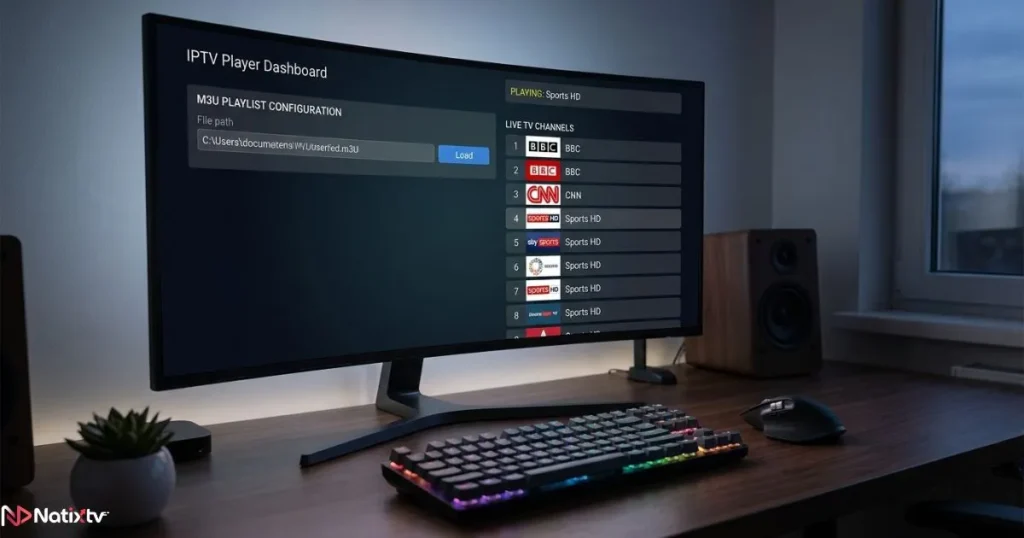
Adding an M3U Playlist URL
- Open Xcode IPTV and navigate to the settings or “Add Playlist” section.
- Select “M3U URL” as the input method.
- Paste the M3U link provided by your IPTV provider (such as Natixtv).
- Give your playlist a name and save it.
- Wait for the channels to load, then start exploring.
An M3U URL typically looks like this:
http://yourprovider.com/get.php?username=XXX&password=XXX&type=m3uYour provider sends this to you automatically after signup.
Connecting via Xtream Codes API
- Open the app settings and choose “Xtream Codes API.”
- Enter your server URL, username, and password.
- Tap “Connect” and let the app sync your channel list.
- Browse live TV, VOD, and series from the main menu.
Xtream Codes generally offer better stability and access to more features, including series categorization and automatic EPG mapping. It’s the recommended method when your provider supports it.
Setting Up Your EPG
The EPG transforms your channel list into an actual TV guide, showing you what’s on now and what’s coming up next. In the app settings, look for an “EPG URL” field and enter the link provided by your IPTV provider. Save and refresh to see the guide populate. This step alone dramatically improves how easy it is to find something to watch.
Troubleshooting Common Xcode IPTV Problems
Even with a great setup, occasional issues can pop up. Here’s how to handle the most common ones quickly.
Buffering or Lag During Playback
This is usually caused by a slow internet connection, a busy server, or a VPN with high latency. Try the following:
- Run a speed test and confirm you’re hitting at least 10 Mbps
- Switch to a different server if your provider offers multiple regions
- Temporarily disable your VPN or switch to a faster protocol like WireGuard
- Lower the stream quality from HD to SD as a short-term fix
Black Screen or Channels Not Loading
- Clear the app cache in your device settings
- Re-enter your M3U URL or Xtream Codes credentials
- Confirm your subscription is active through your provider’s dashboard
- Reinstall the app if the issue persists
App Crashing on Startup
- Update Xcode IPTV to the latest available version
- Free up storage space on your device
- Restart your device and relaunch the app
Quick Troubleshooting Table
| Problem | Likely Cause | Quick Fix |
|---|---|---|
| Buffering | Slow internet or overloaded server | Upgrade speed or change server |
| Black screen | Expired or inactive subscription | Renew via Natixtv |
| App crashing | Outdated app version | Update the app |
| No EPG data | Incorrect EPG URL | Re-enter the correct EPG link |
| Missing channels | Incomplete or broken M3U | Contact your provider’s support |
Tips to Get the Most Out of Xcode IPTV
Optimize Your Network for Streaming
A wired Ethernet connection is always more reliable than Wi-Fi for IPTV. If you can run a cable from your router to your streaming device, do it. If Wi-Fi is your only option, keep your router close to the device and reduce interference from other connected gadgets. Restarting your router once a week also helps maintain a stable connection over time.
You can also use your router’s Quality of Service (QoS) settings to prioritize traffic from your streaming device. This ensures your IPTV stream gets the bandwidth it needs, even when other devices are active on the same network.
Use a VPN for Privacy and Stability
A VPN adds a layer of privacy to your streaming activity and can help bypass ISP throttling, which is a common cause of unexpected buffering. Choose a VPN that supports fast protocols like WireGuard or OpenVPN, and connect to a server close to your geographic location for the best results. According to PCMag’s VPN roundup, choosing a reputable provider with a no-logs policy is essential for both speed and privacy.
Organize Channels with Favorites and Categories
Once your channels are loaded in Xcode IPTV, take a few minutes to build your favorites list. Mark the channels you watch most often so you can jump straight to them without scrolling. Most IPTV players also let you filter channels by category, which makes switching between sports, news, movies, and international content much more efficient.
Why Natixtv Is the Ideal Partner for Your Xcode IPTV Setup
You’ve installed the app, you understand the setup, and now you need a subscription that actually delivers. That’s where Natixtv comes in. As one of the most reliable IPTV subscription providers available, Natixtv is built to work seamlessly with Xcode IPTV across every device covered in this guide.
Here’s what you get with a Natixtv subscription:
- 10,000 or more live channels across multiple countries and languages
- A rich VOD library updated regularly with new titles
- Both M3U URL and Xtream Codes API support for easy configuration
- High-uptime servers with minimal interruptions
- Dedicated customer support when you need help
- A free trial of 24 to 48 hours — no credit card stress, no long-term commitment
That free trial is especially valuable. You can follow every step in this guide, connect Natixtv to your Xcode IPTV app, and experience the full channel lineup on your own device before spending a single dollar on a subscription.
Conclusion: Your Streaming Setup Starts Today
You now have everything you need to get Xcode IPTV running on any device in your home. From Android phones to Smart TVs, from Amazon Fire Stick to desktop computers, the steps are clear, the process is fast, and the result is a genuinely better TV experience. No more cable contracts. No more frozen screens on Friday night. Just thousands of channels, on-demand content, and a player that works the way you want it to.
The smartest next step is to pair your setup with a subscription that matches the quality of the app. Natixtv offers exactly that, and you can try it completely free for 24 to 48 hours. For the best IPTV experience available right now, visit Natixtv, grab your free trial, and stream without limits starting today. You deserve a setup that just works.
Frequently Asked Questions
What is Xcode IPTV and how does it work?
Xcode IPTV is an IPTV streaming app that reads M3U playlists and Xtream Codes API credentials to deliver live TV channels, on-demand video, and EPG data to your screen. You connect it to a subscription from a provider like Natixtv, and it handles the rest, organizing your content into a clean, browsable interface.
Is Xcode IPTV free to download?
The app itself is free to download on most platforms. However, you’ll need an active IPTV subscription to access content. Natixtv makes it easy to get started with a free 24 to 48-hour trial, so you can test everything before choosing a paid plan.
Which devices support Xcode IPTV?
Xcode IPTV is compatible with a wide range of devices including Android smartphones and tablets, Android TV and other Smart TVs, Amazon Fire Stick, iPhones and iPads, Windows PCs, and Mac computers. This makes it one of the most flexible IPTV players available today.
Why does my IPTV stream keep buffering?
Buffering is usually linked to internet speed, server load, or VPN latency. Start by running a speed test and making sure you have at least 10 Mbps available. Then try switching your server region through your provider, or temporarily disabling your VPN to see if performance improves.
Can I use Xcode IPTV on my Smart TV without a streaming stick?
Yes, if your Smart TV runs Android TV, you can install Xcode IPTV directly from the Google Play Store. For Samsung or LG TVs, you may need to sideload the app using a USB drive or explore alternative compatible IPTV players available in their respective app stores.
How do I add my Natixtv subscription to Xcode IPTV?
After signing up for a Natixtv subscription or starting your free trial, you’ll receive either an M3U URL or Xtream Codes credentials. Open Xcode IPTV, go to the settings or playlist section, choose your preferred input method, enter your details, and save. Your channels will load within seconds.