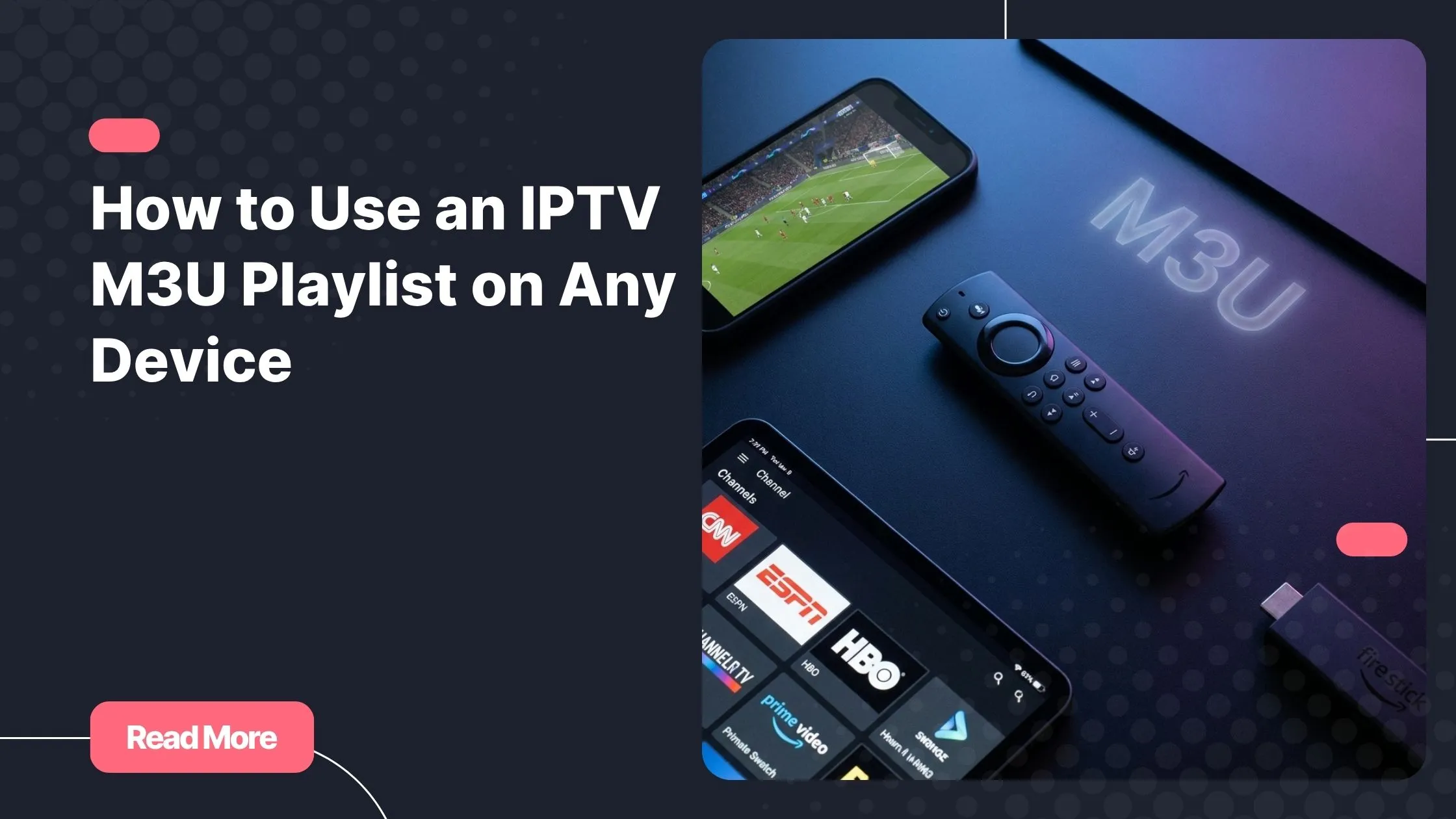
There’s a moment every new IPTV user knows well. You’ve just received your M3U link from your provider, you’re staring at it on your phone, and you have absolutely no idea what to do next. No button says “press here to watch TV.” No obvious app opens automatically. Just a string of characters that holds the key to hundreds of live channels — if only you knew how to unlock it. If that sounds familiar, this guide was written for you.
Setting up an iptv m3u playlist is genuinely simpler than it looks. Once you understand the logic behind it, you’ll be able to load your channels on your Smart TV, your Android phone, your laptop, or your Fire Stick in just a few minutes. And if you’re still searching for a reliable provider with excellent compatibility, best iptv is worth exploring before you go any further.
This complete setup guide covers everything: what an M3U playlist actually is, which apps to use on each device, step-by-step instructions, and the most common issues you might run into — along with how to fix them.
Table of Contents
What Is an IPTV M3U Playlist and How Does It Work?
An iptv m3u playlist is essentially a text file that contains a list of streaming URLs. Each line in the file points to a specific TV channel or media stream. When you load this file — or its hosted URL — into a compatible player, the app reads the list and presents you with a full channel guide you can browse and watch instantly.
Your provider will usually give you one of two things: a downloadable .m3u file you save to your device, or a hosted iptv playlist url you paste directly into an app.
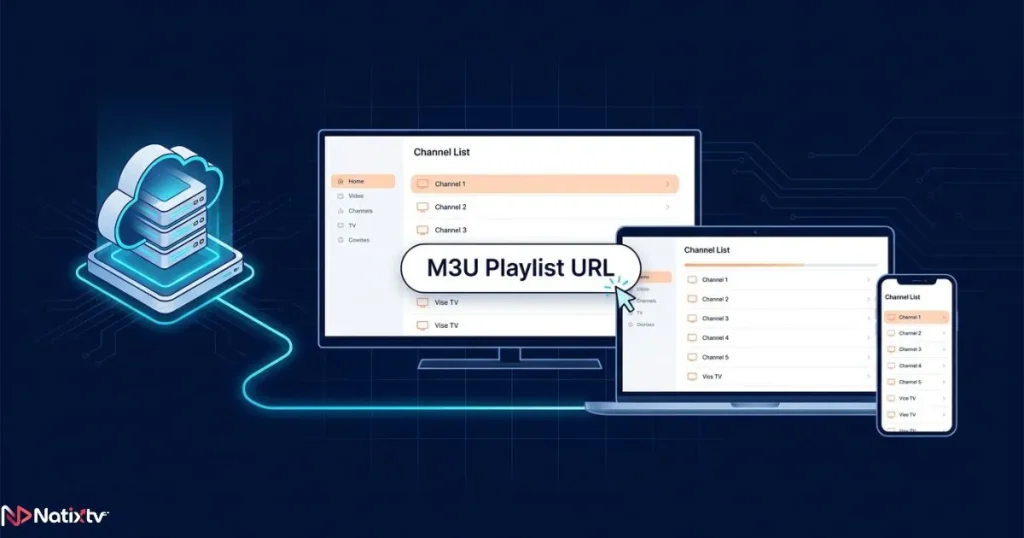
Both work the same way under the hood. The URL format is more convenient because it updates automatically when your provider refreshes the channel list.
You may also encounter .m3u8 files, which are used for HLS (HTTP Live Streaming) — the format behind most live TV streams today. They’re part of the same M3U family and work in the same apps.
| Format | Extension | Use Case |
|---|---|---|
| Standard playlist | .m3u | Downloaded file, local use |
| Hosted playlist | .m3u URL | Direct URL pasted into an app |
| HLS stream | .m3u8 | Live TV, adaptive quality streaming |
What You Need Before Getting Started
Before you load your iptv m3u playlist on any device, make sure you have these essentials in place:
- A valid iptv m3u link or
.m3ufile from a trustworthy provider - A compatible device: Smart TV, Android phone or tablet, iPhone, iPad, PC, Mac, Fire Stick, or MAG box
- A stable internet connection — at minimum 10 Mbps for SD, 25 Mbps for HD, and 50 Mbps for 4K content
- An IPTV player app that supports M3U format (covered in the next section)
Connection speed matters more than most people realize. Even with a perfect M3U link, a slow or unstable connection is the number one cause of buffering and freezing. A wired Ethernet connection is always more reliable than Wi-Fi, especially for Smart TVs and streaming boxes.
Free trial tip: NatixTV offers a free 24 to 48-hour trial period so you can test your iptv m3u playlist on your preferred device before choosing a subscription plan. No commitment required.
Best IPTV Apps That Support M3U Playlists
Knowing how to use m3u file starts with choosing the right player. Not every app handles M3U playlists the same way — some have better EPG (Electronic Program Guide) support, others offer a cleaner interface or more advanced features. Here’s what works best on each platform.
Android and Android TV
Android is where iptv apps m3u support is the most mature. You have plenty of solid options:
- TiviMate – The gold standard for Android IPTV. Excellent UI, full EPG support, and smooth M3U URL loading. Highly recommended.
- IPTV Smarters Pro – User-friendly, supports both M3U and Xtream Codes, great for beginners.
- GSE Smart IPTV – Versatile and available on both Android and iOS with strong M3U compatibility.
- VLC for Android – Free and lightweight, ideal for quickly testing an M3U link.
iPhone and iPad
- GSE Smart IPTV – The most reliable option on iOS with full M3U URL and EPG support.
- IPTV Smarters – Available on iOS, clean and intuitive interface.
- Flex IPTV – A solid alternative with a customizable layout.
Smart TV (Samsung and LG)
For smart tv m3u setup, your options are slightly more limited due to app store restrictions, but these work well:
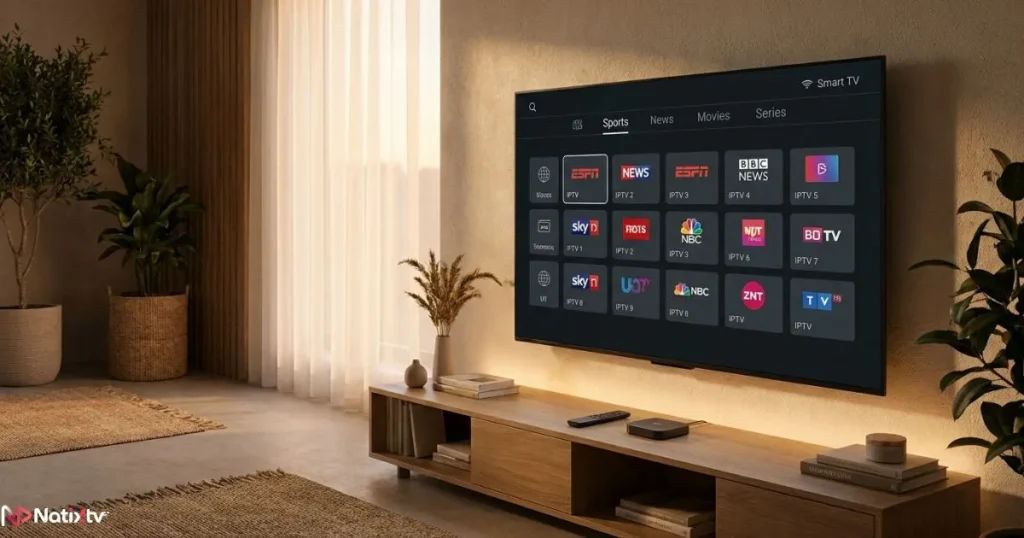
- Smart IPTV (SIPTV) – One of the most used apps for Samsung and LG Smart TVs. Loads your M3U URL via a web portal using your TV’s MAC address.
- SS IPTV – A free alternative with good M3U support and a built-in EPG option.
Windows and Mac
- VLC Media Player – Open source, free, and works perfectly for loading an iptv playlist url via “Open Network Stream.”
- Kodi with PVR IPTV Simple Client – More setup required but extremely powerful, with full EPG and recording capabilities. Speaking of recording, if you want to go further with time-shifting features, exploring IPTV DVR recording features is a great next step.
Amazon Fire Stick and Fire TV
- TiviMate via APK – Install using the Downloader app after enabling “Unknown Sources” in settings. Delivers the same excellent Android experience on Fire TV.
- IPTV Smarters Pro – Also available via APK with straightforward M3U setup.
| App | Platform | Free Version | EPG Support | M3U URL Support |
|---|---|---|---|---|
| TiviMate | Android / Fire TV | Yes (limited) | Yes | Yes |
| VLC | All platforms | Yes | No | Yes |
| GSE Smart IPTV | iOS / Android | Yes | Yes | Yes |
| IPTV Smarters Pro | Android / iOS / Fire TV | Yes | Yes | Yes |
| Smart IPTV | Samsung / LG Smart TV | Yes (trial) | Yes | Yes |
| Kodi + PVR | Windows / Mac / Android | Yes | Yes | Yes |
Step-by-Step Setup: How to Load Your M3U Playlist
Now comes the practical part. Below is a step-by-step m3u playlist iptv setup for each major platform.
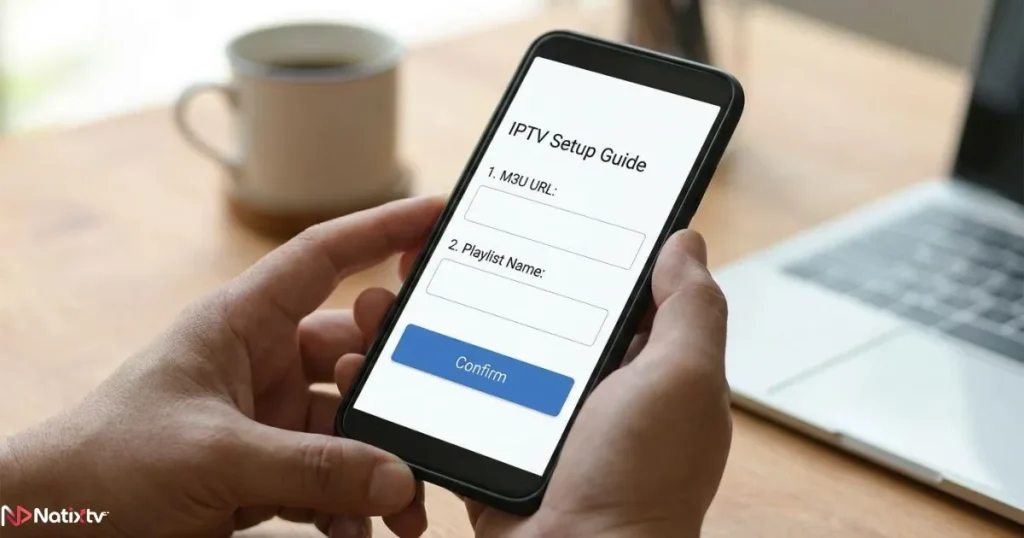
Follow the section that matches your device and you’ll be up and running in minutes.
On Android with TiviMate
- Install TiviMate from Google Play Store.
- Open the app and tap Add Playlist.
- Select M3U Playlist and enter your iptv m3u link (the URL from your provider).
- If your provider supplies an EPG URL, add it in the EPG settings for a full TV guide.
- Wait for the channel list to finish loading, then start browsing.
On Smart TV with Smart IPTV
- Install Smart IPTV from your TV’s app store (available on Samsung and LG).
- Open the app and note the MAC address displayed on screen.
- Go to the Smart IPTV web portal, register your MAC, and paste your M3U URL.
- Alternatively, if the app lets you enter a URL directly, paste your iptv playlist url into the field.
- Restart the app — your channels will load automatically.
On iPhone or iPad with GSE Smart IPTV
- Download GSE Smart IPTV from the App Store.
- Go to Remote Playlists and tap the + icon.
- Select Add M3U URL and paste your link.
- Save and allow the app to sync your channels.
- Browse your android iptv playlist-style channel list right on your iPhone.
On PC with VLC Media Player
- Open VLC and go to Media > Open Network Stream.
- Paste your M3U URL into the network URL field and click Play.
- For a saved playlist, go to Media > Open File and select your downloaded
.m3ufile. - VLC will display all channels in the playlist panel on the left.
On Fire Stick with TiviMate via Downloader
- Go to Fire TV Settings and enable Apps from Unknown Sources.
- Install the Downloader app from the Amazon App Store.
- Use Downloader to install the TiviMate APK (search for the latest version URL).
- Open TiviMate and follow the same Android steps above to enter your M3U URL.
On Kodi (PC, Mac, or Android)
- Install Kodi from kodi.tv — a trusted open-source media center with strong M3U support.
- Go to Add-ons > Install from Repository > PVR Clients and install PVR IPTV Simple Client.
- Configure the add-on: enter your M3U URL in the General settings tab.
- Enable Live TV in Kodi settings and allow it to scan your channels.
- Access everything via the TV menu in the Kodi home screen.
Troubleshooting Common IPTV M3U Playlist Issues
Even with the right setup, things don’t always go perfectly the first time. Here are the most frequent problems users face with an iptv m3u playlist and how to resolve them quickly.
Channels Not Loading at All
- Double-check that your M3U URL is correct and hasn’t expired.
- Try refreshing or re-entering the playlist in your app.
- Confirm your subscription is active with your provider.
Buffering and Freezing During Playback
- Test your connection speed — you need at least 25 Mbps for HD streams.
- Switch from Wi-Fi to a wired Ethernet connection if possible.
- Enable hardware acceleration in your player’s video settings.
- Try a different server or stream quality if your provider offers multiple options.
EPG (TV Guide) Not Displaying
- Make sure you’ve entered the EPG URL separately (it’s usually a different link from the M3U).
- Give the app 5 to 10 minutes to fully sync EPG data after first setup.
- If EPG still doesn’t work, contact your provider to confirm the EPG feed is included in your plan.
App Rejecting the M3U URL
- Make sure the URL starts with
http://orhttps://. - Try downloading the file and loading it locally as a
.m3ufile instead. - Check that you’re using a player that explicitly supports M3U format.
If you’re still unsure which provider gives you the most device flexibility, comparing choosing an IPTV service for multiple devices can help you make the right call based on your specific setup.
Tips to Get the Best Experience from Your M3U Playlist
Once your iptv m3u playlist is running, a few habits will make a real difference in day-to-day use. These tips apply whether you’re watching on a Smart TV, an android iptv playlist setup, or a laptop:
- Use a wired connection whenever possible, especially for 4K and sports streams.
- Add your favorite channels to a Favorites list so you don’t have to scroll every time.
- Refresh your M3U URL periodically — providers update their channel lists regularly.
- Keep your IPTV app updated to benefit from performance improvements and bug fixes.
- If you encounter geo-restrictions on certain channels, a VPN set to the right region can help.
- Store your iptv m3u link somewhere safe, such as a notes app or password manager, so you don’t lose it.
Frequently Asked Questions
What exactly is an iptv m3u playlist and how do I get one?
An iptv m3u playlist is a text-based file or URL that lists all the live TV channels and streams included in your IPTV subscription. You receive it from your provider after signing up or starting a free trial. With NatixTV, you get your M3U link instantly after activating your 24 to 48-hour trial.
Can I use the same IPTV M3U playlist link on multiple devices at the same time?
Most IPTV providers allow you to use your M3U link on multiple devices, but simultaneous connections are often limited (typically 1 to 3 streams). Check your subscription plan for the exact number of concurrent connections allowed.
Which app gives the best experience for loading an M3U playlist on Android?
TiviMate is widely considered the best IPTV player for Android and Fire TV. It combines a clean, intuitive interface with full EPG support and smooth iptv m3u playlist loading. The free version covers basic needs, while the premium unlock adds multi-panel view and recordings.
Why is my M3U playlist loading but some channels show a black screen?
A black screen usually means the specific stream for that channel is temporarily offline or the URL within the playlist has changed. Try refreshing the full playlist first. If the problem persists on many channels, contact your provider — it’s a server-side issue, not your device.
Does NatixTV provide an iptv m3u playlist with a free trial?
Yes. NatixTV offers a free trial of 24 to 48 hours that includes full access to your personal iptv m3u playlist. You can use it on any compatible device and app without any upfront commitment, which makes it easy to test quality, channel availability, and compatibility before subscribing.
Is an M3U URL the same thing as an IPTV playlist URL?
Yes, they refer to the same thing. An iptv playlist url is simply a hosted M3U file accessible via a web address. Instead of downloading and managing a file, you paste the URL directly into your IPTV app, which fetches and displays the channel list automatically.
Ready to Start Streaming?
Setting up an iptv m3u playlist is one of those things that feels complicated until you’ve done it once — and then it feels completely obvious. The right app, a valid M3U link, and a stable connection are all you need to unlock a full live TV experience on any screen you own.
Whether you’re going for a smart tv m3u setup in your living room, loading an android iptv playlist on your phone, or testing channels on your laptop with VLC, the process follows the same simple logic. Choose your app, paste your link, and you’re live.
If you haven’t chosen a provider yet or you want to verify that your current setup works before committing, the best iptv free trial from NatixTV gives you 24 to 48 hours to test everything at no cost — on any device, with full channel access and EPG included. There’s no better way to know for sure that it works for you before you subscribe.